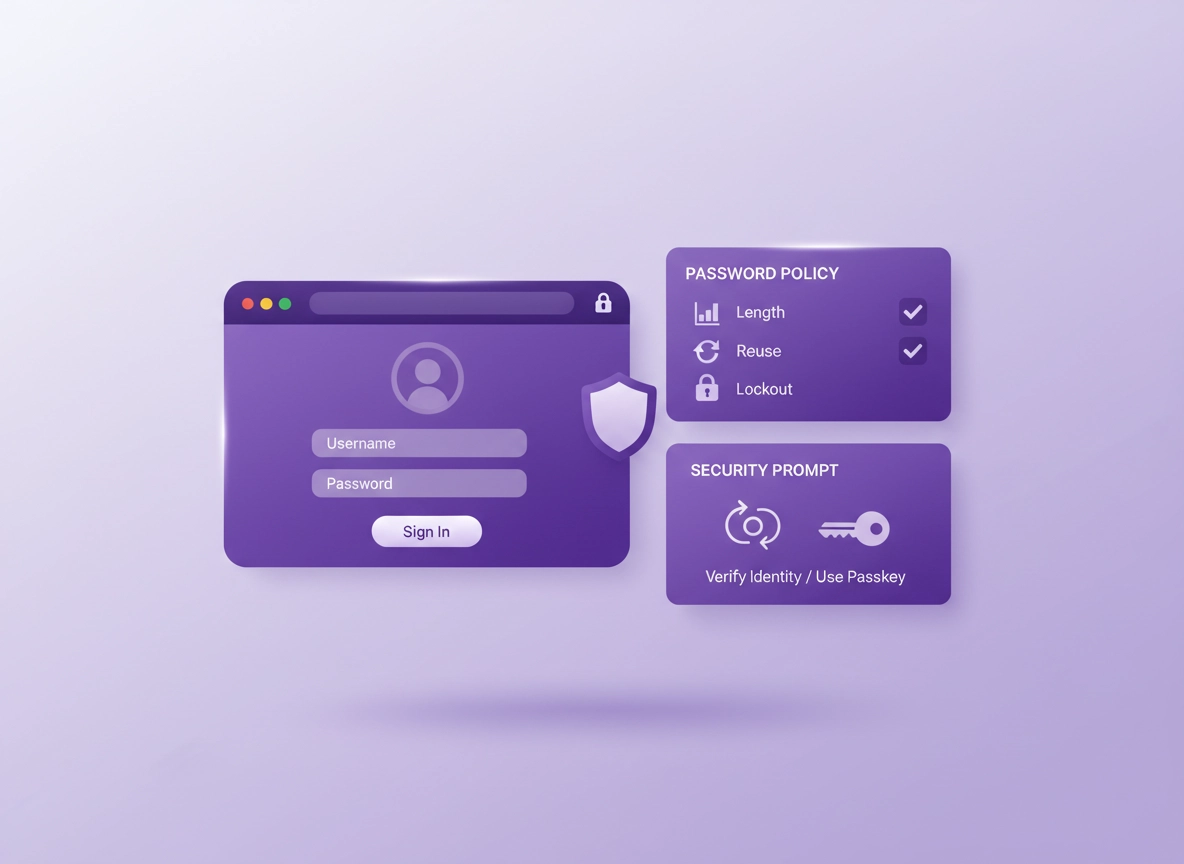
What a “Chrome Enterprise password policy” really means .
This guide focuses on modern, managed Chrome (Chrome Enterprise) behavior—not legacy “just tell users to pick a stronger password” advice.
When people say “password policy,” they often mean one document with rules like “12 characters, one uppercase, one symbol, change every 90 days.” In 2026, that’s not enough—and some of it is actively counterproductive. In a Chrome Enterprise environment, your password policy is a system with two layers:
- Identity rules: How passwords are created, changed, reset, and protected (SSO provider, Google Workspace, Microsoft Entra ID, etc.).
- Browser enforcement: How Chrome handles saving, autofill, warnings, reuse detection, and sign-in behavior on managed devices.
The reason this matters: most real-world account takeovers aren’t “brute force guess the password” anymore. They’re phishing, password reuse, credential stuffing (stolen lists), and users approving the wrong prompts. Chrome sits at the center of that behavior—where the password is typed, saved, reused, or flagged.
In other words, you don’t just want “strong passwords.” You want: fewer reusable secrets less password re-entry more MFA/passkeys stronger detection clear recovery enforceable controls
Related: If you’re comparing password manager options for a managed workforce, start here: Best Password Manager for Chrome.
Key terms (quick definitions) .
- Password reuse: Using the same or similar passwords across multiple sites/apps. This is the #1 multiplier of breach impact.
- Credential stuffing: Attackers try leaked username/password pairs across many services automatically.
- Phishing-resistant MFA: Strong MFA methods that can’t be easily tricked by fake websites (e.g., security keys, passkeys).
- Managed browser policy: Admin-enforced rules in Chrome Enterprise that users can’t override.
- Browser password manager controls: Policies that enable/disable saving, autofill, leak detection, and reuse warnings.
If you want the broader enterprise context (device + policy + reporting), this hub is your “bigger picture” reference: Chrome Enterprise Guide.
Before you start: fast inventory + risk checks .
A password policy fails when it ignores reality. Before you write rules, spend 30 minutes getting a clear picture of what you’re protecting and where the password risk actually lives.
Fast inventory (what you should list) .
- Identity provider(s): Google Workspace, Microsoft Entra ID, Okta, Ping, etc. (Where are passwords set and reset?)
- SSO coverage: Which apps use SSO and which still rely on local passwords?
- High-risk apps: Finance, HR, admin consoles, password vaults, email, developer systems.
- Workforce profile: Remote teams, shared devices, contractors, call centers, executives.
- Browser posture: Is Chrome managed? Are policies enforced? Are users syncing passwords to personal Google accounts?
Risk checks (quick yes/no questions) .
- Do users reuse corporate passwords elsewhere? If “maybe,” assume yes and build controls around it.
- Can users export passwords from Chrome? If yes, that’s a data exfil path you should address.
- Do users sign into Chrome with personal accounts? This can mix work credentials and personal sync.
- Do you have phishing-resistant MFA for admins? If not, fix that before tuning password rules.
- Are shared devices used? Shared devices require stricter session and password storage rules.
Related: If you’re setting broader browser security posture, keep this checklist handy: Chrome Enterprise Security Checklist.
Decide your policy scope .
A practical enterprise password policy should state what it applies to. These three scopes cover most environments:
- Work identity passwords: SSO / directory passwords (the “main” account).
- App passwords: Passwords used for apps not on SSO (vendor portals, legacy tools, external services).
- Browser-saved credentials: Passwords stored/filled by Chrome or a third-party password manager extension.
The mistake is mixing these into one rule set. Your directory password might be rarely typed (SSO), while app passwords might be frequent and messy. Browser-stored passwords have a completely different risk profile: they can be exported, synced, or stolen from endpoints.
Step-by-step: build a policy you can enforce .
This section gives you a policy blueprint you can copy into a company doc, then implement with Chrome Enterprise controls. If you already have “a policy,” use this as a modernization pass to remove outdated rules and add enforceable steps.
- 1 Set a length-first standard and remove “complexity theater”.
- 2 Block reuse and screen for compromised credentials where possible.
- 3 Require MFA (and use passkeys/security keys for high risk).
- 4 Define reset & recovery rules that don’t create new risk.
- 5 Add Chrome Enterprise enforcement for saving, reuse warnings, and sign-in behavior.
- 6 Roll out in phases and measure real outcomes (resets, lockouts, phishing, reuse events).
What “success” looks like: fewer password resets, fewer phishing incidents turning into takeovers, fewer reused credentials, and clearer admin visibility—without breaking sign-in for legitimate users.
Related: If you’re deploying a password manager for employees, see: Enterprise Password Manager for Chrome and Password Manager for IT Admins.
1) Choose the core rule set (copy/paste policy baseline) .
- Minimum length: 14 characters (16+ for admins and privileged roles).
- Complexity: Do not require arbitrary character classes; allow long passphrases.
- Reuse: Block reuse of the last 10–24 passwords (depending on your directory capability).
- Rotation: No forced periodic changes; require change on suspected compromise, phishing, or breach indicators.
- MFA: Required for all users; phishing-resistant MFA required for admins and sensitive apps.
- Lockout/rate-limit: Use intelligent lockout/rate limiting to stop guessing without enabling denial-of-service.
Length-first policies win because they don’t force users into predictable “complexity patterns.” A 16-character passphrase can be easier for humans and harder for attackers than a short complex string. Your policy should also explicitly allow password managers and passkeys—because modern environments should reduce human memorization as much as possible.
If you’re building this specifically for browser-centric work (Chrome + web apps), your endgame is to push users toward: SSO + MFA/passkeys for work identity, and vault-managed unique passwords for non-SSO apps.
2) Decide how passwords are created (and stop weak “rules”) .
Your policy should say what’s allowed, not just what’s blocked. Recommended allowances that reduce user friction:
- Allow long passphrases: spaces, full sentences, and punctuation where supported.
- Allow password manager generated passwords: long random strings are fine when stored in a vault.
- Allow copy/paste: blocking paste encourages weak memorized passwords.
- Allow non-ASCII characters where supported: modern systems should support broad character sets (don’t break international users).
What you should avoid as “policy theater”:
- Mandatory symbol/uppercase rules that create predictable patterns.
- Short maximum lengths (this is surprisingly common in legacy apps—raise it).
- Frequent forced changes that train users to do minimal edits.
If your organization still depends heavily on memorized passwords, you’ll get a bigger security improvement by rolling out a managed password manager than by tightening complexity. Use this page as a companion when you’re making that business case: Password Manager ROI for Business.
3) Add MFA/passkeys rules (this is where takeovers drop) .
Password policies by themselves are not a takeover solution. A modern enterprise policy should clearly state:
- All users: MFA is required for work identity sign-in (email, SSO, core apps).
- Admins / privileged roles: phishing-resistant MFA (security keys or passkeys) is mandatory.
- Sensitive apps: step-up authentication required (finance, admin consoles, HR data, password vault).
If you’re building a buyer’s guide internally for leadership, tie MFA/passkeys to business impact: fewer breaches, fewer payroll diversion incidents, fewer helpdesk resets, fewer compliance findings. If you also manage remote teams, connect it to the browser reality: Password Manager for Remote Teams.
Related: If your policy decision depends on MFA options inside password managers, see: Password Manager with 2FA for Chrome.
4) Define reset, recovery, and “break glass” procedures .
Password reset is one of the easiest places for attackers to win. A good policy spells out:
- Identity verification: what signals are required before a reset is approved (MFA, verified device, helpdesk workflow).
- Temporary passwords: if used, they must be time-limited and require immediate change.
- Recovery factor rules: which recovery options are allowed and which are blocked (personal email, SMS, etc.).
- Break-glass accounts: extremely limited, logged, protected with phishing-resistant MFA, and not used for daily work.
You should also define what happens after a suspected compromise: invalidate sessions, force sign-out, rotate tokens, reset password, and review device posture. In browser terms, you’ll often pair this with a security review and hardening: Chrome Secure Configuration Enterprise Best Practices.
5) Add the Chrome Enterprise enforcement layer (the missing half) .
This is where your “policy on paper” becomes real. Managed Chrome can enforce or strongly influence password behavior in four major ways:
- Password storage controls: allow/deny saving passwords in Chrome’s built-in manager.
- Password reuse warnings: warn or log when corporate credentials are reused on non-approved sites.
- Breach signals: encourage or enforce leak checks and security reviews.
- Account separation: reduce risk of work credentials syncing to personal accounts.
You don’t need to use every control, but you should be explicit in your enterprise policy: “Our organization uses browser enforcement to reduce password reuse and phishing risk on managed Chrome.”
Related: If you’re still deciding between Chrome’s built-in manager and a dedicated enterprise tool, read: Chrome Password Manager vs Third-Party.
Common variations by platform .
- Windows / ChromeOS: easiest to standardize via enterprise policies; Windows also supports event logging workflows for monitoring.
- macOS: similar outcomes, different tooling (MDM profiles); ensure keychain and OS security posture is part of the policy.
- Android / iPhone: mobile sign-in is often MFA-heavy; policy should focus on device lock, biometric requirements, and session control.
Advanced enforcement: Chrome policies, SSO, passkeys, and monitoring .
This is the “high value” layer: how to translate policy into enforcement without breaking productivity. If you’re building an enterprise-grade program, these controls matter more than whether you chose 14 vs 15 characters.
Related: For the broader policy tooling context, see: Chrome Enterprise Policy Templates and Chrome Enterprise Management.
Decision point: Should you disable Chrome’s built-in password manager? .
Many companies try to “solve” password risk by disabling password saving entirely. Sometimes that’s correct. Often it just pushes users toward worse behavior (reusing passwords, writing them down, or using insecure notes).
- If you deploy an enterprise password manager: disable or limit Chrome’s built-in saving so you have one controlled vault.
- If you do NOT deploy a vault: keep saving enabled, but add strong warnings, monitoring, and account separation controls.
- For shared devices: strongly restrict saving and autofill; require sign-out and short session policies.
This comparison can help you document the “why” for stakeholders: Chrome Password Manager Limitations and Are Password Managers Safe for Chrome?
Chrome enforcement patterns that actually work .
In practice, teams succeed by choosing one of these enforcement patterns and rolling out gradually.
Pattern A: “Vault-first enterprise” (recommended for most organizations) .
- Deploy a dedicated password manager with admin controls, sharing policies, and MFA.
- Disable Chrome’s built-in saving (or limit it), and standardize on the vault extension.
- Enable password reuse protection and phishing warnings.
- Require SSO + MFA for the vault itself, and step-up MFA for sensitive actions.
Useful deep dives: Password Manager Team Collaboration, Password Sharing Securely, Role-Based Access.
Pattern B: “Managed Chrome, built-in manager allowed” .
- Allow Chrome password saving, but enforce device security and Chrome account separation.
- Enable leak detection / password checkup habits.
- Use reuse warnings and monitoring to reduce corporate credential reuse.
- Make MFA mandatory for high-value apps regardless of password strength.
Useful references: Chrome Password Checkup, Chrome Password Leak Detection, Chrome Security Checkup.
Pattern C: “High control / regulated” (health, finance, legal) .
- Vault-first + strict sharing approvals, device compliance enforcement, and audit logging.
- Require phishing-resistant MFA for access to regulated systems.
- Limit browser password saving and export paths aggressively.
- Document compliance mapping and evidence collection (policies + logs).
Compliance pages you can tie into your internal documentation: Password Manager SOC 2, Password Manager HIPAA, Password Manager GDPR.
Practical policy settings (write this into your internal standard) .
Instead of writing “use strong passwords,” write enforceable statements like these:
• Minimum length 14 (admins 16+).
• Reuse blocked for last 12+ passwords.
• No routine expiration; rotate only on compromise indicators.
MFA/passkeys:
• MFA required for all users. Phishing-resistant MFA required for admins and finance/HR.
• Passkeys/security keys are approved and recommended where supported.
Browser behavior (managed Chrome):
• Password saving is permitted only in approved vaults (or permitted in Chrome under managed policies).
• Corporate credential reuse warnings are enabled on unapproved websites.
• Password export is restricted where feasible; shared devices must not store passwords locally.
• Chrome sign-in and sync behavior must not mix corporate credentials with personal accounts.
If you want your policy to survive audits, include “evidence” language: “We enforce these standards via identity configuration and managed browser policies. Compliance is validated via reports and monitoring.”
Common alternatives users compare .
- Chrome built-in password manager vs dedicated enterprise password managers
- Passkeys vs passwords (and what to do while apps transition)
- Password reuse warnings vs full managed vault enforcement
- Strict complexity rules vs length + MFA + monitoring
If your leadership wants a straight “why switch” explanation for enterprise purchasing, this page helps frame it: Why You Need a Password Manager for Chrome.
Security notes: storage, sync, autofill, and breach response .
Password policy is security policy. That means it must address where passwords are stored, how they’re filled, and what happens when a breach signal appears. This section is what separates an “IT document” from a real enterprise defense.
Impact: Directly affects account takeover risk, phishing success, credential exfiltration, and compliance outcomes.
Related: If you’re hardening Chrome broadly (beyond passwords), read: Chrome Hardening Guide and Chrome Secure Browser Setup Guide.
Recommended baseline settings .
- Option A (balanced): 14+ length, reuse blocked, MFA required, Chrome warnings enabled, vault encouraged.
- Option B (maximum security): 16+ for privileged roles, phishing-resistant MFA, vault-first, restrict browser saving/export, tight session controls.
- Option C (compatibility): keep saving allowed, but improve MFA coverage and monitoring first; phase in stricter browser controls later.
Recommended settings by goal .
| Goal | Recommended policy choice | Tradeoff | Best for |
|---|---|---|---|
| Balanced | 14+ length, MFA for all, reuse blocked, warnings enabled | Some onboarding change management | Most organizations |
| Maximum security | Vault-first + phishing-resistant MFA + restricted saving/export | More admin overhead + rollout planning | Regulated / targeted teams |
| Compatibility | Keep saving allowed, improve MFA and monitoring first | Higher residual reuse risk until phase 2 | Legacy-heavy environments |
Don’t forget these browser-level risks .
- Chrome Sync and account mixing: prevent work passwords from syncing into personal profiles or unmanaged devices.
- Autofill risks: autofill is convenient, but can be abused on malicious pages; use trusted vaults and restrict risky autofill data.
- Password export paths: an attacker with device access may attempt to export saved passwords—especially on shared or poorly secured endpoints.
- Extensions: some extensions can read page content and interact with credentials—manage extensions carefully.
Related: Extensions are a major security lever in Chrome. Start with: Chrome Extension Security Check and Chrome Extension Permissions Guide.
If your enterprise policy includes “approved password managers,” it should also include how you review them: permissions, update behavior, and incident response. Helpful reading: Password Manager Browser Integration Security.
Troubleshooting .
Related: If users are confused about Chrome’s built-in behaviors during rollout, send them: How to Use a Password Manager in Chrome.
If users keep getting locked out after policy changes .
Lockouts usually spike when you increase enforcement but don’t update onboarding and recovery flows. Fix it by: (1) confirming MFA enrollment is complete, (2) checking helpdesk identity verification steps, and (3) ensuring the policy doesn’t force frequent changes that users “game” with tiny edits. If contractors or shared-device users are impacted, add a specific workflow for them (separate profiles, restricted saving, clear sign-out rules).
If users can’t sign in because sites reject long passphrases .
Some legacy apps still have weak password field limits. Treat this as an application risk and document exceptions: require a vault-generated password for that app, enforce MFA if available, and prioritize vendor remediation. The policy should explicitly say: “If an app cannot support long passwords, it must use compensating controls (MFA, vault-only storage, monitoring).”
If employees are saving work passwords in personal Chrome profiles .
This is a separation problem, not a user problem. Update your managed browser policy so work browsing happens in a managed profile and syncing to personal accounts is restricted. Then re-train with a one-page “how to sign into work Chrome properly” doc. If you need a broader security posture reset, use: Chrome Enterprise Policy Hardening.
If phishing is still succeeding even with “strong passwords” .
Strong passwords do not stop phishing. If phishing is succeeding, you need phishing-resistant MFA for high-risk roles/apps and better browser warnings and reuse detection. Also review extension exposure and Safe Browsing posture: Chrome Safe Browsing Settings.
If you need to reset safely after suspected compromise .
Your policy should define a standard response: reset the password, revoke sessions/tokens where possible, force re-authentication, verify MFA, and review recent device access. If malware is suspected, follow a clean workflow: Remove Malware from Chrome and then run a browser-level security review: Chrome Security Audit Guide.
FAQ .
-
helpWhat is the best minimum password length for enterprise?For most organizations, 14 characters is a practical baseline and 16+ is ideal for admins and privileged roles. If users struggle with memorization, allow long passphrases and push non-SSO app passwords into a managed vault.
-
helpShould we force password changes every 60–90 days?Not as a routine policy. Forced periodic changes often create predictable patterns and increase helpdesk resets. A modern policy triggers changes based on compromise signals (phishing, breach, suspicious activity) and uses MFA/passkeys to reduce takeover risk.
-
helpShould we disable Chrome’s built-in password manager in enterprise?If you deploy an enterprise password manager, it’s often better to standardize on one vault and limit Chrome’s built-in saving. If you don’t have a vault, disabling saving can backfire. In that case, keep saving allowed but strengthen MFA and enable warnings and monitoring.
-
helpWhat’s the fastest way to reduce password reuse risk in Chrome?Combine three moves: (1) enforce MFA/passkeys for core apps, (2) require unique passwords via a vault for non-SSO apps, and (3) enable reuse warnings and security checks in managed Chrome so users get a clear signal when they do the risky thing.
Sources .
- NIST SP 800-63B (Digital Identity Guidelines: Authentication)
- NIST 800-63 FAQ (password change guidance)
- Chrome Enterprise policy list (official)
- Google: Chrome Enterprise security & privacy policies overview
- Google: Control password reuse (enterprise)
- Google Workspace: enforce password requirements
Disclosure: Some pages may mention tools or services. Recommendations are editorial and based on testing and real-world rollout patterns.