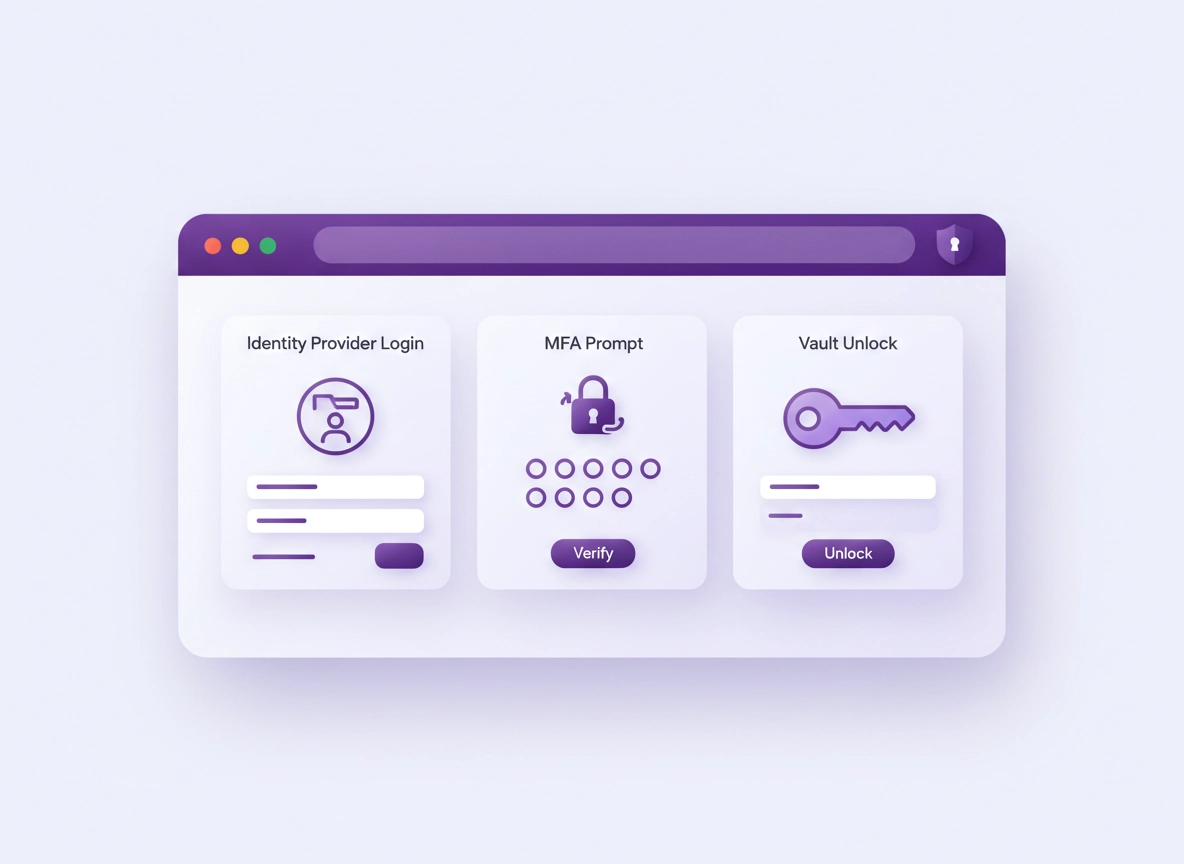
What password manager SSO is (and why it matters) .
This guide focuses on business/enterprise password manager SSO (IdP-backed sign-in), not “auto-fill” or browser sync.
Single Sign-On (SSO) for a password manager means your team signs in to the password manager using your company Identity Provider (IdP)—for example, a central directory + authentication platform—rather than using separate vendor usernames/passwords for each vault account. In practice, the password manager becomes a service provider in your identity system: users authenticate at the IdP (often with MFA), and the password manager trusts the IdP’s assertion or token to grant access.
When SSO is done correctly, you get three outcomes that directly impact security and compliance: (1) central control over who can access the vault, (2) fast offboarding (disable at the IdP and access stops), and (3) consistent authentication policy (MFA, device trust, conditional access, geo rules, risk scoring). That’s why SSO shows up in security questionnaires, vendor risk reviews, and audit prep—especially when credentials protect critical systems.
There’s an important nuance, though: SSO controls “who can sign in,” but it doesn’t automatically guarantee “how secrets are encrypted.” Most password managers still rely on a cryptographic model where vault data is encrypted and decrypted on the client side. SSO changes how the user proves identity to the service, but the vault still needs strong protection at rest and in transit. Your best result comes from combining SSO + MFA + device posture with vault security features (zero-knowledge architecture, strong encryption, local re-lock, and secure recovery).
Related: If you’re evaluating vendors, start here: Best Password Manager for Chrome and Chrome password manager comparison.
Key terms (quick definitions) .
- IdP (Identity Provider): The system that authenticates users (often with MFA) and issues trusted assertions/tokens to apps.
- SAML 2.0: A federation standard commonly used for enterprise SSO; the IdP sends a signed “assertion” with identity claims.
- OIDC (OpenID Connect): Authentication built on OAuth 2.0; the IdP issues tokens and user claims in a standardized way.
- SCIM: A standard for automating user and group provisioning to SaaS apps; used for joiner/mover/leaver workflows.
- RBAC / group mapping: Granting access based on roles/groups (e.g., “Finance Vault Admins”) rather than individual users.
- Session policy: Rules for how long a user stays signed in, when re-auth is required, and what happens on idle/lock.
- Chrome Enterprise policy: Admin controls that deploy and restrict Chrome settings/extensions at scale.
Before you start (fast checks) .
SSO problems usually come from missing prerequisites, not from the SSO button itself. Do these checks first and you’ll avoid 80% of “it loops,” “it says unauthorized,” or “it works for admins but not users.”
- Confirm your plan supports SSO + SCIM: Many password managers gate SSO/SCIM behind business/enterprise tiers.
- Decide SAML vs OIDC upfront: Your IdP might support both, but the password manager may prefer one, or only one.
- Inventory your identity source of truth: Is your directory in Entra ID/AD, Google Workspace, Okta, JumpCloud, etc.? You’ll map groups from there.
- Define “break glass” admin access: If the IdP is down, how do vault admins regain access? Document it before rollout.
- Prepare extension deployment: In managed Chrome, you should force-install the extension and pin it so users don’t miss it.
- Set a minimum browser baseline: For enterprise rollouts, standardize versions to reduce UI/extension differences.
Related: If you’re deploying in a managed environment, pair this with: Chrome Enterprise guide and Chrome enterprise identity management.
Related: If you’re trying to move away from local browser password storage, read: Chrome built-in password manager review and Chrome password manager security risks.
SSO readiness checklist (print this) .
- Domain verified: You’ve verified your company domain in the password manager tenant (prevents “shadow tenants”).
- IdP app created: You created an “app integration” in your IdP for the password manager.
- Claims decided: You know what attribute identifies users (email, UPN, immutable ID) and what the password manager expects.
- MFA enforced: MFA is required for the password manager app (not just “optional” at the user level).
- SCIM token ready: You have the provisioning secret/token and you can push users + groups automatically.
- Group strategy: You’ve mapped roles (admin, vault manager, user) to directory groups.
- Chrome rollout plan: Force-install, pin, and restrict extension changes; document rollback steps.
Step-by-step: recommended setup (IdP + Chrome + SCIM) .
This is the “cleanest” modern setup for Chrome: you enable SSO at the password manager tenant, connect it to an IdP via SAML or OIDC, enforce MFA + conditional access, then automate joiner/mover/leaver workflows with SCIM. Finally, you deploy and control the extension with Chrome Enterprise. The order matters: get SSO stable first, then add SCIM, then lock down Chrome.
1) Choose SAML vs OIDC for password manager SSO .
Both SAML 2.0 and OIDC can deliver strong SSO. Your choice is mostly about compatibility and operational simplicity:
- Choose SAML 2.0 when your security team already has SAML templates, you need broad enterprise compatibility, and your IdP has mature SAML tooling.
- Choose OIDC when you want modern token-based auth patterns, smoother mobile experiences, and simpler claim formats.
Either way, the password manager will require: (a) a trust relationship (metadata / endpoints), (b) a stable identifier (usually email/UPN), and (c) a secure authentication policy (MFA). OIDC is formally defined by the OpenID Foundation as authentication on top of OAuth 2.0 with standardized claims. (See sources.)
2) Configure SSO in the password manager admin console .
- 1 In the password manager Admin Console, go to Authentication (or SSO, Identity, Enterprise Settings). Look for a toggle like “Enable SSO,” “Connect IdP,” or “Federated login.”
- 2 Choose SAML or OIDC. If SAML, you’ll typically paste an IdP metadata URL or upload metadata XML. If OIDC, you’ll add issuer/authorization endpoints and client settings.
- 3 Define the unique user identifier the password manager will match on (commonly email). Avoid identifiers that can change (e.g., display name). If your org changes emails during renames, prefer an immutable ID if the product supports it.
- 4 Decide whether you’ll allow “password fallback” logins. For secure environments, disable fallback after a staged rollout—otherwise users can bypass IdP controls.
What “success” looks like: A user can click “Sign in with SSO” (or your company button), authenticate at the IdP with MFA, and land in the password manager web app without being asked to create a separate vendor password.
3) Create the IdP app integration (and lock down MFA) .
In your IdP, you create a dedicated application entry for the password manager. This is where you enforce the security policy that makes SSO worth doing: MFA requirements, device compliance, risk-based access, country/geo constraints, and session length.
- 1 In your IdP, add a new Enterprise Application / App Integration for the password manager. Choose SAML or OIDC based on your earlier decision.
- 2 If using SAML, set: Entity ID, ACS URL, and (if required) NameID format (often email). Ensure the IdP signs assertions and the password manager validates signatures.
- 3 If using OIDC, set: Redirect URI, Client ID/Secret, and requested scopes/claims (typically email, profile, and a stable subject identifier).
- 4 Apply an authentication policy: require MFA for the password manager app, consider phishing-resistant MFA (security keys / passkeys), and restrict access to managed devices or compliant endpoints when possible.
- 5 Assign access by group, not by individual users. Start with a pilot group so you can test login, provisioning, and extension rollout before company-wide enforcement.
Operational note: Federation is most secure when you standardize it: one IdP, one MFA policy, one set of group mappings. NIST’s digital identity guidance explicitly covers federation and assertions as a structured approach to identity trust (see sources).
4) Enable SCIM provisioning (the part that makes offboarding real) .
SSO answers “how do users sign in?” SCIM answers “who exists in the app, and what are they allowed to do?” Without SCIM, you can still use SSO, but you’ll end up with manual invites, inconsistent deprovisioning, and stale groups. With SCIM, your IdP (or provisioning service) pushes user lifecycle events to the password manager automatically.
- 1 In the password manager admin console, find Provisioning or Directory Sync, then enable SCIM. Copy the SCIM Base URL and generate a SCIM token (or provisioning secret).
- 2 In your IdP/provisioning system, add SCIM provisioning: paste the Base URL and token, and test connectivity.
- 3 Configure provisioning scope: begin with a pilot group, then expand. Decide whether you provision Users only or Users + Groups. For RBAC, you almost always want groups.
- 4 Set deprovisioning behavior: on termination, disable or delete the user, revoke sessions, and remove group memberships. Confirm the password manager also invalidates active sessions quickly.
What SCIM is (in one sentence): SCIM is an HTTP-based protocol for provisioning and managing identity resources like Users and Groups across domains (enterprise → cloud). It’s standardized in RFC 7644 (see sources).
Related: If you’re doing directory + group mapping, pair this page with: Password manager directory integration in Chrome and Password manager role-based access (RBAC) in Chrome.
5) Deploy the password manager extension in managed Chrome .
For real-world adoption, don’t rely on users installing the extension correctly. In a business rollout, you typically: force-install the extension, pin it to the toolbar, and (optionally) block competing password managers or the built-in browser password store. Chrome Enterprise provides policy control for extension management and security baselines.
- 1 In your Chrome management platform (Google Admin Console for Chrome Browser Cloud Management, Windows GPO, or MDM), force-install the password manager extension by its Chrome Web Store ID.
- 2 Pin the extension (or enforce toolbar visibility) so users see where to click. This reduces “it’s installed but I can’t find it” support tickets.
- 3 Configure extension permissions and allowlist rules: only allow approved extensions and block unknown/unreviewed installs.
- 4 Decide whether to disable Chrome’s built-in password manager in managed environments. If your security model requires the enterprise vault, you want one system of record.
Related: For browser policy hardening and extension control, use: Chrome enterprise management, Chrome enterprise security settings, and Chrome extension security check.
Common variations by platform .
- Windows / ChromeOS: Most consistent managed rollout—policy enforcement is strong and extension behavior is predictable if you standardize versions.
- macOS: Expect more variation in keychain prompts and OS-level credential handling. Document the “first login” experience for users.
- Android / iPhone: The extension story differs; focus on mobile app SSO, device biometrics, and session timeouts rather than toolbar UX.
Advanced settings (security + compliance) .
If you’re here for high-assurance security, this section is where SSO becomes a real control rather than a convenience feature. The goal is to reduce credential risk (phishing, reuse, exfiltration) and reduce operational risk (slow offboarding, role drift, unmanaged browser usage). Done well, this also supports compliance narratives (access control, least privilege, auditability).
Related: If your deployment is enterprise-grade, connect this with: Enterprise password manager for Chrome and Chrome enterprise zero trust.
1) Group-based access control (RBAC) that actually scales .
In password manager deployments, “RBAC” usually means: who can administer the tenant, who can manage vaults/collections, and who can view/use secrets. Your goal is to map these capabilities to directory groups so that permissions change automatically as people change roles.
- Create role groups: e.g., PM-Admins, PM-Vault-Managers, PM-Users
- Create vault groups: e.g., Vault-Finance, Vault-DevOps, Vault-Support
- Map groups to app roles: many IdPs allow “group → role” mapping so the password manager sees role claims.
- Keep admin group small: ideally a handful of trusted people with separate admin accounts and phishing-resistant MFA.
The most common RBAC failure mode is “we invited everyone as admins early, then never cleaned it up.” Fix it by designing roles as a directory taxonomy, not as a one-time setup step.
Deep dive: Password manager role-based access in Chrome and Password sharing securely in Chrome.
2) Session policies: reduce “SSO works, but a stolen laptop still wins” .
SSO improves authentication at login time. Session policy protects you after login. If someone steals a device, finds an unlocked session, or uses a shared workstation, session rules are what limit damage. In enterprise password managers, look for controls like:
- Vault lock timeout: re-lock the vault after inactivity or on browser close.
- Re-auth for sensitive actions: exporting, changing MFA, viewing recovery codes, editing SSO settings.
- Token/session lifetime: keep sessions short enough that theft isn’t “forever,” but not so short that users bypass security out of frustration.
- Device binding / remembered devices: allow “trusted” managed devices, require re-auth on new devices.
3) Conditional access: make SSO smarter than “password + OTP” .
Most modern IdPs can apply conditions before issuing access: device compliance, managed browser, network location, risk signals, and phishing-resistant MFA. This is where you shrink the attack surface dramatically—especially for remote work and BYOD environments.
- Require managed devices for admin roles (at minimum).
- Block legacy auth or weaker MFA methods for high-risk groups.
- Restrict geography if your organization is region-bound, or require step-up verification when traveling.
- Use stronger factors for password manager access than for low-risk apps—because this app unlocks everything else.
4) Chrome Enterprise policy alignment (avoid policy “gaps”) .
If your users can store passwords in Chrome locally, install random extensions, or sign into unmanaged profiles, you’ll get inconsistent security outcomes. Chrome Enterprise provides a policy framework and a public policy list to manage features and behaviors at scale. Use it to align your browser posture with your identity strategy.
- Extension allowlist: allow only approved extensions, including your password manager. Block everything else.
- Force-install + pin: make the password manager visible and consistent.
- Password manager policy: in strict environments, disable local browser password storage so your enterprise vault is the single system of record.
- Profile controls: prevent “personal profiles” for corporate browsing if that’s a risk in your org.
- Security baselines: apply Chrome’s privacy/security policies and document them for audits.
Related: If you’re doing an enterprise rollout, you’ll want: Chrome enterprise policy templates, Chrome enterprise security checklist, and Chrome enterprise audit logging.
Common alternatives users compare .
Privacy & security notes (what SSO does/doesn’t protect) .
The fastest way to misunderstand SSO is to assume it magically removes password risk. It reduces risk in specific places and does nothing in others. Here’s the clean model: SSO improves authentication + access governance. Your password manager’s cryptography and your endpoint security determine whether secrets stay confidential.
Impact: Centralizes authentication, enables MFA/conditional access, improves offboarding, but requires careful session + endpoint controls.
Related: If you suspect malware, hijacking, or extension abuse (common credential theft paths), see Remove Malware from Chrome and Chrome extension malware removal.
Recommended baseline settings .
- Option A (balanced): SSO + MFA required, SCIM provisioning, vault lock on idle, short session lifetime for admins.
- Option B (maximum security): phishing-resistant MFA, managed-device-only access, strict extension allowlist, no browser password storage, step-up auth for exports.
- Option C (compatibility-first): SSO + MFA, longer session, limited conditional access, allow a small set of additional extensions for specific workflows.
Recommended settings by goal .
| Goal | Recommended setting | Tradeoff | Best for |
|---|---|---|---|
| Balanced | SSO + enforced MFA + SCIM + standard lock timeout | Requires initial directory/group planning | Most teams |
| Maximum security | Managed devices only, phishing-resistant MFA, strict extension allowlist, disable browser password storage | More IT overhead + tighter UX | Finance, healthcare, regulated teams |
| Compatibility | SSO + MFA, relaxed device restrictions, longer sessions | Higher exposure window if endpoints are compromised | Legacy web apps + transitional rollouts |
SSO + password managers: the “two-layer” mental model .
Think of your system as two layers:
- Layer 1 — Identity access layer: IdP authentication, MFA, conditional access, federation (SAML/OIDC), provisioning (SCIM), group mapping.
- Layer 2 — Vault confidentiality layer: encryption model, key handling, recovery, local lock, secure sharing, logging.
In security documentation, you’ll sound far more credible if you describe both layers. If you only talk about SSO, reviewers will ask “what about vault encryption and recovery?” If you only talk about encryption, reviewers will ask “how do you offboard quickly?”
Troubleshooting .
Related: If this smells like browser policy or extension control, start with Chrome extension security check and Chrome enterprise policy hardening.
If SSO “loops” back to the login screen .
This is usually a cookie/session issue or a mismatch between the IdP claim and the password manager’s expected identifier. Common fixes:
- Verify identifier mapping: Ensure the IdP is sending the correct email/UPN (and that it matches the user in the password manager tenant).
- Check blocked cookies: Some strict cookie settings or privacy extensions can block the auth handshake. Test in a clean profile.
- Clock skew: SAML assertions are time-bound; if device time is wrong, assertions can appear expired/not-yet-valid.
- Multiple accounts: Users signed into multiple Google/IdP sessions in the same browser can trigger confusing redirects.
If only some users can sign in (others get “unauthorized”) .
This is almost always an assignment or group membership issue:
- IdP app assignment: Confirm the user is assigned to the password manager app (directly or via group).
- SCIM provisioning scope: If SCIM is enabled, confirm the user was provisioned into the password manager and placed in expected groups.
- Role mapping: If the password manager requires a role claim, confirm your group→role mapping is correct.
- Multiple tenants: If you have more than one password manager tenant, users can be “valid” in the wrong tenant.
If the Chrome extension is installed but won’t stay signed in .
The extension is a client sitting on top of web authentication and local browser storage rules. Check:
- Browser profile persistence: If profiles are ephemeral (VDI, kiosk, shared devices), sessions may clear on close.
- Third-party cookie restrictions: Some SSO flows rely on cookies during redirects; validate your org privacy baseline.
- Extension storage restrictions: Strict policies or security tools can block local extension storage used for session tokens.
- Conflicting extensions: Privacy tools that rewrite requests can break SSO handshakes.
If you need to reset safely (without losing everything) .
Avoid “nuke and pave” resets until you understand what you’re resetting:
- First: test SSO in a clean Chrome profile (no extensions) to isolate browser vs identity issues.
- Second: test the password manager web app sign-in (outside the extension) to isolate extension behavior.
- Third: only then clear site data for the IdP + password manager domains, or reinstall the extension.
Related: If you suspect deeper issues with Chrome behavior, see Chrome profile reset guide and How to clear browsing data.
FAQ .
-
helpDoes SSO replace the master password in a password manager?It replaces (or supplements) the account login step—how users authenticate to the service. Many products still use vault encryption keys that are separate from the IdP login. In other words, SSO can control access, but vault confidentiality still depends on the product’s encryption model, session lock, and recovery design.
-
helpWhat’s the difference between SSO and SCIM for password managers?SSO is authentication (how users sign in: SAML/OIDC, MFA, conditional access). SCIM is provisioning (who exists in the app and what groups/roles they have). If you want reliable offboarding and group-based access control, SCIM is the missing piece.
-
helpShould I disable Chrome’s built-in password manager in a business rollout?In most enterprise deployments, yes—if your password manager is the official system of record. Disabling local browser password storage reduces drift, prevents users from saving secrets in unmanaged places, and simplifies compliance evidence. If you do keep it enabled, document when it’s allowed and how it’s monitored.
-
helpIs SAML or OIDC better for Chrome-based teams?Both can be secure. SAML is widely used and extremely common in enterprise app catalogs. OIDC is a modern, token-based approach built on OAuth 2.0 and is often smoother across devices. Choose what your IdP and password manager support best—and then focus on MFA, session policy, and SCIM provisioning.
Sources & further reading .
- Chrome Enterprise: Policy List (official)
- Google: Security & privacy policies for Chrome Enterprise (official)
- IETF RFC 7644: SCIM Protocol (official)
- OpenID Connect Core 1.0 (official)
- NIST SP 800-63C-4: Federation and Assertions (official)
Disclosure: Some pages may mention tools or services. Recommendations are editorial and based on testing and security best practices.