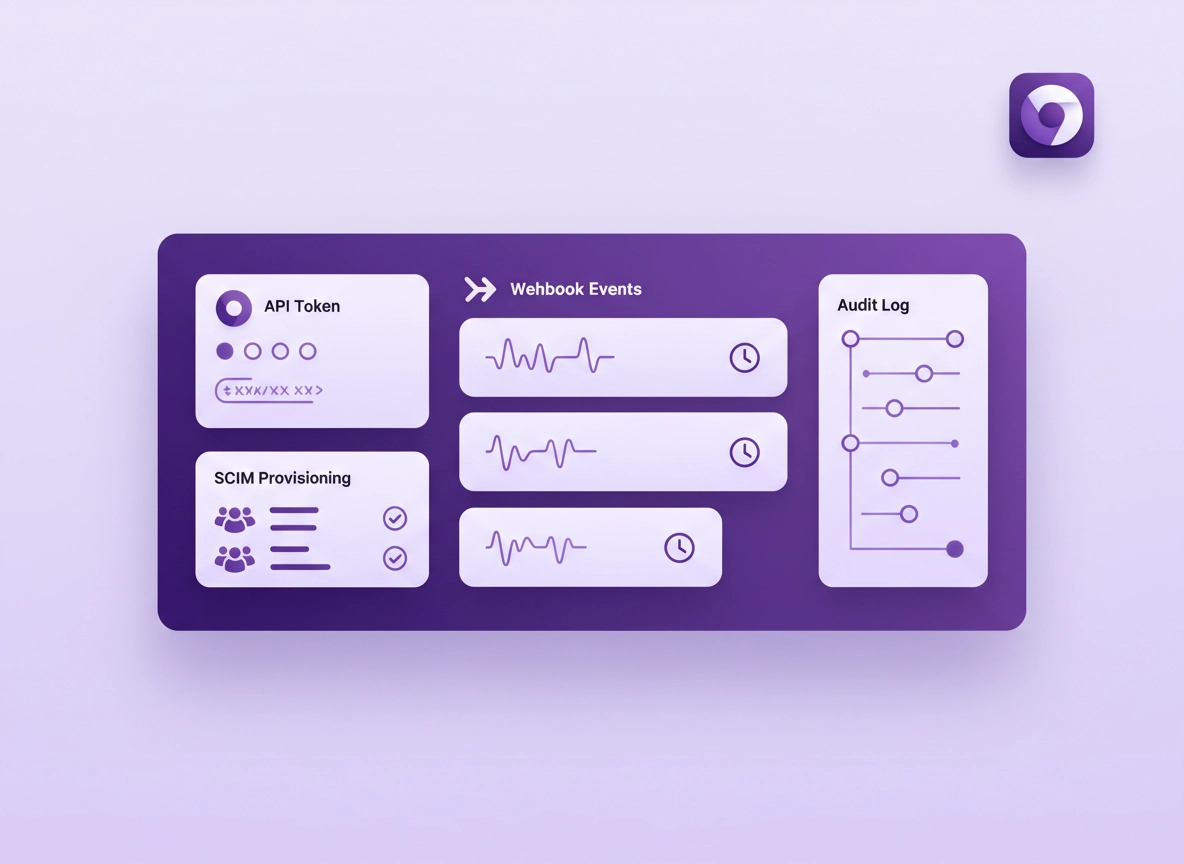
What password manager API integration is (and why Chrome teams care) .
In most organizations, the “Chrome part” is how users access the vault day-to-day—while the “API part” is how the vault becomes a managed system.
A password manager API integration is any setup where your password manager shares trusted, automated actions with other systems: identity providers (SSO), directory services (SCIM), ticketing/ITSM, HR onboarding, security monitoring (SIEM), developer tooling, and internal automation. Instead of manually adding users, assigning vaults, rotating credentials, and exporting audit evidence, you turn those workflows into repeatable, logged processes.
If your team uses the password manager primarily through a Chrome extension, API integrations still matter because they decide: who gets access, what permissions they have, whether access is revoked automatically, and whether security teams can detect risky behavior (like mass exports, repeated unlock failures, or unusual item access). Chrome is the front door; the API integration is the building’s security system.
This is also where “high intent” business questions live: compliance, least privilege, incident response, onboarding/offboarding speed, and risk reduction. If you’re comparing options, start with the broader overview here: Best Password Manager for Chrome and then drill into features like security features.
Related: If your integration includes Chrome extension deployment or permissions, use Chrome Extension Security Check and Chrome Extension Permissions Guide to validate what the extension can access.
Key terms (quick definitions) .
- API token / API key: A credential your automation uses to authenticate to the password manager service.
- Scopes (least privilege): Permission boundaries limiting what the token can do (read-only, audit logs only, user provisioning only, etc.).
- Service account: A non-human account used for automation, typically tied to a specific role and carefully audited.
- SSO (Single Sign-On): Login via an identity provider (Okta, Entra ID, Google Workspace) instead of a separate password.
- SCIM: A standard to automatically provision/deprovision users and groups from your directory to SaaS apps.
- Webhooks: Event callbacks (e.g., “user invited”, “vault item changed”) sent to your system to trigger automation or alerts.
- Secrets manager: A system for storing and rotating sensitive values (tokens, keys) with access controls and audit logs.
- Audit logs: Immutable records of admin actions and important events (critical for incident response and compliance).
Before you start: choose the right integration pattern .
The biggest integration mistake is trying to “API everything” first. Most teams get better security with a layered approach: identity and provisioning first, then logging and automation, then deeper vault workflows. Use this quick decision guide to avoid building an integration that’s brittle—or dangerous.
- If your main problem is onboarding/offboarding: start with SSO + SCIM (not custom scripts).
- If your main problem is compliance evidence: start with audit logs + SIEM shipping (not vault reads/writes).
- If your main problem is developer secrets: start with CI/CD integration + secrets manager (not “shared spreadsheets in a vault”).
- If your main problem is user behavior risk: start with alerts + anomaly rules tied to audit events.
Related: For enterprise rollouts, see Chrome Enterprise Guide and for Chrome-side deployment, read Chrome Enterprise Extension Management.
Fast checks (save yourself hours) .
- Confirm your plan tier: Many vendors restrict APIs, SCIM, or SIEM export to business/enterprise plans.
- Decide “source of truth”: Your IdP/directory should be authoritative for users and groups (not the password manager UI).
- Define roles first: Don’t generate an API token until you know exactly what the integration is allowed to do.
- Pick a token home: If your token is going into code or a spreadsheet, stop and implement a secrets manager first.
- Set a rollback path: Know how you’ll revoke tokens, disable webhooks, and freeze automation during incidents.
Where Chrome fits in (so you don’t mix concepts) .
In Chrome environments, there are three related—but distinct—things that get conflated:
- Chrome extension deployment: How the password manager extension is installed/allowed/forced via Chrome policies or managed browser tools.
- User authentication: How users sign into the password manager (SSO, MFA, device trust, passkeys).
- Backend integration (APIs): How your systems automate provisioning, logging, and controlled vault actions.
This page focuses on backend integration but includes Chrome-specific notes where the browser changes the risk profile (extension permissions, managed profiles, and enterprise controls).
Step-by-step: a safe integration checklist .
This checklist is vendor-agnostic. Names differ (API keys vs tokens, “integrations” vs “developer settings”), but the security principles stay the same. If you’re still evaluating tools, compare plans and limitations first: Password Manager Pricing Comparison and Free vs Paid.
-
1
Start with identity: Enable SSO and configure MFA (or passkeys if supported). Your goal is to avoid “shadow passwords” that live outside your IdP.Success looks like: users can only sign in using approved identity methods, and admin access is protected by stronger controls.
-
2
Provision with SCIM: Set up user and group provisioning so access is created and removed automatically. Treat offboarding as a first-class requirement—because that’s where breaches hide. If you’re mapping groups/roles, review role-based access and team collaboration.Success looks like: disabling a user in the directory removes vault access without manual cleanup.
-
3
Create a service account for automation: Never use a human admin account for integrations. Make a dedicated integration account with the minimum role that can do the job. Use separate accounts/tokens for separate workflows (e.g., “audit-export” vs “provisioning”).
-
4
Generate a scoped token: Choose the narrowest permissions possible. If you only need audit logs, don’t grant vault write access. If you only need user provisioning, don’t grant item read access. Write down (in your runbook) what this token can do and why.
-
5
Store the token in a secrets manager: Do not store it in browser local storage, password vault notes, or source code. Your integration should retrieve it at runtime from a controlled system and log access to it.A strong pattern: short-lived credentials or automated rotation + break-glass recovery.
-
6
Restrict where the token can be used: If your vendor supports IP allowlisting, restrict to your egress IPs (or a specific integration platform). If they support “allowed apps” or “trusted clients,” enable it.
-
7
Enable audit logging exports: Configure audit/event logs to flow into your SIEM or log pipeline. Alert on high-risk actions (export, admin role changes, token creation, MFA disabled). For broader browser security monitoring, see Chrome Enterprise Audit Logging.
-
8
Deploy the Chrome extension safely: Use managed Chrome policies to allowlist the extension, prevent unauthorized extensions, and control sign-in contexts. For general safety checks, use Extension Security Check.
-
9
Test with a non-production tenant/vault: Validate “create user”, “assign group”, “log export” and “revoke access” flows before touching production. Confirm your rollback: disable SCIM, revoke token, disable webhooks.
-
10
Document and operationalize: Create a runbook: token rotation schedule, alert thresholds, who approves scope changes, and incident response steps if the integration is abused.
What “success” looks like: Users are provisioned and removed automatically, the Chrome extension is managed, audit logs flow into your monitoring stack, and API credentials are stored/rotated like any other production secret.
Common variations (by platform) .
- Windows / ChromeOS: Managed Chrome policies are the cleanest way to control extension install/allowlist at scale.
- macOS: Extension deployment is usually fine—user sign-in and device trust can be the bigger friction point.
- Android / iPhone: API integrations still apply, but user experience shifts to mobile apps; ensure your SSO/MFA is consistent.
Advanced setups: SCIM, SIEM, webhooks, and secrets management .
“Advanced” in password manager integrations usually means one of four things: (1) lifecycle automation, (2) event-driven workflows, (3) compliance/audit evidence, or (4) developer secret delivery. The goal is not complexity—it’s control.
Related: If you’re integrating identity and access controls, also read Directory Integration and Zero Trust.
1) SCIM done right: least surprise onboarding/offboarding .
SCIM is where teams win (or lose) operational security. A clean SCIM model reduces “orphan access,” prevents contractors from lingering, and turns HR/IdP changes into automatic access updates. Strong SCIM designs follow these rules:
- Directory is authoritative: People, groups, and disabled status come from your IdP/directory.
- Groups map to roles: Use group-to-role mapping rather than granting direct per-user privileges everywhere.
- Offboarding is tested: Validate that “disable user” removes access quickly (and that it’s logged).
- Grace windows are explicit: If you allow time-limited access, implement it intentionally—not as a side effect.
2) Audit logs + SIEM: what matters, what’s noise .
Audit logs are your “receipt” for security. But exporting everything without a plan creates noise. Focus your detections on actions that change security posture or indicate abuse:
- Admin events: role changes, policy changes, MFA changes, token creation/revocation, SSO/SCIM config changes.
- High-risk vault events: exports, mass reads, bulk operations, unusual access patterns, repeated failures.
- Integration events: webhook delivery failures, repeated unauthorized responses, token scope changes.
If you run managed Chrome, pair vault logs with browser controls (extension allowlists, safe browsing policies, device posture rules) to reduce the risk of compromised endpoints. Useful foundations: Chrome Enterprise Security Settings and Threat Protection.
3) Webhooks: event-driven automation without polling .
Webhooks are how you build “reactive” security and operations: your password manager emits an event, and your system responds. Common webhook-driven workflows include:
- Security alerts: notify Slack/Teams or trigger an incident ticket when export or admin actions occur.
- Access workflows: create an approval ticket when someone requests access to a high-sensitivity vault.
- Operational health: alert when webhook deliveries fail (because missing events is a blind spot).
4) Developer workflows: secrets delivery for CI/CD and automation .
For developer teams, API integration often means: “How do we stop hardcoding tokens in code and pipelines?” Strong patterns include:
- Short-lived secrets: prefer time-limited credentials over permanent tokens.
- Environment segmentation: separate prod and non-prod vaults and tokens (and log every access).
- Just-in-time access: approvals and time boxes for sensitive collections.
- Secrets manager boundary: your CI/CD reads from a secrets manager, which reads from the vault via a scoped integration.
If you’re building a developer policy, also read Password Manager for Developers and the encryption fundamentals in Encryption Explained.
A safe “hello world” integration test (conceptual) .
You don’t need to start by reading vault items. A safe first test is an audit-log read or a health endpoint, because it proves authentication works without exposing secrets. Below is a generic example shape (your vendor endpoints will differ):
# 1) Fetch a minimal health signal (if supported)
curl -H "Authorization: Bearer $PM_API_TOKEN" \
     -H "Accept: application/json" \
     "https://api.vendor.example/v1/health"

# 2) Read audit logs (read-only scope is ideal)
curl -H "Authorization: Bearer $PM_API_TOKEN" \
     -H "Accept: application/json" \
     "https://api.vendor.example/v1/audit?limit=25"
Why this is safer: It validates your token storage, egress restrictions, and logging without granting or testing vault read/write access. When you later add deeper scopes, you do it intentionally—with review.
Common alternatives users compare .
- Chrome built-in password manager vs dedicated business password managers
- Manual onboarding vs SSO + SCIM lifecycle automation
- “One admin token for everything” vs separate scoped tokens per workflow
- Vault-only auditing vs audit logs shipped to a SIEM
Related comparisons: Password Manager vs Built-in Browser Passwords and Chrome Password Manager vs Third-Party.
Security notes: scopes, tokens, and auditability .
API integrations increase power and reduce manual work—but they also create a new attack surface: an integration credential that can act at machine speed. Most real-world incidents in this category come down to one of three failures: over-scoped tokens, poor storage, or lack of detection.
Impact: Affects access provisioning, vault permissions, audit trails, and potentially secret exposure if misconfigured.
Related: If you’re hardening your browser environment alongside the vault, use Chrome Hardening Guide and Chrome Security & Privacy Checklist.
Recommended baseline controls (most teams) .
- Scoped tokens only: One purpose per token (audit export ≠ provisioning ≠ vault operations).
- Service accounts: No integrations tied to personal admin identities.
- Secrets manager storage: No tokens in code, browsers, docs, or shared vault notes.
- Rotation: A schedule (and a tested procedure) to rotate credentials without downtime.
- Audit logs shipped: Events exported to your logging pipeline with alerts for risky actions.
- Change control: Any scope elevation requires review and documentation.
Recommended settings by goal .
| Goal | Recommended setup | Tradeoff | Best for |
|---|---|---|---|
| Balanced | SSO + SCIM + audit export + managed Chrome extension deployment | Requires initial admin time to model groups/roles | Most teams |
| Maximum security | Separate tokens per workflow + IP allowlist + webhook signature verification + SIEM alerts + strict RBAC | More operational overhead (but far better blast-radius control) | Regulated / high-risk orgs |
| Compatibility | SSO + limited automation, minimal webhooks, conservative policy enforcement | More manual work and slower offboarding | Smaller teams with limited IT bandwidth |
Troubleshooting .
Related: If you suspect browser or extension compromise, start with Extension Malware Risks and Chrome Browser Security Basics.
If your API token works in tests but fails in production .
This usually points to environment mismatch (wrong tenant/workspace), egress/IP restrictions, or token storage/encoding issues. Check these in order:
- Scope mismatch: your test endpoint may allow basic auth, but production requires extra scope.
- Clock skew: if OAuth/JWT is involved, incorrect system time can break auth.
- IP allowlist: production traffic may exit from a different IP than your staging environment.
- Secrets injection: CI/CD might be passing a truncated value or including whitespace/newlines.
Safe fix: Rotate the token and validate retrieval from your secrets manager first—before changing scopes. If you must change scopes, document why, and create a separate token to avoid changing the blast radius of existing automation.
If SCIM provisioning creates users but doesn’t remove access .
The most common cause is group mapping and lifecycle semantics: “disabled user” vs “deleted user” differs by vendor. Ensure your directory action (disable, suspend, delete) maps to an actual access removal event in the password manager.
- Confirm deprovision trigger: does your IdP send a deactivation event or a delete?
- Confirm group removal behavior: removing a group may not remove access if direct assignments exist.
- Check for shared vault exceptions: some models keep access until a separate owner reassignment occurs.
If users complain the Chrome extension “keeps signing out” .
This can be policy-related (managed profiles, cookie restrictions, third-party cookie changes) or device posture controls. Chrome settings like cookie restrictions, cleared site data, or strict privacy modes can disrupt session persistence. Review: Third-party cookies settings, Site permissions, and for enterprise environments, Managed Browser Security.
If you see suspicious vault activity after enabling integrations .
Treat this as a security incident until proven otherwise. Do the safe actions first:
- Revoke integration tokens immediately (start with the highest-scope tokens).
- Disable webhooks if they could be abused to trigger downstream systems.
- Review admin/audit logs for token creation, scope changes, exports, and role changes.
- Force re-auth for admins and verify MFA/SSO settings haven’t been weakened.
Next: If you need browser-side cleanup, see Chrome Security Checkup and Chrome Data Breach Protection.
FAQ .
-
helpIs password manager API integration the same as installing the Chrome extension?No. The Chrome extension is the user-facing tool inside the browser. API integration is backend automation that connects your vault to identity, provisioning, logging, and workflows. Most mature deployments use both: managed extension deployment for users and APIs/SCIM/SSO for admin control.
-
helpWhat’s the safest “first integration” for a business team?Start with SSO + SCIM and audit log export. That combination improves onboarding/offboarding, reduces account sprawl, and gives you monitoring evidence—without granting deep vault permissions to automation. After that, add webhooks and more specialized APIs only where you have clear workflows and strong controls.
-
helpShould I store the API token inside the password manager vault?Usually no. That creates circular risk: if vault access is compromised, the attacker can also extract the integration key and automate at scale. Store integration credentials in a secrets manager with strict access controls and separate auditing, and keep scopes minimal.
-
helpHow do I prevent an API integration from becoming a “single point of failure”?Split integrations by purpose (multiple scoped tokens), implement rotation, restrict where tokens can be used (allowlists), and export audit logs to your monitoring stack with alerts. Most importantly, document and test your rollback: token revoke + webhook disable + SCIM pause.
Sources & further reading .
- OWASP: API Security Project (best practices and risks)
- IETF RFC 6749: OAuth 2.0 Authorization Framework
- IETF RFC 7644: SCIM Protocol
- NIST SP 800-63B: Digital Identity Guidelines (authentication)
Disclosure: Some pages may mention tools or services. Recommendations are editorial and based on testing and security-focused evaluation.