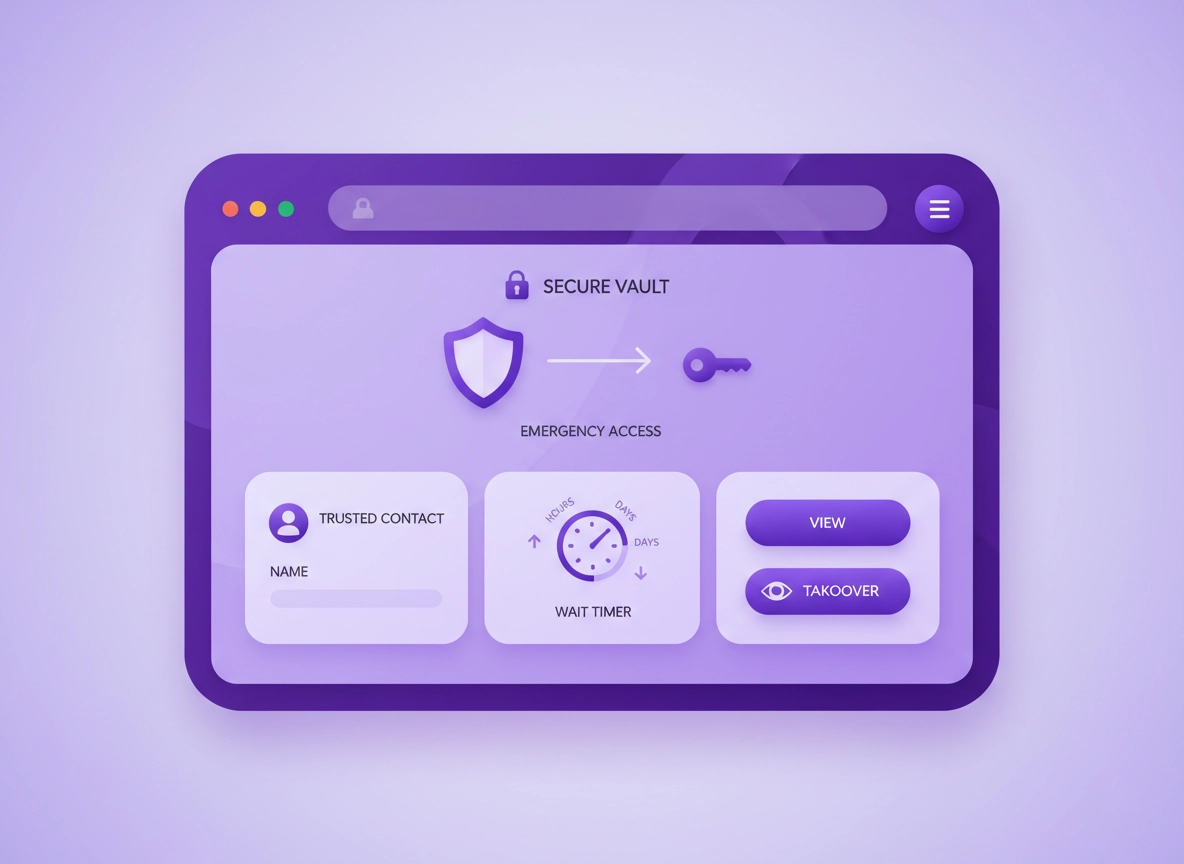
What emergency access is (and why it matters in Chrome) .
Emergency access is a controlled way to let a trusted person get into your password vault if you can’t respond. It’s usually built around three ideas:
- Trusted contacts: you choose who can request access.
- Time delay (wait period): a request doesn’t grant immediate access; you’re notified and can deny it.
- Access level: “view” (read) or “takeover” (the contact becomes the account holder / can change credentials).
Why does this matter specifically in Chrome? Because for many people, Chrome is where authentication actually happens—logins, passkeys, web apps, banking, shopping, admin consoles, payroll, and the day-to-day “operating system” of work. If you’re locked out or unavailable, the real-world impact is rarely just “I can’t sign in to Netflix.” It’s often:
- Access to business email and invoicing
- Domain/DNS hosting and website admin
- Banking and payment processors
- Client accounts, support desks, and cloud dashboards
- Shared subscriptions, school portals, healthcare, and travel accounts
Emergency access also solves a subtle Chrome problem: Chrome itself doesn’t offer a “trusted person vault handover” feature. The built-in Google Password Manager can sync passwords across your devices, but it’s not designed as a time-delayed, auditable emergency access workflow. If you need continuity, a dedicated password manager (or a carefully designed recovery pack) is typically the safer route.
Related: If you’re comparing options, start here: Best Password Manager for Chrome and Chrome Password Manager vs Third-Party.
Key terms (quick definitions) .
- View access: The contact can see items (and often passwords) without becoming the account owner. Best for most families.
- Takeover access: The contact can take control of the account (for example, reset the master password). Useful for business continuity but higher risk.
- Wait time: The delay between “request access” and “access granted.” You want this long enough to detect abuse, short enough to help in a real emergency.
- Legacy vault: A separate vault/collection with only essential items needed for continuity (not your entire digital life).
- Break-glass account: An admin path used only during incidents (lost device, lockout, executive unavailability). Usually logged and tightly controlled.
When emergency access is a smart move .
- Travel / remote work: you’re often unreachable or in different time zones.
- Single point of failure: one person holds the “keys” to payroll, domain hosting, client logins.
- Shared family accounts: insurance portals, school portals, utilities, subscriptions.
- Compliance and operations: you must guarantee continuity for critical systems.
When emergency access can be dangerous (and what to do instead) .
Emergency access is not always appropriate. If you’re in a high-risk environment (harassment, coercion, controlling relationships, insider threats), “trusted contact” features can be abused. In that situation, consider a safer alternative:
- Offline recovery pack: a sealed envelope or secure file stored in a safe (with clear instructions).
- Split knowledge: two-person access—one person has part A, another has part B, neither can act alone.
- Legacy vault only: share access to essentials, not your full vault.
- Enterprise controls: use role-based access + audited admin recovery rather than personal “trusted contact” access.
Before you start (the 10-minute safety checklist) .
Most emergency access failures happen for boring reasons: the contact never accepted the invite, the wait timer wasn’t set, recovery info wasn’t updated, or you only tested on mobile while you actually rely on Chrome extensions on desktop. Run these quick checks first.
Related: If you’re building the foundation first, read: Master Password Security and Two-Factor Authentication Guide.
Checklist: do these before you add a trusted contact .
- Update your account email + phone: if your password manager supports account recovery, your recovery channel must be current.
- Enable strong MFA: ideally authenticator app or hardware key. Avoid SMS-only MFA if you can.
- Set a vault timeout: your Chrome extension should lock automatically after inactivity (especially on laptops).
- Confirm device security: OS login password + disk encryption. (Emergency access is not a substitute for endpoint security.)
- Decide what’s in scope: do you want them to access everything, or only essentials (legacy vault)?
- Choose a wait time: many people pick “1 day” and regret it. Start with 7–14 days unless you have a business-critical reason.
- Pick the right person: “closest” is not always “safest.” Choose someone stable, available, and security-aware.
Inventory the “must-have” items (so emergency access is actually useful) .
Emergency access should unlock the accounts needed to keep life and work running—not every random login you’ve ever saved. A practical “must-have” inventory usually includes:
- Email and identity: primary email account, recovery email, Google/Apple/Microsoft account.
- Financial: banking, card portals, payment processors, invoicing, payroll.
- Web presence: domain registrar, DNS, hosting, CDN, analytics, Search Console.
- Operations: support desk, CRM, project management, cloud provider dashboards.
- 2FA notes: backup codes, recovery keys, and “where the authenticator lives.”
- Device access: laptop/phone unlock instructions only if appropriate and safe.
Related: If you’re planning recovery paths too, see Password Manager Recovery Options in Chrome and Data Breach Protection.
Step-by-step setup (recommended) .
This setup is designed to work whether you’re a personal user, a small business, or a team—while still being Chrome-friendly (extensions, web vaults, and day-to-day browser workflows).
- 1 Choose your emergency access model: (A) view-only, (B) takeover, or (C) legacy vault (limited items) + view-only.
- 2 Pick the right contact(s): one primary + one backup. Confirm they can reliably receive email and log in to the same password manager.
- 3 Set the wait time: start at 7–14 days for families, 3–7 days for small business continuity, and hours–1 day only for tightly controlled enterprise break-glass.
- 4 Send the invitation from the web vault: do this on desktop first (Chrome). Make sure the contact accepts, then you confirm the acceptance if your provider requires it.
- 5 Test the workflow: have the contact request access while you’re available, confirm you receive alerts, then deny the request. Repeat once and allow it to complete (if safe) to validate end-to-end.
- 6 Document and lock it down: add a note in your vault (“Emergency Access Plan”), include revocation steps, and verify Chrome extension lock settings on shared devices.
What “success” looks like: Your trusted contact can request access, you get immediate notifications, the wait timer is visible, you can deny/approve, and after access is granted you can revoke it cleanly. If you can’t revoke access easily, treat that setup as high risk.
Related: If your goal is safer sharing (without full emergency access), see Password Sharing Securely in Chrome and Password Manager Team Collaboration.
Provider-specific notes (what to look for in the settings) .
Every password manager uses slightly different wording. The safest approach is to look for these controls in the web vault (in Chrome):
- Access level: view vs takeover (or “read” vs “full”).
- Wait period: in days/hours, plus the ability to cancel/deny.
- Notifications: email alerts at request time and at grant time.
- Revocation: immediate removal of access, plus audit history.
- Multiple contacts: primary + secondary, ideally with separate emails.
Chrome extension checklist (don’t skip this) .
Emergency access can be perfectly configured yet still fail in real life because the day-to-day workflow is happening inside the Chrome extension. Check these settings:
- Vault timeout: lock after X minutes, and lock on browser restart.
- Require re-auth for sensitive actions: copying passwords, viewing full password, exporting.
- Disable autofill on shared devices: or require a click + unlock before filling.
- Separate Chrome profiles: use a dedicated Chrome profile for work vaults (especially for admins).
Related: If you’re unsure about browser risks, see Browser Integration Security and Chrome Profile Security Settings.
Common variations (Windows, macOS, Android, iPhone) .
- Windows / ChromeOS: The web vault + Chrome extension is usually the most reliable place to configure emergency access. Check Windows Hello / device login requirements if the vault supports biometrics.
- macOS: Look for Touch ID integration (if supported) and ensure the extension still enforces lock on restart.
- Android: Some managers expose emergency controls only in the web vault, not the mobile app. Test requests using a browser.
- iPhone: Similar to Android—use the web vault for configuration, then confirm notifications arrive and the contact can access from desktop if needed.
Advanced setups (power users + enterprise) .
If you’re running a business—or you’re simply security-conscious—“one trusted contact gets my entire vault” is usually the wrong design. The goal is continuity without catastrophe. Here are the advanced patterns that work best in Chrome-centric environments.
Related: For managed environments, see Chrome Enterprise Guide and Chrome Enterprise Identity Management.
Pattern 1: Legacy vault (least privilege, highest sanity) .
A legacy vault is a separate vault/collection that contains only what someone needs to keep life/work running. You then grant emergency access (or shared access) to that vault only. Typical contents:
- Primary email and recovery email credentials
- Domain registrar + DNS hosting
- Payment processor and banking portal essentials
- Critical subscriptions (hosting, phone plan, utilities)
- 2FA backup codes and “where the authenticator is” notes
- A short “what to do first” playbook
Why it works: If emergency access is abused (or simply mishandled), the blast radius is smaller. And your trusted person isn’t overwhelmed with thousands of logins.
Pattern 2: Break-glass for businesses (audited + revocable) .
In a business, emergency access is less about “inheritance” and more about uptime and incident response. A mature design includes:
- Role-based access control: admins don’t share personal vaults; they share controlled vaults.
- Two-person approval: access requires two admins (or admin + security officer).
- Audit logs: every access request and export is logged.
- Time-boxed access: access expires automatically after the incident.
- Rotation: once used, critical passwords are rotated immediately.
If you’re building this around Chrome, pair it with enterprise browser policies: enforce separate profiles, require device encryption, and reduce extension risk. (A vault is only as safe as the endpoint using it.)
Pattern 3: “Emergency access” vs “account recovery” (don’t confuse them) .
These are not the same thing:
- Emergency access: a trusted person gains access to your vault when you can’t respond.
- Account recovery: you regain access after you forget credentials, lose devices, or get locked out.
A strong plan uses both. Emergency access handles continuity. Recovery handles you getting back in without handing your master password to anyone.
Related: If you’re designing recovery properly, read Password Manager Recovery Options and Export Passwords from Chrome Securely.
What to choose: view vs takeover (practical guidance) .
Most people should start with view access and a legacy vault. Takeover access is powerful, but it increases risk. Use this decision guide:
| Goal | Recommended setup | Tradeoff | Best for |
|---|---|---|---|
| Balanced | View access + 7–14 day wait + notifications | May be slow for urgent business needs | Most families, most individuals |
| Maximum safety | Legacy vault + view access + long wait + offline recovery pack | More setup work | Security-focused users |
| Business continuity | Break-glass vaults + short wait + audited admin controls | Needs governance and rotation | Teams, operations, IT |
Real-world examples (what “good” looks like) .
Example A: Family continuity (Chrome-heavy lifestyle)
You set view-only emergency access for a partner with a 14-day wait time. You also create a legacy vault with:
email, banking essentials, utilities, and a note explaining how to handle 2FA backup codes. You test once per year.
Example B: Solo founder (high-CPC, high-stakes operations)
You create a legacy vault for “Business Critical” and share it with a co-founder or attorney via controlled access.
You keep your personal vault private. You document domain/DNS, payment processors, and account recovery steps.
Example C: Enterprise IT
You do not rely on “trusted contacts” for admin continuity. Instead, you use role-based vaults, enforced MFA,
admin recovery policies, and auditable break-glass procedures with automatic password rotation after use.
Common alternatives users compare .
- Chrome Password Manager vs dedicated password managers
- Emergency access vs password sharing (shared vaults)
- Offline “Emergency Kit” vs online time-delayed access
- Personal trusted contacts vs enterprise break-glass governance
Privacy & security notes (threats + mitigations) .
Emergency access is a tradeoff. You’re improving availability (someone can help) while increasing exposure (someone else can request access). The goal is to make that exposure detectable, delayable, and revocable.
Impact: Can expose passwords, secure notes, attachments, and potentially allow account takeover depending on configuration.
Related: If you’re worried about compromise, see Password Manager Hacking Risks and Password Manager Vulnerability Risks.
Top threats (and how to reduce them) .
- Coercion / social pressure: someone pushes you to approve access. Mitigation: long wait time + view-only + legacy vault.
- Insider abuse: a trusted person requests access when it’s not appropriate. Mitigation: alerts + deny capability + periodic review.
- Phishing around emergency workflows: attackers use “urgent access” themes. Mitigation: verify URLs, use the web vault directly, enable MFA, and never approve requests you didn’t expect.
- Endpoint compromise: if the contact’s device is infected, access can leak. Mitigation: choose a security-aware contact; require MFA; discourage exports.
- Over-sharing: giving full vault access “just in case.” Mitigation: legacy vault strategy + least privilege.
Recommended baseline settings .
- Option A (balanced): 1 trusted contact, view-only, 7–14 day wait, notifications on, test yearly.
- Option B (maximum safety): legacy vault + view-only, 14–30 day wait, plus offline recovery pack stored in a safe.
- Option C (business continuity): shared business vaults + admin recovery + audited break-glass; avoid personal-vault takeover access.
Chrome-specific hardening that protects emergency access .
Emergency access only helps if your vault stays secure day-to-day. Chrome is a frequent target because it’s the gateway to everything.
- Keep Chrome updated: security patches matter. (Use Chrome’s About screen and restart when prompted.)
- Use separate Chrome profiles: one for personal, one for work/admin.
- Audit extensions: remove anything you don’t trust. Least extensions = less risk.
- Harden permissions: reduce “read and change all data” extensions; use site-by-site permissions.
Related: For browser hardening, see Chrome Hardening Guide and Chrome Extension Security Check.
Troubleshooting .
These are the most common reasons emergency access “doesn’t work” in Chrome—plus fixes that don’t require guesswork.
Related: If you suspect browser compromise, see Remove Malware from Chrome.
If the trusted contact never receives the invitation .
- Confirm the email address is correct (no aliases pointing to full mailboxes with strict filters).
- Ask them to search for the password manager’s domain in email and spam.
- If you use a corporate email domain, check quarantine rules (some security filters block “vault access” emails).
- Resend the invite from the web vault, not from the browser extension.
If the invite was accepted but you can’t request/approve access .
Many managers require two confirmations: the contact accepts, then the vault owner confirms the contact as trusted. Go to your emergency access settings and look for “pending” or “awaiting confirmation.”
If the wait timer isn’t visible or doesn’t seem to count down .
- Check whether you’re viewing the settings in the correct place (web vault vs app).
- Refresh and sign out/in—some web vaults cache state.
- Confirm time zone / system clock isn’t incorrect on either side (rare, but it breaks time-based flows).
If the Chrome extension is unlocked but emergency access still fails .
Emergency access is typically controlled at the account level in the web vault. The extension can be unlocked and still not reflect emergency state. Fix:
- Have the contact complete the request in the web vault in Chrome.
- After access is granted, the contact should sign out and sign back in to the extension.
- If the manager supports it, clear extension cache or remove/reinstall (only after confirming they can sign in).
If you’re worried a request is malicious .
- Deny immediately (don’t wait for the timer).
- Change your master password (if your model supports changing it safely).
- Rotate critical passwords (email, banking, admin dashboards).
- Check account security logs if your password manager provides them.
- Review your Chrome security: extensions, downloads, recent logins.
Related: If you need to migrate away from a risky setup, see Migrate from Chrome Password Manager to Third-Party.
FAQ .
-
helpIs emergency access safe to use with a Chrome password manager extension?It can be safe if your setup is time-delayed, revocable, and limited by least privilege. The biggest risk is not Chrome itself—it’s over-sharing (full vault takeover) and weak controls (short wait time, no notifications, no testing). Use view-only + a legacy vault for most people.
-
helpWhat wait time should I choose for emergency access?For most individuals and families, start with 7–14 days. For small businesses where one person is a bottleneck, 3–7 days can be reasonable if notifications and MFA are strong. “Same day” timers are high risk unless you have strict governance and auditing.
-
helpShould I give view access or takeover access?Start with view access unless you have a clear continuity requirement that only takeover solves. Takeover increases the chance of irreversible damage (account lockout, password changes, exports). If you need takeover, compensate with a longer wait time, stronger MFA, and a limited legacy vault.
-
helpCan I do emergency access with Google Password Manager in Chrome?Chrome sync helps you access passwords on your own devices, but it isn’t designed as a time-delayed trusted-contact vault access workflow. If you need true emergency access, a dedicated password manager or a structured offline recovery pack is usually the safer option.
Sources & further reading .
- Bitwarden Help: Emergency Access
- LastPass Support: Set up and manage Emergency Access
- 1Password Support: Emergency Kit
- 1Password Support: Account recovery (families/teams)
- Chrome Releases: Stable channel updates (stay patched)
Disclosure: Some pages on this site may mention tools or services. Recommendations are editorial and based on practical security principles and real-world workflow testing.