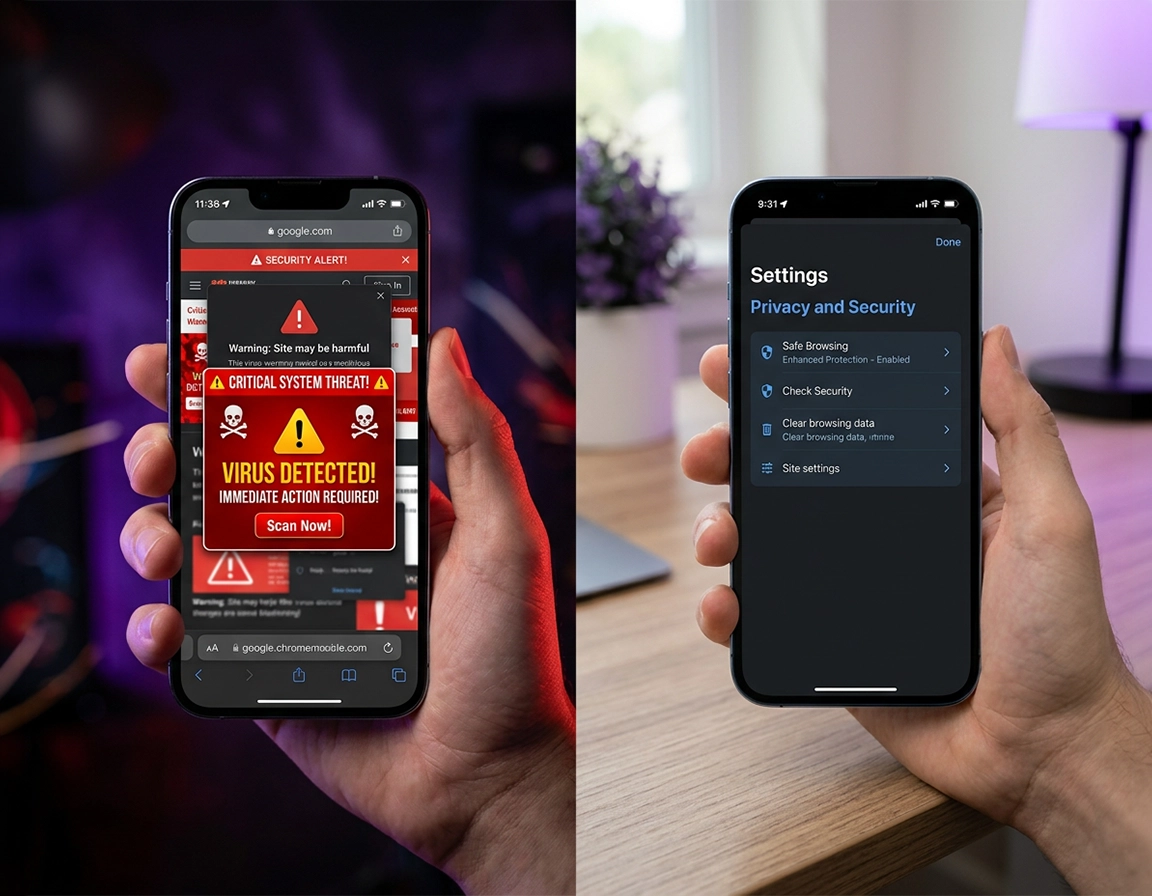
Where the problem sits when Chrome on iPhone looks infected .
On iPhone and iPad, “Chrome malware” usually describes a hostile browsing session, not a proven browser infection.
That difference matters because Chrome on iOS sits inside Apple’s mobile platform rules, so the mess usually shows up as tab abuse, redirect chains, poisoned website data, phishing pages, fake Apple alerts, aggressive notification-style prompts, calendar-subscription bait, or account theft attempts. The screen can look dramatic: a siren sound, a countdown, repeated haptic buzzes, or a page claiming your phone is already compromised. But the most useful clue is not the wording on the page. It is the action that happened just before it appeared: tapping a sponsored result, landing on a streaming mirror, opening a coupon page, or approving a prompt you would normally ignore.
The credible persistence points on iPhone are usually nearby rather than inside some hidden Chrome extension panel. A junk app can keep feeding Chrome bad URLs. A Home Screen shortcut can relaunch the exact scam domain every time you tap what looks like an app icon. A VPN or filtering app can distort traffic across more than one app. A configuration profile can install network or management settings you never meant to trust. And if you signed into a fake page, the lasting problem may be the account, not the browser window.
This is why copy-and-paste desktop advice performs badly here. On iPhone, telling someone to “remove suspicious Chrome extensions” is not just unhelpful, it signals that the writer is describing the wrong platform. The better question is narrower: does the problem stay inside one tab, return after browser relaunch, follow links from other apps, or survive after Chrome data is cleared? Each pattern points to a different fix and keeps you from overreacting with a full device reset too early.
Related: If you want the broad cluster guide first, read Remove Malware From Chrome. If the issue started after clicking a suspicious add-on prompt on desktop, use Chrome Extension Malware Removal.
Key terms in this guide .
- Site data: cookies, cached files, and stored website permissions that can keep a bad session alive after you leave the page.
- Configuration profile: an iPhone settings package that can install network, account, VPN, or management changes on the device.
- Home-screen web app: a website saved to the iPhone Home Screen that behaves like an app and can keep relaunching a harmful page.
- Account fallout: the damage after a scare page or phishing flow, such as reused passwords, suspicious sign-ins, or synced junk returning to Chrome.
Before you start: three quick checks .
Before you delete anything, identify the layer that is misbehaving. A fake alert that appears only after one sketchy page loads is usually a site-data cleanup job. A redirect that fires when you tap a Home Screen icon points to a saved web app or shortcut. Strange routing across Mail, Messages, Chrome, and another browser is more consistent with a VPN, DNS-style utility, or profile issue. And if passwords or payment prompts were involved, the browser may stop misbehaving before the account risk is over.
Related: If Chrome became slow or unstable after the scare page, see Chrome Browser Slow After Virus Fix and Fix Slow Chrome Browser Step by Step.
- Check 1: Is the problem trapped inside Chrome only? Open Safari or a trusted app and test one normal link. If only Chrome behaves strangely, start with Chrome data and recent Chrome-triggering actions.
- Check 2: What changed in the last 24 to 72 hours? New VPNs, “cleaner” apps, battery tools, coupon apps, profile installs, and Home Screen shortcuts deserve more suspicion than the text inside the warning page.
- Check 3: Did you enter anything sensitive? If you typed an email password, payment details, or a one-time code, split the job into two tracks: local browser cleanup and account protection.
Step-by-step cleanup for Chrome on iPhone and iPad .
Use this sequence on a personal iPhone or iPad. It starts with the fastest high-yield cleanup and then moves outward to the parts of iOS that tend to keep bad behavior alive. On a work-managed device, pause before removing any profile you do not understand.
- 1 Break the active trap. If Chrome is frozen on a fake alert, swipe away from Chrome first rather than arguing with the page. Reopen Chrome and avoid tapping the warning, pop-up buttons, or phone number.
- 2 In Chrome, tap More and then Delete Browsing Data. If the pop-up has returned more than once, choose All time instead of a short recent window.
- 3 Remove the data most likely to preserve the session: Cookies, Site Data, Cached Images and Files, and usually Browsing History. Confirm the deletion, then fully close Chrome once.
- 4 Reopen Chrome into a neutral session and type a trusted address manually. Do not use the last tab, a recent shortcut, or the same search result that triggered the scare page.
- 5 In Chrome, open Settings → Privacy and security. Check that Safe Browsing is enabled at an appropriate level and that Always use secure connections is on.
- 6 Leave Chrome and inspect Settings → General → VPN & Device Management. On a personal device, any unfamiliar profile, mobile-device-management entry, or VPN configuration deserves explanation before you trust the phone again.
- 7 Review recent apps and Home Screen additions. Remove any new VPN, ad blocker, scanner, cleaner, battery saver, streaming helper, or “security” app that appeared around the same time as the redirects.
- 8 If you typed credentials, start account cleanup immediately from a trusted session: change the exposed password, review recent sign-ins, and run Google Security Checkup.
What a clean result looks like: Chrome opens without replaying the same scam flow, a trusted site entered manually loads directly, the browser does not bounce into a prize page or fake Apple warning, and nothing under iPhone management/VPN settings looks unfamiliar.
On iPhone, deleting browsing data is not a cosmetic step. A surprising amount of “my phone is infected” behavior comes from the browser reopening the exact state that the hostile site prepared for it. People often test the fix by tapping the same search result, which recreates the problem and makes it look as if nothing changed. The better test is a manual visit to a trusted site or a fresh search where you avoid sponsored placements and low-trust directories.
Step six is where many pages on this topic lose credibility. Real persistence on iPhone often surfaces in device settings, not buried in imaginary Chrome components. A profile can carry VPN, account, certificate, or management instructions. On a work or school phone that may be normal. On a personal device that suddenly started throwing redirects after a scare page, it is one of the clearest signs that the issue moved beyond ordinary website junk.
Related: After the immediate cleanup, strengthen the browser with Chrome Safe Browsing Best Practices, How to Prevent Malware in Chrome, and Chrome Secure Download Settings.
Signals that the cleanup worked at the right layer .
- Browser-only issue: after clearing Chrome data, the problem stops and does not follow you into other apps.
- App-driven issue: the problem fades only after a recent utility or VPN app is removed.
- Settings-driven issue: redirects stop after an unfamiliar profile or network configuration is removed from the device.
- Account-driven issue: Chrome looks normal, but security alerts or unfamiliar sign-ins continue until the account is secured.
Common variations on iPhone and iPad .
- Single bad tab, no other symptoms: clearing Chrome data is usually enough.
- Problem started after installing a free VPN or utility app: remove that app first, then clean Chrome, then reboot the phone.
- Problem appears on multiple devices with the same Google account: local cleanup plus account review is safer than local cleanup alone.
Advanced cleanup when the problem keeps returning .
When the same pop-up, redirect route, or fake warning returns after a clean Chrome session, stop repeating the same browser-only fix. Something is reintroducing the problem. On iPhone that is commonly a Home Screen web shortcut, a junk utility app, a VPN/filtering app, an unfamiliar profile, or a compromised account that keeps luring you back through synced data or phishing mail.
Start with the Home Screen itself. Scam flows sometimes persuade people to “install protection” by adding a website to the Home Screen. The icon can look enough like a real app that it survives for days. Tap and hold anything you do not recognise and check whether it is a true App Store app or just a saved web shortcut that reopens the same hostile domain.
Then check anything that can alter traffic outside Chrome. Free VPNs, low-quality ad blockers, link shortener helpers, and “privacy browser” tools are repeat offenders in mobile support cases because they can keep feeding Chrome bad destinations long after cookies are gone. If links from Mail, Messages, Safari, and Chrome all feel redirected or unusually ad-heavy, the browser is not the only layer in play.
Account fallout is the final persistence point people miss. A scare page only needs one rushed password entry to outlive the browser incident. If you signed in, approved a code, or downloaded a fake helper app, review recent sign-ins, revoke old sessions you do not recognise, and change exposed passwords from a clean session. Do not judge safety only by whether the pop-up stopped appearing.
Related: These companion pages fit the same situation: Chrome Browser Hacked: How to Fix, Chrome Browser Passwords Stolen: What to Do, Chrome Browser Data Breach Response, and Chrome Full Malware Cleanup Checklist.
When you should go beyond browser cleanup .
- You find an unfamiliar configuration profile, MDM record, or enterprise trust entry on a personal device.
- Chrome is clean for an hour, then random tabs reopen after another app launches.
- Your Google account shows unfamiliar devices, password resets, or sign-ins after the incident.
- The phone starts showing unrelated symptoms such as rogue calendar spam, unexpected VPN icons, or repeated account prompts.
When you should slow down before deleting things .
- The iPhone belongs to an employer or school and the profile might be legitimate management.
- You are not sure whether an app is required for banking, remote work, family controls, or carrier access.
- The suspicious behavior started after signing into a work account, where deleting the wrong profile could break mail, Wi-Fi, or VPN access.
Choices people get wrong in stubborn cases .
- Deleting Chrome immediately when a simple data purge would have broken the loop
- Installing another “cleaner” app instead of removing the first sketchy app that triggered the mess
- Changing one password only when the same Google account has active sessions on several devices
- Ignoring profiles and VPN entries because the visible symptom happens to appear inside Chrome
Privacy and account security after cleanup .
A normal-looking Chrome window is not proof that the incident ended safely. The highest-cost damage on iPhone often happens in the short burst of pressure around the scare page: the password typed in a hurry, the fake support number called, the payment card entered to “remove threats,” the calendar subscription accepted, or the profile approved to “secure browsing.” The browser may recover long before those consequences do.
Practical meaning: do the browser cleanup, but also check recent account activity and remove anything that changed device trust or network behaviour.
Related: For broader protective setup, use Chrome Browser Security Checkup Guide, Chrome Data Leak Detection, and Chrome Anti-Phishing Settings.
Recommended baseline settings after an incident .
- Balanced: Safe Browsing on, secure connections on, browsing data cleaned, suspicious apps removed, and recent sign-ins checked.
- Maximum caution: all of the above plus password changes for any accounts used during the incident and sign-out of old devices.
- Compatibility-first: keep protective browser settings on, but avoid deleting legitimate work profiles until you confirm what they do.
Recommended actions by goal .
| Goal | Recommended action | Tradeoff | Best for |
|---|---|---|---|
| Stop the pop-up fast | Delete Chrome browsing data and relaunch into trusted sites only | You may lose convenient site sign-ins | One-off scare pages |
| Make sure it does not return | Clear Chrome, review apps, web shortcuts, VPN, and device profiles | Takes longer and requires careful review | Repeated redirects |
| Protect accounts after exposure | Run security checkup, change exposed passwords, sign out unfamiliar devices | More cleanup work after the browser looks normal | Phishing or fake support incidents |
Troubleshooting by symptom .
Related: Match the exact behavior with Chrome Pop-Up Virus Removal, Chrome Redirect Virus Fix, Chrome Keeps Opening Random Tabs Fix, and Chrome Suspicious Activity Detected Fix.
If fake virus alerts keep reopening .
This usually means Chrome is still restoring part of the hostile session, or you are reopening the exact same trigger. Clear browsing data with an All time range, fully close Chrome, and then avoid Recent Tabs, repeated ad clicks, and saved Home Screen shortcuts. If the same page returns only when one icon is tapped, that icon is part of the problem.
If Chrome redirects you even on normal searches .
When ordinary searches bounce through ad-heavy pages or fake offers, suspect the route rather than the search term. Test by typing a known domain directly. If direct visits are clean but ad or sponsored clicks are not, the issue may be limited to specific low-trust pages. If all apps feel rerouted, inspect recent VPN, ad-blocking, or filtering apps before blaming Chrome alone.
If you installed a profile or “security certificate” .
Treat an unfamiliar profile or certificate on a personal iPhone as a priority lead. Go to Settings → General → VPN & Device Management and read every entry, not just the one with the most technical name. Many users remember tapping “allow” once and then forgetting it. If the device belongs to work or school, verify with the administrator before removing anything.
If you entered passwords after the scare .
Assume the browser symptom and the account risk are now separate jobs. Change the password from a trusted session, review security events and signed-in devices, and watch for signs that autofill, saved cards, or recovery details were exposed during the incident. It is common for the scary page to vanish while the account remains the real problem.
If you need to reset safely without overreacting .
Match the strength of the response to the evidence. Start with Chrome data, then remove suspicious apps or shortcuts, then inspect profiles, VPN, and account activity. Escalate only when the facts support it. On iPhone, the cleanest fix is usually targeted and layered, not theatrical.
FAQ .
-
helpCan Chrome on iPhone get a real virus?Most situations people describe as a “Chrome virus” on iPhone are scare pages, malicious redirects, bad site data, risky apps, or device-setting changes rather than a classic desktop browser infection. The visible effect can still be serious, but the fix is usually iOS-specific cleanup rather than desktop-style malware removal.
-
helpShould I delete the Chrome app completely?Deleting the app can help in stubborn cases, but it is often unnecessary as a first move. Start with deleting browsing data, removing suspicious apps or shortcuts, and checking profiles. If the same behavior survives those steps, reinstalling Chrome becomes more reasonable.
-
helpWhat if the pop-up says Apple found a threat?Assume a random webpage claiming Apple has scanned your phone is untrustworthy unless you initiated that check from an official Apple flow. Do not tap the page’s “clean,” “allow,” or download buttons. Leave the page, clear Chrome data, and inspect the device for any changes you made while it was open.
-
helpWhy does the same bad behavior return after I clear Chrome?That usually points to a cause outside ordinary browsing history: a bad app, a saved Home Screen web app, a VPN or profile, or account-related fallout syncing back in. Repeated return after cleanup is your sign to inspect the device and account layers instead of repeating the same browser-only fix.
Sources & further reading .
- Google Chrome Help: Delete browsing data on iPhone and iPad
- Google Chrome Help: Manage Chrome safety and security on iPhone and iPad
- Google Chrome Help: Safe Browsing on iPhone and iPad
- Google Account Help: Security Checkup
- Apple iPhone User Guide: Install or remove configuration profiles on iPhone
- Apple Personal Safety Guide: Review and delete configuration profiles
- Apple iPhone User Guide: Remove or delete apps
Disclosure: This guide is editorial and diagnostic. It focuses on the most common iPhone Chrome cleanup paths rather than pushing a generic “one-tap cleaner” product.