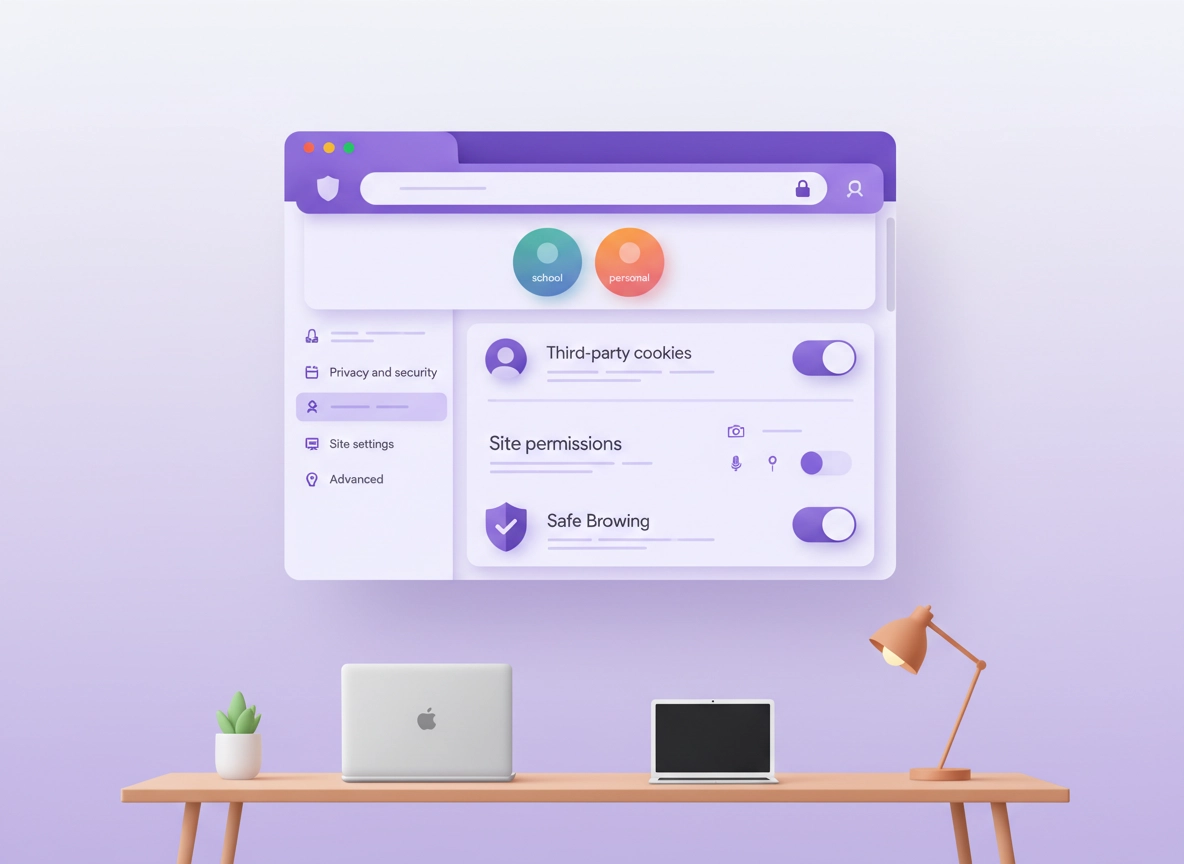
What “student privacy” means in Chrome .
Student privacy isn’t one switch. It’s a set of choices that balance safety, tracking, and “school sites must work.”
Students typically face a different privacy reality than most adults. You may use a school-managed account (Google Workspace for Education), a managed Chromebook, shared computers in labs or libraries, and networks you don’t control. Your biggest risks usually aren’t “mystery hackers” — they’re everyday issues: logging into personal accounts on the wrong profile, leaving sessions open on shared PCs, giving a random site camera access, installing a sketchy extension, or getting tricked by a phishing page that looks like your school portal.
This guide shows you how to build a privacy setup you can actually keep: a clean separation between School and Personal browsing, cookie and permission defaults that reduce tracking, and the security settings that protect you when you’re rushing between classes (or half-awake on dorm Wi‑Fi).
Start here if you want the full hub: Chrome Privacy Settings (pillar guide with all settings explained).
Key terms (quick definitions) .
- Chrome profile: A separate container for bookmarks, extensions, cookies, history, and signed-in accounts. Profiles are your #1 privacy tool.
- Third-party cookies: Cookies set by domains other than the site you’re visiting. Commonly used for cross‑site tracking and ad measurement.
- Site permissions: Camera, microphone, location, notifications, clipboard access, pop‑ups, and other “device” rights a website can request.
- Safe Browsing: Chrome’s built-in protection that warns you about malicious sites, downloads, and extensions; Enhanced offers stronger protection in many cases.
Related: If you’re evaluating extensions, read Chrome Privacy Extensions Guide and Chrome Extension Security Check.
Before you start (fast checks) .
These checks prevent wasted time. Students often tweak settings and then get stuck because the device is managed, a school policy forces certain defaults, or the browser is signed into the wrong account.
- Check if the device is managed: Open Chrome Settings → About Chrome and look for wording like “managed by your organization” (or check
chrome://policy). If managed, some settings may be locked. - Confirm which account you’re signed into: Click your profile icon (top-right) and verify if you’re on your School or Personal Google account.
- Know your “must work” list: Your school LMS, email portal, library databases, exam proctoring tools, and video classrooms may require cookies or specific permissions.
- Update Chrome first: The privacy menu changes across versions. Use Get or Update Chrome.
Performance note: If Chrome is slow while troubleshooting, see Speed Up Google Chrome.
Step-by-step: the recommended student setup .
This setup is designed for real student life: your school account stays usable, your personal browsing stays private, and you can “clean up” quickly after using shared computers.
Part 1: Create two profiles (School + Personal) .
- 1 Click your profile icon (top-right) → click Add (or “+ Add”).
- 2 Create a profile named School. If prompted, sign in with your school Google account.
- 3 Create a second profile named Personal and sign in with your personal account (or use it signed-out if you prefer).
- 4 Pin both profiles to your taskbar/dock (optional): it makes it harder to open the “wrong” one in a hurry.
What “success” looks like: When you switch profiles, your bookmarks, extensions, and signed-in sessions do not mix. Your school email and LMS should only be logged in on the School profile.
Related: If you want to tune account syncing (what gets copied across devices), see Chrome Account Sync Settings and Disable Chrome Sync.
Part 2: Lock down cookies (without breaking school sites) .
Cookie changes are high-impact. Blocking third-party cookies reduces tracking across sites, but sometimes breaks sign-in flows or embedded tools (video, “login with”, or analytics-based widgets). The goal is: block by default, then allow exceptions only for the few school sites that truly need it.
- 1 Open Chrome → ⋮ menu → Settings.
- 2 Go to Privacy and security → Third-party cookies.
- 3 Select Block third‑party cookies.
- 4 If a required site breaks, add it under Sites allowed to use third‑party cookies (use the smallest possible list).
Related deep dives: Third‑Party Cookies Settings, How to Block Third‑Party Cookies, Chrome Tracking Protection.
Part 3: Set “Ask first” for permissions (camera/mic/location) .
For students, permission mistakes are common: a random site gets your microphone permission, a browser game gets notifications, or a “PDF converter” gets clipboard access. You want a strict default and a short allow-list for tools you trust.
- 1 Chrome → Settings → Privacy and security → Site settings.
- 2 Set Camera, Microphone, and Location to Ask (or “Don’t allow” if you never use them).
- 3 Set Notifications to Don’t allow sites to send notifications (students get spammed here).
- 4 Review Pop-ups and redirects and keep it blocked (allow only trusted school tools if needed).
Related: Chrome Site Permissions Settings, Camera, Microphone, Location, Notifications.
Part 4: Turn on Safe Browsing (and keep it on) .
Phishing is a top risk for students (account takeovers ruin semesters). Safe Browsing helps warn you about dangerous sites, suspicious downloads, and risky extensions. Enhanced protection typically gives stronger, more proactive warning behavior.
- 1 Chrome → Settings → Privacy and security → Security.
- 2 Under Safe Browsing, choose Enhanced protection (recommended) or Standard protection (minimum).
- 3 Keep Always use secure connections enabled if available (warns when a site is not using HTTPS).
- 4 If you install extensions, be extra careful: Safe Browsing can warn you, but it can’t stop you from clicking “Add extension.”
Related: Safe Browsing Settings, Enhanced Safe Browsing, Chrome Security Checkup.
Part 5: Reduce “accidental tracking” (Privacy Sandbox + Ad privacy) .
Chrome includes privacy-related features that influence advertising and site tracking. The exact names and layout can change, but as a student your principle stays the same: minimize ad personalization and cross-site signals, especially on shared devices.
- 1 Chrome → Settings → Privacy and security.
- 2 Open Ad privacy (or similar) and disable anything that looks like “personalized ads” or “ad topics.”
- 3 Find Privacy Sandbox settings and disable features you don’t need (especially on shared devices).
- 4 If a school site breaks, revert the last change and use a site exception instead of turning everything back on.
Related: Chrome Ad Privacy Settings and Privacy Sandbox Explained.
Part 6: Clean exits for shared devices (Guest mode + clear data) .
If you use a lab PC, a friend’s laptop, or a family computer, your biggest privacy win is not leaving anything behind. Guest mode is ideal because it starts fresh and deletes local browsing data when you close the window.
- 1 On a shared computer, click your profile icon → choose Guest (or “Browse as Guest”).
- 2 Sign into only what you need (school portal, email, library database). Avoid saving passwords.
- 3 When done, close all Guest windows. Guest data is removed automatically.
- 4 If you had to use your School profile on a shared machine, run Delete browsing data (History + Cookies + Cache) before you leave.
Related: Clear Browsing Data and Auto‑Delete Cookies in Chrome.
Common variations .
- Windows / ChromeOS: School devices may enforce policies (some toggles will be greyed out). Use profiles + Guest mode wherever available.
- macOS: The menus match Windows closely, but some system prompts (camera/mic) also appear in macOS privacy settings.
- Android / iPhone: Chrome settings are more compact. Focus on: Safe Browsing, site settings, and clearing data regularly.
Advanced settings (power users + managed devices) .
If you’re doing research, handling internship documents, or using school-issued devices, these settings help you reduce risk further. The key is to avoid “privacy theater” (changes that feel good but don’t address your real threat).
Managed devices: If your Chromebook is managed by school, read Enterprise Chrome Privacy Settings and Privacy Controls for Managed Devices.
1) Use Secure DNS (DNS over HTTPS) when possible .
DNS is the “address book” for the internet. Traditional DNS requests can be visible on the network. Secure DNS (DoH) encrypts those lookups with a trusted provider, which can reduce some network-level tracking. On school networks, this may be restricted.
- Best for: Dorm Wi‑Fi, cafés, student housing, travel.
- Tradeoff: Some networks block or override Secure DNS; captive portals can act weird.
Related: Chrome DNS over HTTPS Settings, Chrome Secure DNS Setup, DNS Privacy Guide.
2) Protect your logins (password manager + 2-step) .
A student account takeover is usually “game over” for everything else, because school email resets passwords for other sites. The most effective security combo is: unique passwords + 2‑step verification + phishing resistance.
- Password manager: Helps you use long unique passwords without memorizing them.
- Passkeys (where supported): Great for reducing phishing risk when implemented well.
- 2‑step verification: Adds a second layer if your password leaks.
Related (high-intent): Best Password Manager for Chrome, Best Password Manager for Students, Chrome Password Checkup, Password Leak Detection.
3) Be careful with “privacy extensions” .
Extensions can help (ad blocking, tracker blocking, password management), but they’re also a common student risk: free tools with “read and change all data” permissions, suspicious coupon extensions, and fake AI add-ons. Treat extensions like installing software on your computer — because that’s basically what you’re doing.
- Install fewer extensions: Less surface area.
- Prefer reputable publishers: Look for long history, clear privacy policy, and frequent updates.
- Audit permissions: If it asks for “all sites” and it doesn’t need it, skip it.
Related: Extension Permissions Guide, Safe Chrome Extensions, Extension Risk Analysis.
4) Public Wi‑Fi: decide if you need a VPN .
A VPN can help when you’re on untrusted networks (cafés, airports, some dorm networks) by encrypting your traffic between your device and the VPN provider. It doesn’t replace safe browsing and it doesn’t fix phishing, but it can reduce certain network-level risks. On school networks, VPNs may be restricted by policy.
Related: Best VPN for Chrome and VPN for Students Using Chrome.
Common tools students compare .
- Chrome built-in privacy settings vs privacy extensions
- Chrome password manager vs dedicated password managers
- Free VPN extensions vs premium VPN services
- Incognito mode vs Guest mode for shared devices
Privacy & security notes (what these settings actually change) .
Students often change settings without a clear model of what’s happening. Here’s the practical map: profiles control separation, cookies influence tracking and sessions, permissions control device access, and Safe Browsing protects you from the stuff you can’t easily see.
Impact: Affects cookies, sign-in behavior, tracking signals, extension risk surface area, and how much data is left behind on shared devices.
Plain-English summary: Your privacy improves most when your school browsing doesn’t “spill” into personal browsing. That’s why profiles + Guest mode matter so much. Blocking third-party cookies reduces cross-site tracking, but you may need exceptions for a few school services. Tight permissions stop websites from quietly gaining access to camera/mic/location. Safe Browsing helps catch phishing and malicious downloads before they ruin your accounts.
Recommended baseline settings (student edition) .
- Profiles: Separate School + Personal (always).
- Third-party cookies: Block by default; add exceptions only for official school services.
- Notifications: Block globally; allow only for calendar/classroom tools if needed.
- Camera/mic: Ask first; allow only for trusted video classroom sites.
- Safe Browsing: Enhanced if available; otherwise Standard (never off).
- Sync: Optional — but don’t sync personal data into a school-managed profile unless you understand the tradeoff.
Recommended settings by goal .
| Goal | Recommended setting | Tradeoff | Best for |
|---|---|---|---|
| Balanced | Two profiles + block 3rd‑party cookies + Ask for permissions + Standard Safe Browsing | Occasional sign‑in quirks | Most students |
| Maximum privacy | Two profiles + strict permission blocks + Enhanced Safe Browsing + minimal extensions | More site exceptions needed | Tracking-sensitive students |
| Compatibility | Two profiles + cookies allowed except 3rd‑party blocked + allow-list school sites | More tracking exposure | Exam/proctoring & legacy school sites |
If you suspect hijacking or malware: Use Remove Malware from Chrome and Chrome Malware Cleanup Guide.
Troubleshooting .
Quick reset principle: If something breaks, undo the last change you made and add a site exception (instead of turning privacy protections off everywhere).
If a school site keeps logging you out .
This is usually cookie-related. First, confirm you’re using the School profile for the school site. Then, in Third-party cookies, add an exception for the official school domain (or the service provider’s main domain) and try again. If you are clearing cookies automatically, whitelist the school portal and LMS. See: Third‑Party Cookies Settings.
If video class won’t access camera or microphone .
Open the site, click the lock icon next to the address bar, and confirm Camera/Microphone are set to Allow for that site. If the permission is missing, go to Site settings and allow it only for the trusted classroom domain. See: Camera and Microphone.
If your settings are “greyed out” or keep changing back .
The device or profile is likely managed. Schools can enforce policies that override local settings. Use the privacy wins you still control: profiles, Guest mode for shared computers, permission allow-lists, and keeping Safe Browsing enabled. For details, see: Managed Device Privacy Controls.
If you installed an extension and Chrome feels “weird” .
Remove the newest extension first (that’s the fastest test). Then run Chrome Security Checkup and scan for suspicious extensions: How to check if an extension is safe.
If you need to reset safely (without losing everything) .
Before a full reset, do a controlled cleanup: clear browsing data (cookies + cache) for the School profile, then sign in again. If the issue persists, consider a profile “rebuild”: create a new School profile, sign in, and re-add only the essential extensions. See: Clear Browsing Data.
FAQ .
-
helpDoes Incognito mode hide my activity from my school?Incognito mainly stops Chrome from saving local history, cookies (after you close), and form data on your device. It does not automatically hide activity from school networks, your ISP, or the websites you sign into. If your goal is “don’t leave traces on this computer,” use Guest mode or clear data when you’re done. Read: Chrome Incognito Mode Guide.
-
helpShould I disable Chrome Sync as a student?Sync is useful if you want your bookmarks/passwords across your own devices, but it’s a tradeoff: it copies more browser data to your account. On school-managed profiles, be careful about syncing personal data to a managed environment. Many students prefer: School profile: minimal sync, Personal profile: normal sync. See: Account Sync Settings and Disable Chrome Sync.
-
helpWhy do some school sites break when I block third‑party cookies?Some tools embed content from other domains (video, single sign-on, analytics-based widgets). Blocking third‑party cookies can disrupt those cross-site sign-in flows. The best fix is to keep blocking on, then add a site exception for the official school domain or service provider, instead of turning cookie protections off globally. Read: How to Block Third‑Party Cookies.
-
helpWhat’s the single best privacy move for shared computers?Use Guest mode whenever possible and close all Guest windows when you’re done. If you can’t use Guest mode, clear browsing data (cookies + history + cache) and sign out of your accounts before leaving. If you share the device often, consider enabling auto-delete cookies and whitelisting only the sites you truly need. Read: Auto‑Delete Cookies in Chrome.
Sources & further reading .
- Google Chrome Help: Delete, allow, and manage cookies
- Google Chrome Help: Delete browsing data
- Google Chrome Help: Choose your Safe Browsing protection level
- Google Chrome Help: Sign in and sync in Chrome
- Privacy Sandbox: Cookie blocking basics
Disclosure: Some pages may mention tools or services. Recommendations are editorial and based on testing.