What a password manager does (student version) .
This guide reflects modern password managers: Chrome extension + mobile app + passkey support, not old “password list” apps.
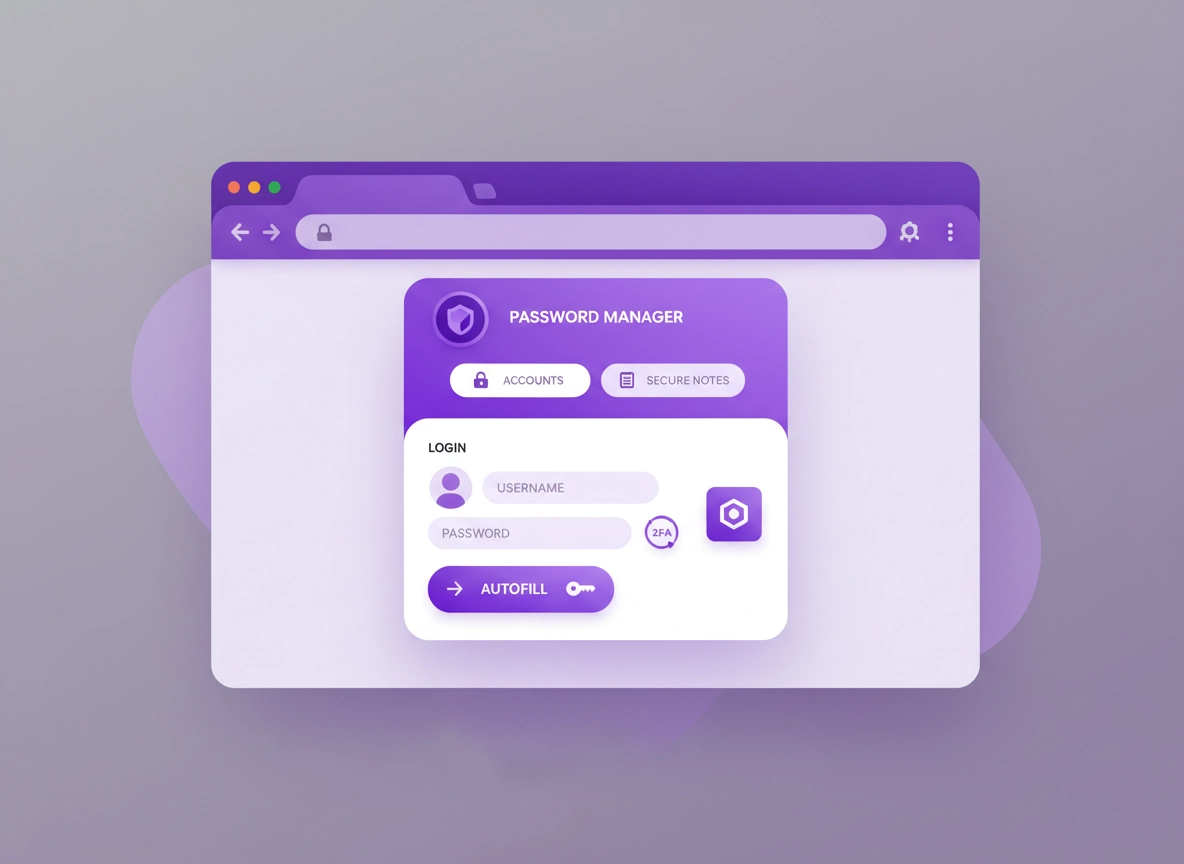
A password manager is a secure app (plus a Chrome extension) that stores your logins and fills them into websites for you. Instead of memorizing 40+ passwords—or reusing the same one everywhere—you remember one strong master password (and typically a second factor like an authenticator app). The manager generates unique passwords, autofills them, and syncs your vault across devices.
For students, the “why” is more intense than most people admit. You’re juggling a campus email, a learning platform (Canvas, Moodle, Blackboard), library logins, dorm portals, cloud docs, part-time job tools, internship accounts, and a pile of random apps for clubs and projects. When you reuse passwords, one data breach can turn into a chain reaction: email reset links, cloud drive access, and account takeovers. A password manager reduces that risk massively—without adding extra daily effort.
Think of it as a safety net for your digital life plus a time-saver. Autofill means fewer typos and fewer resets. Password health checks highlight weak or reused passwords. Secure notes give you a safe place for Wi-Fi passwords, student IDs, and backup codes. And passkeys are changing the game: many managers now store passkeys so you can sign in without typing a password at all.
Start here (pillar): If you want the general Chrome-focused overview first, read Best Password Manager for Chrome.
Key terms (quick definitions) .
- Vault: Your encrypted container of logins, secure notes, and passkeys.
- Master password: The password you remember. It unlocks your vault (choose it carefully).
- Autofill: The Chrome extension fills your username + password into the right website.
- 2FA / MFA: Extra verification beyond a password (authenticator app, security key, etc.).
- Passkeys: A modern sign-in method that uses cryptographic keys instead of passwords.
- Zero-knowledge: The provider cannot read your vault contents (they store encrypted data).
What students actually need (not marketing) .
Most password manager feature lists look identical. For students, the real differentiators are:
- Reliable Chrome extension: fast unlock, accurate site matching, easy “save login” prompts.
- Cross-device sync: laptop + phone at minimum (and ideally tablet too).
- Passkeys + 2FA support: future-proof sign-ins and strong account protection.
- Secure notes + attachments: backup codes, student portal IDs, Wi-Fi credentials.
- Recovery you understand: emergency access, recovery codes, or safe account recovery flows.
- Budget-friendly: a solid free plan or a verified student discount/trial.
If you only use one device and you never lose phones, almost any manager can work. But student life is messy. You’ll switch laptops, break phones, borrow devices, use shared printers, and log in on campus networks. Plan for reality, not the perfect day.
Before you start (fast checks) .
Do these quick checks before you install anything. They prevent the #1 student mistake: setting up a manager in a rush, then getting locked out later.
Related: If you currently use Chrome’s built-in password saving, read Chrome’s built-in password manager review and Chrome vs third-party password managers.
- Check your email security: Your email account is your “reset everything” key. Turn on MFA for your school email and personal email first.
- Know your device situation: Are you mostly laptop-only, or laptop + phone daily? Choose a manager with strong mobile apps if you use your phone for logins.
- Decide your “shared computer rule”: If you use lab PCs, plan to avoid logging into your vault there (or use a safe temporary approach).
- Collect your current passwords: If Chrome already saved passwords, you’ll likely export/import once (we’ll cover the safe way).
- Pick your MFA method now: Authenticator app is the default; a hardware security key is ideal if you can afford it.
Step-by-step: choose, install, and set it up safely .
This is the safe, student-proof setup that works for most people on Chrome. If you already have a manager, you can still use this section as a checklist to tighten your setup.
Step 1: Choose the right type (free, student deal, or paid) .
Start by picking a tier that matches your budget and risk tolerance:
- Best “free but solid” approach: Choose a manager with a strong free plan so you can build the habit first. For example, Bitwarden’s core features are free (including unlimited storage of logins and use across devices).
- Best “student deal” approach: If you want premium features (advanced reports, extras, or a specific UX), look for verified student discounts or student trials. Some providers offer student promos, such as 1Password back-to-school discounts and Keeper’s student discount offers.
- Best “I just want it to work” approach: Pay for a reputable premium plan and set it up once. This often unlocks smoother sharing, expanded MFA options, and extra security tooling.
Budget note: If you’re deciding between “pay for a password manager” and “pay for MFA,” pick the password manager first. A good manager helps you stop reusing passwords immediately (biggest risk drop per dollar).
Step 2: Install the Chrome extension (the part you’ll use daily) .
- 1 Install your chosen password manager’s official Chrome extension (from the Chrome Web Store or the vendor site).
- 2 Pin it in Chrome: click the puzzle icon (Extensions) → pin the password manager so it’s always visible.
- 3 Sign in once and set “auto-lock” to a reasonable time (5–15 minutes is a good student default).
- 4 Enable “unlock with biometrics” if your laptop supports it (nice for speed without reducing security).
What “success” looks like: You can click the extension, unlock your vault, and see (or search) your logins in under 5 seconds. If it’s slow or clunky now, it won’t get better under exam stress.
Step 3: Create a master password you can actually keep .
Your master password should be long, unique, and not based on school info. For students, the best approach is a memorable passphrase: 4–6 random words with a pattern you remember. Avoid anything tied to your university, sports team, or birth year.
Step 4: Turn on MFA (do this immediately) .
MFA protects your vault if someone guesses or steals your master password. Use an authenticator app as the baseline. If you can, add a hardware security key as a second method (great for “lost phone” scenarios).
- Best default: Authenticator app (TOTP codes)
- Best upgrade: Hardware security key (strong phishing resistance)
- Important: Save your recovery codes in your password manager’s secure notes (and ideally a second safe location you control).
Related: If you want a deeper MFA-focused breakdown for Chrome users, see Password managers with 2FA (Chrome guide).
Step 5: Import your existing passwords (safely) .
Most students have passwords in at least one place already: Chrome saved passwords, an old notes file, or another manager. Importing is fine—just do it deliberately:
- 1 Export from Chrome only if necessary, and do it on your own device (not a shared computer).
- 2 Import into your new password manager.
- 3 Immediately delete the exported file (and empty your recycle bin).
- 4 Run a password health check and start updating weak/reused passwords.
Related: Use these guides if you need the safe click-paths: Export passwords from Chrome securely and Import passwords into Chrome securely.
Step 6: Fix your top 10 accounts first (highest impact) .
Don’t try to change every password in one night. Start with the accounts that can reset everything:
- School email (and personal email)
- Cloud storage (Google Drive / OneDrive / Dropbox equivalents)
- Student portal / LMS (your classes)
- Banking / payments
- Phone account (carrier / Apple ID / Google account)
Common variations (Windows, Mac, Android, iPhone) .
- Windows / ChromeOS: You’ll likely rely heavily on the Chrome extension. Enable Windows Hello / device unlock if offered.
- macOS: Use Touch ID unlock if available and make sure the browser extension can communicate with the desktop app if needed.
- Android / iPhone: Turn on the password manager as your system autofill provider so apps log in as smoothly as websites.
Want a curated comparison? See Chrome password manager comparison and password manager pricing comparison.
Advanced: passkeys, MFA, secure notes, sharing, and recovery .
This section is where you become “hard to hack” without becoming “hard to live with.” You don’t need every feature—just the ones that match your life.
Passkeys: the student-friendly future .
Passkeys reduce phishing risk because you’re not typing a password into a fake site. Many password managers can store passkeys now, which means: you can sign into supported sites with one tap/confirm, synced across devices. If you’re starting fresh in 2026, prioritize passkey support.
Secure notes: where students quietly win .
Secure notes are underrated. Students commonly store:
- Backup codes for MFA (critical)
- Dorm Wi-Fi credentials
- Student ID numbers and portal references
- Device serial numbers (for warranty / theft reports)
- Internship onboarding details (without leaving them in email)
Related: If you want a deeper “vault” mindset, see Password vault for Chrome and secure password storage in Chrome.
Password sharing (avoid the worst student habit) .
Students share passwords constantly: Netflix, group project tools, club social accounts, shared study resources. The problem is that “just texting it” creates permanent risk—screenshots, backups, or forwarded messages. If you share at all, do it inside a password manager that supports secure sharing and revoking access.
Related: Use password sharing securely (Chrome) as your go-to guide for group projects.
Recovery planning: what happens if you lose your phone? .
Students lose phones. Laptops get repaired. SIM cards stop working. If your vault MFA is tied to one device only, you can lock yourself out at the worst moment.
- Minimum plan: Save recovery codes in your vault and keep an extra copy somewhere safe you control (not in plain text on your desktop).
- Better plan: Add two MFA methods (authenticator + security key), or two devices with the authenticator set up.
- Best plan: Use an “emergency access” feature if your manager offers it (carefully configured).
Free vs paid: how to decide without overthinking .
A good free plan can be enough for many students—especially if it includes unlimited logins and sync. Bitwarden, for example, describes core password manager features as free for individuals (unlimited storage and broad device access). If you want premium, look for verified student options: some vendors offer student-specific deals or trials (Dashlane notes student Premium trials; Keeper promotes a student discount; 1Password runs back-to-school promos).
| Student goal | What to prioritize | Likely tier | Why |
|---|---|---|---|
| Best value | Solid free plan + strong Chrome extension | Free / low-cost | Big security gain without monthly pressure |
| Premium UX | Smooth autofill + polished apps + premium extras | Student deal / paid | Less friction = better habit retention |
| Maximum safety | MFA options + recovery + secure sharing controls | Paid | Better controls for higher-risk accounts |
Chrome built-in vs third-party managers (the student decision) .
Chrome can save passwords and autofill them. That’s convenient. But a dedicated password manager usually adds: better cross-platform consistency, stronger sharing controls, advanced reports, easier organization, and clearer recovery tooling. If you’re planning to use passkeys, 2FA everywhere, and manage many accounts long-term, a dedicated manager is a stronger foundation.
Privacy & security notes (campus-safe habits) .
A password manager is a security tool, but student environments create unique risks: shared devices, phishing during registration season, and public Wi-Fi. Here are the habits that matter most in real life.
Impact: Affects account takeover risk, password reuse exposure, phishing resilience, and recovery reliability.
1) Avoid signing into your vault on shared lab computers .
Lab PCs can be misconfigured, monitored, or simply used by the next person who forgets to sign out. If you must log in on a shared device, treat it as a temporary access event: use private browsing, never “remember device,” and sign out completely. Ideally, use your phone as the “source of truth” for logins and type credentials manually only if absolutely needed.
Related: If you want broader student privacy hardening in Chrome, see Chrome privacy for students and Chrome privacy settings.
2) Watch for “edu phishing” patterns .
Students are targeted because accounts often link to financial aid, tuition payments, and official identity info. A password manager helps because it won’t autofill on the wrong domain (a fake login page usually doesn’t match the real site). If a “school login” page looks odd and your manager doesn’t offer to fill it, stop and check the URL carefully.
3) Use Chrome’s safety tools as a second layer .
Don’t rely on one tool. In Chrome, use Security Checkup and Safe Browsing settings to reduce risky downloads and known malicious sites. If you want the Chrome-side checklist, start here: Chrome security checkup, Safe Browsing settings, and password leak detection.
Recommended baseline settings (student defaults) .
- Option A (balanced): Auto-lock 10–15 minutes, MFA on, passkeys enabled, save recovery codes, avoid shared vault logins on lab PCs.
- Option B (maximum security): Short auto-lock (3–5 minutes), MFA + security key, strict sharing, use passkeys where possible.
- Option C (compatibility): Balanced settings but keep manual copy/paste available for weird campus portals and SSO flows.
Recommended settings by goal .
| Goal | Recommended setting | Tradeoff | Best for |
|---|---|---|---|
| Balanced | Auto-lock 10–15 min, MFA enabled, save recovery codes | Minor re-unlock friction | Most students |
| Maximum privacy | Short lock (3–5 min), security key, strict sharing rules | More friction | Higher-risk accounts, public Wi-Fi users |
| Compatibility | Balanced + allow manual fill/copy for SSO portals | Less “automatic” flow | Campus SSO / older portal sites |
Troubleshooting .
Related: If you suspect an extension problem, read Chrome extension security check and extension permissions guide.
If autofill doesn’t appear (or fills the wrong thing) .
This usually happens because the website uses unusual login fields, multiple login steps, or embedded frames. Fix it by opening the password manager extension, searching the login manually, and using the manager’s “fill” action from the extension. Also verify the saved URL matches the real domain (especially for school SSO portals).
If your school login uses SSO and keeps looping .
Some campus SSO flows bounce across multiple domains. Save the login for the actual credential page (the page where you type the password), not the landing page. If needed, store the username separately in a note and let the manager fill only on the correct step.
If you forgot your master password .
Don’t panic-click random recovery emails. Follow your manager’s official recovery process. This is why we plan recovery upfront: recovery codes, secondary MFA methods, or emergency access. If you have no recovery options, you may need to create a new vault and reset passwords—start with email, then critical accounts.
If you think your device is compromised .
If you suspect malware or a browser hijacker, prioritize cleaning your system before changing passwords. Otherwise, you might re-enter new passwords while still being monitored. Start with: Remove malware from Chrome and Chrome security checkup.
FAQ .
-
helpIs a password manager safe for students?Yes—when set up correctly, it’s one of the biggest security upgrades you can make. The key is using a strong master passphrase, enabling MFA, and having a recovery plan. If you want the full safety breakdown for Chrome users, see Are password managers safe for Chrome?.
-
helpShould I use Chrome’s built-in password manager instead?Chrome’s built-in option is convenient, especially if you already rely on Google sync. A dedicated password manager usually offers clearer vault organization, stronger sharing controls, broader platform consistency, and extra security tooling. Compare both here: Chrome vs third-party.
-
helpWhat’s the biggest mistake students make with password managers?Not planning recovery. Students often set up MFA on one phone, lose access, and get locked out at the worst time. Save recovery codes, add a backup MFA method, and avoid signing into your vault on shared lab computers.
-
helpDo password managers help against phishing?They help a lot because autofill typically only triggers on the correct domain—fake login pages often won’t match. Still, you should check URLs and keep Chrome’s Safe Browsing enabled: Safe Browsing settings.
Sources & further reading .
- Bitwarden Help: Password Manager Plans (core features overview)
- Dashlane Support: Free trials and discounts (includes student Premium trial note)
- Keeper: Student discount offer page
- 1Password: Back-to-school / student promo page
- ChromeThemer: Chrome password manager comparison
Disclosure: Some pages may mention tools or services. Recommendations are editorial and based on practical testing criteria for Chrome users.