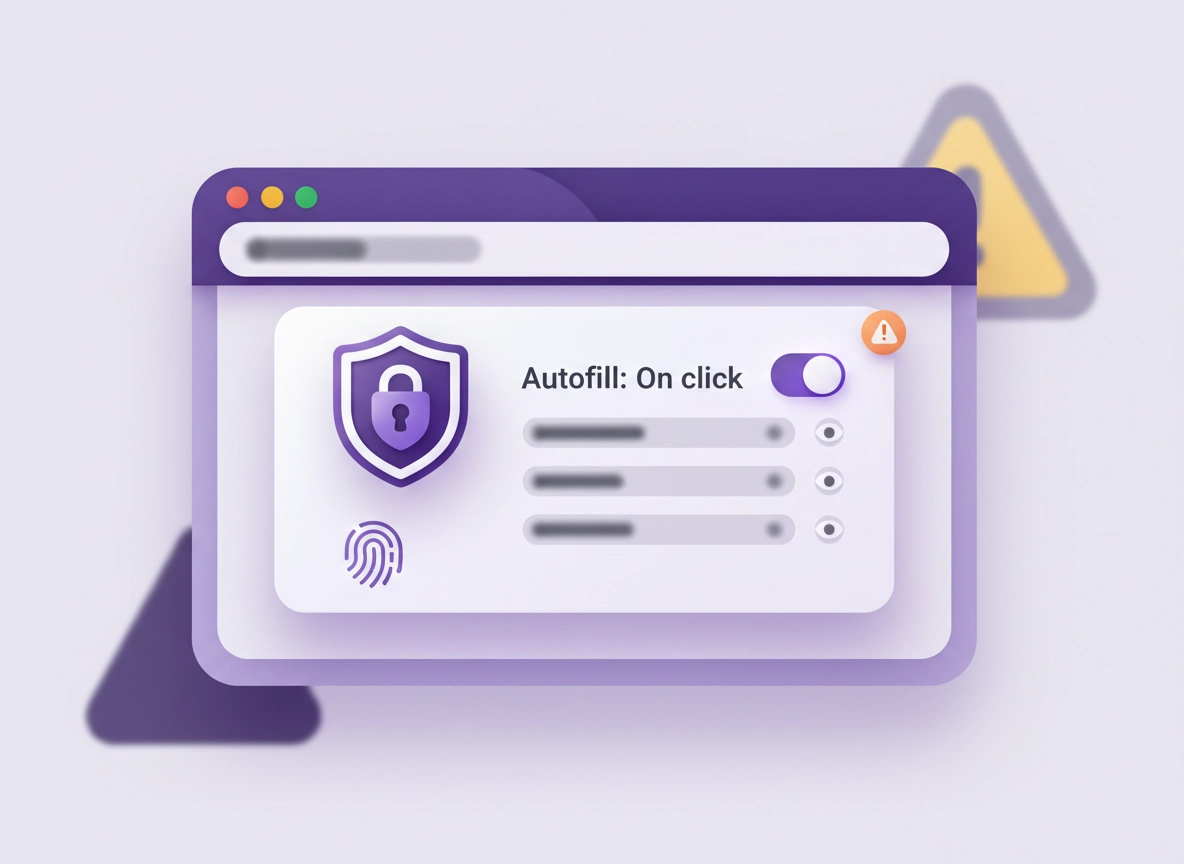
What a “free password manager for Chrome” really means .
This guide is written for real-world Chrome usage: extensions, autofill, phishing defenses, and multi-device reality—not theory.
A password manager for Chrome is usually one of two things: (1) a browser-integrated manager (like Google Password Manager in Chrome), or (2) a dedicated password vault that runs as a Chrome extension (often paired with desktop/mobile apps). When people search for a free password manager for Chrome, they typically want the second option—because free tiers can add useful features like cross-device sync, stronger sharing workflows, password health reports, and better organization than a basic browser-only store.
Here’s the catch: “free” is a pricing label, not a security guarantee. A password manager’s safety depends on how the vault is designed (encryption, authentication, recovery) and how you use it (autofill behavior, device lock, extension permissions, and phishing awareness). The fastest way to lose saved logins isn’t “someone cracking your vault”—it’s accidentally autofilling into a fake login page, approving the wrong extension permission, or leaving your browser unlocked on a shared device.
This page focuses on high-intent, practical decision points: what features matter most on a free plan, what settings reduce risk immediately, and what tradeoffs you accept when you choose a “free” tier. If you’re also comparing overall options, start with the hub: Best Password Manager for Chrome.
Related: Not sure whether you should stick with Chrome’s built-in manager? Read Chrome Built-in Password Manager Review and Chrome Password Manager vs Third-Party.
Key terms (quick definitions) .
- Vault: The encrypted database that stores passwords, notes, passkeys (sometimes), and other secrets.
- Master password / master passphrase: The secret you use to unlock the vault (ideally long, unique, and memorable to you).
- Zero-knowledge encryption: A design where the provider can’t read your vault contents because encryption happens with keys derived from your secret.
- Autofill: A convenience feature that fills usernames/passwords into forms—great for speed, risky for phishing if not controlled.
- Browser extension permissions: What the extension is allowed to do in Chrome (e.g., “read and change data on all sites”).
- Passkeys: Passwordless sign-in credentials tied to your device biometrics/screen lock; increasingly supported across platforms.
- Breach monitoring: A feature that checks whether passwords were exposed in known data leaks and prompts you to change them.
What “free” usually includes—and what it often limits .
Free plans vary by provider, but most “free password manager” tiers are built around a predictable business model: provide a strong basic vault experience and upsell features that matter more to teams, families, or higher-risk users. When you evaluate a free password manager for Chrome, don’t start with marketing. Start with the questions below.
- Core vault security: The basics (encryption, unlock controls, session timeouts) should be strong on free plans—if it isn’t, move on.
- Multi-device sync: Some free plans include it, others limit it (or restrict to one device type).
- Sharing: Password sharing is often limited or locked behind paid tiers—important if you share streaming, banking admin logins, or work accounts.
- Advanced 2FA: Many free tiers support MFA, but the best phishing-resistant options and enterprise controls may be paid.
- Emergency access / recovery: Often a paid feature, and it matters more than people realize (especially for families and teams).
- Admin + audit tools: Typically paid. If your needs include policy, reporting, or SSO, skip “free” and read: Best Enterprise Password Manager for Chrome.
You don’t need every premium feature to be safe. But you do need control over vault unlock and autofill, plus a plan for recovery that doesn’t rely on “reset via email.”
Before you start (fast safety checks) .
Before installing anything, do these quick checks. They prevent the most common “I installed a free password manager and now something feels off” situations: hijacked extensions, unsafe autofill defaults, and syncing confusion.
Related: If you want a broader password security baseline first, use Chrome Password Checkup and Chrome Password Leak Detection.
- Check 1: Update Chrome first. Go to ⋮ → Help → About Google Chrome. Update and relaunch. Old builds can behave differently with password UI and extension permission prompts.
- Check 2: Clean up suspicious extensions. Visit chrome://extensions and remove anything you don’t recognize. If you suspect hijacking, read: Chrome Unwanted Extensions Removal.
- Check 3: Decide where your passwords live (temporarily). If you’re migrating, plan your export/import flow: Export Passwords from Chrome Securely and Import Passwords into Chrome Securely.
- Check 4: Turn on device screen lock. Password managers are only as safe as the device unlock protecting them. Use Windows Hello, macOS screen lock, or Android/iOS lock screen.
- Check 5: Create a “do not autofill” mindset. You will change this in settings later, but decide now: you want autofill to require a click, not happen passively on page load.
Step-by-step: install + harden your free password manager .
This is the setup sequence that prevents the biggest Chrome password manager mistakes: storing credentials safely but leaking them through unsafe autofill, weak unlock policies, or risky permissions. Even if you already installed a manager, run the steps in order—most of the “hardening” is just changing defaults.
- 1 Choose your model: built-in vs extension vault. If you want “free and simple,” start with Chrome’s built-in manager: review. If you want a dedicated vault, pick a reputable provider and install from the official Chrome Web Store listing (not a random download page).
- 2 Install the extension and check permissions before you click “Add.” In the install prompt, scan for language like “read and change data on all websites.” Many managers request broad permissions to detect login forms—but you should still treat that as high-impact. If you’re not comfortable evaluating this, read: Chrome Extension Permissions Guide.
- 3 Create a strong master passphrase (not a “clever” password). Use a long passphrase you can remember, unique to this vault. Don’t reuse an email password. A good mental model: your master passphrase is a “key” to everything else. If you want rules + examples, see: Master Password Security.
- 4 Enable device unlock / biometrics if available. On desktop, require Windows Hello or macOS screen lock for fill/unlock where supported. On mobile, require biometrics or device PIN to unlock the vault. This limits shoulder-surfing and “walk-up” access.
- 5 Harden autofill: switch from “automatic fill” to “fill on click.” In your manager’s settings, disable any option like “autofill automatically” or “auto-submit.” Prefer: click extension → select credential → fill. This is your biggest phishing defense. If you specifically want a deeper autofill guide, see: Password Autofill Chrome Extension.
- 6 Set session timeout and lock behavior. Configure the vault to lock quickly (for example: on browser restart, after 5–15 minutes idle, or when the computer locks). If your manager supports “lock on sleep,” turn it on.
- 7 Turn on breach monitoring / password health checks. If your manager includes it, enable breach alerts and weak/reused password reports. Also run Chrome’s built-in checks so you catch issues from multiple angles: Chrome Security Checkup.
- 8 Plan recovery immediately (before you need it). If your provider offers recovery codes, print or store them offline. If your free plan has limited recovery, create a safe “break glass” plan: keep an offline record of your master passphrase (secured physically).
- 9 Migrate credentials safely (optional but common). If moving from Chrome’s built-in store, use a secure export/import workflow and delete the export file when finished. Use: Secure Password Storage in Chrome as your checklist for cleaning up after the migration.
- 10 Test “success” the right way. Lock your vault → visit a real login page you trust → confirm you must unlock first → confirm autofill doesn’t happen automatically. Then test a fake lookalike URL (a harmless misspelling of a site you use) and confirm the manager does not offer your credential.
What “success” looks like: your vault stays locked until you unlock it, autofill requires a deliberate click, and credentials only appear on the correct domain (not “similar looking” sites).
Related: If your goal is “secure everything in Chrome,” combine this with Chrome Login Security Best Practices and Chrome Two-Factor Authentication Guide.
Common variations .
- Windows / ChromeOS: Prefer Windows Hello or ChromeOS screen lock integration for fill/unlock. Lock on workstation lock is a strong baseline.
- macOS: Use screen lock/Touch ID integration where supported. If you share a Mac, create separate OS user accounts—don’t share the same browser profile.
- Android / iPhone: Many users end up with two managers accidentally (browser + OS). Choose one “source of truth” and disable redundant autofill providers to avoid chaos.
Advanced settings (power users + small teams) .
Once your free password manager is safely installed, you can increase protection without sacrificing usability. The goal is to reduce the “blast radius” if something goes wrong: a phish, a compromised device, a rogue extension, or a human mistake. Advanced settings are where you turn a basic vault into a safer identity workflow.
Related: If you’re doing this in a managed environment, read Password Manager Chrome Business and Enterprise Password Manager for Chrome.
1) Make autofill phishing-resistant .
Password managers can help defend against phishing—but only if you configure them to behave like a security tool, not just a convenience tool. Your ideal behavior is: no automatic fill, no auto-submit, and domain-locked suggestions.
- Require a click to fill: prevents “credential leakage by default.”
- Disable auto-submit: auto-submit removes your last chance to notice a weird URL.
- Use “match exact domain” where available: reduces the risk of filling into subdomain tricks.
- Keep “show username suggestions on page load” conservative: suggestions can leak what accounts you have even without filling.
2) Reduce extension attack surface .
Chrome extensions are powerful because they can interact with web pages. That also makes them a target. You don’t need to fear extensions—you need to manage them. Start with: Chrome Extension Security Check.
- Pin your password manager extension: Chrome toolbar → pin it. You want the real extension visible, not a lookalike.
- Restrict “Site access” if possible: for some extensions, you can set site access to “On click” or “On specific sites.”
- Remove duplicate password extensions: having two password managers increases confusion and risks filling the wrong vault.
- Watch for permission changes: if an update suddenly requests broader permissions, pause and investigate.
3) Use 2FA and passkeys strategically .
A password manager is not a substitute for two-factor authentication; it’s a multiplier. For important accounts (email, banking, work admin, cloud storage), enable 2FA and prefer phishing-resistant methods when available. If you’re adopting passkeys, keep your system consistent: passwords for legacy logins, passkeys where supported, and a vault that can manage both without confusion.
Related: For a practical passkey mindset in Chrome, see Chrome Sign-In Security Settings and Chrome Account Security Settings.
4) Create a “recovery without panic” plan .
Recovery is where many free password manager setups silently fail. People install a manager, add 200 logins, and only then realize: “If I lose my phone, how do I get back in?” A good plan is boring, redundant, and offline-capable.
- Keep recovery codes offline: printed and stored securely is still one of the most reliable options.
- Avoid email-only recovery: email accounts are common takeover targets. Use a secure recovery method where offered.
- Protect your email like a root account: your email is the key to resets. Use strong 2FA and a unique password.
- Separate personal vs work vaults when possible: recovery policy is different for each.
Common alternatives users compare .
- Chrome built-in password manager vs dedicated password manager extensions
- Free vs paid password manager plans (what you actually gain)
- Password manager vs Chrome passwords for security + convenience
- Password manager + 2FA vs “password-only” accounts
- Password managers vs passkeys (where each fits)
Privacy & security notes (phishing, permissions, and vault risk) .
The uncomfortable truth: password managers are a single point of convenience and a single point of failure. The solution isn’t to avoid them—it’s to set them up like professionals do: minimize unnecessary exposure, reduce autofill risk, and harden the environment around the vault.
Related: If you suspect infection, pop-ups, redirects, or hijacking while dealing with passwords, stop and do cleanup first: Remove Malware from Chrome and Chrome Browser Hijacker Removal.
The 4 risks people underestimate .
- Autofill into phishing pages: You’re on a lookalike domain, the form looks right, and your manager fills anyway. Fix: click-to-fill + strict domain matching.
- Leaving the vault unlocked: Walk away from a laptop, come back later, still unlocked. Fix: short timeout + lock on sleep.
- Extension permission creep: Updates request new permissions; users click “allow” quickly. Fix: review updates, remove what you don’t need.
- Weak recovery planning: Lost phone + no recovery codes = vault lockout. Fix: offline recovery plan and strong email security.
Recommended baseline settings .
- Option A (balanced): click-to-fill, lock after 10–15 minutes idle, require screen lock/biometrics to unlock, breach monitoring on.
- Option B (maximum safety): unlock required for every fill, strict domain matching, lock on browser restart + sleep, recovery codes offline.
- Option C (compatibility): fill after manual selection, slightly longer timeout for heavy workflow users, but still lock on device sleep.
Recommended settings by goal .
| Goal | Recommended setting | Tradeoff | Best for |
|---|---|---|---|
| Balanced | Click-to-fill + lock after idle + device unlock required | One extra click per sign-in | Most users |
| Maximum privacy & safety | Unlock every fill + strict domain matching + lock on sleep + offline recovery codes | More friction; more prompts | High-risk accounts, admins, journalists, security-conscious users |
| Compatibility | Manual select credential, conservative form detection, longer timeout but lock on sleep | Less “automatic convenience” | Banking sites, enterprise portals, unusual login flows |
Troubleshooting .
Related: If you’re stuck because a site behaves strangely after changing password/autofill settings, check: Chrome Site Permissions Settings and Clear Browsing Data.
If autofill stops working (or fills the wrong thing) .
This happens when the site uses a non-standard login form, a single-page app flow, or embedded frames. First, confirm you didn’t disable fill completely (some managers have separate toggles for “suggestions” and “fill”). Then try: lock vault → unlock → open the extension and fill from the extension UI (not from the page suggestion). If it still fails, temporarily disable other form/autofill extensions to rule out conflicts.
If you see duplicate prompts (Chrome + manager competing) .
This is common when Chrome’s built-in manager is still enabled while you install a third-party manager. Choose one “primary” manager. If you’re using a dedicated vault, consider turning off Chrome’s built-in prompts for saving/filling so you don’t accidentally save passwords in two places. For deeper context, read: Chrome Password Manager vs Third-Party.
If your password manager extension disappears or keeps disabling .
If an extension is removed unexpectedly, treat it as a security signal. Check whether Chrome shows an “extension removed” warning, and review your installed extensions list. If you’re on a work or school device, policies may block it. For suspicious behavior, use: Chrome Extension Malware Removal.
If you think your passwords were exposed .
Don’t panic—do a structured response: run breach checks, change passwords for high-value accounts first (email, banking, cloud), enable or upgrade 2FA, and review extension permissions. For Chrome-specific hardening after an incident, see: Chrome Data Breach Protection and Chrome Security Audit Guide.
If you need to reset safely .
If the environment feels compromised (redirects, popups, unknown extensions), fix the browser first, then return to your vault. A safe order is: remove suspicious extensions → scan for malware → reset Chrome settings if needed → change passwords from a clean device → re-enable the password manager with hardened autofill. If you need a reset workflow, see: How to Reset Chrome After Malware.
FAQ .
-
helpAre free password managers for Chrome actually safe?Many are safe when they use strong encryption and let you control the master password, but safety depends on setup. The biggest real-world risks are phishing via autofill, weak vault timeout settings, and risky extension permissions. Use click-to-fill, lock quickly, and keep recovery codes offline for a much safer baseline.
-
helpShould I use Chrome’s built-in password manager instead?If you want the simplest free option with minimal extra software, Chrome’s built-in manager can be a reasonable baseline. If you want deeper organization, stronger workflows, or features beyond the browser (and sometimes better sharing and auditing), a dedicated manager is usually better. Compare them here: Chrome built-in review.
-
helpWhat’s the #1 setting that makes a password manager safer in Chrome?Disable automatic autofill and require a deliberate click to fill. This one change dramatically reduces the chance of handing credentials to a lookalike phishing page. Combine it with short timeouts and device unlock requirements for best results.
-
helpHow do I switch without losing passwords?Use a careful export/import flow and delete any exported CSV file immediately after import. Start here: export securely and import securely. After migration, run a password health check and change reused or weak passwords first.
Sources & further reading .
- Google Chrome Help: Manage passwords in Chrome (desktop)
- Google Password Manager (passwords.google.com)
- Google Accounts Help: Use passwords & passkeys across devices
- NIST SP 800-63B: Digital Identity Guidelines (memorized secrets)
- OWASP: Password Storage Cheat Sheet
Disclosure: Some pages may mention tools or services. Recommendations are editorial and based on practical security reasoning and testing workflows, not pay-to-rank placements.