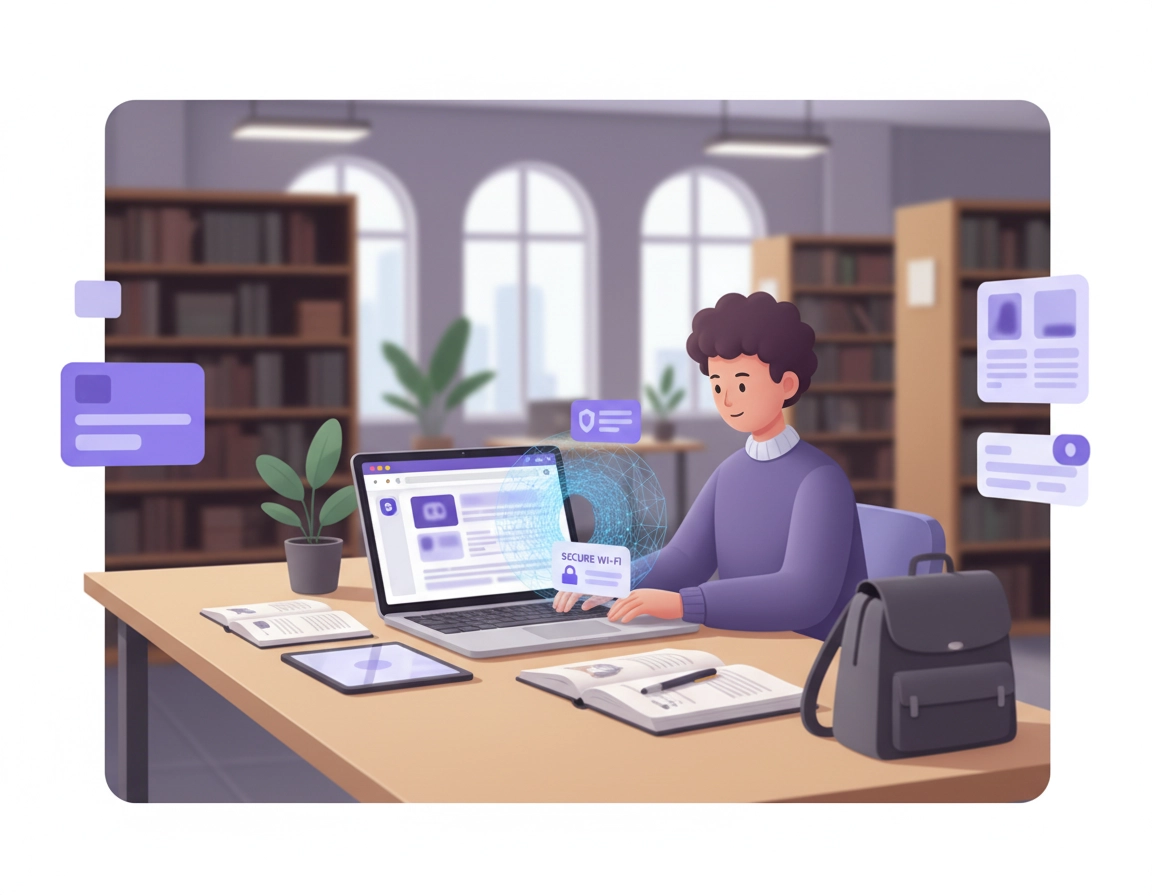
Why students end up needing a VPN in Chrome .
Students do not usually need a VPN because they are trying to become invisible online. They need one because modern student life pushes sensitive logins through a browser on networks they do not fully control.
Chrome is often the center of a student’s digital life. One browser session can hold university email, learning platforms, Google Docs, OneDrive, banking, scholarship portals, library databases, shared group-project dashboards, note tools, AI assistants, and video platforms. On a typical day, that session may move from residence Wi-Fi to campus guest Wi-Fi, from a library desk to a café, from a class laptop to a borrowed machine in a study room. That movement creates a pattern: lots of account value, lots of browser activity, and a network environment that changes constantly.
In that setting, a VPN is useful because it reduces how exposed your traffic is to the local network and adds another privacy layer between your device and the places you visit online. For students, that matters most on public or semi-public networks, especially where you are not the person controlling the router, the access point, or the Wi-Fi policy. The point is not fantasy-level secrecy. The point is practical reduction of unnecessary exposure while you study, upload assignments, log into accounts, and move around all week.
What makes the Chrome angle important is that many students do not really need “a VPN” in the abstract. They need the right kind of VPN coverage. A Chrome VPN extension can be perfectly reasonable if your risky or sensitive activity lives mostly in browser tabs. But it is not the same as a desktop or mobile VPN app. A full VPN app can protect more of the device, including apps and background traffic outside the browser. A browser extension usually cannot do that job on its own.
This difference matters more on student devices than many buying guides admit. A student who lives in Chrome, writes papers in web apps, and submits coursework in browser tabs may get strong value from a good extension. A student who is constantly syncing folders, taking video calls, using messaging apps, or downloading and uploading large files outside the browser will often be better served by device-level protection.
Related: If your goal is broader browser privacy and not only connection protection, read Chrome Privacy for Students, Chrome Privacy Settings, and VPN Chrome Secure Public Wi-Fi.
The student-specific risk pattern most pages miss .
The real risk is not one dramatic incident. It is repetition. Students log into important accounts from many locations, usually while multitasking and often while tired, rushed, or distracted. They use campus PCs, shared flats, roommate networks, library workstations, and older laptops that carry a semester’s worth of extensions and saved sessions. That is exactly why a page like this needs more than generic “VPNs protect privacy” language. The value lives in how students actually browse.
- Dorm and residence networks: shared environments with lots of other users and inconsistent device hygiene.
- Campus guest Wi-Fi: practical and useful, but not something you fully govern.
- Library and lab sessions: high account value, lots of quick logins, often on managed or semi-shared machines.
- Café or transit Wi-Fi: convenient, but not where you want to expose more than necessary while handling coursework or banking.
- Study abroad and travel: the network and location side becomes even more variable.
Key terms worth understanding before you install anything .
- Chrome VPN extension: A browser add-on that mainly applies to Chrome traffic rather than everything happening on the device.
- Full VPN app: A desktop or mobile VPN client that covers traffic more broadly across the device.
- Captive portal: A Wi-Fi sign-in or acceptance page that must be completed before normal internet access works.
- Secure DNS: A Chrome privacy setting that encrypts DNS lookups in supported situations, but it is not a substitute for a VPN.
- Site settings: Chrome controls for notifications, camera, microphone, downloads, pop-ups, clipboard, and other permissions that can matter as much as the VPN itself.
- Extension site access: How much of your browsing data an extension can see or change on sites you visit.
The campus reality: dorm Wi-Fi, library portals, guest networks, and shared devices .
Student VPN advice gets much better once you stop thinking in terms of “home internet versus public Wi-Fi” and start thinking in terms of campus patterns. Not all student networks behave the same way. Some campuses use institution-managed access, some rely heavily on guest networks, some route users through sign-in pages, some push students toward specific portals, and some combine student identity with network access in ways that make connection problems feel random when they are not.
That is why a VPN that works perfectly at home can feel unstable the moment you arrive on campus. The issue is not always the VPN provider. Sometimes the network expects you to pass a captive portal first. Sometimes a library site is already picky about IP reputation or location changes. Sometimes a study building blocks or throttles certain kinds of traffic. Sometimes your browser stack is carrying an ad blocker, a script blocker, an AI extension, a note clipper, and a coupon tool on top of the VPN extension, and the whole pile becomes harder to trust or debug.
In other words, the student use case is less about “Can a VPN work in Chrome?” and more about “How do I keep Chrome stable while moving through campus systems that were not designed around my specific extension stack?”
Where students usually feel the most friction .
- Learning platforms: LMS sign-ins can break when several privacy tools modify requests at the same time.
- Library databases: some are sensitive to IP reputation, geographic jumps, or repeated re-authentication.
- Banking: location shifts and unusual traffic patterns can trigger extra verification or friction.
- Group project tools: browser-heavy collaboration is exactly where extension overload starts to show.
- Streaming after class: students often buy for entertainment use, then regret slower academic workflows during the day.
This is also where shared-device behavior matters. Many students use the same Chrome profile for everything: classwork, banking, social logins, entertainment, side hustles, internships, and shopping. That creates unnecessary cross-over. A separate study-focused Chrome profile can be one of the cheapest privacy and productivity upgrades a student makes all year. It keeps the extension set cleaner, the bookmarks more intentional, and the account context less chaotic.
Related: For a cleaner browser setup beyond security alone, see Chrome Workflow for Students and Chrome for Focus and Productivity.
How to choose the right setup for your student workflow .
The best student setup is not the most expensive one. It is the one that protects the part of your workflow that actually needs protecting without turning Chrome into a constant troubleshooting exercise.
Option 1: Chrome VPN extension only .
This is the lightest path and often the most attractive to students because it is quick to install, quick to toggle, and easy to understand. If your main concerns are safer browsing on public Wi-Fi, protecting browser-based logins, and keeping study tabs more private on networks you do not trust, a good extension can work well.
The weakness is coverage. A browser extension does not automatically mean your whole device is protected. If your laptop spends half the day outside Chrome, this setup can leave gaps.
Option 2: Full VPN app plus a cleaner Chrome setup .
This is usually the better fit for students who use video meetings, sync folders, messaging apps, device downloads, and cloud tools outside the browser. It is also often the stronger fit for dorm life, travel, and people who bounce between multiple network types every week.
The tradeoff is complexity and sometimes battery or speed impact. On older student laptops, heavy privacy stacks can feel clunky. That is why the right device-wide setup should still be paired with a simpler browser environment, not more browser clutter.
Option 3: Hybrid use based on context .
Many students end up here. They use a VPN app on sketchier or more public networks, keep Chrome relatively lean, and avoid staying permanently in “maximum privacy mode” when they need compatibility for library access, campus tools, or fast uploads before a deadline. This is often the most realistic long-term setup because it respects the fact that student browsing is not one single scenario.
| Student scenario | Best default | Main reason | Main tradeoff |
|---|---|---|---|
| Mostly browser-based coursework | Chrome VPN extension | Fast, simple, enough for browser-centered use | Does not cover everything outside Chrome |
| Dorm + apps + sync + video calls | Full VPN app | Device-wide coverage is more complete | Can add battery or speed overhead |
| Library research + picky academic sites | Selective or hybrid use | Better compatibility control | Less “always-on” simplicity |
| Budget-conscious student | Low-cost paid plan | Usually safer and more stable than sketchy free tools | Still a recurring cost |
A setup I would recommend for most students .
- 1 Decide whether your risk lives mainly inside Chrome or across the whole device.
- 2 Install from the official Chrome Web Store or the provider’s official site only.
- 3 Start with the nearest server for study traffic. Save long-distance routing for specific needs, not as your permanent default.
- 4 Create or clean up a separate Chrome study profile if your browsing is currently one giant mixed-use mess.
- 5 Test your actual workflow: LMS, email, Drive or OneDrive, library databases, PDF downloads, and whichever site usually breaks when your setup gets complicated.
- 6 Remove extension clutter before deciding the VPN is the problem.
- 7 Keep one setup that you can realistically live with during exam season, not one that sounds good in a Reddit thread.
What good looks like in practice: you can sign into campus tools reliably, upload coursework without repeated stalls, browse on shared Wi-Fi with less exposure, and avoid turning Chrome on and off like a machine held together by toggles.
Related: If you want a broader buyer’s overview, start with Best VPN for Chrome, VPN Chrome vs Desktop VPN, VPN Extension Permissions in Chrome, and VPN for Chrome Best Settings Guide.
Chrome settings that matter more than most VPN ads admit .
One of the weakest patterns in commercial VPN content is pretending the VPN alone is the answer. It is not. If Chrome is badly configured, overloaded with extensions, or sharing more than you realize through routine permissions, the browsing environment is still weak. The VPN can help, but it cannot rescue sloppy browser hygiene.
For students, the settings that matter most are usually found under Settings > Privacy and security. That area is where Chrome surfaces its Security controls, Site settings, cookies and site data behavior, and other browser-level privacy choices. You do not need to become a security engineer. You do need to stop ignoring the menus that decide how much the browser itself is allowed to expose or accept.
Security settings .
In the Security section, students should think less in terms of “maximum fear mode” and more in terms of practical protection for everyday browsing. If you regularly install new tools, download lecture files, open lots of links from university systems, and move between networks, this area matters. A safer browsing baseline does more for many students than another flashy VPN marketing feature ever will.
Site settings .
This is where students should be more deliberate. Camera, microphone, notifications, downloads, clipboard, pop-ups, background sync, and location access are easy to leave on autopilot. Yet these settings shape your browser risk every day. If you use Chrome for class calls, recorded presentations, library tools, and productivity apps, review these permissions instead of letting them accumulate semester after semester.
Cookies and site data .
Student browsing often lives inside university identity systems, cloud documents, research databases, and collaboration tools. That means cookie behavior can affect both privacy and convenience. You want enough control to avoid unnecessary tracking and session mess, but not so much aggression that every institutional site becomes a login disaster. This is one of those places where “balanced and deliberate” usually beats “block everything and hope for the best.”
Secure DNS .
Secure DNS can be a worthwhile privacy layer inside Chrome, but students should understand what it is and what it is not. It can help protect DNS lookups under supported conditions. It is not a replacement for a VPN, and on some networks it may interact badly with campus setups or other tools. Use it as part of a broader browsing setup, not as a magic privacy button.
Extension permissions and site access .
This is one of the biggest hidden issues on student laptops. A VPN extension may be reputable, but the rest of the extension stack often is not. Students install speed-readers, citation helpers, AI writing tools, tab managers, grammar checkers, PDF tools, shopping tools, and random “must-have” utilities under deadline pressure. Each one can request broad access. A cleaner extension stack with narrower access is usually safer than trying to compensate for chaos with yet another privacy add-on.
Related: For the Chrome side of the equation, see Chrome Extension Security Check, Chrome Extension Permissions Guide, VPN vs Built-in Chrome Security, and VPN vs Browser Extension Security Tools.
What to look for before you pay for anything .
Students do not need the “most advanced” VPN. They need one that behaves well in the messy reality of student browsing. That means choosing for trust, stability, and usability before choosing for marketing slogans.
What matters .
- Clear privacy model: the provider should explain what it does and does not log in language that is not pure theatre.
- Strong Chrome experience: if you use the extension, the extension should feel polished, updated, understandable, and easy to control.
- Good nearby speed: students need stable practical speed on closer servers more than global bragging rights.
- Low-friction login behavior: constant re-authentication gets old fast when your academic day already has enough logins.
- Reasonable device support: you may use the same account on a phone, laptop, and perhaps a secondary tablet or Chromebook.
- Battery and memory sanity: a “premium” setup that crushes an older laptop is not actually premium for a student.
What students often overvalue .
- Huge server counts without checking whether nearby servers are consistently usable
- “Military-grade” language with no real clarity behind it
- Extreme privacy modes they will disable after two frustrating days
- Streaming-first marketing when the daily need is safer academic browsing
- Sketchy free lifetime deals from pages that look built to harvest desperate clicks
Free vs paid for students .
This is one of the most important money-intent questions on the page. Students are naturally price-sensitive, and that is reasonable. But in VPNs, “free” can hide the real cost badly. Sometimes the cost is slower speed. Sometimes it is harsh usage limits. Sometimes it is poor compatibility. Sometimes the trust model is simply weak. A low-cost paid option is often the better student choice because it lowers friction and uncertainty where the browser is already doing high-value work.
That does not mean every paid VPN is good, or every free plan is automatically dangerous. It means students should be more skeptical than they usually are. If the tool is going to sit inside the same browser that handles course submissions, logins, and finances, trust is not an optional luxury feature.
| Buying factor | What a student should ask | Why it matters in Chrome |
|---|---|---|
| Extension quality | Is the Chrome extension polished and understandable? | Your day may live almost entirely in browser tabs. |
| Device coverage | Do I need only Chrome protection or app-wide protection too? | This is the biggest mismatch students make. |
| Speed | How does it perform on nearby servers? | Assignments and uploads do not care about theoretical speed bragging. |
| Trust | Does the provider explain privacy in a serious way? | Your browser holds high-value account activity. |
| Price | Am I paying for student needs or enterprise fantasy features? | Students rarely need the most bloated plan. |
Related: You may also want VPN for Chrome Free vs Paid, VPN for Chrome Performance Impact, VPN for Chrome Speed Optimization Tips, VPN for Chrome Battery Usage, and VPN for Chrome Data Usage Impact.
Privacy and security notes students should not skip .
A VPN raises the floor of network privacy in many student situations, but it does not magically clean up the rest of your browser life. If you install a questionable extension, save passwords carelessly in a chaotic shared profile, grant broad permissions to every productivity add-on you see, or leave borrowed devices signed into your synced account, the VPN has not solved the bigger problem.
Impact: Affects shared-network exposure, Chrome extension trust, account safety, login stability, streaming reliability, and day-to-day study workflow.
Plain-English summary: a VPN can help protect the connection layer, but students still need to protect the browser layer. The strongest setup is not “VPN plus everything.” It is “VPN plus a cleaner Chrome environment that you actually understand.”
Where students are usually more exposed than they think .
The most common weak moments are painfully ordinary: logging into university email on open Wi-Fi between classes, leaving Chrome sync active on a borrowed laptop, storing banking and academic passwords in one overloaded profile, installing extensions in a rush before an assignment deadline, or assuming a VPN makes a suspicious extension safe because the word “secure” appears somewhere in the description.
This is why student browsing should be thought of as a trust model. Which tool gets access to what? Which sites can an extension read? Which device is signed into which Chrome profile? What happens if your laptop is used by a roommate, classmate, family member, or lab environment? These questions matter more than the usual “top 10 VPN features” checklist.
Recommended baseline for students using Chrome with a VPN .
- Keep extensions lean: every extra extension is another trust and performance decision.
- Review site permissions: camera, mic, notifications, downloads, clipboard, and pop-up behavior should be deliberate.
- Separate school from everything else where possible: even one cleaner study profile is a major upgrade.
- Be honest about saved passwords: if Chrome is holding academic, financial, and personal logins together, a dedicated password manager may be the better long-term option.
- Do not confuse convenience with safety: the easiest setup is not always the safest one, but the safest setup is also not the one with the most moving parts.
| Goal | Recommended posture | Tradeoff | Best fit |
|---|---|---|---|
| Balanced student privacy | Good VPN, nearby server, lean extension set, sensible Chrome settings | Not maximum privacy theatre | Most students |
| Higher-sensitivity browsing | Full VPN app, cleaner profile separation, stricter permission control | More friction and some speed cost | Students doing sensitive account or finance work on many networks |
| Compatibility-first setup | Selective VPN use, closer servers, fewer aggressive blockers | Less privacy than a more locked-down posture | Students using LMS, library, or banking sites that break easily |
| Budget-conscious setup | Simple low-cost plan, clean browser, fewer tools | Fewer premium extras | Students who value stability over feature creep |
Related: For password and extension hygiene, see Best Password Manager for Students Chrome, Chrome Password Manager vs Third Party, Are Password Managers Safe for Chrome, and Chrome Extension Security Check.
Troubleshooting when campus Wi-Fi, library access, or Chrome itself starts fighting you .
Students often abandon a VPN too early because the first breakage feels like proof the setup is bad. Usually it is not that simple. The problem is often one of four things: a network sign-in page, a site that dislikes the server you chose, an extension conflict, or a mismatch between what you expected the VPN to cover and what it actually covers.
Related: You may also need VPN for Chrome Troubleshooting Guide, VPN for Chrome Connection Issues Fix, and How to Use VPN with Chrome Browser.
If campus or café Wi-Fi stops working as soon as you connect the VPN .
The most common cause is a captive portal that has not been completed yet. Disconnect the VPN, finish the Wi-Fi sign-in or acceptance step, make sure normal browsing works, then reconnect the VPN and test again. Many students waste time changing servers or reinstalling extensions when the real issue is simply that the network wanted the portal first.
If your LMS, library database, or student portal keeps failing .
Switch to the nearest or next-nearest server and test again. Some academic sites are sensitive to location jumps, IP reputation, or repeated authentication changes. Also check whether your ad blocker, privacy tool, or script-heavy extension stack is interfering with the sign-in flow. In student Chrome environments, extension conflict is common.
If Chrome feels heavy or slow only after installing the VPN extension .
Disable everything except the VPN and one or two essential tools, then test again. If the browser becomes normal, your issue is cumulative browser overhead rather than the VPN alone. This is a very common student problem because semester-long browsing habits tend to produce bloated extension stacks.
If video calls, app uploads, or sync tools still seem exposed or unstable .
You may be using a browser-only solution for a device-wide problem. If your study day relies on tools outside Chrome, switch to a full VPN app instead of expecting the extension to do work it was never meant to do.
If banking or security-sensitive sites keep challenging your login .
Use a nearby server, avoid jumping between regions unnecessarily, and reduce extra browser modifications during sign-in. For high-friction sites, compatibility often improves when the setup is simpler, not when more privacy tools are piled on.
If you need a safe reset path .
Start by disabling nonessential extensions. Then sign out and back into the VPN. Test in a clean Chrome profile or an Incognito window for comparison. If the issue remains, remove the extension, restart Chrome, and reinstall from the official source. A messy profile is far more common on student devices than a deep browser failure.
FAQ .
-
helpDo students really need a VPN for Chrome?Not every student needs one all the time, but many benefit from one often enough that it is worth understanding properly. It makes the most sense if you log into important accounts on campus, dorm, guest, library, café, or travel Wi-Fi and want a more private and controlled browsing setup.
-
helpIs a Chrome VPN extension enough for student use?It can be enough for students whose sensitive activity is mainly browser-based, such as coursework, email, research, and cloud documents. It is not enough if you expect full protection for apps, background sync, calls, downloads, and the rest of the device outside Chrome.
-
helpAre free VPNs safe for students?Students should be more cautious here than most roundup pages suggest. Some free plans are limited but usable, while others create bigger trust, speed, or privacy concerns than they solve. In many cases, a modest paid plan is the more practical and safer student choice.
-
helpWill a VPN make Chrome slower during studying?It can, but the slowdown depends on the server distance, your network quality, your device, and how cluttered Chrome already is. Students usually get the best result by using a nearby server, reducing extension overload, and avoiding “maximum everything” settings as a daily default.
-
helpWhat is the best overall Chrome setup for a student who cares about privacy?A strong setup is usually a clean Chrome study profile, minimal trusted extensions, careful site permissions, reviewed Security and cookie settings, and either a reputable Chrome VPN extension or a full VPN app depending on whether your risk lives mainly in the browser or across the whole device.
Sources & further reading .
- Google Chrome Help: manage security settings in Chrome
- Google Chrome Help: change site settings and permissions
- Google Chrome Help: manage cookies and site data
- Google Chrome Help: fix connection and loading errors
- Chrome Web Store Help: fix problems with apps, extensions, or themes
Disclosure: This page is educational and editorial. It is written to help students make better browser privacy and workflow decisions, not to push a one-size-fits-all VPN pitch.