Why public-computer Chrome malware is different .
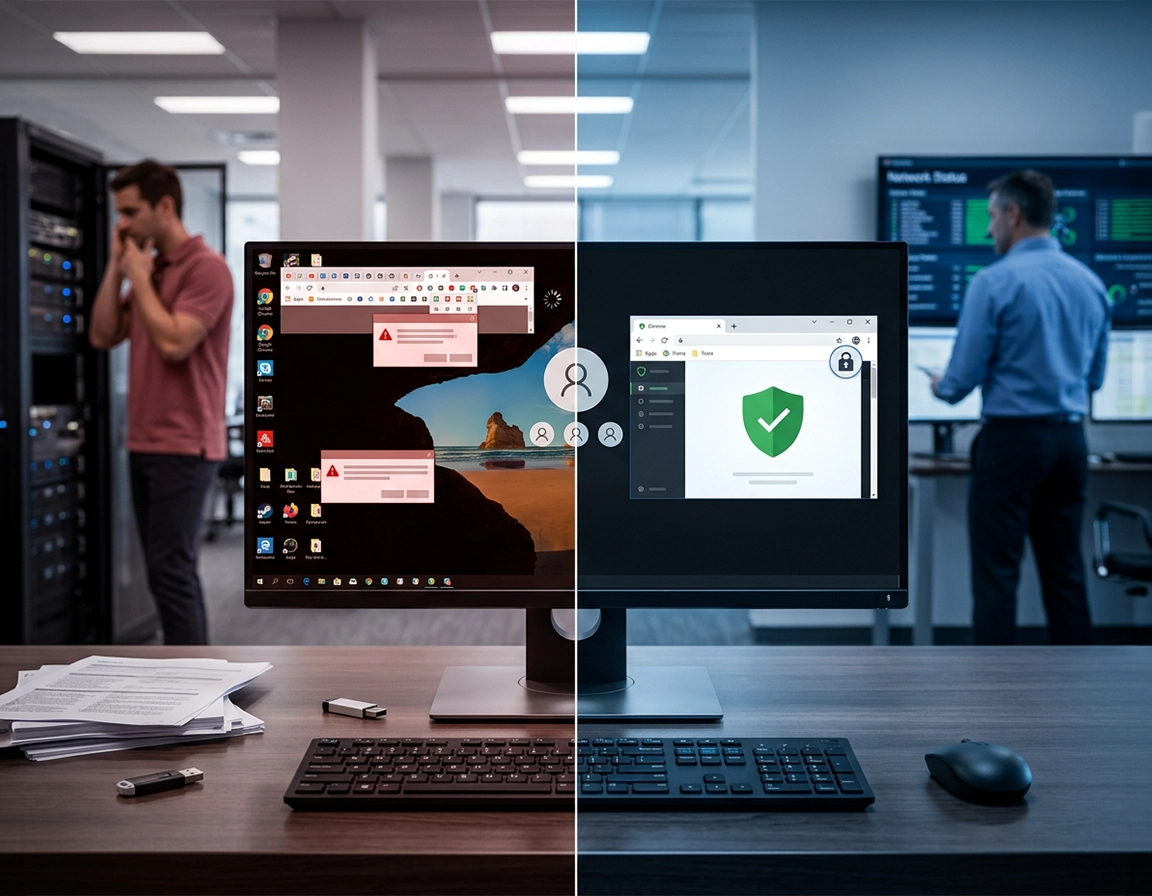
Public computers create a different malware problem than personal devices. You are not only removing bad browser behavior. You are also trying to stop one user’s session, downloads, site permissions, cached data, and saved credentials from contaminating the next person who sits down.
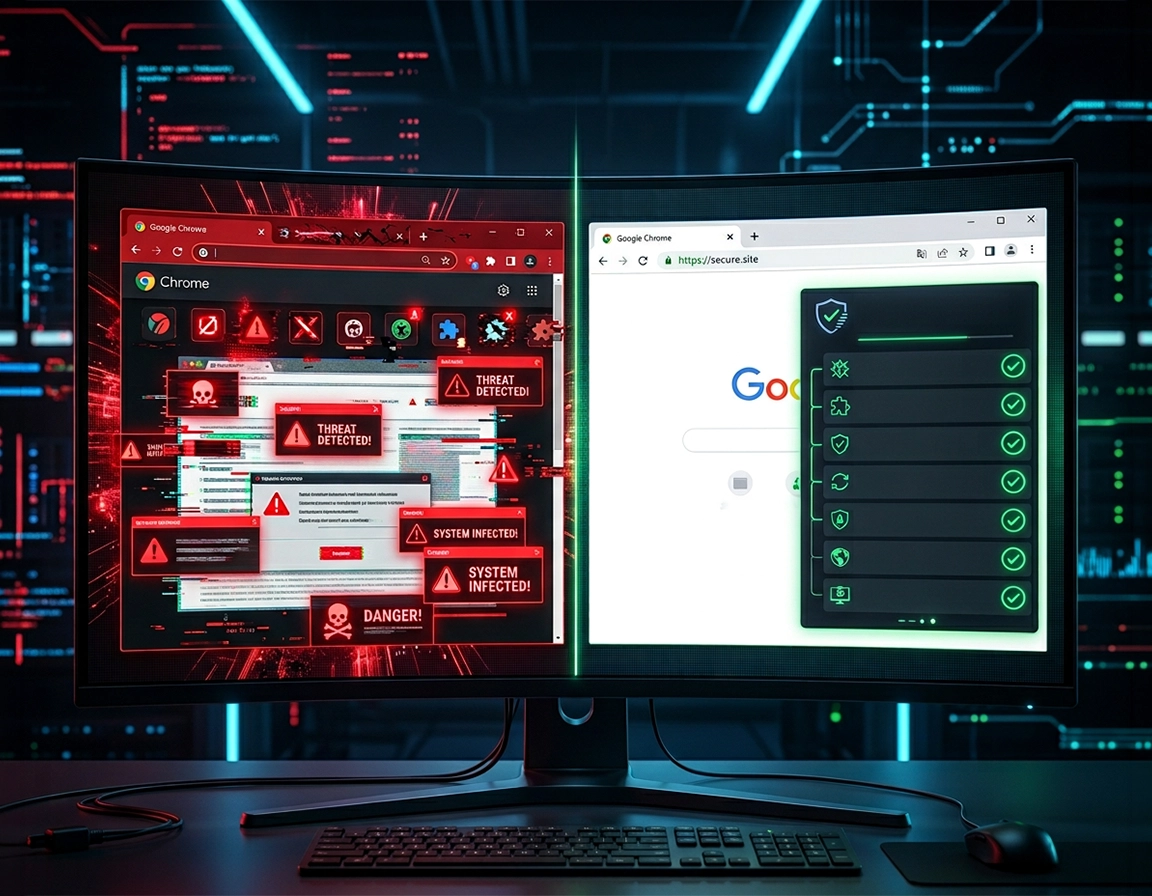
On a public computer, Chrome malware removal usually means handling a mix of browser-level abuse and environment-level risk. The browser may have picked up a malicious extension, a search redirect, a fake notification permission, a scam landing page pinned in the session restore state, or a “free PDF converter” type add-on that injects ads into every tab. At the same time, the device may be exposed to USB-borne files, sketchy downloads left in the Downloads folder, temporary user profiles that were never wiped, or kiosk-style machines where dozens of people click through warnings without reading them.
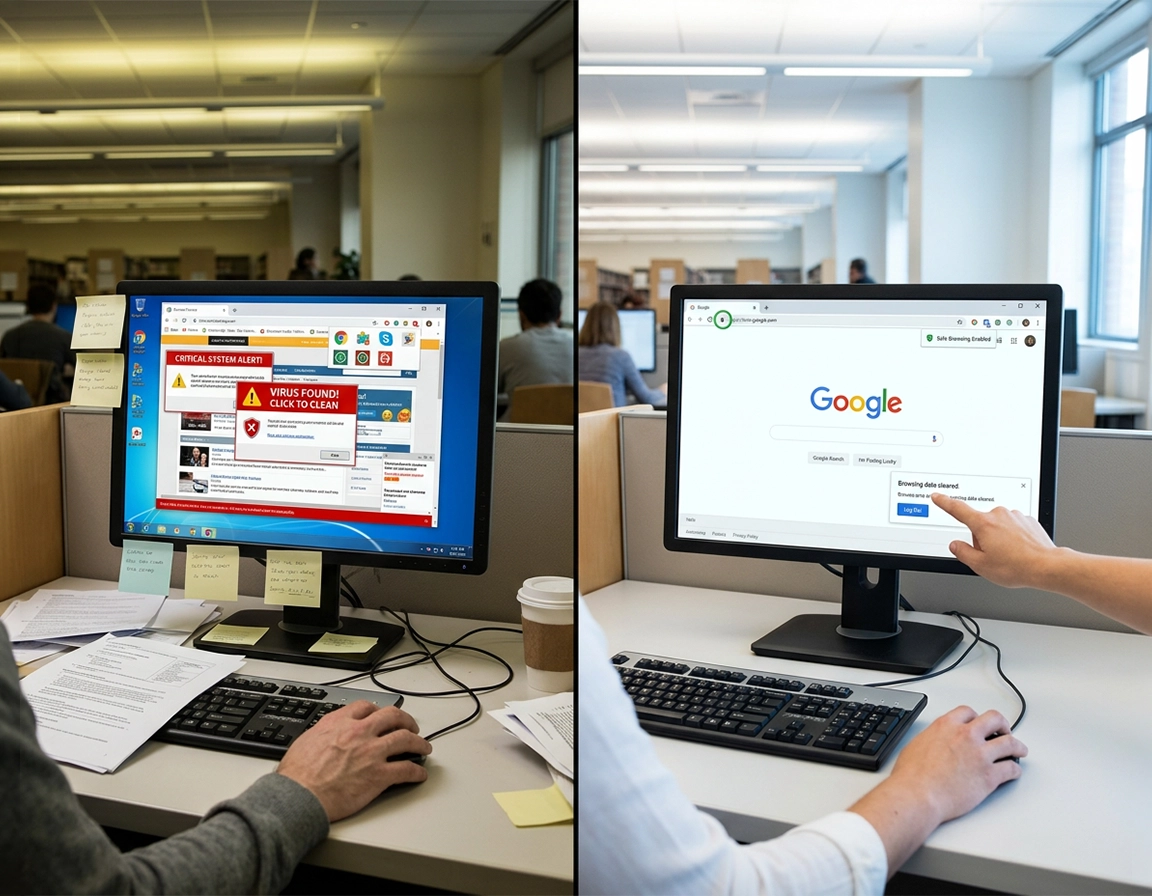
That is why the cleanup process on a library PC, hotel business-center terminal, internet cafe machine, school lab overflow computer, reception desk workstation, or shared lobby browser station cannot rely on a single “reset Chrome” click. You need to remove the browser symptoms, clear local traces, revoke risky permissions, sign out of every Google session, and decide whether the problem is small enough for a browser reset or serious enough that the computer should be taken out of service and reimaged.
The highest-risk mistake on public machines is treating browser malware as if it only affects browsing. A hijacked Chrome session on a public computer can expose saved autofill entries, webmail sessions, cloud drive tabs, recently downloaded documents, and synced bookmarks if someone signed into Chrome and forgot to sign out. That makes containment just as important as removal.
Related: Start with the main cluster page at Remove Malware from Chrome, then use this guide when the infected browser is on a publicly accessible machine rather than a private laptop or home desktop.
Key terms for this guide .
- Public computer: Any machine used by multiple people, including kiosks, library systems, hotel terminals, school lab overflow PCs, or front-desk workstations.
- Browser hijacker: Unwanted software or an extension that changes search, new-tab, startup, or homepage behavior and keeps forcing traffic to a chosen site.
- Permission abuse: A site or extension using permissions such as notifications, pop-ups, downloads, clipboard access, or broad “read and change data” access in a way the user did not expect.
- Session contamination: Leftover sign-ins, cookies, tabs, downloads, or cached pages from a previous user that create privacy and security risk for the next user.
Fast triage before you touch settings .
Before touching settings, decide whether the computer is safe to keep in circulation. Some symptoms point to lightweight browser abuse. Others mean the machine should be removed from public use immediately.
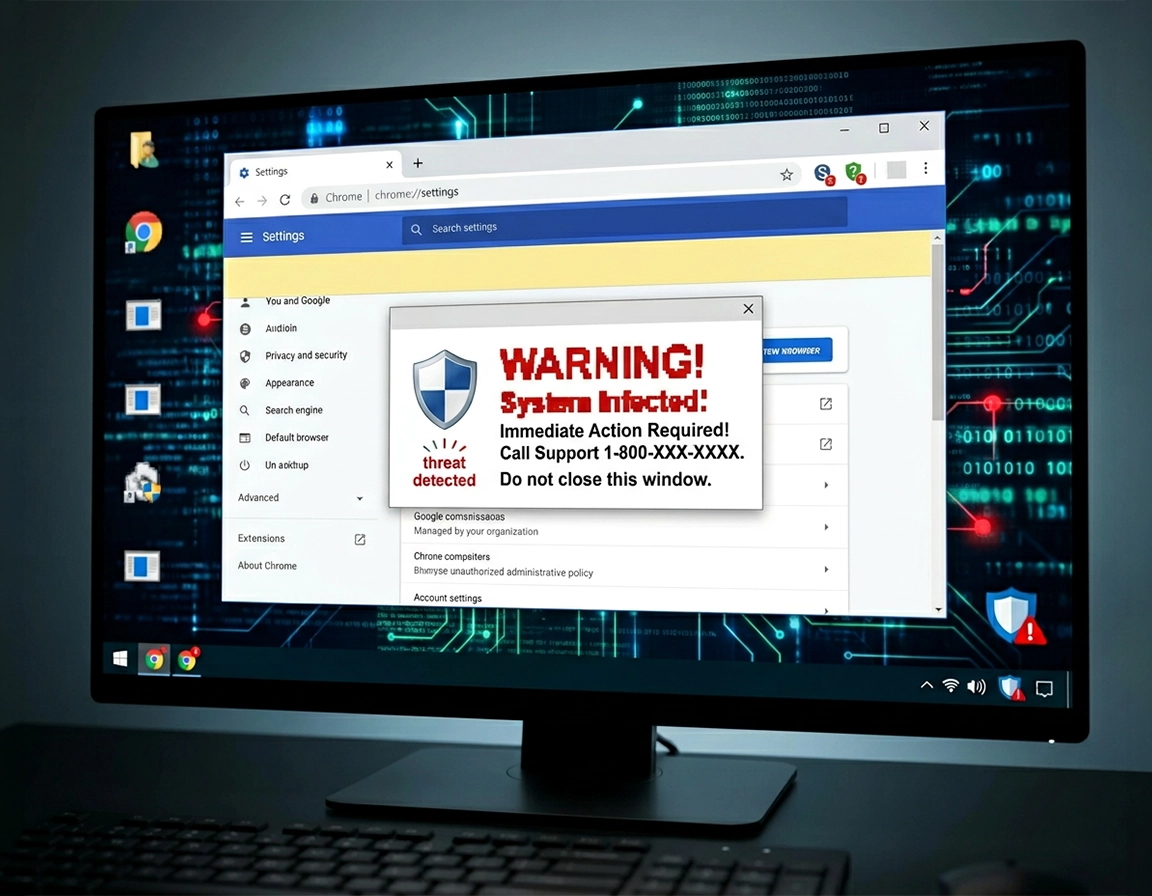
If Chrome is spawning fake support alerts, opening new tabs by itself, pushing “McAfee expired” style banners on sites that never showed them before, or forcing searches through an unknown engine, you can usually begin with browser containment. If the machine is downloading files by itself, antivirus keeps detecting threats outside the browser, the desktop wallpaper changed, Windows security tools are disabled, or the same malicious behavior appears in another browser, escalate beyond Chrome and treat the computer as a full-device incident.
Related: If the machine feels slow, laggy, or unstable after cleanup, check Chrome Browser Slow After Virus Fix and Chrome Browser Keeps Crashing Virus Fix.
- Check 1: See whether anyone is still signed in to Chrome. Use the profile button at the top right and sign out of Chrome first. On public machines, leaving sync active is a bigger privacy failure than leaving a few cookies behind.
- Check 2: Disconnect active attack surfaces. Unplug unknown USB devices, close open downloads, and pause any file transfer windows before you reset the browser.
- Check 3: Look for obvious persistence. Open
chrome://extensions/and note anything recently installed, suspiciously generic, misspelled, or granted broad site access. - Check 4: Check notification permissions. Fake antivirus pop-ups on public PCs often come from a site permission rather than a real system infection.
- Check 5: Decide whether you need evidence. In a school, library, office lobby, or managed environment, capture screenshots, installed extensions, and redirect domains before wiping anything so the pattern can be blocked later.
Step-by-step cleanup flow .
- 1 Take the computer out of public use for the moment. Put up a quick “temporarily unavailable” sign or lock the session so nobody keeps clicking through the malicious prompts while you clean up.
- 2 Sign out of Chrome and Google services. Use the Chrome profile menu to sign out of Chrome, then sign out of Gmail, Drive, or any open Google account tabs. Google documents the profile sign-out flow from the Chrome profile menu.
- 3 Kill the obvious bad tabs. Close pages showing fake “system infected” banners, forced full-screen warnings, or endless notification prompts. If a page keeps reopening, do not restore the previous session on next launch.
- 4 Review extensions at
chrome://extensions/. Remove anything the machine does not explicitly need. On public computers, the safe default is a very short allowlist rather than letting random convenience extensions accumulate. - 5 Remove abusive site permissions. In Chrome, go to Settings → Privacy and security → Site settings → Notifications and block or remove sketchy sites. Google’s current help pages still route pop-up and site-permission changes through Privacy and security → Site Settings.
- 6 Check Safe Browsing. Go to Settings → Privacy and security → Security and make sure Safe Browsing is not disabled. Google warns that turning it off also disables unsafe-site and download warnings.
- 7 Clear browsing data for the affected profile. Remove cookies, cached files, and site data. On a public machine, include recent history unless policy requires it to be retained for auditing.
- 8 Reset Chrome settings. If redirects, startup pages, or altered defaults remain, use Chrome’s reset flow. Google notes that Chrome can automatically detect and restore settings changed by unwanted programs.
- 9 Delete leftover downloads and temporary files. Browser cleanup is incomplete if the Downloads folder still contains the installer that caused the problem or if desktop shortcuts keep relaunching a scam page.
- 10 Test with a clean session. Reopen Chrome without restoring old tabs, visit a normal site, run a search, open a new tab, and confirm that search, homepage, notifications, and downloads behave normally.
- 11 Escalate if symptoms survive the reset. If Chrome is still redirecting, reopening malicious tabs, or if security tools outside Chrome are alerting, stop using the machine publicly and move to an endpoint or full-device cleanup workflow.
What “success” looks like: Chrome opens to a normal new tab page, no unknown extensions remain, no scam notifications fire, search results stay on the chosen engine, Safe Browsing is enabled, and no Google account is still signed into the browser.
Related: For a deeper reset path, use How to Reset Chrome After Malware, Chrome Profile Reset Guide, and Chrome Full Malware Cleanup Checklist.
Common variations on public machines .
- Library or hotel PC: The main risk is leftover sessions, notification abuse, and downloads from unknown users. Focus on sign-out hygiene and profile cleanup.
- School lab overflow station: Watch for students installing “helper” extensions, game overlays, proxy tools, or search modifiers that spread from machine to machine.
- Business-center kiosk: If the browser runs in a locked environment, remove the machine from service and verify kiosk policy, homepage policy, extension allowlist, and auto-clear behavior before returning it.
Hardening and escalation decisions .
Public computers should not be treated like casual home browsers with extra cleanup steps. They need a containment model. That means limiting persistence, limiting extension installation, limiting profile reuse, and making every session easy to destroy. Malware removal becomes easier when the environment is designed to forget users.
The strongest long-term fix is not “find better cleaners.” It is reducing the number of places where browser abuse can stick. On a public machine, that usually means a restricted extension policy, auto-clearing history and site data between sessions, separate local user accounts or disposable profiles, blocked sign-in where appropriate, controlled downloads, and routine inspection of the Chrome profile folders. If you operate a lab, kiosk, reception terminal, or guest workstation pool, the cleanup playbook should be paired with a hardening playbook.
Related: Managed environments should also review Remove Malware from Managed Chrome Devices, Chrome IT Admin Malware Removal, and Chrome Security Hardening for Malware.
When a browser-only cleanup is enough .
- The issue is limited to pop-ups, redirects, bad notifications, or an obviously malicious extension.
- System antivirus is clean and the operating system is otherwise behaving normally.
- The bad behavior stops after permission cleanup, history clearing, extension removal, and a Chrome reset.
- No unknown local admin accounts, scheduled tasks, or startup items appeared during the incident.
When a browser-only cleanup is not enough .
- Chrome reinstall does not change the behavior.
- The same redirects or payloads appear in Edge, Firefox, or system dialogs.
- Downloads keep reappearing because the machine has a persistence mechanism outside the browser.
- Password theft, suspicious outbound email, credential stuffing, or account takeover is suspected.
- The machine is public-facing and cannot be trusted without a reimage.
Common alternatives people compare .
- Quick Chrome reset vs full profile deletion
- Browser cleanup vs full endpoint scan
- Shared public account vs disposable guest session
- Open extension installation vs strict allowlist
Privacy and public-session risk .
On a public computer, the privacy problem after malware is rarely abstract. One missed sign-out can expose bookmarks, saved addresses, open mail tabs, autofill values, drive links, recent searches, and active sessions from the previous user. Even when the malware itself is lightweight, the cleanup has to assume another person may sit at the same keyboard five minutes later.
Impact: Affects account sessions, downloads, notification permissions, autofill exposure, synced browsing data, and device trust.
Related: If you suspect hijacking or extension abuse, also read Chrome Extension Malware Removal, Chrome Unwanted Extensions Removal, and Chrome Suspicious Extension Detection.
Recommended baseline settings for public computers .
- Balanced: Safe Browsing on, pop-ups blocked, notifications allowed only for approved domains, no password saving, regular profile clearing.
- Maximum hygiene: Guest or disposable session, all data cleared after use, extensions restricted to an allowlist, downloads tightly controlled, Chrome sign-in disabled except for supervised needs.
- Compatibility-first: Slightly broader permissions for trusted services only, but still no uncontrolled extension installs and no persistent sign-ins between users.
Recommended settings by operational goal .
| Goal | Recommended setting | Tradeoff | Best for |
|---|---|---|---|
| Fast turnover | Guest/disposable sessions and auto-clear browsing data between users | Users lose convenience features and saved sessions | Libraries, kiosks, reception terminals |
| Maximum safety | Strict extension allowlist, notifications locked down, downloads monitored, Safe Browsing enabled | More admin overhead and occasional site friction | Public access pools, school labs, shared office stations |
| Compatibility | Trusted-site exceptions only, controlled sign-in, scheduled cleanup | Residual risk if cleanup discipline slips | Business centers and semi-managed public systems |
Troubleshooting stubborn cases .
Related: These deeper fixes also help if the public computer shows classic Chrome infection symptoms: Chrome Search Engine Hijacked Fix, Chrome Homepage Keeps Changing Fix, and Chrome Keeps Opening Random Tabs Fix.
If fake virus pop-ups keep returning .
That usually means either a notification permission survived the cleanup or a bad tab is being restored on launch. Remove the site from Notifications, disable session restore behavior for the malicious page, clear site data, and test again with a fresh Chrome launch. On public machines, also check whether desktop shortcuts or kiosk startup scripts are reopening the same URL.
If the search engine or homepage changes back after reset .
A recurring hijack after reset points to persistence outside the visible Chrome settings layer. Check installed programs, scheduled tasks, startup items, managed browser policies, and any extension that reappeared automatically. If the computer is public-facing, it is safer to remove it from service and perform a device-level cleanup than to keep experimenting in front of users.
If users keep finding previous users’ accounts or tabs .
That is not just sloppy cleanup. It is a privacy incident. Enforce a hard session-end procedure: sign out of Chrome, close all tabs, clear browsing data, empty downloads, and verify no Google account remains attached to the profile. If the machine keeps preserving state by design, change the public-use model rather than blaming individual users.
If you need to reset safely .
Use Chrome reset for browser behavior and a separate endpoint process for the device itself. Do not promise the machine is clean just because the browser looks normal again. Public systems need a clean-session test, a download-folder check, and a sign-in check before you put them back in rotation.
FAQ .
-
helpCan I trust a public computer again after a Chrome reset?A Chrome reset can remove bad startup pages, changed defaults, and some unwanted behavior, but it does not prove the whole computer is clean. If the device showed system-level symptoms, repeated persistence, or credential theft risk, it should be scanned and often reimaged before being trusted again.
-
helpWhat is the first thing to do on an infected public computer?Take it out of public use and sign out of any Chrome or Google sessions immediately. On shared machines, session exposure is often the most urgent problem because the next user can inherit access to the previous user’s accounts and synced data.
-
helpAre fake antivirus warnings in Chrome always real malware?No. Many “your PC is infected” warnings in Chrome come from abusive websites using notification permissions, pop-up abuse, or scareware pages. They are still dangerous because they trick users into downloads, payments, or remote-access calls, but the fix may start with site-permission cleanup rather than a full rebuild.
-
helpShould public computers allow Chrome sign-in at all?That depends on the environment, but unrestricted sign-in on unsupervised public machines creates obvious privacy risk. Libraries, kiosks, and guest terminals are usually safer with guest sessions, short session timeouts, restricted syncing, or mandatory session clearing between users.
-
helpWhen should I reimage instead of troubleshooting longer?Reimage when the malicious behavior survives Chrome reset, affects other browsers, keeps reinstalling, or when you cannot guarantee the device is safe for the next user. Public computers have a lower tolerance for uncertainty than personal machines because the exposure moves from one person to many.
Sources & further reading .
- Chrome Help: Remove unwanted ads, pop-ups & malware
- Chrome Help: Manage warnings about unsafe sites
- Chrome Help: Sign out of Chrome
- Chrome Help: Manage Chrome safety and security
Editorial note: This page focuses on practical browser cleanup for public-access systems. If the device shows operating-system compromise, treat it as an endpoint incident rather than a browser-only issue.