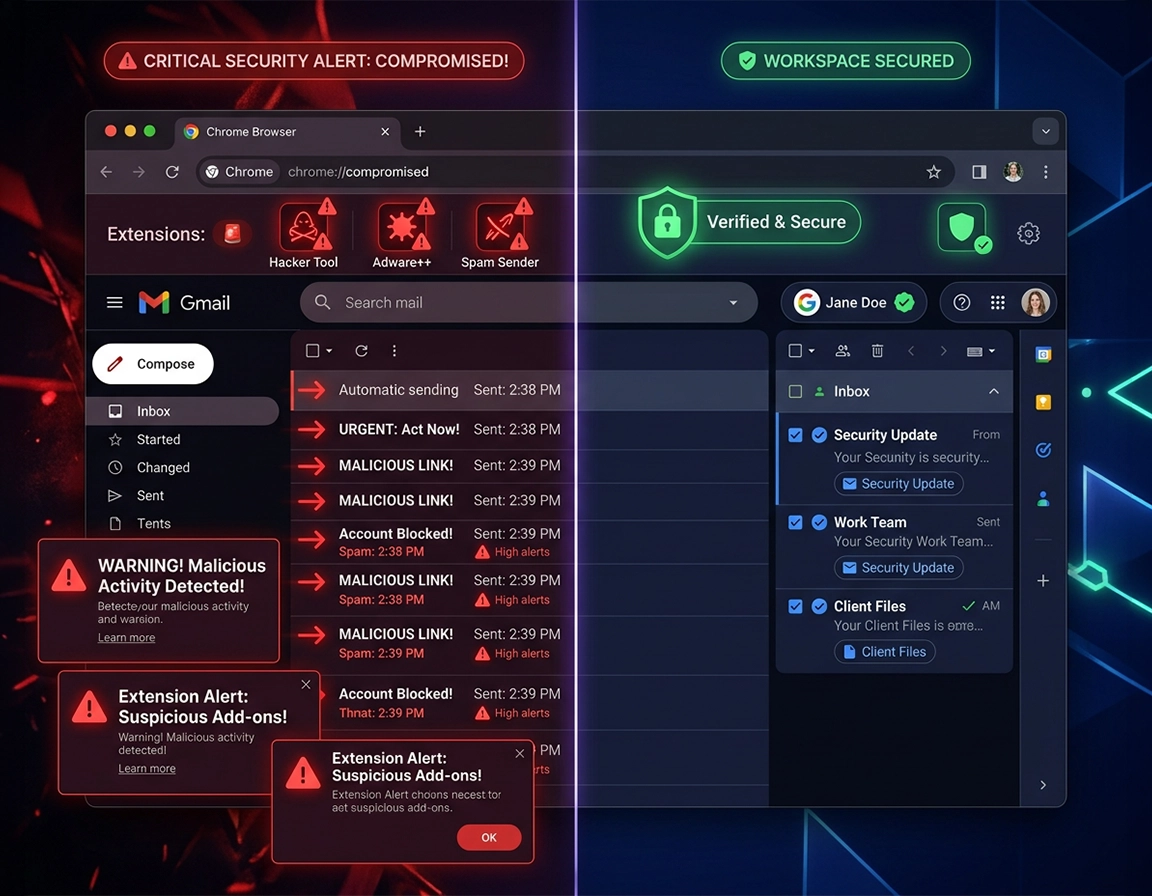
Diagnose the sending path before you clean the browser .
When users say Chrome is sending spam, the browser is usually only the execution surface. The mail normally leaves through a signed-in service such as Gmail, Outlook on the web, Yahoo Mail, Proton Mail, or a hosted business mailbox that was opened in Chrome and kept authenticated. The practical question is not whether Chrome has turned into a mail server. The practical question is which layer had authority to send: the mailbox itself, a hijacked browser session, a malicious extension with page access, or a fake notification stream that only looks like outbound mail.
That distinction changes the entire response. Real outbound spam leaves account-side evidence. You should expect to find messages in Sent, provider security events, abnormal sign-ins, mailbox rules, delegated access, third-party app grants, or strange forwarding destinations. Notification abuse leaves none of that evidence because nothing was sent through the mailbox at all. Instead you see push alerts, scare pages, fake invoices, antivirus-style warnings, or tabs reopening domains that were granted notification permission earlier. Session abuse sits in the middle: the password may be unchanged and two-factor may still be enabled, but an active browser session can still be reused if the attacker obtained the authenticated state.
The technical reason this subject confuses people is that three separate incidents can present with nearly identical symptoms on the screen. A Gmail tab sending spam through a stolen session, a permissioned spam domain throwing desktop alerts, and an extension injecting junk into a mail tab can all look like “Chrome is doing something by itself.” They are not the same event. One is mailbox misuse. One is browser-permission abuse. One is local profile compromise. Mixing them together leads to bad cleanup order and false confidence.
Before you remove anything, answer two evidence questions. First, do the suspicious messages exist in the mail provider’s Sent folder, security activity, or audit trail? Second, does the behavior follow the account across devices and browsers, or only this one Chrome profile? If the first answer is yes, start with account containment. If the second answer is yes, assume the problem is larger than a single local browser cleanup. If both answers are no, you are probably looking at notification abuse, startup abuse, or a malicious extension rather than true outbound mail.
Related: If your stronger suspicion is extension abuse rather than mailbox abuse, continue with Chrome Remove Malicious Extensions and Chrome Extension Permission Abuse Detection.
How experienced responders separate the lookalikes in under five minutes .
- Sent items show the unwanted mail: inspect live sessions, delegated access, forwarding rules, filters, app passwords, and third-party access before you spend time resetting Chrome cosmetics.
- No Sent items, but desktop pop-ups keep firing: inspect notification permissions and startup behavior first. This is commonly a site-permission problem, not a mailbox compromise.
- Only one Chrome profile is affected: inspect extensions, site data, startup pages, search hijacks, and sync-restored settings inside that profile.
- The same mailbox misbehaves in other browsers or on mobile: the account is already exposed beyond Chrome and must be remediated provider-side.
Evidence locations advanced users and IT teams check first .
- Mailbox layer: Sent folder, trash, drafts, forwarding rules, inbox rules, delegated mailboxes, alias changes, and provider audit entries.
- Account layer: recent sign-ins, unfamiliar devices, app passwords, OAuth grants, recovery-method changes, and security alerts.
- Browser layer: chrome://extensions/, notification allow lists, startup URLs, search-engine changes, site data, and suspicious profile behavior after restart.
- Persistence layer: Chrome sync, chrome://policy/, companion software, enterprise enforcement, or endpoint malware that keeps restoring access.
Containment checks that preserve the evidence .
Do these checks before large-scale clearing, reset actions, or profile deletion. A rushed “wipe everything” response often destroys the evidence that would have shown whether the incident lived in the mailbox, the session, or the local Chrome profile.
Related: If Chrome is opening junk pages, replacing searches, or launching scam domains at startup, also see Chrome Browser Redirect Removal Guide and Chrome Search Engine Hijacked Fix.
- Open the provider first, not Chrome settings first: check whether the unwanted messages exist in Sent, whether drafts were created, and whether the sender address, reply-to address, or forwarding path was altered.
- Review provider security activity with time correlation: compare the timestamp of the spam report with recent sign-ins, new browser alerts, suspicious IP regions, or device names you do not recognize.
- Inspect rules and automations with hostile intent in mind: hidden forwarding, silent archiving, auto-delete filters, or transport rules often explain why users stop seeing evidence after the first incident.
- Check delegated access, aliases, and app passwords: a mailbox can continue sending through approved secondary paths even after a normal password change.
- Open Chrome notifications precisely: go to Chrome → Settings → Privacy and security → Site settings → Notifications and audit every allowed domain that is not a service you knowingly use.
- Open chrome://extensions/ and sort by trust, not by familiarity: coupon tools, PDF converters, proxy helpers, “video unlockers,” fake security add-ons, and oddly generic productivity extensions are common abuse vehicles because they request broad site access.
- Check startup surfaces: inspect On startup settings, new-tab behavior, and on Windows inspect the Chrome shortcut target for appended URLs that relaunch junk domains.
- Test another browser or device: if the exact account misuse is visible elsewhere, stop treating this as a local Chrome-only event.
Contain the account, strip browser access, then retest under control .
- 1 Capture what proves the incident path. Save screenshots of Sent items, provider security events, suspicious extensions, notification permissions, forwarding rules, and any “new sign-in” alerts before you begin removals.
- 2 If real mail was sent, contain the mailbox immediately. Sign out all active sessions from the provider side, revoke unfamiliar sessions, remove third-party grants you cannot justify, and review delegated access before you reopen the account in Chrome.
- 3 Remove every extension that fails a trust test. Use chrome://extensions/. If you did not intentionally install it, cannot verify the publisher, or cannot explain why it needs broad site access, remove it now.
- 4 Run Safety Check to catch the obvious Chrome-layer issues. Open Chrome → Settings → Safety Check and review updates, password warnings, harmful extension flags, and Safe Browsing status.
- 5 Clear only the affected service’s local data. In Settings → Privacy and security → Site settings → View permissions and data stored across sites, search for the compromised mail service or spam source and clear only that site data first.
- 6 Delete notification permissions from untrusted domains. Remove or block every spam, scam, streaming, fake update, or prize domain in the notification allow list.
- 7 Change credentials from a browser or device you still trust. Do not rotate the password inside a profile you still suspect. Change it from a cleaner environment after extension and session containment.
- 8 Harden the account’s sending paths. Enable two-factor authentication, remove stale app passwords, verify recovery methods, check forwarding again, and remove unknown aliases or sending identities.
- 9 Retest with one controlled sign-in. Open a single clean Chrome window, sign in only to the necessary service, send one test message to yourself, and watch Sent items plus provider activity for at least 15 to 30 minutes.
Successful containment looks like this: no unexplained mail appears in Sent, provider activity stops showing unknown sessions, notification spam does not return, startup tabs stay clean, and no removed extension or permission quietly reappears after restart.
Related: If the incident includes stolen credentials or reuse exposure, continue with Chrome Browser Passwords Stolen: What to Do and Chrome Password Leak Detection.
Why this order is safer than a broad reset first .
If an attacker still has a live browser session or an extension can still inspect web pages, changing the password too early can expose the fresh sign-in flow inside the same risky environment. Removing browser-side visibility first reduces the chance that the newly authenticated session is harvested again. Targeted site-data clearing then invalidates the local service state without flattening the entire profile before you know whether a full rebuild is necessary.
Extension traits that deserve immediate removal during a spam incident .
- All-sites access: the extension can read and change data on every website, including mail providers and account-security pages.
- Weak publisher identity: the store listing, support page, privacy policy, or brand trail does not line up cleanly with the extension’s claimed purpose.
- Function-permission mismatch: a wallpaper, coupon, notes, download, or PDF helper requests permissions that would let it observe account sessions.
- Persistence after removal: the extension returns after restart or after sign-in, which points to sync or policy enforcement rather than a one-time manual install.
Platform-specific checks worth adding .
- Windows: inspect shortcut targets, startup items, scheduled tasks, and companion software because browser symptoms can be relaunched outside Chrome itself.
- macOS: inspect login items, system notification permissions, and any helper app that was installed alongside the browser add-on.
- Android and iPhone: browser-driven spam is more often a signed-in account or notification-permission issue than classic desktop extension abuse, so provider-side session review matters more.
- Managed business or school devices: verify whether policy-enforced extensions or settings are being reintroduced administratively.
When sync, policy, or profile state keeps restoring the problem .
If the same spam indicators return after session revocation, extension removal, targeted site-data clearing, and password rotation, stop assuming you missed one small setting. Reappearance usually means the bad state is being restored from somewhere: Chrome sync, an enforced enterprise policy, another device using the same profile, or malware outside Chrome that keeps re-seeding the browser.
Related: For deeper recovery paths, continue with Chrome Profile Reset Guide, How to Reset Chrome After Malware, and Chrome Full Malware Cleanup Checklist.
Strong indicators that sync is carrying contaminated state .
- You remove an extension and it returns shortly after signing back into Chrome.
- Notification permissions, startup URLs, search settings, or homepage changes reappear after sync completes.
- Multiple devices with the same Chrome profile begin showing the same browser behavior within a short window.
- The profile appears normal until the account reconnects and the older state is restored.
Rebuild the profile without carrying the same risk back in .
Sign out of Chrome sync before you trust the profile again. Create a new profile instead of continuing to repair the old one indefinitely. Bring back only the data you can justify manually: bookmarks, a verified password set, and a deliberately short extension list installed one by one from known publishers. Do not bulk-restore convenience settings, startup pages, extensions, or permissions simply because the old profile can still sync them.
On work or school devices, review chrome://policy/ before assuming the browser is “ignoring” your cleanup. Policy can enforce extensions, startup pages, homepage values, default search providers, notification behavior, and sign-in expectations. A user cannot permanently remove an enforced extension from inside the browser. If the problem is policy-backed, the durable fix is administrative.
Cases where a browser reset is only a partial response .
- Mailbox-side persistence: forwarding rules, transport rules, delegated access, connected apps, aliases, and app passwords continue to send even when the browser is cleaner.
- Device-level compromise: info-stealers, remote-access tools, or credential theft on the endpoint can recollect fresh sessions after the browser reset.
- Cross-device account exposure: if the same provider account is abused in other browsers or on mobile, the browser profile was only one symptom.
Decision errors that keep incidents alive .
- Resetting Chrome before checking whether the mailbox can still forward or delegate mail independently
- Re-enabling sync the moment the browser feels normal again
- Changing credentials inside a profile that still contains an untrusted extension
- Treating push-notification spam as proof that real mail left the account
Security impact and the post-incident baseline worth keeping .
A browser-linked spam incident is rarely limited to nuisance pop-ups. The exposed surface can include authenticated webmail sessions, saved passwords, autofill data, contact lists, recovery channels, and any extension granted wide page access. The goal is not only to stop visible spam. The goal is to close the precise authorization path that made the spam possible.
Primary impact zones: signed-in mail sessions, mailbox automations, connected apps, saved credentials, extension host access, synced profile state, and site-level permissions.
Related: If the incident looks broader than a single browser tab or profile, continue with Chrome Browser Data Breach Response, How to Scan Chrome for Malware, and Chrome Security Checkup.
Baseline settings worth keeping after recovery .
- Safe Browsing: keep it enabled and consider stronger protection if you install extensions often, download files frequently, or test unfamiliar services.
- Notifications: keep the browser on an ask-first model and trim the allow list hard. Old permissions are not harmless just because they were granted months ago.
- Password monitoring: enable compromise alerts and rotate reused credentials, not only the visibly affected mailbox password.
- Extensions: reduce extension count, review host permissions periodically, and remove idle tools that no longer justify persistent page access.
- Sync: re-enable it only after the rebuilt profile stays stable and clean long enough to trust it.
Response depth by scenario .
| Scenario | Primary action | What usually gets missed | Best fit |
|---|---|---|---|
| Notification spam only | Remove site permissions, startup abuse, and suspicious extensions | Users mistake fake alerts for real outbound email | No evidence in Sent or provider logs |
| Real mail sent from webmail | Revoke sessions, inspect rules, rotate credentials, and review connected access | Forwarding rules, delegated access, aliases, and app passwords | Confirmed messages in Sent or provider activity |
| Repeated return after cleanup | Disable sync, inspect policy, rebuild the profile, and scan the endpoint | Users trust sync too early and restore the same contaminated state | Persistent or multi-device incidents |
Stubborn cases that survive normal cleanup .
Related: If Chrome still shows broader compromise signs after this workflow, check Chrome Browser Hacked: How to Fix and Chrome Suspicious Activity Detected Fix.
If spam keeps leaving the mailbox after a password change .
Inspect forwarding destinations, inbox rules, aliases, delegated mailboxes, OAuth grants, POP or IMAP clients, app passwords, and any other browser or device that may still hold an authorized session. A single password change does not always invalidate every sending path the account accumulated over time.
If Chrome keeps showing spam-style alerts but no mail is being sent .
Return to the notification allow list, startup URLs, shortcut targets, and extension inventory. Prize scams, fake antivirus alerts, subscription warnings, and invoice-style pop-ups are classic notification-abuse patterns. Treat them as site-permission abuse until you see mailbox evidence proving otherwise.
If removed extensions keep returning .
Check Chrome sync first, then chrome://policy/. On Windows, also inspect scheduled tasks, startup folders, and companion software that may reinstall the extension or relaunch the same domain. On managed devices, an admin-enforced extension requires administrative correction, not repeated local removal.
If people report spam from your address but your account looks clean .
Consider sender spoofing before you assume account compromise. Spoofing can use your visible address without using your mailbox at all. At that point, message-header analysis, SPF, DKIM, DMARC alignment, and provider-side delivery logs matter more than local Chrome cleanup.
If you have to reset but still want a defensible recovery .
Preserve bookmarks and only a password set you trust. Sign out of sync, rebuild the profile, and reinstall extensions manually from scratch. The slower manual restore is usually what breaks the cycle when convenience restoration keeps pulling the same bad state back in.
FAQ .
-
helpCan Chrome itself send spam emails?Not in the way a mail server or mail client does. In most cases Chrome is only the browser holding the signed-in webmail session, the extension access, or the local state that made the abuse possible.
-
helpWhy am I seeing spam pop-ups if nothing is in Sent?That usually points to browser notification abuse, startup-tab abuse, or scam pages rather than genuine outbound mail. The fix path starts with site permissions, startup behavior, and extensions.
-
helpShould I clear all browsing data right away?Usually no. Broad clearing too early can destroy evidence and does not fix mailbox-side forwarding, delegated access, or connected app abuse. Start with diagnosis and targeted clearing first.
-
helpWhen is a full profile rebuild the better choice?Use it when settings keep reverting, suspicious extensions return after sign-in, sync appears to restore the same behavior, or you no longer trust the profile’s integrity enough to reauthenticate important accounts inside it.
Sources & further reading .
Editorial scope: This guide covers browser-state containment, extension triage, session handling, and account-side checks that are commonly overlooked in Chrome-driven spam incidents. If endpoint malware is confirmed, extend the response to the device as a whole rather than treating Chrome as the only affected layer.