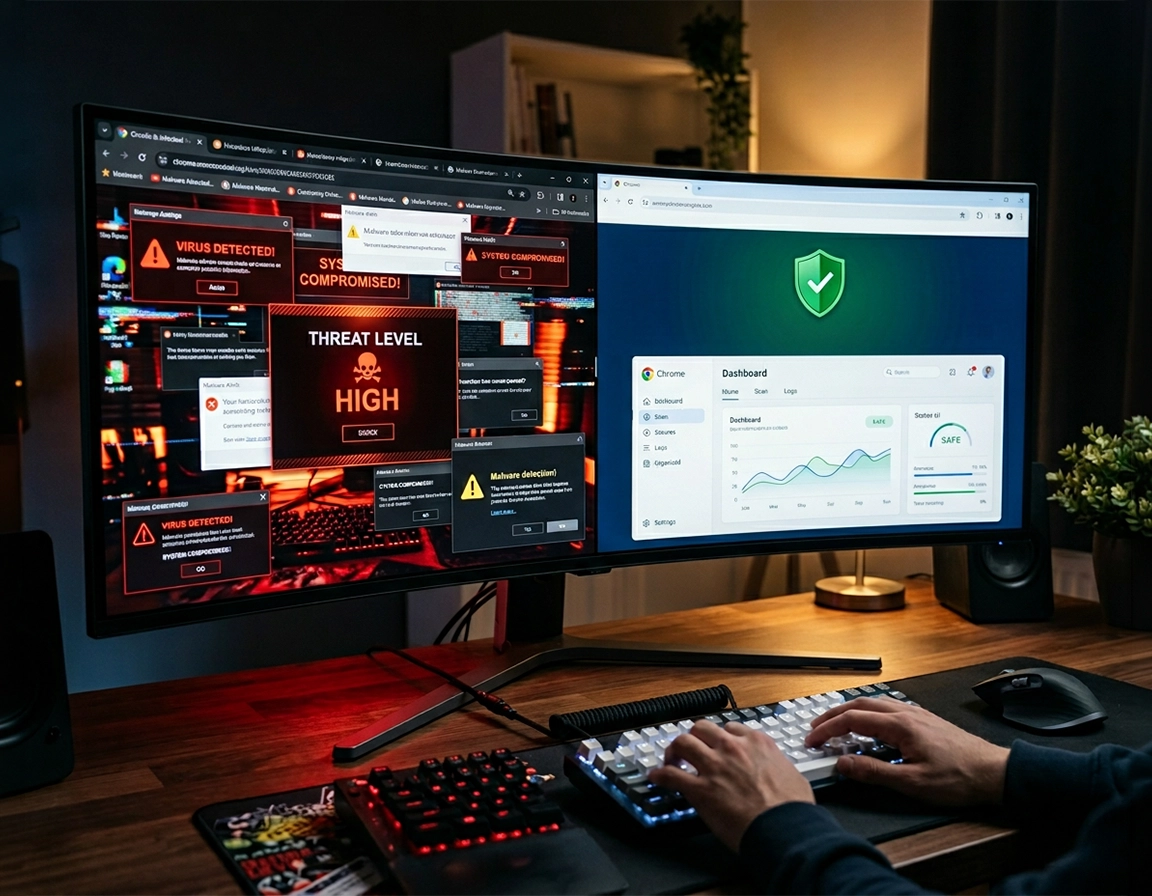
What needs to be removed when Chrome is infected on a desktop .
This guide is written for desktop installations of Chrome on Windows and macOS, where the browser can be affected by both browser-level abuse and system-level persistence.
Desktop malware cleanup is different from a quick browser tidy-up. On a desktop machine, Chrome can be altered by a malicious extension, a bundled installer that changed your search provider, a notification prompt you clicked weeks ago, a tampered shortcut that forces Chrome to open a spam URL, or an operating-system process that reintroduces the problem every time you reboot. That is why a proper desktop cleanup has to move in layers instead of assuming the browser alone caused the mess.
The pattern is often easy to recognize once you know what to watch for. Chrome opens with a page you never set. Searches jump to a strange engine after briefly showing Google. New tabs lead to coupon sites, fake virus warnings, crypto scams, or “update your browser” prompts. The browser feels heavier than normal, fans spin up when only a few tabs are open, or you see extension permissions asking to read and change data on every site for no sensible reason. Those are desktop cleanup signals, not ordinary browsing annoyances.
This page focuses on the practical removal path for fixed-location devices such as office PCs, home desktops, iMacs, and workstation towers. Laptops have overlapping symptoms, but desktops more often stay powered on for long stretches, run background software continuously, and get used by multiple people in homes, labs, reception desks, and shared business environments. That makes reinfection through startup items, local admin installs, remote access tools, and stale user profiles more common.
If your Chrome problem began right after installing a PDF converter, screen recorder, “speed booster,” torrent tool, cracked software package, game helper, coupon extension, or free utility downloaded outside a trusted source, treat the desktop as the infection source until you prove otherwise. Browser resets help, but they do not remove an adware service, scheduled task, or unwanted application that keeps writing the bad settings back.
Related: Start at the main hub if you want the broader workflow: Remove Malware from Chrome. If the issue looks extension-driven, continue with Chrome Remove Malicious Extensions.
Key terms you will see during cleanup .
- Browser hijacker: software or an extension that changes Chrome startup pages, new-tab behavior, or the default search engine without meaningful consent.
- Notification abuse: spammy or malicious sites using previously granted browser notifications to deliver fake virus alerts and scam messages even when the site is closed.
- Shortcut tampering: a modified desktop or taskbar shortcut that appends a URL after chrome.exe so Chrome launches directly into an ad or scam page.
- Persistence: the mechanism that brings the infection back after you think you removed it, such as startup apps, scheduled tasks, LaunchAgents, login items, or Chrome Sync.
Before you start on a desktop .
A careful start prevents wasted effort. Before removing anything, close unneeded tabs, save passwords you cannot afford to lose, and note whether the problem appears in one Chrome profile or every profile on the desktop. A hijacker tied to one profile points toward extensions, notifications, and synced browser settings. A problem that survives across profiles usually points beyond Chrome.
Related: If the browser became sluggish after the infection, keep this nearby: Chrome Browser Slow After Virus Fix.
- Check whether the issue is profile-specific: open a second Chrome profile or Guest mode. If the bad redirects vanish there, your main profile is the priority.
- Check whether another browser is affected: if Edge, Safari, or Firefox also show pop-ups or redirect behavior, do not limit your cleanup to Chrome.
- Check recent installs: look at apps installed in roughly the same period the problem started. Bundled desktop software is a common trigger.
- Check for Chrome Sync risk: if you are signed into Chrome on multiple desktops, a poisoned setting can reappear after sign-in unless you clean the origin point first.
- Check whether the computer is managed: on work desktops, school lab machines, or office reception systems, do not remove enterprise tools or policies blindly. Confirm whether a legitimate policy is present before assuming compromise.
Desktop malware removal sequence .
- 1 Open chrome://extensions and remove extensions you do not fully recognize, especially anything installed around the time the symptoms began, anything marked “Installed by enterprise policy” that should not be there, or anything with generic names like Search Tools, Secure Browse, PDF Helper, Video Downloader Pro, or Shopping Deals.
- 2 Go to Settings → Privacy and security → Site settings → Notifications and revoke access for spammy sites. Fake antivirus warnings on desktop Chrome are often notification abuse, not a real local virus popup.
- 3 Review Settings → Search engine and On startup. Restore your preferred search engine, remove unknown startup pages, and disable any “continue where you left off” behavior that keeps relaunching a malicious tab set.
- 4 Open Chrome’s reset path at Settings → Reset settings → Restore settings to their original defaults. This will not uninstall Chrome, but it will reset search, new tab, startup behavior, pinned tabs, and disabled extension states.
- 5 Check the Chrome shortcut itself. On Windows, right-click the desktop shortcut or taskbar shortcut, open Properties, and inspect the Target field. It should end with chrome.exe and not continue with a URL. On macOS, inspect login items and aliases instead of a Windows-style target field.
- 6 Run a full desktop antivirus scan, then a second-opinion anti-malware scan. Browser hijackers frequently arrive with bundled adware components that do not disappear when the extension is gone.
- 7 Reboot the desktop and reopen Chrome. If the bad behavior returns only after restart or sign-in, investigate startup apps, scheduled tasks, LaunchAgents, and Chrome Sync rather than repeating the same browser reset.
What success looks like: Chrome opens to the page you chose, searches stay on the engine you selected, random tabs stop appearing, the extension list contains only tools you intentionally kept, and the browser remains clean after a reboot.
Related: If redirects are your main symptom, use Chrome Redirect Virus Fix. If the homepage keeps switching back, use Chrome Homepage Keeps Changing Fix.
How to work the sequence without losing useful data .
Start with the things that are fastest to verify and most reversible. Extension removal, notification cleanup, search engine correction, and startup-page correction give you immediate feedback. A Chrome reset comes next because it clears a wide range of poisoned browser preferences in one move. Only after that should you assume the operating system is responsible. That order matters because it prevents you from chasing deep system persistence when the problem is only a malicious extension with broad host permissions.
Desktop machines often have years of accumulated software, so use timing to your advantage. If the infection began after one specific install, one browser prompt, or one fake download page, document that before you start deleting everything. A precise timeline makes it easier to spot the related application in Windows Apps, macOS Applications, login items, and startup lists.
Common variations on desktop .
- Windows desktop: shortcut tampering, scheduled tasks, services, bundled installers, and startup apps are the most common reinfection points.
- Mac desktop or iMac: malicious configuration profiles are less common than on managed fleets, but unwanted login items, LaunchAgents, and adware apps still matter.
- Shared family or office desktop: review every Chrome profile on the machine. One unsafe profile can reintroduce confusing symptoms when users swap accounts.
Useful escalation path: If Chrome looks clean but you still get fake security warnings, inspect the desktop notification area, installed remote access tools, and browser launch items. Many “Chrome virus” reports on desktops turn out to be scam notifications or an app opening Chrome repeatedly.
Advanced desktop cleanup checks .
This is the stage that separates a temporary cleanup from a durable one. If the symptoms survive a browser reset or reappear after sign-in, stop treating Chrome as the whole problem. On a desktop, persistence commonly lives in places the browser reset cannot touch.
Related: For a broader incident-style sequence, use Chrome Full Malware Cleanup Checklist. If the browser seems hacked outright, use Chrome Browser Hacked How to Fix.
Persistence points worth checking on a desktop .
- Windows startup apps: open Task Manager → Startup and disable unknown entries tied to the time the problem began.
- Scheduled tasks: some adware launches a browser or script on login, unlock, or timed intervals.
- Installed applications: remove junk utilities, search tools, coupon helpers, fake cleaners, and “security” tools you did not intentionally choose.
- Chrome Sync: if the bad startup page, extension, or search provider returns after signing into Chrome, pause sync, clean the origin desktop, then sign back in carefully.
- Desktop shortcuts and pinned taskbar items: a clean reinstall of Chrome will not fix a shortcut that still launches a malicious URL.
- macOS login items and LaunchAgents: adware on a Mac desktop often relaunches from user-level persistence rather than from Chrome itself.
When you should dig deeper instead of resetting again .
- The homepage changes back after every reboot.
- Chrome opens to an ad or scam page even before you sign into your normal profile.
- The same extension reappears after removal.
- Searches redirect only when the machine is online, suggesting a background process or DNS/proxy manipulation.
- Several browsers on the same desktop show similar symptoms.
When a full browser reinstall helps — and when it does not .
A reinstall is useful when the Chrome application itself is damaged or when you want a clean browser binary after removing obvious junk. It is not a cure for notification abuse, a hijacked search provider stored in sync, a poisoned user profile, or a desktop shortcut launching a scam URL. Reinstalling too early can make the cleanup feel active while leaving the real persistence untouched.
Comparisons desktop users commonly make during cleanup .
- Chrome reset vs full reinstall
- Browser-only cleanup vs full desktop antivirus scan
- Free remover tool vs paid endpoint protection
- Extension scan vs operating-system startup investigation
For most desktop incidents, the strongest combination is a browser cleanup followed by a system scan, not one or the other. A malicious extension can be the visible symptom while the bundled installer or loader is the reason it came back.
What malware changes on a desktop .
Desktop Chrome infections are rarely limited to visual annoyance. The common objective is control: control over where you search, which pages open first, what ads you see, what permissions an extension gets, and in worse cases what data can be observed in the browser. That can include browsing history, page content, shopping behavior, copied text, saved form entries, and session-linked activity if a malicious extension has broad enough access.
Impact: Can alter search traffic, expose browsing data, degrade browser stability, create scam exposure, and in some cases support credential theft or surveillance through over-permissioned extensions.
Related: If you suspect permission abuse, continue with Chrome Extension Permission Abuse Detection. If passwords may have been exposed, read Chrome Browser Passwords Stolen: What to Do.
Baseline actions that reduce reinfection risk .
- Balanced: keep Safe Browsing enabled, remove broad-permission extensions you do not need, review notifications monthly, and leave automatic updates on.
- Stronger lockdown: use a minimal extension set, revoke all site notifications except services you rely on, and avoid installing utilities from download portals that wrap installers.
- Compatibility-first office desktop: keep Chrome current, allow only business-required extensions, and document browser changes so you can spot unauthorized drift fast.
Recommended desktop cleanup posture by goal .
| Goal | Recommended approach | Tradeoff | Best for |
|---|---|---|---|
| Fast recovery | Remove suspicious extensions, revoke notifications, reset Chrome, run one trusted antivirus scan | Can miss persistence outside the browser | Single-user home desktops |
| Thorough cleanup | Do the fast recovery path, then inspect shortcuts, startup items, scheduled tasks, installed apps, and Sync | Takes longer and requires more review | Desktops where the problem returned before |
| Business-safe cleanup | Document symptoms, verify policy presence, clean the browser, then scan and review persistence with IT controls in mind | Less freedom to remove managed components immediately | Office desktops and shared workstations |
If a malicious page claimed your desktop was infected and demanded a phone call, payment, download, or remote session, treat that as a scam event even if the machine also has real adware. Close the loop by changing important passwords on a clean device if you entered them during the incident.
Troubleshooting .
Related: For symptom-led diagnosis, use Chrome Malware Symptoms Guide or How to Check If Chrome Has Virus.
If Chrome keeps opening random tabs after cleanup .
This usually points to one of four things on a desktop: a startup page still set inside Chrome, a notification permission still active, a shortcut launching a URL, or an external process opening Chrome for you. Check those in that order. If the tabs appear immediately after login rather than when you actively browse, lean toward startup items or scheduled tasks.
If the search engine keeps switching back .
Pause Chrome Sync temporarily, remove the offending extension, reset Chrome settings, and inspect installed desktop applications for search helpers or adware bundles. A search hijacker that keeps returning after a browser reset is often being rewritten by another component on the machine.
If fake virus alerts still appear even though scans are clean .
That is often browser notification abuse, not an active file infection. Open Chrome notification settings, remove every unknown site, then clear website data for the domains that produced the alert. If the messages appear in the desktop notification center even when Chrome is closed, also check whether the site was granted system notification privileges through the operating system.
If the same extension comes back .
Inspect whether Chrome says it is controlled by policy, whether Sync reintroduced the extension, or whether another application reinstalls it. On business desktops, a legitimate policy may be doing exactly what it was configured to do. On personal desktops, an extension that resurrects itself is a strong sign you have not removed the actual installer or persistence mechanism yet.
If you need to reset safely without losing everything .
Export or note anything you cannot easily recreate, such as bookmarks not already synced and passwords not already stored in a trusted manager. Then reset Chrome settings, not the whole operating system. A browser reset is reversible enough for most desktop incidents and far less disruptive than a full user-profile wipe. If you later decide to reinstall Chrome, do it only after the desktop scans and persistence checks are clean.
FAQ .
-
helpCan Chrome on a desktop get malware, or is it only the websites I visit?Chrome itself is usually the visible target rather than the only infected component. On a desktop, the browser can be abused by malicious extensions, poisoned notifications, hijacked settings, tampered shortcuts, and software installed elsewhere on the operating system. That is why a real cleanup includes both browser review and system scanning.
-
helpIs resetting Chrome enough to remove malware from a desktop computer?Sometimes, but not reliably when the problem keeps returning. A reset clears many browser-level changes, which is excellent for startup pages, search engine tampering, and disabled extension states. It will not remove a junk application, scheduled task, startup item, or another process that writes the bad settings back.
-
helpWhy do fake virus pop-ups keep appearing on my desktop even after I close Chrome?The site may still have notification permission, allowing it to push alerts through Chrome or through the desktop notification layer. Those messages are designed to look urgent so you call a number, download software, or allow remote access. Remove the site from Chrome notifications and clear its site data before assuming the machine has a severe system infection.
-
helpShould I uninstall Chrome completely if I suspect malware on my desktop?Use uninstallation as a late step, not your first move. It can help when the browser install is damaged, but it does not fix shortcut tampering, Chrome Sync reinfection, startup persistence, or bundled adware elsewhere on the desktop. Clean the browser, clean the operating system, then reinstall only if Chrome itself still behaves abnormally.
Sources & further reading .
Editorial note: This page focuses on practical cleanup steps and symptom-based diagnosis for desktop Chrome incidents. Tools and services mentioned elsewhere on the site should be judged against your environment, risk tolerance, and whether the browser problem is isolated or system-wide.