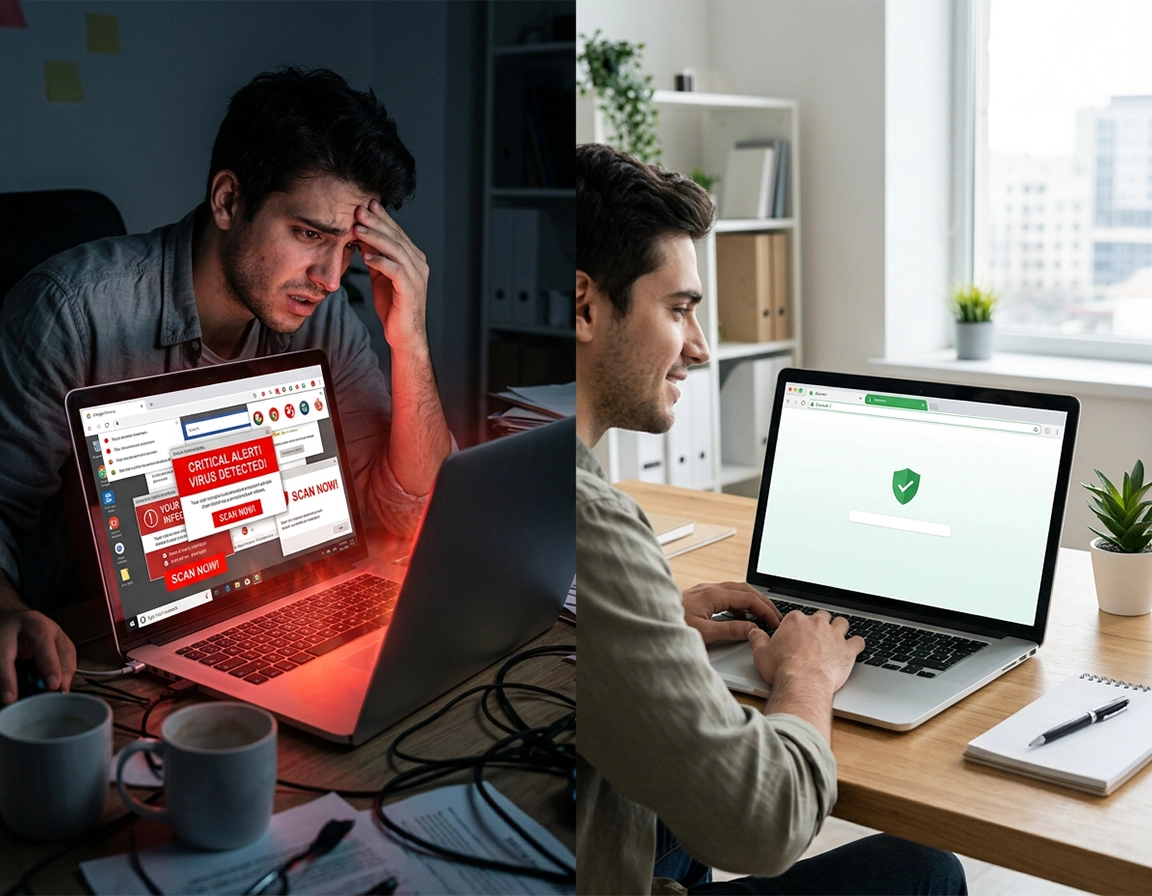
How Chrome malware behaves on laptops (real patterns you can identify) .
On a laptop, Chrome malware rarely shows up as one dramatic event. It behaves like a stack of smaller abnormalities that start to repeat. You reopen the lid and Chrome launches a tab you never left open. Search results route through a strange domain for half a second before landing somewhere else. Notifications in the lower corner insist the laptop is infected, but they come from random websites rather than your operating system. The fan ramps up while one idle tab is open. A shopping or coupon extension appears with rights to read and change data on every site. That collection of symptoms is far more typical than a clean, movie-style "virus detected" moment.
The laptop context matters because portable machines pick up risk in rushed situations: freeware installs done from mirrors instead of the developer site, lecture notes downloaded from ad-heavy file hosts, public Wi-Fi captive portals, cracked utilities kept in Downloads for months, and browser sessions that stay alive through sleep cycles instead of clean shutdowns. On a desktop, users often notice a bad startup immediately. On a laptop, the infection pattern is delayed. The browser is closed, the machine sleeps, then the bad behavior returns after the next wake, hotel login, classroom session, or coffee-shop reconnect.
Laptops also hide persistence in places users do not associate with Chrome. On Windows that can mean a scheduled task, a suspicious startup entry, or a shortcut target with an extra URL appended after chrome.exe. On macOS it is more often a login item, configuration profile, LaunchAgent, or a junk "cleaner" app that keeps pushing browser settings back into place. The result is the same: the user resets Chrome, feels relief for twenty minutes, reboots, and the hijack returns. That is not failed browser cleanup; it is proof that the browser was only one part of the problem.
Google’s own Chrome help for unwanted ads, pop-ups, and malware points users toward the exact symptom families that matter here: unstoppable pop-ups, changed homepages or search providers, unwanted extensions, redirects, and fake warnings. That matches the laptop cases worth treating seriously because those symptoms often sit next to stored sessions, saved cards, work logins, and synced browser data.
Related: if the issue seems tied to a single extension rather than the whole browser, go deeper with Chrome extension malware removal and Chrome suspicious extension detection.
Key terms you should recognize before you start .
- Browser hijacker: a program or extension that changes search, startup pages, or tab behavior without clear consent.
- Persistence mechanism: the part that restores the bad behavior after restart, sleep, login, or sync.
- Push notification abuse: misleading sites that trick you into allowing notifications, then blast scam warnings to your desktop.
- Managed policy abuse: malicious or unwanted policy entries that lock Chrome settings and make the browser appear “managed.”
- Profile contamination: a Chrome user profile that keeps bad settings, extensions, or synced state even after surface cleanup.
Before you start on a laptop .
A laptop cleanup goes faster when you remove three sources of interference before touching Chrome settings: live network traffic, active sync, and power-management quirks. Stay online and a bad extension or profile state can sync back while you are deleting it. Run a scan on low battery and Windows or macOS may throttle background work so the scan looks finished when it barely started. Stay signed into important accounts and you risk feeding more session data into an environment you have already decided is untrustworthy.
Do not start a full scan at 12% battery with performance throttling active.
Only reconnect when a step specifically requires updates or tool downloads.
Pause sync before you reset or rebuild the browser profile.
Take screenshots of bad extensions, fake alerts, and changed search providers before deleting them.
If passwords may have been exposed, treat the laptop as untrusted until cleanup is finished. Do not log into banking, cloud storage, payroll, or client dashboards while the machine is still opening rogue tabs or injecting redirects. Browser malware is often sold as advertising abuse, but the same access can expose account sessions, autofill data, saved addresses, clipboard contents, and form input.
Related: if the laptop has become unusually slow or hot during browsing, pair this page with Chrome browser slow after virus fix and Speed up Google Chrome.
- Check the symptom timing: does the problem begin at startup, after wake-from-sleep, only after sign-in, or only after one website? That timing tells you where persistence is hiding.
- Check whether multiple browsers are affected: if Edge or Safari is also redirecting, the root problem is probably system-level, not just Chrome.
- Check whether Chrome says “Managed by your organization” unexpectedly: that can point to policy abuse, especially on a personal laptop with no company management.
- Check whether extensions reinstall themselves: if yes, the extension is not your only problem. Something on the laptop is putting it back.
Step-by-step malware removal workflow .
This workflow begins where the symptoms are visible, inside Chrome, but it does not end there. That sequence is deliberate. You first stop the most dangerous browser behavior, then you hunt the mechanism that keeps putting it back. Users who reverse that order often waste time scanning the whole laptop while the rogue extension is still opening tabs and changing settings in real time.
- 1 Pause sync and isolate the laptop. In Chrome, click your profile icon and pause sync if you are signed in. Turn off Wi-Fi. This prevents extensions, settings, and profile state from racing back in while you clean.
- 2 Remove suspicious extensions first. Open
chrome://extensions/. Delete anything you do not recognize, anything installed right before the issue started, and anything with vague promises like “search helper,” “PDF converter,” “shopping deals,” or “safe browsing shield.” If the remove button is greyed out or the extension keeps reappearing, note the name and continue. You will handle persistence later. - 3 Fix search, startup, and notification abuse. Check the default search engine, startup pages, and site notification permissions. Remove strange search providers, delete rogue startup URLs, and revoke notifications from scammy domains. A large percentage of laptop “virus” complaints are a toxic combination of these three settings.
- 4 Run Chrome’s built-in safety checks. Go to Settings → Privacy and security and run Safety Check. Review extensions, notifications, harmful downloads, and compromised passwords if shown. Chrome’s current security panel and Safety Check paths are the right place to confirm whether the browser is still exposing obvious risk signals.
- 5 Reset Chrome settings if behavior is broader than one extension. Use Settings → Reset settings → Restore settings to their original defaults. Google’s current help path still recommends reset when unwanted software has changed browser behavior. This removes startup changes, disables extensions, and resets core browser settings without erasing bookmarks and saved passwords.
- 6 Clean the laptop itself. On Windows, review Installed apps, startup items, scheduled tasks, and security scans. On Mac, review Applications, Login Items, Profiles, and suspicious background items. This is the step most users skip, which is why Chrome looks clean for twenty minutes and bad again after restart.
- 7 Reboot, reconnect, and test in a controlled order. Restart the laptop. Open Chrome without signing in. Test search, new tab, and two or three normal websites. Only after behavior stays normal should you sign back into Chrome sync and your important accounts.
What a clean result looks like: after a full restart, Chrome opens without detouring through a strange page, the search provider stays unchanged through multiple searches, no notifications appear from junk domains, removed extensions stay removed, and the laptop no longer spikes CPU, battery drain, or fan speed during light browsing.
Related: if the symptoms are mostly random tabs and redirects, read Chrome keeps opening random tabs fix, Chrome search engine hijacked fix, and Chrome browser redirect removal guide.
Where to look inside Chrome before you reset .
- Extensions: anything with “Read and change all your data on websites you visit” deserves scrutiny.
- Startup: remove pages you did not choose, especially fake search portals and coupon sites.
- Search engine: if it switched to a strange domain or routes through Yahoo-like branding unexpectedly, treat it as hijack behavior.
- Notifications: scam notification domains often imitate antivirus warnings and survive browser restarts because you unknowingly granted permission.
- Downloads: delete recent installers, “cracks,” fake PDF tools, browser patchers, and helper apps from Downloads once you identify them.
Windows laptop branch .
On Windows laptops, the recurring pattern is installer-bundled junk: fake PDF tools, downloader wrappers, driver updaters, cracked software loaders, and "PC cleaner" apps that promise performance fixes while rewriting browser behavior. After the Chrome-side cleanup, sort Installed apps by install date and remove anything that landed around the same hour or day the hijack began. Then check Task Manager → Startup apps for vague names, blank publishers, or entries pointing to odd folders in AppData, Temp, or Downloads. If the browser keeps relapsing after every boot, review Task Scheduler as well. A surprising number of browser hijackers relaunch from scheduled jobs because users rarely look there.
One Windows detail that gets missed constantly is the Chrome shortcut itself. Right-click the Chrome shortcut you use most, open Properties, and inspect the Target field. It should end with chrome.exe and not continue with a strange URL or extra launch argument that forces a bad page to open every time Chrome starts. Also check whether Chrome suddenly reports that it is managed on a personal machine. Unexpected policy control can pin extensions, lock search providers, or prevent normal cleanup.
MacBook branch .
On MacBooks, users often focus on Chrome because the visible symptom is a redirect or fake alert page, but the persistence usually lives elsewhere. Check Login Items for background launchers you do not recognize. Look for configuration Profiles you never installed, especially on a personal Mac that should not be remotely managed. Review Applications for aggressive "cleanup," "security," or "update" utilities that arrived with a download. Then restart and test again before signing into Chrome. When a Mac browser hijack survives resets, a profile, login item, or helper app is often what keeps reasserting control.
Common laptop variations that change the diagnosis .
- Problem appears after wake-from-sleep: usually startup pages, session restore abuse, or notification spam rather than deep browser corruption.
- Problem appears only on public Wi-Fi: first rule out captive portal loops and malicious redirects from rogue networks before blaming Chrome itself.
- Problem appears only on battery power: background scans may be throttled; finish the cleanup while plugged in so results are reliable.
- Problem appears only after Chrome sign-in: sync contamination is likely. Keep sync paused until you are sure the local machine is clean.
Advanced cleanup for stubborn reinfection .
If you removed extensions, reset Chrome, restarted, and the hijack still came back, stop treating the job as browser cleanup and start treating it as persistence analysis. Something on the laptop is rebuilding the bad state. In many real cases it is not a dramatic malware binary but a small, forgettable thing: a helper process with a bland name, a background updater, a scheduled task, a login item, a configuration profile, or a policy entry that silently forces Chrome back into the same polluted configuration. This is the point where disciplined checking beats random clicking.
Persistence points worth checking on a laptop .
- Startup and login items: anything that launches with the user session can reapply settings before you notice.
- Managed policies: suspicious policies can force search providers, extensions, or homepage values.
- Chrome profile residue: sometimes the cleanest move is creating a fresh profile after exporting only bookmarks.
- Download folder leftovers: the installer that caused the problem is often still sitting there waiting for accidental relaunch.
- Browser notification permissions: users remove the extension and forget the permission that keeps producing fake malware banners.
Related: when reinfection feels tied to policy abuse or settings that keep locking themselves, use Chrome security reset, How to reset Chrome after malware, and Chrome profile reset guide.
When you should rebuild the Chrome profile instead of repairing it .
- The browser is stable only until you sign back in
- The same suspicious extension or search provider returns after every reset
- Multiple settings flip back together as if a saved template is being reloaded
- You inherited a used laptop and do not trust the history of the existing browser profile
When you should move beyond browser cleanup and scan the whole laptop more aggressively .
- Your contacts receive spam from your accounts
- Saved passwords were used without your permission
- Other browsers show the same redirects
- The laptop adds unknown certificates, profiles, or security exemptions
- Chrome crashes, relaunches, or spawns processes in ways that do not match normal browsing
Common alternatives users compare during cleanup .
- Chrome reset versus creating an entirely new browser profile
- Desktop antivirus scan versus browser-only malware cleanup
- Notification cleanup versus full extension audit
- Manual cleanup versus a structured checklist such as Chrome full malware cleanup checklist
The most misleading moment in this whole process is the temporary calm right after reset. A hijacked laptop often looks cured for one session because you cleared the visible trigger, not because you removed the cause. A proper clean test is stricter: reboot, open Chrome fresh, run several searches, inspect extensions, check notifications, confirm there is no unexpected managed-state message, and then leave the laptop idle for a few minutes. If nothing repopulates, reopens, or redirects, you finally have evidence instead of hope.
Security impact and post-cleanup hardening .
Chrome malware on a laptop is not only an annoyance problem. It is an access problem. A malicious extension can read page content, inject code, monitor where you browse, and manipulate search traffic. Notification abuse can train you to ignore real security warnings because your desktop is flooded with fake ones. A hijacked search engine can turn every normal search into a monetized redirect chain. And if the browser was running while you were signed into important accounts, cleanup is only half the job; credential hygiene becomes the second half.
Why it matters: affected laptops often hold persistent sessions for email, cloud drives, client dashboards, banking, saved cards, and password managers. That makes even “mere adware” more serious than it looks.
Related: after cleanup, strengthen the browser with How to prevent malware in Chrome, Chrome Safe Browsing best practices, Chrome anti-phishing settings, and Chrome secure download settings.
Recommended post-cleanup actions .
- Run Safety Check: Chrome’s current security tools can flag unsafe browsing settings, compromised passwords, and extension risks.
- Turn notifications into an allowlist habit: most users never need broad notification permissions from random websites.
- Audit extensions ruthlessly: keep fewer extensions, keep only recognizable publishers, and remove convenience tools you have not used in months.
- Use secure downloads and secure browsing controls: Chrome’s security settings include Safe Browsing and related download protections, and Google explicitly warns against disabling them.
- Change important passwords from a clean device: especially email, banking, work admin accounts, and cloud storage.
Recommended settings by goal .
| Goal | Recommended action | Tradeoff | Best for |
|---|---|---|---|
| Balanced | Reset Chrome, keep bookmarks and passwords, remove nonessential extensions, run Safety Check, scan laptop | You may leave some low-risk clutter behind if you do not rebuild the profile | Most personal laptops |
| Maximum safety | Create a fresh Chrome profile, change critical passwords from a clean device, review startup persistence, perform full malware scan | Takes longer and may require re-adding trusted settings manually | Laptops used for work, finance, or client access |
| Fast recovery | Remove extension, clear startup pages and notifications, reset browser, resume browsing after one clean restart | Higher chance that system-level persistence is missed | Light symptom cases with no sign of credential risk |
For business-owned laptops, do not treat this as a purely personal cleanup decision. Browser malware on a managed device can have compliance, credential, and lateral movement implications. That is when pages such as remove malware from managed Chrome devices and Chrome security incident response guide become more relevant than a standard home-user reset.
Troubleshooting when the problem returns .
Related: for adjacent issues, use Chrome fake alert virus removal, Chrome tech support scam removal, and How to scan Chrome for malware.
When the problem returns, do not restart the cleanup from the top without learning from the relapse. Note exactly when the behavior came back: after boot, after wake-from-sleep, after Chrome sign-in, after opening one site, or after reconnecting to Wi-Fi. That timing narrows the cause faster than another blind reset.
If the bad extension returns after you remove it .
That usually means persistence exists outside the extension list. On Windows, look for installed helper apps, startup entries, scheduled tasks, and policy changes. On Mac, inspect Profiles, Login Items, LaunchAgents, and Applications. Do not keep deleting the same extension repeatedly without checking what restores it. That loop can go on for weeks if you never touch the persistence layer.
If the search engine keeps changing back .
A changed search engine that survives reset often points to policy abuse, profile corruption, or a remaining program on the laptop. Test with a fresh Chrome profile before signing in. If the new profile behaves normally, the old profile is contaminated. If the new profile is hijacked immediately too, your operating system is still applying the bad state.
If Chrome is clean until you sign in, then infected again .
That pattern strongly suggests sync is reintroducing harmful state. Keep sync paused. Clean the local machine, then re-enter your Google account only after the laptop passes restart testing. Reinstall trusted extensions manually instead of allowing every old synced item to return at once.
If the laptop still feels hot, slow, or noisy after browser reset .
The browser symptoms may be gone while the laptop still has unwanted background activity. Check Task Manager or Activity Monitor for abnormal processes, then pair this page with Chrome malware scan with antivirus and Chrome endpoint malware protection. Browser cleanup and system cleanup are related but not identical.
If you need to reset safely without losing everything .
Google’s browser reset path preserves bookmarks, history, and saved passwords while resetting startup, extensions, search behavior, and temporary settings to safer defaults. That makes it the right middle ground when you need aggressive cleanup but do not want to wipe personal data immediately. After reset, reinstall only extensions you can name and justify.
If fake antivirus notifications keep appearing even after cleanup .
You probably missed a site permission rather than a malware binary. Open Chrome’s site settings and remove notification access for unknown domains. This is one of the most common reasons users believe their laptop is still infected even after the actual malicious extension is gone.
FAQ .
-
helpCan Chrome malware damage a laptop outside the browser?Yes. Some cases stay limited to browser abuse, but many laptop incidents involve unwanted software, helper apps, startup persistence, or credential exposure outside the visible browser window. If another browser is affected too, or the issue survives resets and new profiles, treat it as an operating-system problem and not just a Chrome problem.
-
helpWill resetting Chrome delete my bookmarks and passwords?Chrome’s reset settings flow is designed to restore default behavior while preserving bookmarks, history, and saved passwords. It does disable extensions and resets startup and search-related changes, which is exactly why it is useful in malware cleanup.
-
helpWhy does the malware seem gone until I restart the laptop?Because restart exposes persistence. A helper app, login item, scheduled task, policy entry, or synced profile state can reapply the bad configuration during boot or sign-in. That is why a proper laptop cleanup always includes a reboot test before you declare success.
-
helpDo I need antivirus if the problem only appears in Chrome?You need at least one reputable system-level scan whenever the source is unclear or the problem returns after a browser reset. Browser symptoms are often the first visible sign of a broader unwanted-software problem. Chrome can help with browser safety checks, but it does not replace operating-system cleanup on an infected laptop.
Sources & further reading .
- Google Chrome Help: Remove unwanted ads, pop-ups & malware
- Google Chrome Help: Manage Chrome safety and security
- Google Account Help: Remove malware or unsafe software
Disclosure: this page is educational and procedural. It focuses on diagnosis, removal order, and browser hardening rather than pushing one product as a magic fix.