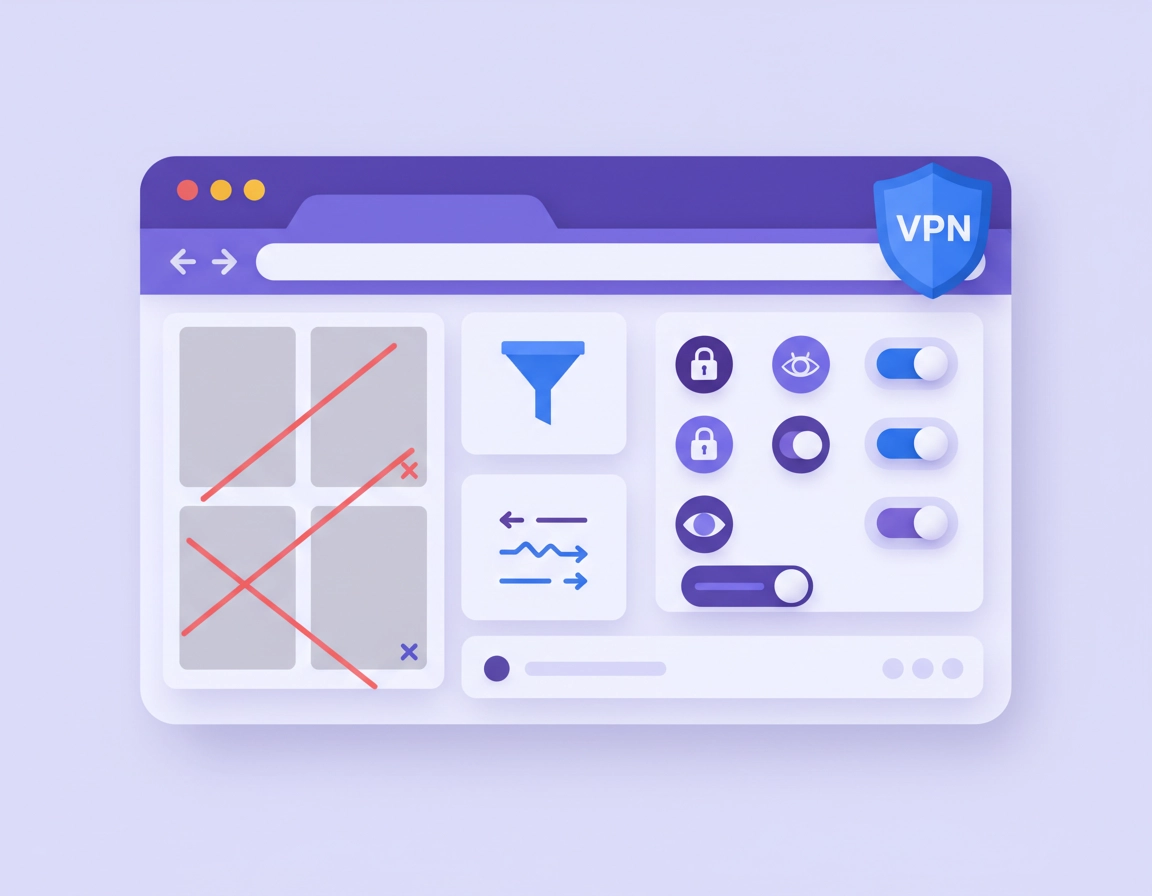
What VPN ad blocking in Chrome actually means .
A lot of users assume a VPN extension for Chrome blocks ads because it hides your IP address and encrypts traffic. That is not how ad blocking works. A VPN changes the route your traffic takes and can protect the browser session from your local network or internet provider, but ad blocking requires a separate filtering layer. In practice, the “ad blocking” feature inside a VPN product usually means one of three things: DNS filtering against known ad and tracking domains, network request filtering inside the extension, or a hybrid setup where the Chrome extension controls a desktop VPN that applies filtering outside the browser.
That distinction matters because different VPN products offer very different coverage. A browser-only VPN extension often protects traffic generated inside Chrome tabs but does not cover other apps on your device. Some products are really secure proxy-style browser tools rather than full-device VPNs. Others give you a thin extension that acts as a controller for the desktop app. If you are trying to block video ad calls, tracker beacons, malicious domains, and aggressive popups while browsing in Chrome, you need to know which architecture you are using before you judge the results.
It also helps to separate three related ideas that often get blended together in marketing copy: ad blocking, tracker blocking, and privacy controls. Blocking ad networks can reduce page clutter and speed up load times. Blocking trackers can reduce behavioral profiling and cross-site data collection. Chrome’s own ad privacy controls, meanwhile, let you manage ad topics and site-suggested ads, but those settings do not act like a full ad blocker. They shape personalization and data sharing behavior, not the raw rendering of all advertising elements.
There is one more layer of confusion: Chrome itself has long intervened against particularly disruptive ads on sites that violate Better Ads Standards. That is useful, but it is not the same thing as installing a dedicated blocker or using a VPN service with filtering. So when somebody asks whether “VPN Chrome ad blocking features” are worth it, the right answer is not yes or no. The right answer is: it depends on whether the feature works at the DNS layer, request layer, browser UI layer, or full-system network layer, and whether the ads you want to block are easy to separate from the site’s core content.
Related: if you want the full landscape first, start with Best VPN for Chrome, then compare browser-only setups in VPN Chrome vs Desktop VPN.
Key terms worth knowing .
- DNS filtering: blocks requests to domains known for ads, trackers, malware, or telemetry before content loads.
- Request filtering: blocks or modifies individual web requests, such as scripts, frames, images, or background calls.
- First-party ad: an ad delivered from the same domain as the website itself, which is harder to block without breaking the page.
- Browser-only VPN extension: a Chrome extension that affects Chrome traffic but usually does not protect other apps on your device.
- Full-device VPN app: a desktop or mobile VPN client that routes traffic system-wide and can sometimes apply stronger filtering.
- Tracker: a script, request, pixel, or endpoint used to profile user behavior, attribute clicks, or measure activity across sites.
Before you start: fast checks that change the answer .
Before you spend time changing extensions or blaming Chrome, check the basics. Most disappointment around VPN ad blocking comes from using the wrong type of product, overlapping privacy tools, or expecting a browser extension to do what only a full VPN client can do.
- Check whether your VPN is browser-only or full-device: if it is only a Chrome extension, its filtering is normally limited to Chrome traffic.
- Check whether ad blocking is actually enabled: many VPNs hide blocker settings under names like Threat Protection, NetShield, CleanWeb, Shield, Malware Filtering, or Tracker Blocking.
- Check whether you are already using another blocker: stacking a VPN blocker, a privacy extension, a DNS tool, and a classic ad blocker can produce broken sites and confusing test results.
- Check what kind of ads you want to stop: video ads, social embeds, sponsored widgets, cookie popups, and same-domain promotional modules do not behave the same way.
- Check whether you are on a managed browser: in schools and businesses, Chrome policies can restrict proxies, extensions, or traffic interception.
You should also decide what success looks like. If your goal is simply to reduce obvious banner ads and tracker calls, a VPN with decent DNS-based filtering may be enough. If your goal is maximum ad suppression, clean page layouts, fewer malicious redirects, and stronger anti-tracking inside Chrome, you usually need a more layered setup. That may include a reputable content blocker plus a VPN, not one tool pretending to do both jobs perfectly.
Related: if your main concern is whether the VPN tool itself is trustworthy, read VPN Extension Permissions in Chrome and Chrome Extension Permissions Guide.
Quick reality check: what a VPN ad blocker usually blocks best .
- Known ad network domains
- Common tracker endpoints and measurement scripts
- Some malicious redirect infrastructure
- Some fake download pages and clickbait landing domains
What it usually struggles with .
- Ads served from the same domain as the website
- Video or streaming ads stitched directly into content delivery
- Sponsored modules rendered by the site’s own code
- Pages that break when a blocked request is tied to consent, login, or comment functionality
How to use VPN ad blocking in Chrome the right way .
The best setup depends on whether you are using a standalone VPN extension or a companion extension for a desktop VPN. The steps below work as a strong baseline for most Chrome users who want cleaner browsing without turning the browser into a maintenance project.
- 1 Install or open your VPN in Chrome and locate the filtering feature. Look for options labeled ad blocker, tracker blocker, threat protection, malicious site blocking, or clean browsing.
- 2 Turn on the default protection tier first. Do not start with the most aggressive mode unless you are comfortable troubleshooting broken pages.
- 3 Visit a few ad-heavy sites you already know well. Compare how the page behaves with the feature on and off. Watch for missing placeholders, cookie loops, broken sign-in flows, dead video players, or checkout failures.
- 4 Open Chrome’s extension details and review permissions. A VPN or blocker that requests broad host access can be legitimate, but you should understand why it needs that access.
- 5 If the provider offers a desktop app, test whether the app-based filtering works better than extension-only mode. It often does, especially for DNS-level blocking and system-wide coverage.
- 6 Keep one primary blocking layer. If your VPN filtering works well enough, avoid piling on multiple overlapping blockers unless you specifically need them.
What success looks like: pages load with fewer third-party requests, fewer tracking calls, fewer obvious banner or popup elements, and lower annoyance without constant breakage or endless CAPTCHA loops.
For most users, the safest order is this: start with the VPN’s built-in blocking feature, test normal browsing, then decide whether you need an extra dedicated ad blocker. This prevents a common mistake where a user installs three privacy tools at once, sees a broken banking site, and has no idea which tool caused the failure.
If your VPN extension mainly functions as a browser proxy switcher, do not expect desktop-level ad filtering results. In Chrome, the extension may influence browser requests and route them through the provider, but it is still constrained by Chrome’s extension model and by what the provider has actually implemented. A provider with a strong desktop stack and a weak extension will feel inconsistent unless you know which piece is doing the work.
Related: for setup guidance, see How to Install a VPN Extension in Chrome and How to Use a VPN With Chrome Browser.
Common variations .
- Windows and macOS: the strongest filtering often comes from the desktop VPN app, with the extension acting as a control panel or per-browser convenience layer.
- ChromeOS: enterprise or education environments may impose policy limits; some VPN frameworks and controls behave differently here.
- Android: app-based VPNs usually have better system-wide reach than Chrome-only browser tools.
- Managed business devices: extension installation, proxy control, or custom DNS may be locked down by policy.
Three practical setups ranked by simplicity .
| Setup | Ad blocking strength | Privacy value | Breakage risk | Best for |
|---|---|---|---|---|
| VPN extension only | Basic to moderate | Moderate | Low | Casual Chrome users who want a simple cleaner session |
| Desktop VPN app with filtering | Moderate | High | Low to medium | Users who want broader device protection, not just Chrome |
| VPN plus dedicated Chrome blocker | Strong | High | Medium | Power users who want aggressive blocking and are willing to tune exceptions |
Advanced setup, limitations, and power-user tradeoffs .
This is where the real answer lives. A VPN’s Chrome ad blocking feature is only as good as the filtering mechanism under it. DNS filtering is efficient and private, but blunt. It blocks by destination domain, so it works well when ads or trackers live on separate hostnames. It works poorly when the site serves ad content from the same domain or when blocking a domain also breaks essential site functions. Request filtering inside the browser can be more granular, but it depends on the extension model, the permissions granted, and how the filtering rules are implemented.
Modern Chrome extension behavior matters here. In current Chrome extension architecture, rule-based request filtering is centered around declarative models rather than the old style where most extensions intercepted and blocked traffic directly in real time. That shift is good for performance and privacy in several ways, but it also means you should not assume every blocker behaves like the classic generation of browser extensions. Some enterprise policy-installed extensions still retain capabilities that ordinary consumer extensions do not have. That is one reason consumer VPN blockers and managed enterprise browser tooling can feel very different in practice.
Another advanced point: many VPN blocker features are really anti-tracker products first and ad blockers second. They are tuned to suppress measurement endpoints, malware domains, phishing hosts, and major ad or analytics infrastructure rather than to surgically remove every sponsored card from a page. That is often the right design. From a privacy and security angle, blocking the tracking and malicious delivery infrastructure matters more than winning a cosmetic war against every promotional box. But it also means users who want a perfectly clean page layout may still need a dedicated content blocker.
You should also expect tradeoffs around logging, diagnostics, and trust. A provider that advertises tracker and ad blocking may need to compare requested destinations against lists of known domains. That does not automatically mean it is violating privacy, but it means you should read the provider’s technical explanation and privacy policy carefully. A serious service explains whether filtering happens locally, at the resolver level, or at the VPN service edge, and what telemetry is retained.
Related: compare the underlying browser-side protections in VPN vs Built-In Chrome Security and the privacy angle in VPN Chrome Privacy Review.
When VPN ad blocking is enough .
- You mainly want fewer trackers, fewer popups, and less obvious ad network noise.
- You prefer minimal setup and do not want another dedicated extension.
- You browse on work machines where extension sprawl is a bad idea.
- You want to reduce exposure to malicious ad infrastructure more than perfect visual cleanup.
When it is not enough .
- You want aggressive cosmetic filtering and near-total page cleanup.
- You regularly visit media or streaming sites where ads are embedded in the delivery path.
- You care about per-element control, custom filter rules, or detailed diagnostics.
- You need reliable filtering outside Chrome as well, across apps and background processes.
Common alternatives users compare .
- VPN vs browser extension security tools
- VPN vs private DNS for Chrome
- VPN vs proxy for Chrome differences
- VPN for Chrome malware protection
- VPN Chrome threat detection explained
Why some ads survive even a good VPN blocker .
Ads survive for several reasons. First, many modern sites no longer load ads only from obvious third-party ad domains. They may proxy requests, use first-party subdomains, or render promotional components server-side. Second, streaming and social video environments often insert sponsored segments in ways that do not resemble a normal display ad request. Third, some sites tie consent, account checks, anti-bot logic, or performance scripts to the same infrastructure as ads or analytics, which forces blockers to be conservative if they want to avoid site breakage.
That is why a “95% clean” experience is often realistic while “nothing promotional ever appears anywhere” is not. In the real world, good browser security is about reducing risk, exposure, and noise without wrecking the browsing session. That is a more mature goal than chasing theoretical total blocking.
Privacy, security, and business risk notes .
VPN ad blocking has a strong commercial appeal because it speaks to three high-value concerns at once: privacy, performance, and security. But these benefits only materialize if you choose the right architecture. Blocking trackers can reduce cross-site profiling and cut background network noise. Blocking malicious advertising domains can reduce exposure to malvertising, scam redirects, fake software prompts, and suspicious landing pages. Cleaner pages can also mean lower page weight and better performance on slow connections. Still, none of that makes a VPN blocker a full endpoint security stack.
Impact: affects browsing privacy, extension trust, site compatibility, ad measurement behavior, and in business contexts may overlap with policy, secure DNS, or managed browser controls.
Related: if your concern is hijacks, fake popups, or malware rather than ordinary ads, go deeper with Remove Malware From Chrome and Chrome Malicious Site Protection Guide.
Recommended baseline settings .
- Balanced: use the VPN’s built-in tracker and malicious domain blocking, keep Chrome updated, and leave Chrome’s Safe Browsing protections on.
- Maximum privacy: use a full VPN app with filtering, reduce unnecessary extensions, tighten Chrome permissions, and consider stronger cookie and tracking controls.
- Compatibility-first: keep the VPN on but use moderate filtering and whitelist sites that handle payments, identity checks, or strict media playback flows.
Recommended settings by goal .
| Goal | Recommended setup | Tradeoff | Best for |
|---|---|---|---|
| Cleaner browsing | VPN blocker enabled, moderate filtering, no extra blocker unless needed | Some ads survive | Most users |
| Maximum privacy | Full VPN app, tracker filtering, tight Chrome privacy settings, minimal extensions | More tuning and some site issues | Privacy-focused users |
| Business safety | Managed VPN policy, controlled extensions, documented exceptions, Chrome security review | Less user freedom | Teams and managed devices |
| Best page cleanup | VPN plus reputable dedicated blocker | Higher breakage risk and more maintenance | Power users |
Business and enterprise angle .
In business environments, a VPN blocker can reduce exposure to low-quality ad infrastructure and lower the chance of users landing on malicious pages from ad redirects. That is useful, especially for remote work. But enterprise teams should avoid treating consumer VPN blocking as a substitute for managed browser policy, DNS security, secure web gateways, extension controls, or endpoint protection. A sensible business posture is to see browser-side VPN blocking as a helpful layer, not the compliance story.
If you manage Chrome in a company, document which sites are allowed to bypass blocking, which VPN features are mandatory, and whether users are permitted to install additional blockers. Otherwise, help desk tickets multiply because nobody knows whether the checkout page, SSO flow, or video meeting widget failed because of a privacy feature, a DNS filter, a proxy conflict, or a strict extension policy.
Related: for managed environments, see VPN for Chrome Policy Enforcement, VPN for Chrome Device Management, and VPN for Chrome Business Threat Protection.
Troubleshooting .
Related: if leaks or connection behavior are part of the issue, also review VPN Chrome DNS Leak Test Guide, VPN Chrome IP Leak Protection, and VPN Chrome WebRTC Leak Fix.
If ads are still showing everywhere .
First verify that the blocker feature is truly enabled and not limited to malware-only mode. Some VPN products separate ad blocking, tracker blocking, and malicious domain blocking into different switches. Next, test with the provider’s desktop app if available. If extension-only mode is weak, the app may apply broader DNS or tunnel-level filtering. Finally, test on different kinds of sites. If banner ads on third-party ad networks disappear but same-site sponsored modules remain, the blocker is working within its design limits rather than failing completely.
If pages break, logins fail, or videos do not load .
Reduce the filtering level or temporarily disable the blocker on that domain. Payment pages, single sign-on portals, embedded video players, customer support widgets, consent frameworks, and comment systems often depend on background requests that privacy tools classify aggressively. If the site is important, create an exception rather than turning off all protection globally.
If Chrome gets slower instead of faster .
Too many overlapping blockers, DNS tools, or privacy extensions can increase overhead and delay page rendering. Start by disabling redundant tools and keeping one primary blocker layer. Also check whether the VPN server you selected is congested or geographically far away. A clean blocking setup can reduce page weight, but a poor VPN route can still add latency.
If work or school policies interfere .
Managed Chrome environments may lock extension installation, proxy settings, or custom DNS behavior. In those cases, user-level tweaks inside the browser may be ignored or reverted. The fix is usually administrative, not technical: review policy controls, approved extension lists, and whether the device requires a corporate VPN or secure gateway instead of a consumer browser extension.
If you need to reset safely .
Turn off the VPN blocker first, not every privacy feature at once. Then retest the affected site. If that fixes the issue, re-enable protections in layers until the problem returns. That tells you whether the breakage comes from the VPN, a separate blocker, Chrome content settings, or a managed browser policy. A controlled rollback is always better than wiping your browser configuration blindly.
FAQ .
-
helpDoes a VPN extension in Chrome block all ads?No. A VPN extension only blocks ads if the provider adds a filtering feature on top of the VPN or proxy function. Even then, it usually blocks known ad and tracker requests better than first-party ads or content embedded directly into the site.
-
helpIs Chrome’s built-in ad behavior the same as a VPN ad blocker?No. Chrome has protections against certain intrusive ad experiences and also includes ad privacy controls, but those are not the same as a dedicated VPN filtering layer. A VPN blocker is typically targeting ad or tracker infrastructure, while Chrome’s own controls focus on safer ad experiences and ad personalization settings.
-
helpIs a VPN with ad blocking enough for privacy?It is a helpful layer, not a complete privacy strategy. You still need a current Chrome build, careful extension choices, sensible cookie and permission settings, and for higher-risk cases a broader security setup than a browser VPN alone.
-
helpShould I use a VPN blocker and a normal ad blocker together?Sometimes, yes. If the VPN blocker gives you acceptable results on its own, keep it simple. Add a dedicated blocker only if you need stronger cosmetic cleanup or more granular control, because overlapping blockers increase the chance of site breakage.
-
helpWhy do ads disappear on one site but not another?Because ads are delivered differently across sites. Some rely on easily blocked third-party ad domains, while others serve sponsored content from first-party infrastructure or render promotional elements as part of the page itself.
Sources & further reading .
- Chrome for Developers: declarativeNetRequest API
- Chrome for Developers: webRequest API
- Chrome for Developers: extension permissions
- Chrome for Developers: vpnProvider API
- Google Chrome Help: manage your ad privacy in Chrome
- Google: Chrome and disruptive ads on the web
Editorial note: this page does not assume every VPN provider works the same way. “Ad blocking” is a feature label used inconsistently across the market, so always confirm how the provider implements it before you rely on it.