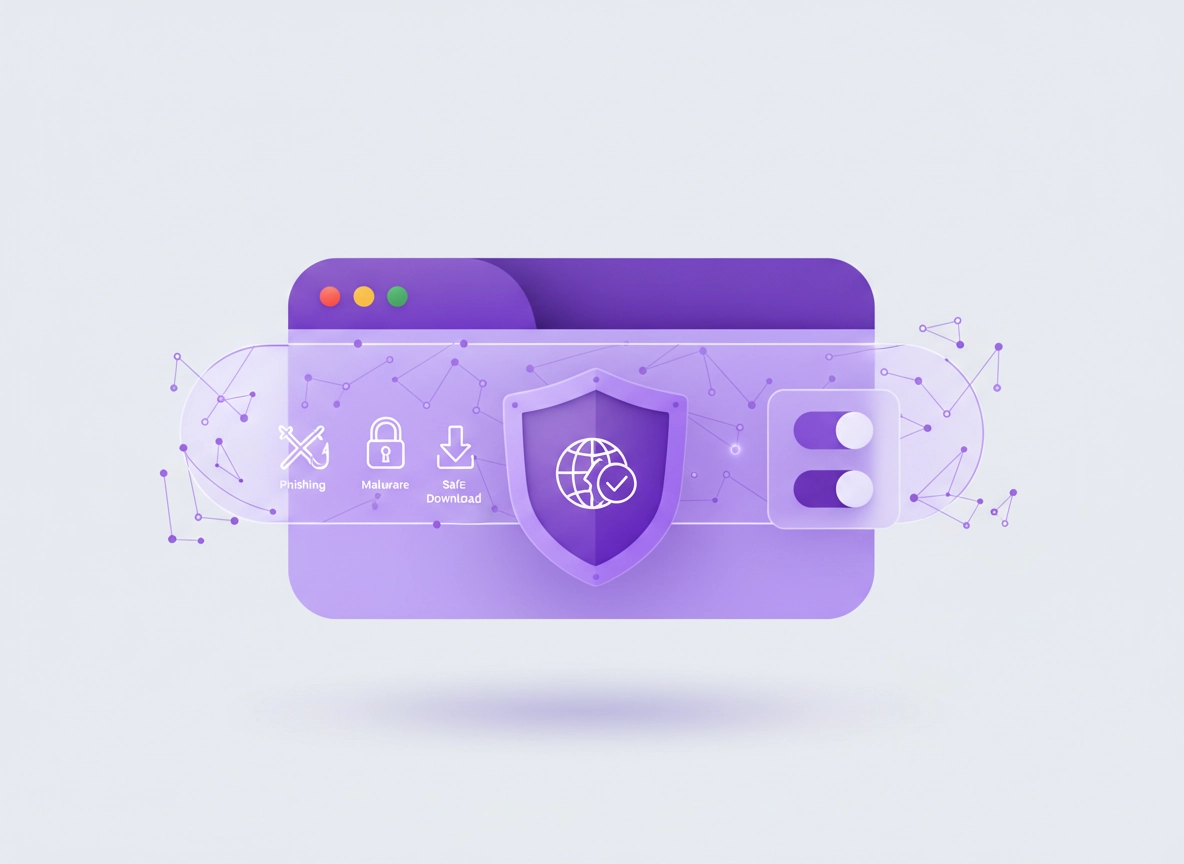
What “VPN malware protection” really means .
Most people buy a VPN for privacy and encryption — then assume it also works like antivirus. That’s where confusion (and bad purchases) happen.
A VPN (virtual private network) is primarily a secure tunnel: it encrypts traffic between your device and the VPN provider, then forwards that traffic to the internet. That encryption helps protect you on untrusted networks (especially public Wi-Fi) and reduces what your ISP can see. But encryption alone doesn’t magically “clean” the web.
When a product advertises VPN malware protection, it usually means one (or more) of these security add-ons:
- DNS filtering / malicious domain blocking: your VPN (or its DNS resolver) refuses to resolve known bad domains (malware, phishing, scam, command-and-control).
- Phishing protection: blocks known credential-harvesting sites and lookalike domains.
- Ad / tracker blocking: reduces exposure to malicious ad networks and “malvertising” (but this is not the same as malware removal).
- Download reputation checks: flags suspicious downloads (often by domain reputation rather than file scanning).
Here’s the blunt truth: a VPN cannot see inside Chrome the way Chrome can. It can’t reliably inspect everything you do in the browser (especially with HTTPS), and it can’t remove a malicious extension that already has access to your tabs. That’s why the best setups treat a VPN as one layer of a bigger security stack.
Start here: If you’re shopping, use the VPN hub first: Best VPN for Chrome. If you want a technical breakdown of VPN security features, read VPN threat detection explained and VPN Chrome malware filtering.
Key terms (quick definitions) .
- Phishing: fake sites designed to steal logins (banking, email, crypto, social media).
- Drive-by download: a download or install attempt triggered by visiting a page (often via ads/scripts), not by clicking a trusted “Download” button.
- Malvertising: malicious ads that redirect you or deliver exploit chains through ad networks.
- DNS filtering: blocking domain lookups to prevent connections to known malicious hosts.
- Browser extension compromise: an extension with risky permissions that can read/modify pages, inject scripts, or steal data.
- C2 (command-and-control): servers malware talks to after infection (to receive instructions or exfiltrate data).
Threat model: what you’re trying to block .
“Malware protection” is vague unless you define the threat. In Chrome, most real-world infections aren’t Hollywood viruses — they’re the boring stuff: phishing, scam redirects, malicious extensions, and bundled adware. A VPN can help with some of these before the browser connects — but it can’t fix everything after the fact.
What a VPN can realistically help with .
- Blocking known malicious domains: If the VPN’s DNS filtering list includes that domain, the connection fails early.
- Reducing tracking from networks/ISPs: Encryption prevents easy snooping on public Wi-Fi and by your ISP.
- Lowering risk on public Wi-Fi: Especially against captive portal tampering or basic eavesdropping (still: use HTTPS-only mode).
- Ad/tracker reduction: Fewer sketchy ad loads can mean fewer redirect traps. Not perfect, but measurable.
What a VPN cannot do (no matter what the ad says) .
- Remove malware from your device: If you’re already infected, you need cleanup steps (Chrome reset, extension removal, antivirus scan).
- Stop malicious extensions with broad permissions: Extensions operate inside Chrome — a VPN is outside that trust boundary.
- Inspect encrypted page content reliably: HTTPS encryption means the VPN usually can’t see the page content without using special client-side tech.
- Fix unsafe user behavior: If you keep entering passwords into lookalike sites, a VPN can’t save you.
If you suspect you’re already infected: Don’t start by buying tools. Start with cleanup: Remove malware from Chrome, Chrome malware cleanup guide, and malicious extension removal.
Before you start (fast checks) .
These checks prevent 80% of “VPN security isn’t working” issues — especially when DNS, browser settings, and corporate policies collide.
- Confirm what you installed: Is it a VPN desktop app or a Chrome VPN extension? They’re not the same. Extensions often protect only browser traffic, while full apps protect all device traffic (and typically have stronger security features).
- Check who controls DNS: Malware blocking via VPN is often DNS-based. If Chrome is using Secure DNS (DoH) or your device uses a custom DNS, your VPN’s filtering may be bypassed.
- Check for “split tunneling”: If your VPN excludes Chrome traffic, you won’t get VPN protections in the browser.
- Check enterprise policies: On work/school devices, Chrome policies can force DNS, proxies, and extensions (and your VPN may not have permission to change them).
- Update Chrome: Security features improve over time. Update first, then configure.
Useful context: If you’re deciding between an extension and a full VPN, read VPN Chrome vs desktop VPN. If you’re comparing against antivirus, see VPN vs antivirus for Chrome.
Step-by-step: best-practice setup (recommended) .
This is the “high-signal” setup that actually improves security outcomes in Chrome without making your browsing miserable. Think of it as Layered Protection: VPN threat tools + Chrome Safe Browsing + safer downloads + extension discipline.
1) Choose the right VPN capability (not just “a VPN”) .
- 1 In your VPN app, look for settings like Threat Protection, Block malicious sites, Anti-phishing, DNS filtering, or CleanWeb / CyberSec style features.
- 2 Turn on malicious-site and phishing blocking first. Add ad/tracker blocking second (it can break some sites).
- 3 If your VPN offers a “strict” mode (block more categories), start on “balanced” for a week. Tighten later.
- 4 Confirm whether the feature applies to all apps (device-wide) or only the browser extension.
What “success” looks like: suspicious redirect chains fail early (the page won’t load), obvious phishing domains show a block page, and you see fewer scammy ad popups — without breaking normal sites.
Shopping guide: Compare extension options here: Chrome VPN extension comparison. If you want premium security features, start with: most secure VPN for Chrome and the main hub: best VPN for Chrome.
2) Turn on Enhanced Safe Browsing in Chrome .
If you only do one Chrome setting from this guide, do this one. Chrome’s Safe Browsing is designed specifically for phishing, dangerous downloads, and malicious extensions — all the stuff a VPN is worst at handling.
- 1 Open Chrome Settings.
- 2 Go to Privacy and security → Security.
- 3 Under Safe Browsing, select Enhanced protection (recommended if you want maximum security) or Standard protection (balanced).
- 4 Restart Chrome to ensure all components reload cleanly.
Deep dive: If you want screenshots + menu variants, use: Chrome Safe Browsing settings and Enhanced Safe Browsing explained.
3) Make downloads safer (Chrome’s built-in “malware gate”) .
Many “Chrome malware” stories begin as a download story: cracked software, fake updates, shady PDF converters, or “your file is ready” buttons. Your VPN may block some of these domains — but Chrome can warn you when a download looks suspicious.
- Prefer official sources: vendor sites, app stores, GitHub releases from known repos.
- Use Chrome’s warnings: don’t ignore “this file may be dangerous” prompts to “just get it done.”
- Scan unknown files: if you must download from a new source, scan it with your OS/endpoint tool.
- Watch fake update pages: “Update your browser/player” popups are a classic trap. Real Chrome updates don’t come from random pages.
If you think you clicked a fake update: follow: Chrome infected — what to do and then run the full malware cleanup checklist.
4) Lock down extensions (where most Chrome “malware” actually lives) .
A VPN can block a malicious website. It can’t stop a malicious extension that already has permission to “read and change all your data on all websites.” If malware protection is your goal, extension hygiene is non-negotiable.
- 1 Open chrome://extensions in the address bar.
- 2 Remove anything you don’t recognize (especially “coupon”, “PDF”, “search”, “video downloader” clones).
- 3 For extensions you keep: open Details and reduce permissions where possible (or choose “On click” / “On specific sites”).
- 4 Prefer extensions with a clear vendor, update history, and minimal permissions.
Extension safety toolkit: Start with the hub: Chrome extension security check, then read: how to check if a Chrome extension is safe and extension permissions guide.
Common variations (Windows, macOS, Android, iPhone) .
- Windows / ChromeOS: Full VPN apps often integrate deeper (device-wide filtering). Browser extensions are usually per-browser only.
- macOS: VPN apps may ask for a “VPN configuration” approval; allow it so the VPN can actually route traffic.
- Android: VPN filtering is usually strongest with the VPN app (always-on VPN optional). Chrome settings are in Settings → Privacy and security.
- iPhone: VPNs use iOS network extensions; Safari/Chrome limitations apply. DNS filtering often works device-wide if enabled in the VPN app.
Advanced: DNS, leaks, split tunneling, and business policies .
This section is where “VPN malware protection” succeeds or silently fails. Most security blocking features depend on controlling DNS and traffic routing. Chrome can also enforce its own encrypted DNS (DoH), and enterprises often force proxies or DNS via policy. If you want predictable protection, you need to understand the control points.
Enterprise context: If you manage devices, bookmark: VPN for Chrome in enterprise and VPN IT admin guide.
Secure DNS (DoH): when it helps — and when it breaks VPN filtering .
Secure DNS (DNS-over-HTTPS) encrypts DNS queries. That’s good for privacy, but it can conflict with DNS-based malware blocking. If your VPN blocks malware by forcing its own DNS resolver, and Chrome is using a different DoH resolver, you may bypass the VPN’s blocklists.
- 1 Open Chrome Settings → Privacy and security → Security.
- 2 Find Use secure DNS.
- 3 If your VPN provides threat blocking, set Secure DNS to Off (or “With your current service provider”, depending on your setup) to avoid bypass.
- 4 If you’re not using VPN threat blocking, you can turn Secure DNS On and choose a reputable resolver.
Deep dive: For walkthroughs, see: Chrome DNS over HTTPS settings and Chrome Secure DNS setup. For VPN-specific DNS considerations, read: VPN Chrome DNS leak test guide.
IP leaks, WebRTC, and why “VPN on” doesn’t always mean “hidden” .
Some sites can try to discover network details using browser features like WebRTC. Modern Chrome has improved privacy behavior over time, but leaks and edge-cases still happen — especially when extensions, corporate proxies, or unusual networks are involved. This matters for privacy and security because identifying your real network can aid targeting (and it can make you think the VPN is “broken”).
- DNS leaks: DNS queries go outside the VPN tunnel (common if DNS is forced by OS, router, or Chrome DoH).
- WebRTC behavior: can expose network details under certain conditions; leaks are less common than they used to be, but worth testing.
- Split tunneling: some traffic intentionally bypasses the VPN (performance/compatibility feature).
Fix guides: VPN IP leak protection and WebRTC leak fix.
Split tunneling: the #1 “silent bypass” for malware protection .
Split tunneling can be useful (banking sites, local printers, corporate apps), but it’s dangerous if you don’t understand what’s excluded. If Chrome is excluded, your VPN’s malware blocking won’t protect your browsing — which defeats the whole point of this page.
If you want to keep work tools outside the VPN but keep Chrome protected, read: VPN split tunneling for Chrome.
Chrome VPN extension vs full VPN app (security impact) .
Many “free VPN for Chrome” extensions are really proxies, not full VPNs — and a proxy rarely includes strong malware protection. A full VPN app typically offers better controls: DNS enforcement, kill switch, device-wide filtering, and consistent routing.
- Chrome extension: faster to install, browser-only, can be fine for light privacy use cases. Malware protection depends on the vendor.
- Full VPN app: stronger security posture (DNS control, kill switch, full-device coverage). Better for malware protection.
Compare properly: VPN extension vs desktop VPN and secure VPN for Chrome.
Common alternatives users compare (high-intent) .
- VPN vs antivirus for Chrome (what each layer really does)
- VPN vs proxy for Chrome (security expectations)
- VPN vs built-in Chrome security (what you get free)
- Browser-level malware protection tools (SWG, isolation, extensions)
Privacy & security notes (tradeoffs that matter) .
Security is always a trade: you’re moving trust around. A VPN reduces what your ISP can see, but increases what your VPN provider can see (at least metadata and connection patterns). Chrome Enhanced Safe Browsing can improve detection, but may share additional security signals with Google. The goal is not “perfect privacy.” The goal is reduced risk with predictable behavior.
Impact: Affects DNS behavior, connection routing, and how quickly threats get blocked. Can also affect compatibility for banking / corporate / streaming sites if over-blocked.
If you suspect infection or hijacking: jump to cleanup: remove virus from Chrome, search engine hijacked fix, or redirect virus fix.
Recommended baseline settings .
- Option A (balanced): VPN threat blocking ON (malicious + phishing) + Safe Browsing Standard + minimal extensions.
- Option B (maximum protection): VPN threat blocking ON (strict) + Safe Browsing Enhanced + Secure DNS configured to avoid bypass + strong extension restrictions.
- Option C (compatibility-first): Safe Browsing Standard + VPN ON (no aggressive ad blocking) + allowlist-only extensions for critical workflows.
Recommended settings by goal .
| Goal | Recommended setting | Tradeoff | Best for |
|---|---|---|---|
| Balanced | Safe Browsing Standard + VPN threat blocking (malicious/phishing) | Some tracking still exists; some threats rely on user behavior | Most users |
| Maximum protection | Safe Browsing Enhanced + strict extension policy + VPN threat blocking + DNS aligned | Occasional false positives, some site friction | High-risk browsing, remote work, public Wi-Fi |
| Compatibility | VPN ON (no aggressive ad blocking) + Safe Browsing Standard | Less blocking of shady networks; more exposure to malvertising | Banking / enterprise / sensitive web apps |
Important: If you’re using a free VPN extension, read: Free VPN for Chrome and Free vs paid VPN. Free products often monetize in ways that reduce privacy and don’t include serious threat tooling.
Troubleshooting .
Related: If this seems extension-driven (popups, redirects, search hijacks), use: extension malware removal and unwanted extension cleanup.
If your VPN “malware protection” doesn’t block anything .
This is usually a DNS control issue. Many VPN threat tools are DNS-based. If Chrome Secure DNS is enabled to a third-party resolver, or your device uses a custom DNS, you can bypass the VPN’s blocklists. Solution: align DNS — either let the VPN control DNS, or configure Secure DNS to not override the VPN’s resolver. Then retest with known-safe test sources.
If Chrome pages won’t load, or you see “DNS_PROBE_FINISHED” errors .
Overlapping DNS layers can break resolution: VPN DNS + Secure DNS + security extensions + corporate proxy rules. Fix sequence: (1) Disable Secure DNS temporarily, (2) disable ad/tracker blocking inside the VPN, (3) restart Chrome, (4) re-enable one layer at a time. If the device is managed by work/school, policy may force DNS and you’ll need an IT-approved configuration.
If some sites work but banking/enterprise apps fail .
Banking sites and enterprise portals often use strict fraud detection and block known VPN IP ranges or suspicious routing. Options: use a different VPN server, disable aggressive blocking features, or use split tunneling carefully — but don’t exclude Chrome if malware protection is the goal. If you need a business-friendly approach, see: business VPN setup.
If you keep getting popups/redirects even with VPN on .
This is often not a “network problem.” It’s usually a malicious extension, adware, or a notification-permission abuse issue. Fix: revoke notification permissions for suspicious sites (Chrome Settings → Privacy and security → Site Settings → Notifications), remove unknown extensions, and run the malware cleanup checklist: full cleanup checklist.
If you need to reset safely (without losing everything) .
Resetting Chrome can remove unwanted behaviors, but do it intentionally: export passwords if needed, note your important extensions, then reset profile settings and re-add only trusted tools. Use: Chrome security reset and reset after malware.
FAQ .
-
helpDoes a VPN protect Chrome from malware?A VPN can help prevent some malware exposures if it includes malicious-domain blocking or anti-phishing features (often DNS-based). But a standard VPN tunnel does not scan downloads or remove infections. For real protection, combine a reputable VPN’s threat tools with Chrome Safe Browsing and strict extension controls.
-
helpIs a Chrome VPN extension enough for security?Sometimes, but it depends on the vendor and what you’re protecting. Browser extensions usually cover only Chrome traffic, and many “VPN extensions” behave more like proxies. If malware protection is your goal, a full VPN app with DNS control and threat blocking is usually more consistent.
-
helpWill a VPN stop phishing sites in Chrome?It can help block known phishing domains if the VPN maintains strong blocklists, but Chrome’s Safe Browsing is specifically designed to warn on phishing and dangerous downloads. The best results come from using both: VPN threat blocking + Chrome Enhanced Safe Browsing.
-
helpWhy does malware blocking stop working when I enable Secure DNS (DoH)?Many VPN malware features rely on DNS filtering. If Chrome sends DNS queries through a different encrypted DNS provider, it can bypass the VPN’s filtering. Fix by aligning DNS: let the VPN control DNS, or configure Secure DNS so it doesn’t override the VPN’s resolver.
-
helpShould I use a VPN or antivirus for Chrome malware protection?They solve different problems. A VPN helps with privacy and blocking some malicious destinations; antivirus helps detect and remove malicious files and behaviors on your device. If you’re choosing one layer for malware protection specifically, antivirus (or endpoint protection) is more directly aligned — but the safest approach combines both with Chrome’s own security features.
Sources & further reading .
- Google Chrome Help: Choose your Safe Browsing protection level
- Google Transparency Report: Safe Browsing overview
- Google Transparency Report Help: Safe Browsing FAQs
- Chromium Blog: Secure DNS (DNS-over-HTTPS) design overview
- Chrome Help: Manage safety and security (Android)
Disclosure: This guide is educational. Any product mentions are editorial and based on practical security behavior (control points + tradeoffs), not hype.