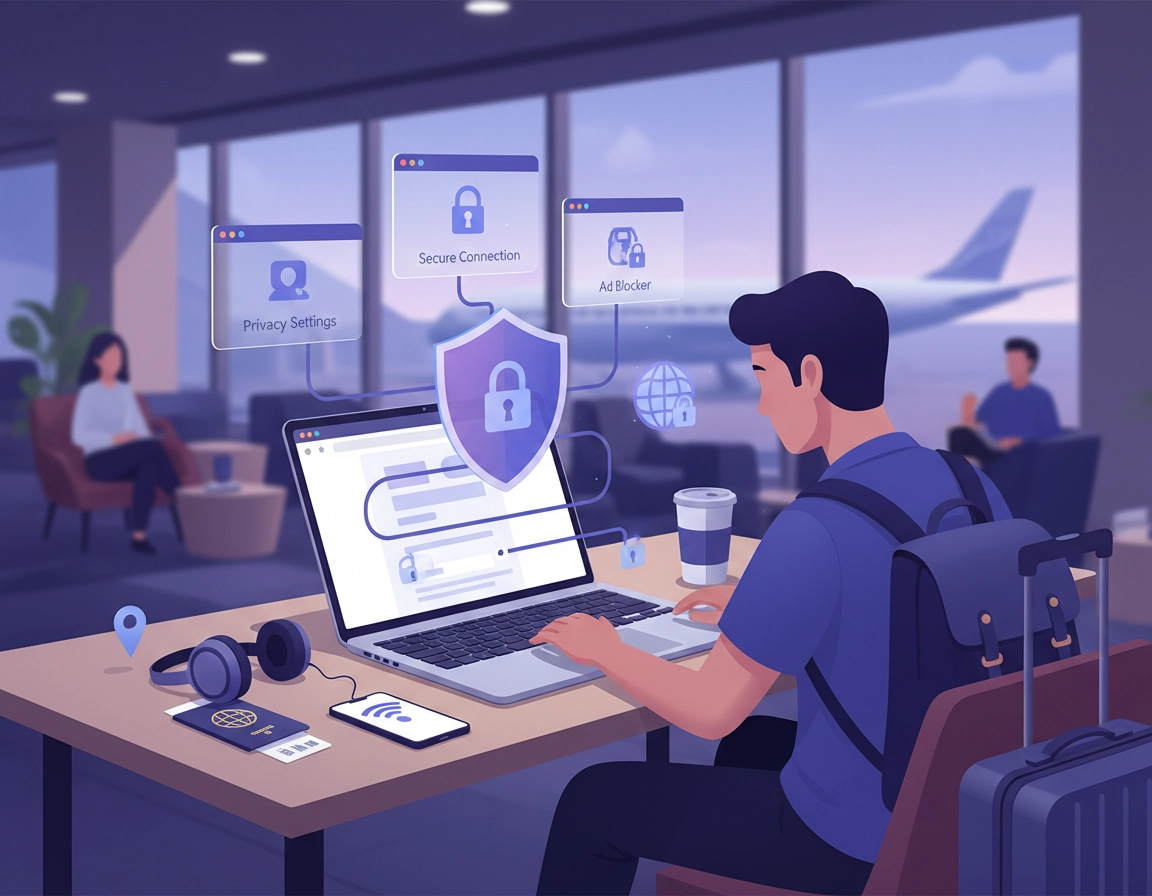
What a travel VPN for Chrome actually protects .
“VPN for Chrome” sounds simple, but travelers need to think in layers: browser traffic, device traffic, DNS lookups, extension permissions, captive portal behavior, and how websites react when your region suddenly changes.
A VPN for Chrome helps protect the browsing session inside the browser, which matters because Chrome is where most travelers handle high-value tasks. They open flight confirmations, sign into airline and hotel accounts, check passport and visa documents, retrieve boarding passes, access cloud drives, pay invoices, join work portals, respond to email, and log into banking dashboards. Chrome is often the operating center of the trip. If you are using it on networks owned by hotels, airports, lounges, trains, cafés, conference centers, or short-term rentals, you are relying on infrastructure you do not control and cannot audit.
The first technical distinction that matters is whether you are using a true browser-only VPN extension or a full-device VPN application. A browser extension can be perfectly useful, but it usually protects Chrome traffic only. That means Chrome tabs may be routed through the VPN while other traffic on the laptop or phone is not. A full-device VPN protects the operating system connection more broadly. For a tourist checking a few sites in Chrome, browser-only protection may be enough. For a contractor uploading files, taking calls, syncing data, authenticating through work tools, and receiving MFA prompts, a browser-only tunnel can leave too much exposed outside Chrome.
The second distinction is behavioral. VPN marketing often frames travel privacy as one clean binary: VPN on equals safe, VPN off equals unsafe. Real travel use is not that tidy. Some hotel networks need the VPN off for thirty seconds so the login page can appear. Some bank logins behave better when you stay on a home-country server. Some mapping and local search tasks work better with a server near your real physical location. Some work environments do not want a consumer extension at all and instead expect the official desktop VPN client or a company access tool. Good travel hygiene is not about maxing every privacy setting. It is about making the setup predictable enough that the trip still works.
The third distinction is that a VPN does not cancel out a bad browser. If Chrome is bloated with old extensions, broad permissions, strange pop-up behavior, excessive location access, and years of saved site junk, the VPN is only one layer in a messy stack. Travelers who get the best outcome tend to do the boring things well: they update Chrome, reduce extension clutter, enable Secure DNS, keep location on ask-by-default, avoid random “free VPN” add-ons, and test the workflow before they leave home.
Related: start with Best VPN for Chrome for the big-picture category view, then compare coverage tradeoffs in VPN Chrome vs Desktop VPN.
The travel problems a VPN can actually help with .
- Shared-network exposure: you are no longer trusting raw browsing traffic to a hotel or airport network in the same way.
- Safer account access: sensitive browser sessions such as email, bookings, banking, and work dashboards get an extra privacy layer.
- Region continuity: you can choose a home-country or destination-near server depending on what the site expects.
- More predictable browsing on the road: when configured properly, the VPN helps reduce location and network inconsistency.
What it does not solve by itself .
- Bad extension choices: a shady VPN extension still sits inside Chrome with real power.
- Site permissions you forgot about: location, camera, microphone, notifications, clipboard, and pop-up access still matter.
- Captive portals: hotels and airports often need a plain connection first before they show the sign-in page.
- Fraud detection: banks and airlines may see a new IP, new city, new timezone, and new device as suspicious even if the connection is protected.
What to do before you leave home .
Most travel VPN failures are not caused by anything advanced. They come from lazy prep: the subscription expired, the extension was never tested, the provider requires a login that now depends on an SMS you cannot receive abroad, or the user never learned how the hotel login page behaves when a VPN is already active. Ten minutes of preparation removes most of the chaos.
The best pre-trip test is not done on your home Wi-Fi. Home Wi-Fi proves only that your setup works in a trusted environment you use every day. What matters is whether it survives a second network and whether you know how to recover quickly when it does not. Use a mobile hotspot, a guest network, or another connection long enough to test the exact pattern you will use while traveling: connect, browse, sign in, switch servers, open maps, open mail, and confirm the browser still behaves normally.
Related: If speed is a concern for long trips or weaker hotel networks, also read VPN for Chrome Speed Optimization Tips, VPN for Chrome Performance Impact, and VPN for Chrome Battery Usage.
- Decide whether you need browser-only or full-device protection. If your trip includes native apps, sync clients, work tools, or messaging, the desktop or mobile VPN app is usually the safer choice.
- Install and sign in before departure. Do not make the hotel room your first live sign-in attempt.
- Update Chrome and the VPN now. Current Chrome settings for security, site permissions, and performance should be in the menus you expect.
- Save at least two server strategies. One near your destination for speed, one in your home country for continuity-sensitive logins.
- Review Chrome permissions. Especially location, camera, microphone, notifications, and pop-ups.
- Clean extension clutter. Old VPNs, coupon extensions, shopping helpers, screenshot tools, and random productivity add-ons often create conflicts on the road.
- Know your fallback. If the extension misbehaves, be ready to use the full app or temporarily troubleshoot in another clean browser profile.
The three checks I would not skip .
- Captive portal sequence. Practice the order: join Wi-Fi, disable VPN if needed, complete the portal, confirm plain internet access, then reconnect the VPN.
- Banking and airline continuity. Test whether your preferred server location causes extra verification prompts.
- Maps and calls. Confirm that location permissions, camera permissions, and microphone permissions are not in a messy half-allowed state from old sessions.
Recommended setup for travelers .
The best travel setup is not the most extreme one. It is the one that stays stable in motion. For most people, that means a reputable VPN, a deliberate choice between extension and full-device coverage, a clean Chrome profile, and a few settings that make the browser less sloppy on public networks.
- 1 Choose the right coverage model. Use a Chrome extension only if you are primarily protecting the browser session. Use the desktop or mobile VPN app if your trip includes work tools, native apps, file sync, or sensitive activity outside Chrome.
- 2 Install from the official source and verify the publisher carefully. Do not stack multiple VPN or proxy extensions in the same browser.
- 3 Sign in and save a home-region server plus a destination-near server. These two choices cover most real travel needs.
- 4 In Chrome, review Privacy and security and Site settings. Use Secure DNS, keep location on ask-by-default, and tighten access for camera, mic, notifications, and pop-ups.
- 5 In Extensions, remove or disable any add-on you no longer trust or use. Travel is a terrible time to discover that an old extension is hijacking site behavior.
- 6 If you use a laptop with many tabs open, review Chrome performance settings too. Memory Saver and site exceptions can make a real difference on travel hardware.
- 7 Once on public Wi-Fi, connect in the right order. If the network wants a login page, complete that first before forcing the VPN tunnel.
- 8 Test ordinary browsing first. Open a normal HTTPS site, then mail, then maps, then your more sensitive accounts. Do not start the session by brute-forcing the most fragile login you own.
What success looks like: the hotel or airport login page appears when needed, Chrome reconnects cleanly afterward, the VPN stays stable, local search is not completely broken, and your banking or airline portals do not treat every session as suspicious.
Related: For the install path, see How to Install VPN Extension in Chrome. For daily use, see How to Use VPN with Chrome Browser. For settings detail, see VPN for Chrome Best Settings Guide.
Chrome settings that matter most while traveling .
Travelers do not need every obscure toggle. They need the few settings that affect privacy, compatibility, and speed in unfamiliar environments.
- Security → Use secure DNS: worth enabling for most travelers, because DNS lookups get extra protection and Chrome can use automatic secure mode.
- Security → Always use secure connections: useful for warning you before landing on weaker HTTP pages.
- Privacy and security → Site settings → Location: keep it on Ask unless you genuinely need location-heavy local results.
- Camera and Microphone: do not leave broad allow rules in place from old sites you no longer trust.
- Notifications: lock this down; junk notification prompts are especially noisy and deceptive on public networks.
- Extensions → Details → Site access: reduce extension reach where possible instead of granting every add-on all-site access forever.
- Performance: use Memory Saver intelligently on lighter travel laptops, but whitelist sites you truly need to keep alive.
Server strategy for travelers .
| Situation | Best server choice | Why it works | Main tradeoff |
|---|---|---|---|
| General public Wi-Fi protection | Nearby server | Good speed with solid privacy on shared networks | Less home-country continuity |
| Banking, tax, payroll, subscriptions | Home-country server | Looks more familiar to fraud systems and account history | Can be slower from far away |
| Maps, ride apps, food delivery, local search | Server near actual location | Reduces weird regional mismatches | Less geographic masking |
| Work travel on managed devices | Company-approved full-device client | Matches enterprise access expectations | Less flexible than a casual extension setup |
| Weak hotel Wi-Fi | Closest stable server | Minimizes latency and overhead | Not ideal for home-country continuity tasks |
How to use Chrome safely once you are on the road .
Once the trip starts, the goal changes. Before departure, you are trying to build the setup. During travel, you are trying to keep it stable. The biggest mistakes happen when travelers start improvising under pressure: they install random extra extensions, hop across five server regions in ten minutes, ignore permission prompts, or blame the VPN when the real problem is a captive portal or a site that is reacting to location mismatch.
Scenario 1: Airport or hotel Wi-Fi requires a login page .
This is the classic captive portal problem. The network expects a simple browser session so it can intercept your request and show the terms page or room-number login. If the VPN comes up too early, Chrome may never see that page. The solution is procedural, not magical: join the Wi-Fi, pause the VPN if needed, finish the portal, confirm that ordinary browsing works, and only then reconnect the VPN.
Scenario 2: Chrome results look geographically wrong .
Chrome and websites may see several location signals at once: your VPN IP, your browser location permission, your Google account habits, your language settings, and sometimes device-level location. When those disagree, you get messy results: wrong maps, irrelevant local packs, language shifts, or delivery apps showing the wrong city. The fix is to decide what matters in that moment. If local accuracy matters, use a nearby server and keep location permission on ask. If privacy matters more, accept that some local convenience will drop.
Scenario 3: Banking or airline portals become suspicious .
Fraud systems are pattern-based. A sudden change in country, IP, time zone, browser state, and network type looks risky. Travelers produce that pattern naturally. This is why a home-country server often works better for financial accounts or airline portals than a random far-away node. Stay consistent, avoid rapid server hopping, and do not fire repeated login attempts from multiple tabs and regions at once.
Scenario 4: Chrome works, but the rest of your device is not protected .
This is the browser-only coverage problem showing itself in the real world. Your webmail in Chrome may be protected while cloud sync, messaging, collaboration tools, background apps, or system updates are not. That does not mean the extension failed. It means the extension is doing only what browser-only protection can do. If your travel threat model includes the whole machine, move to the full-device VPN client.
Scenario 5: Travel hardware starts feeling slow .
Slowness on the road is often cumulative. Weak hotel Wi-Fi plus a distant VPN server plus ten heavy Chrome extensions plus thirty tabs is a recipe for frustration. Start by reducing distance: switch to a closer server. Then reduce browser load: close tab clutter, turn off duplicate privacy tools, and use Chrome performance controls sensibly. Travelers often blame the VPN when the real problem is that the browser has become a backpack full of unnecessary weight.
Related: this page pairs well with VPN for Chrome for Public Wi-Fi Users, VPN for Chrome for Digital Nomads, VPN for Chrome for Expats, and VPN for Chrome Global Server Comparison.
Privacy, fraud, and extension trust notes .
A travel VPN is best understood as a connection-layer and routing-layer protection tool, not a magic invisibility system. It can make your Chrome sessions more private on untrusted networks and can help stabilize certain browsing risks on shared infrastructure. It does not make a bad extension safe, erase your account identity, or stop every website from inferring who and where you are.
Travelers are especially vulnerable to one blind spot: they focus on the network but ignore the extension. Yet the extension sits inside Chrome with a level of access that can be more powerful than many people realize. If an extension can read and change data on sites you visit, that is not a trivial permission. It may be necessary for the tool to function, but it is still a trust decision. This is why “free VPN for Chrome” searches are risky territory. Convenience and cost pressure rise during travel, precisely when your tolerance for bad tradeoffs should drop.
Why banking and fraud checks get touchy on trips .
Banks, payment systems, travel portals, and some work platforms are not just checking whether your traffic is encrypted. They are checking whether your session looks familiar. Your home country, normal timezone, device fingerprint, session history, and typical login region all contribute to that. A VPN can help the transport layer while still making the behavioral layer look unusual. That is why the best strategy for sensitive logins is usually consistency, not constant masking.
Chrome hygiene matters as much as VPN choice .
- Keep location on ask-by-default. Grant it only when the task actually needs it.
- Review microphone and camera permissions before the trip. Old meeting-site rules tend to linger.
- Keep extension count low. Every extra add-on is another possible source of breakage, data access, or UI conflict.
- Prefer reputable providers over novelty. Travel is not the moment for experimentation.
- Use Chrome’s built-in security features too. Secure DNS and stronger security choices complement the VPN rather than replacing it.
Best setup by traveler type .
| Traveler type | Best setup | Main reason | Watch out for |
|---|---|---|---|
| Casual vacation traveler | Good extension or full app, nearby server, clean Chrome profile | Simple public Wi-Fi protection | Random extension installs mid-trip |
| Frequent business traveler | Full-device VPN, tighter site permissions, home-region fallback server | Work apps and browser sessions both matter | SSO breakage from browser-only coverage |
| Digital nomad | Flexible mix of nearby and home-region servers, strict extension discipline | Frequent regional changes require predictable account behavior | Location mismatch in maps, payments, or local services |
| Remote contractor | Full-device client plus Chrome hygiene | Sensitive data and client systems often extend beyond the browser | Assuming Chrome-only protection is enough |
Related: for extension-specific risk, see VPN Extension Permissions in Chrome, Chrome Extension Security Check, VPN Chrome IP Leak Protection, and VPN Chrome WebRTC Leak Fix.
Troubleshooting hotel, airport, and location problems .
Travel troubleshooting gets easier when you isolate the variables in the right order. Start with the network. Then test the VPN. Then test Chrome permissions and extensions. Only after that should you assume the website itself is the problem.
Related: for broader fixes, see VPN for Chrome Troubleshooting Guide, VPN for Chrome Connection Issues Fix, and VPN vs Private DNS for Chrome.
If the hotel login page never appears .
Disconnect the VPN and reconnect to the Wi-Fi. Open a simple non-sensitive site to trigger the captive portal. Complete the room-number, surname, terms, or voucher page first. Once normal browsing is clearly working, reconnect the VPN and refresh Chrome. If needed, forget the network and rejoin it from scratch. This is one of the most common travel VPN “failures,” and it is usually just the wrong sequence.
If Chrome keeps showing the wrong city or country .
Use a server closer to your actual location if you need local results. Then review location permission for the specific site rather than blowing away your entire browser state. If you do need a home-country server for some accounts, accept that local discovery will become less accurate while that server is active.
If banking or airline pages keep flagging you .
Slow down and simplify. Use one stable server, ideally in your home country or usual account region. Close duplicate tabs. Do not jump across multiple server locations in a short window. Repeated retries across different countries can look worse than a single calm login from one familiar region.
If Chrome feels heavy and unresponsive on travel Wi-Fi .
Start with the shortest path: switch to a nearer server. Then reduce browser overhead. Close tab clutter, disable duplicate privacy or shopping tools, and remove old VPNs or proxies. On lighter laptops, Chrome performance settings matter more than people expect. If the device is already under strain, a distant server makes everything feel worse.
If video calls break when the VPN is on .
Test a nearby server first. Then verify site-specific camera and microphone permissions. If the extension-based path remains unstable, use the full-device VPN app instead. Conference or hotel Wi-Fi itself may be the bottleneck, so compare against a mobile hotspot to separate network weakness from VPN weakness.
If the extension works but other apps still leak outside the tunnel .
That is not a leak in the ordinary sense. It usually means you chose browser-only protection. Chrome is tunneled, but the rest of the device is not. The fix is architectural: move from the extension to the desktop or mobile VPN app if your use case requires device-wide coverage.
If you think Chrome itself is now messy .
Reset only what you need. Remove the problem extension first. Then clear the site permissions or data for the specific site that is misbehaving. Sign out and back in to the VPN if necessary. A full Chrome reset is useful when extension conflicts or broken settings have piled up, but it is still a bigger hammer than most travel browsing problems require.
FAQ .
-
helpIs a Chrome VPN extension enough for travel?It can be enough if your main goal is protecting the browser session inside Chrome. It is often not enough if your trip also involves work apps, file sync, messaging tools, or anything sensitive outside the browser. In those cases, a full-device VPN is usually the better travel setup.
-
helpWhy does hotel Wi-Fi often stop working when my VPN is on?Because many hotels and airports use captive portals. They expect a plain connection first so they can show a login or terms page. If the VPN starts too early, Chrome may never see that page. Connect to the Wi-Fi, complete the portal, then reconnect the VPN.
-
helpShould I use a home-country server while traveling?Use a home-country server when account continuity matters, especially for banking, payroll, subscriptions, or services that are sensitive to regional fraud checks. Use a nearby server when speed, local maps, and regional relevance matter more.
-
helpCan a VPN stop websites from knowing where I am?It changes your apparent IP location, but websites can still infer location from browser permissions, account history, language settings, and other signals. That is why travelers can still get local prompts or mismatched regional behavior even with the VPN on.
-
helpWhat is the biggest browser mistake travelers make?Trusting a weak or random extension because it feels fast in the moment. The network is only one part of the travel risk picture. A poor extension with broad access can create problems inside Chrome even while the connection itself is tunneled.
-
helpWhat is the safest overall setup for most serious travel?A reputable full-device VPN, a clean Chrome profile, minimal extensions, Secure DNS enabled, location set to ask-by-default, and careful site permissions for microphone, camera, and notifications. That combination is stronger than relying on a browser-only tunnel alone.
Sources & further reading .
- Google Chrome Help: Manage Chrome safety and security
- Google Chrome Help: Change site settings permissions
- Chrome Web Store Help: Permissions requested by apps and extensions
- Google Chrome Help: Personalize Chrome performance
- Google Chrome Help: Reset Chrome settings to default
Editorial note: this page is written around real traveler workflows rather than generic “VPN on public Wi-Fi” advice. The focus is not fear marketing. It is compatibility, stability, privacy, and better decision-making when Chrome is being used away from your normal network environment.