What Chrome Sandbox Mode is (and why it matters) .
This guide reflects modern Chrome’s multi-process security design (not legacy single-process browser behavior).
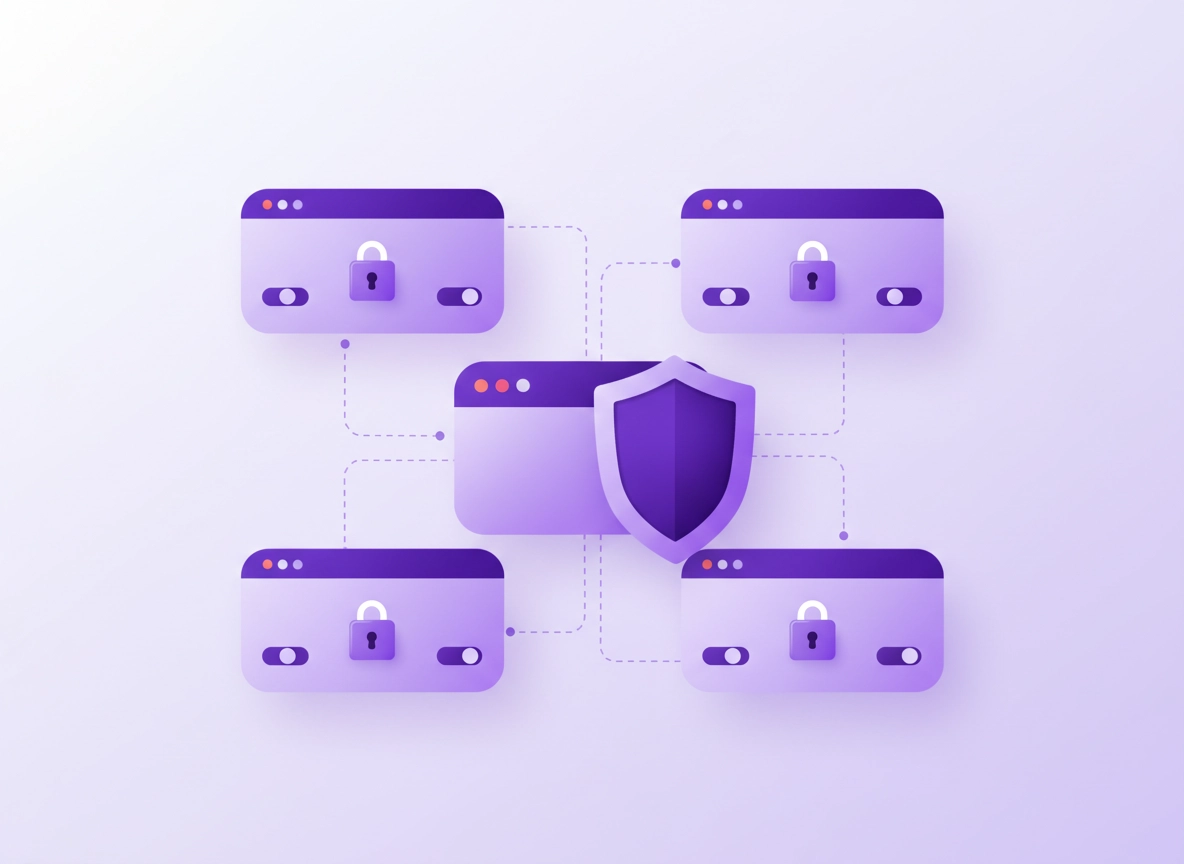
“Sandbox mode” in Chrome isn’t a single toggle — it’s the overall security model that keeps dangerous web content separated from your operating system, your personal files, and (in many cases) other websites. Chrome does this by running different parts of the browser in different processes with different permission levels. The goal is simple: even if a web page is malicious or triggers a vulnerability, it should be much harder for that code to escape and take over your computer.
In practical terms, a normal “tab” in Chrome is not one big program. Chrome splits tasks into specialized processes like: the browser process (the privileged coordinator), renderer processes (where web page code runs), network service (network requests), and additional “utility” processes. The sandbox applies strongest restrictions to the processes that handle untrusted content, especially renderers.
This matters because modern attacks often happen in two stages: (1) an attacker finds a bug in web-facing code (like a rendering engine), then (2) they try to escape the restricted environment to gain broader access. Chrome’s sandbox is designed to make stage (2) significantly harder. That’s also why security teams and researchers treat “sandbox escape” vulnerabilities as high impact — they represent the attacker breaking the safety boundary.
Related: If you’re securing Chrome beyond defaults, start with Chrome Hardening Guide and the Chrome Browser Hardening Checklist.
Key terms (quick definitions) .
- Sandbox: A restricted environment where untrusted code runs with minimal OS privileges.
- Renderer: The process that loads and executes web page content (HTML/CSS/JS). It’s a primary target for attackers.
- Browser process: The “manager” process that holds more privilege and mediates access to cookies, files, devices, etc.
- Site Isolation: A design approach that aims to keep different websites in separate renderer processes, reducing cross-site risk.
- Broker process: A more privileged helper that performs actions on behalf of a restricted process (only when allowed).
- Sandbox escape: When malicious code breaks out of the restricted process to gain higher privileges or broader access.
Why “sandbox mode” shows up in high-intent security searches .
People usually find this topic when they’re trying to answer one of these practical questions:
- “Is Chrome safe on my work laptop?” (You’re evaluating risk and security posture.)
- “Why does Chrome use so much RAM?” (Multi-process isolation can increase memory use — but it buys you safety.)
- “What does chrome://sandbox mean?” (You saw a diagnostic page and want to understand it.)
- “No usable sandbox!” (A runtime error on Linux/containers/headless environments.)
- “Can I disable the sandbox?” (Usually asked because a tool is doing something risky — we’ll cover why this is a bad idea.)
From a privacy perspective, sandboxing is not “a privacy feature” in the same way as cookie controls or tracking protection — but it indirectly protects privacy by preventing compromised web content from stealing local data, reading sensitive files, or tampering with the browser environment.
Also relevant: If your core goal is privacy control (not exploitation defense), see Chrome Privacy Settings, How to Stop Chrome Tracking, and Chrome Tracking Protection.
Before you start (fast checks) .
Most people don’t need to “turn on” sandboxing — it’s part of Chrome by design. But if you’re verifying security, troubleshooting errors, or working in a managed environment, these fast checks save time.
- Confirm you’re running a real Chrome build: open chrome://version and verify it’s Google Chrome (or Chromium-based) and not a repackaged fork with unknown flags.
- Update first: if you’re troubleshooting weird crashes or security prompts, update Chrome before changing settings. Use chrome://settings/help on desktop.
- Check for unusual launch flags: on chrome://version, look at “Command Line”. If you see anything like disabling security features, pause and investigate.
- Know your environment: sandbox behavior differs across Windows, macOS, Linux, Android, and container/CI setups. What’s normal on one platform may be an error on another.
Related: If you’re investigating “why did Chrome change behavior after an update,” read Chrome Default Security Settings Guide and Chrome Security & Privacy Checklist.
Fast sanity check: If your goal is general safety, your highest ROI steps are: keep Chrome updated, limit risky extensions, and use strong Safe Browsing settings. Sandboxing is the baseline foundation — but it works best when the rest of your setup isn’t undermining it.
How to check Chrome sandbox status (step-by-step) .
On desktop Chrome, you can verify sandboxing using Chrome’s built-in diagnostics. This does not require any downloads, admin access, or developer tools — and it’s the cleanest way to confirm that your Chrome processes are running in a restricted state.
- 1 Open a new tab and type chrome://sandbox in the address bar, then press Enter.
- 2 Review the table/output. You should see Chrome components (like renderers) listed with sandboxing enabled.
- 3 Open chrome://version in another tab and confirm the “Command Line” does not include risky flags that weaken isolation.
- 4 If you’re on a work device, check whether policies are enforced by opening chrome://policy (it will show if the browser is managed).
- 5 If you saw warnings/errors, jump to Troubleshooting and match the exact message you’re seeing.
What “success” looks like: You can open chrome://sandbox without a fatal error, and the browser is not launched with sandbox-disabling flags. On managed devices, you’ll also see active policies on chrome://policy.
Related: If your goal is to harden Chrome beyond basics, see Chrome Secure Profile Setup and Chrome Security Checkup.
Common variations by platform .
- Windows: chrome://sandbox is often the most informative. If you suspect incompatibility with third-party software, chrome://conflicts can also be useful when debugging stability.
- macOS: Chrome uses macOS sandboxing and process separation; the diagnostic output may differ from Windows. Verification is still mostly about “is it enabled?” and “are any risky flags present?”.
- Linux / containers: Sandbox failures are more common in constrained environments (containers, CI, headless testing). If you see “No usable sandbox!”, the fix is usually environment-level (kernel features, namespaces, AppArmor), not a Chrome setting.
- Android / iPhone: Mobile browsers rely heavily on OS sandboxing. You usually don’t “toggle” Chrome sandboxing from settings. If you’re looking for a practical security win on mobile, focus on updates and app permissions.
How to interpret the results (in plain English) .
Think of chrome://sandbox as a “seatbelt check.” It doesn’t guarantee you can’t crash, but it confirms the safety system is present. If sandboxing is enabled, a compromised tab should have a much harder time:
- reading or modifying local files
- installing programs or persistence
- stealing data from other websites outside allowed boundaries
- directly calling risky OS APIs (varies by OS)
If sandboxing appears disabled or broken, treat that as a priority issue — especially if the device is used for banking, work accounts, or sensitive logins.
How Chrome’s sandbox works (deep dive) .
If you just needed to verify sandbox status, you can stop here. But if you’re managing risk, writing a security policy, or trying to understand why “multi-process Chrome” matters, this section explains the design in a way that’s accurate without being academic.
Related: For enterprise context and policy-driven hardening, see Chrome Enterprise Security Architecture and Chrome Enterprise Policy Hardening.
1) Multi-process architecture: the “blast radius” idea .
The core idea behind Chrome’s security model is limiting blast radius. Instead of one big browser process doing everything, Chrome splits responsibilities. The most privileged parts (the “browser process”) act like a gatekeeper. Less trusted parts (like renderers) get far fewer permissions.
This is why Chrome can feel heavier than minimalist browsers: each process has overhead. But in exchange, a single compromised tab is less likely to become a full system compromise.
2) Renderer sandboxing: untrusted code gets the tightest box .
The renderer process is where web content is parsed and executed — HTML layout, CSS styling, JavaScript execution, and many complex features. That makes it a natural target. Chrome’s sandbox aims to ensure renderers:
- cannot directly access your filesystem except through tightly controlled browser-mediated file pickers
- cannot freely access devices (camera, mic, location) without explicit permission gates
- cannot arbitrarily interact with other processes or system resources
- must request privileged operations through controlled IPC to trusted components
The “how” depends on the OS. On Windows, for example, Chrome uses a combination of job objects, restricted tokens, integrity levels, and additional mitigations. On Linux, it uses namespaces and system call filtering approaches. On macOS, it uses Apple’s sandbox mechanisms and process isolation. The important takeaway for non-developers is this: Chrome is designed so the risky web-facing code does not run with the same privileges as the “real browser.”
3) Site Isolation: keeping different sites from sharing the same renderer .
Process sandboxing is powerful — but it becomes even more effective when combined with Site Isolation. Site Isolation is the idea that different websites (origins/sites) should not share the same renderer process wherever possible. That matters because cross-site data is extremely valuable: cookies, sessions, tokens, and private content.
With stronger site-based isolation, Chrome can treat the renderer process boundary as a security boundary between websites. If a renderer is compromised while loading one site, it becomes harder for that compromised process to read or influence another site’s data because it simply isn’t running the other site in the same process.
Related: This connects to broader privacy and tracking topics. For practical privacy controls, see Third-Party Cookies Settings, How to Block Third-Party Cookies, and Chrome Fingerprint Protection.
4) Why the sandbox can’t be “perfect” (and why that’s normal) .
A browser must do useful things: show files, download documents, print pages, connect to hardware, save passwords, sync data, and render complex graphics. If a renderer could do all of those things directly, it would need powerful system privileges — and that would defeat the purpose of sandboxing.
So Chrome uses a “broker” pattern: the locked-down process asks a more trusted component to do something on its behalf. The broker then enforces rules. This is a common secure design pattern, but it also means sandboxing is more than “permissions” — it’s a whole system of carefully controlled communication and boundary checks.
5) The performance vs security tradeoff (and why RAM use is part of the story) .
People often ask: “If sandboxing is so great, why doesn’t everything run in separate processes?” Because there’s a cost: more processes can mean more memory use and overhead. Chrome constantly balances performance, battery, compatibility, and security.
For most users, the right approach is not trying to reduce processes — it’s to reduce risk: keep extensions minimal, keep Chrome updated, and use safe defaults. If your device is slow, solve performance at the system level.
Related: If you’re tuning Chrome performance, see Speed Up Google Chrome, Chrome Memory Usage Fix, and Chrome Background Process Control.
Common alternatives users compare (high-intent) .
Sandbox mode is just one layer. Security-conscious users often compare it with other defenses that reduce real-world risk. Here’s a grounded way to think about the most common comparisons:
- Chrome sandbox vs “secure browser” products: Secure browsers add policy enforcement, monitoring, and data controls on top of Chrome-like isolation.
- Sandbox vs VPN: A VPN protects network privacy and location exposure; it does not replace exploit containment.
- Sandbox vs antivirus/EDR: Antivirus/EDR detects and blocks malicious behavior; sandboxing reduces what a compromised tab can do in the first place.
- Sandbox vs browser isolation (remote/virtual): Isolation products run browsing away from your device; Chrome’s sandbox isolates locally.
Related comparisons: VPN vs Antivirus for Chrome, Browser Isolation vs VPN, and Endpoint Security vs Browser Security.
Privacy & security notes (risk + best practices) .
The sandbox is a security containment layer, not a tracking toggle. Still, it has major privacy implications because it helps prevent malicious web content from reaching data it shouldn’t. If you’re building a “secure browsing baseline,” treat sandboxing as non-negotiable and focus your effort on the layers above it.
Impact: Affects exploit containment, protection against drive-by attacks, and the ability for malicious code to reach local data.
Related: If you suspect infection or hijacking, see Remove Malware from Chrome and Chrome Browser Threat Detection Guide.
Recommended baseline settings (security + privacy) .
- Option A (balanced): Keep Chrome updated + standard sandboxing + Safe Browsing enabled + minimal trusted extensions.
- Option B (maximum safety): Balanced baseline + stricter site isolation (where available) + block third-party cookies + hardened permissions.
- Option C (compatibility): Balanced baseline + cautious exceptions for critical sites (banking/enterprise) without weakening sandboxing.
Recommended settings by goal .
| Goal | Recommended setting | Tradeoff | Best for |
|---|---|---|---|
| Balanced | Default sandbox + Safe Browsing + updated Chrome | None (this is the normal baseline) | Most users |
| Maximum safety | Baseline + stronger isolation where available + strict extension policy | More prompts / occasional site friction | Work devices, high-risk browsing |
| Compatibility | Baseline + allow only necessary site exceptions (not sandbox changes) | Slightly more tracking/permissions on allowed sites | Banking / enterprise web apps |
Red flags: settings and behaviors that weaken the sandbox .
These aren’t “advanced tweaks.” They’re common indicators of risky tooling, compromised environments, or misguided advice:
- Launching Chrome with sandbox disabled flags: If your Chrome “command line” includes flags that weaken isolation, stop and investigate the source (app, shortcut, launcher, or script).
- Untrusted “Chrome wrappers”: Some third-party launchers bundle Chrome with unknown settings. Prefer official Chrome or enterprise-managed installs.
- Excessive “all sites” extension permissions: Even with sandboxing, extensions can become a high-risk layer if granted broad access.
- Outdated OS security: The sandbox relies on OS security primitives. Old systems and constrained containers can break sandbox assumptions.
Related: Extension risk is a top real-world issue. See Chrome Extension Security Check, Extension Permissions Guide, and Chrome Extension Risk Analysis.
Troubleshooting “No usable sandbox!” and common errors .
Sandbox problems usually fall into two buckets: (A) your environment doesn’t support the sandbox features Chrome expects, or (B) something is interfering with Chrome’s restricted processes. The right fix depends on which message you see and which platform you’re on.
Related: If this started after malware or suspicious behavior, start here: Chrome Infected With Malware: What to Do and Chrome Security Reset.
If you see: “No usable sandbox!” (common on Linux/CI/containers) .
This error is most common in headless automation, container environments, older kernels, or locked-down Linux distros. It typically means Chrome cannot initialize the namespace-based sandbox or the alternative sandbox mechanism available on that system. In many cases, this is not a “Chrome setting” you can toggle — it’s an OS policy or container restriction.
- Are you in a container or CI runner? Sandbox support is often restricted by default.
- Are user namespaces blocked? Some environments disable unprivileged user namespaces for security policy reasons.
- Is AppArmor/SELinux interfering? Mandatory access control can block sandbox initialization in some setups.
If you’re a normal desktop Linux user and you see this in standard Chrome, it may indicate an unusual system configuration or outdated kernel. If you’re running Chrome inside a container, the proper fix is to adjust the container security model (or use a supported browser-testing environment) — not to weaken Chrome’s isolation.
Important: You may find advice online suggesting you disable sandboxing “to make it work.” That can be acceptable in tightly controlled, offline test environments, but it is unsafe for real browsing. If the browser will be used to load untrusted web pages, treat sandboxing as mandatory.
If Chrome crashes on startup with sandbox initialization errors (desktop) .
On desktop systems, sandbox-related crashes are often caused by: (1) corrupted profile / broken install, (2) incompatible security software injecting into the browser, or (3) OS policy restrictions.
- Try a clean profile: create a new Chrome profile and test. See Chrome Profile Privacy Setup.
- Disable suspicious extensions: especially anything with “read and change data on all sites.” See Safe Chrome Extensions.
- Check managed policy: open chrome://policy. If managed, your IT policies may be forcing a behavior or integration.
- Update Chrome and OS: sandbox protections depend on OS features and security updates.
If you’re seeing random freezes / instability while investigating sandboxing .
Freezes are not automatically “a sandbox issue.” They can be caused by GPU drivers, extensions, profile corruption, or system resource exhaustion. Use a structured approach:
- Check Chrome Task Manager: Shift + Esc to find the offending tab/extension.
- Test with extensions disabled: disable all, then enable one-by-one.
- Check hardware acceleration: see Hardware Acceleration: On or Off?
- Run a security checkup: see Chrome Security Checkup
If you need to reset safely (without wrecking your security) .
If troubleshooting is spiraling, do a safe reset in this order: (1) remove suspicious extensions, (2) reset settings (not a full reinstall yet), (3) create a fresh profile, (4) reinstall Chrome if needed. This avoids the common mistake of “nuking everything” while leaving the actual cause (like a malicious extension) intact.
Reset guide: How to Reset Chrome After Malware (works even if you’re not sure it’s malware).
FAQ .
-
helpCan I turn Chrome sandbox mode on or off in Settings?No — Chrome’s sandbox is part of its core architecture, not a normal Settings toggle. In some special testing or embedded environments, developers can launch Chrome with command-line flags that reduce sandboxing, but that is unsafe for everyday browsing. If you’re trying to improve security, focus on updates, Safe Browsing, and controlling extensions instead.
-
helpWhat does chrome://sandbox actually show?It’s a diagnostic page that reports how Chrome’s processes are sandboxed on your platform. It’s mainly used by developers and troubleshooters, but it’s also a quick way to confirm sandboxing is enabled and to spot abnormal states. Pair it with chrome://version to check for unusual launch flags.
-
helpDoes the sandbox stop all malware and hacking?No single layer stops everything. The sandbox reduces the impact of a compromised tab by limiting OS-level access and containing untrusted code, but phishing, malicious extensions, stolen passwords, and user-approved downloads can still cause harm. Think of sandboxing as the containment layer — not a replacement for safe browsing habits and strong account security.
-
helpWhy does Chrome use so many processes — is that sandbox-related?Yes, partly. Multi-process architecture supports isolation (between sites and between browser components). That increases overhead, but it reduces the blast radius when something goes wrong. If your system struggles, optimize Chrome performance and extensions rather than trying to “reduce processes” in a way that could weaken security.
Sources & further reading .
- Chromium design doc: Sandbox architecture
- Chromium: Site Isolation design document
- Chromium Security: chrome://sandbox diagnostics (Windows)
- Project Zero: Chrome sandbox escape research (background + process model)
Disclosure: Some pages may mention tools or services. Recommendations are editorial and based on testing.