NEW Explore this theme inside a complete browser workspace on BrowserWorkTools. See Theme Workspace →

Ferrari 812 Superfast - A Midnight Blue Supercar Chrome Theme

Ferrari 812 Superfast brings pure luxury performance straight to your browser. With deep midnight-blue paint, razor-sharp angles, and dramatic garage lighting, this theme delivers a sleek automotive atmosphere designed for users who appreciate speed, power, and premium supercar aesthetics.
V 1.1 Powerful. Luxurious. Sleek.

Theme Overview

Perfect for supercar fans, luxury-car enthusiasts, and users who appreciate high-performance design paired with dark, dramatic lighting.

This theme features a Ferrari-styled supercar in a rich midnight-blue finish, illuminated by soft overhead lighting that highlights every curve. The dark background enhances the shine, carbon-fiber textures, and aggressive stance, creating a clean, premium automotive look.

Ferrari 812 Superfast is currently available in the Chrome Store and it's ready to download and install on your computer right now.   This custom ferrari 812 superfast Google theme is free to get and comes with lifetime updates.

🎨 Premium visuals enhance desktop style.
🌙 Dark tones improve tab readability.
Optimized specifically for Google Chrome.
💻 Works great on Chromebook, Windows PC & Mac.

Features

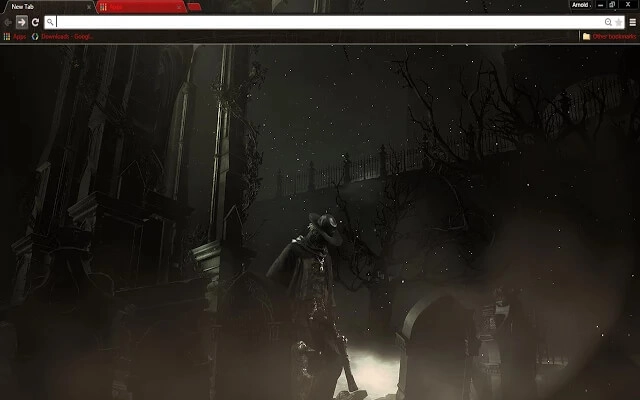
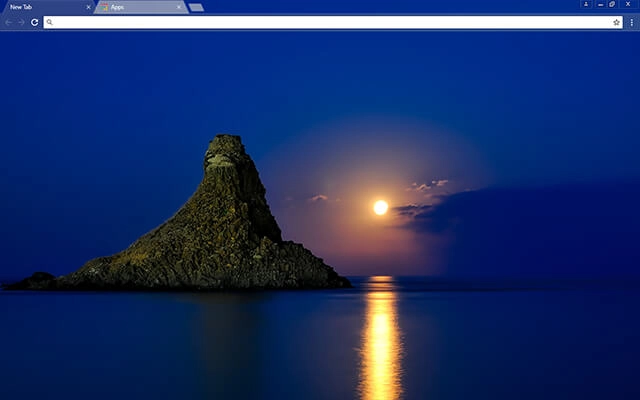
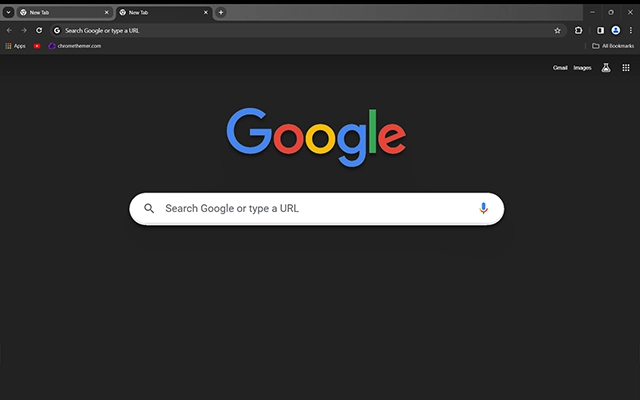
Features include a one of a kind custom made frame, toolbar set with tabs and an optimized hd background wallpaper that looks beautiful on most medium to large screens or monitors. You can easily change the background to any other background that you like better and still keep the toolbar and tabs just the way they are.

ferrari 812 superfast makes it easy for you to customize and change your web browser in an instant. This Ferrari 812 Superfast theme only changes the look and appearance of your Chrome browser and does not change or modify your Chrome browser's functionality or behaviour.

Type Category Version Publisher
Theme abstract 1.1 chromethemer.com

Behind the Theme

Ferrari 812 Superfast combines luxury craftsmanship with dramatic lighting to create a powerful, high-end browsing experience. The black wheels, sharpened body lines, and metallic reflections add depth and intensity, making it perfect for anyone who loves speed, engineering, and sleek automotive design.

A late-night encounter with a blue supercar inspired this design. I tried capturing that exact moment - the glow, the curves, and the quiet intensity of pure engineering power.

Ferrari 812 Superfast works with Google Chrome on Pc, Mac and Chromebook computers.   Do not forget to rate it after you have installed it. This theme has been fully optimized and polished up to give you the best possible quality in your browser.

Get it Here

  2.63 MB

help_outline
Need Help Installing?

Quick step-by-step guide to installing this Chrome theme.

View Install Guide →

What's New On The Blog ...

Read the latest, freshly published step-by-step guides, online tools and articles.

Make Chrome Your Own

Chromethemer offers you hundreds of high quality Chrome themes and Google backgrounds that you can use to personalize your web browsing experience.

Customize Google Chrome

This comprehensive guide covers all aspects of Chrome customization, including themes, extensions, settings, and tips for the ultimate browsing experience.

Get UHD Wallpapers

Browse and download high quality wallpapers in either HD, 4K, 2K or 8K size. Find the perfect match for your devices. Enjoy, stunning, crisp and clean wallpapers.

Create Chrome Themes

Creating a custom Chrome theme allows you to personalize your browsing experience with colors and images that reflect your style. Make use of the Chrome Theme Creator.

Hacks, Tips and Tricks

Chrome hacks, tips, and tricks can enhance your browsing experience and boost productivity. From keyboard shortcuts to hidden features. Easily speed up workflow.

Install Chrome

Keeping Google Chrome updated is crucial for ensuring that you have the latest features, security updates, and performance improvements. The process is typically automatic.

Theme Google Chrome ...

Customizing Google Chrome is one of the easiest ways to personalize your browsing experience. Google Chrome is fast, secure, and designed for performance — but adding a theme allows you to make the browser visually yours without changing how it works.

One of Chrome’s most popular customization features is the ability to change themes. With just a single click, you can transform the look of your browser tabs, toolbar, and new tab background while keeping all Chrome functionality intact.

Google Chrome continues to dominate modern web browsing because of its speed, security updates, and seamless integration with Google services. Themes enhance that experience by adding personality, focus, and visual comfort to your daily browsing routine.

What Are Chrome Themes? ...

Chrome themes are visual customizations that change the appearance of Google Chrome without affecting performance or browser behavior. Unlike Chrome extensions, themes do not run scripts or add features — they simply modify colors, backgrounds, and the overall interface design.

A theme can adjust the browser frame color, tab styling, toolbar accents, and the new tab page background. From minimalist dark themes to vibrant artwork, users can choose from thousands of options available in the Chrome Web Store.

Applying a Google Chrome theme takes seconds. You install it with one click, and you can remove or switch themes anytime. This makes themes one of the safest and simplest ways to personalize Chrome.

How to Install a Chrome Theme ...

Installing a Google Chrome theme is simple:

  1. 1 Click Get it Here (or any Chrome Web Store link on this page) to open this theme in the Chrome Web Store.
  2. 2 In the Chrome Web Store, click Add to Chrome.
  3. 3 Confirm by clicking Add theme when Chrome asks — it applies instantly.

Your new Chrome theme will be applied instantly.

Installing Chrome themes is one of the fastest ways to refresh your browser. Whether you prefer dark mode themes, nature backgrounds, abstract art, or minimal color palettes, Chrome makes switching styles effortless.

How to Remove a Chrome Theme ...

If you want to remove a Google Chrome theme and return to the default design, follow these steps:

  1. 1Open Google Chrome.
  2. 2Click the three-dot menu more_vert in the top-right corner.
  3. 3Select Settings.
  4. 4Click Appearance in the sidebar.
  5. 5Under Themes, select Reset to Default or remove the active theme.

Chrome will instantly revert to its original appearance. You can then install a different theme whenever you like.

Why Use Google Chrome Themes? ...

Google Chrome themes allow you to personalize your browsing experience without affecting speed or security.

Dark Chrome themes can reduce brightness and eye strain during long browsing sessions. Lighter or minimalist themes can improve clarity and reduce distractions. Choosing the right theme helps create a more comfortable digital workspace.

Themes also allow you to express personality — whether you prefer nature landscapes, abstract artwork, sleek dark mode designs, or colorful creative styles.

Customize Chrome with Free Themes ...

Google Chrome themes are free to download and easy to apply. On chromethemer.com, you can browse high-quality, handcrafted themes designed for Chrome users who want a polished and visually balanced browsing environment.

From subtle minimal themes to bold artistic designs, each theme is optimized for clarity, visual comfort, and compatibility across Windows, Mac, and Chromebook devices.

Change Chrome Backgrounds ...

You can also customize your browser with high-quality background images. Explore perfectly sized wallpapers for Chromebook, desktop, laptop, tablet, and mobile devices.

Changing your Chrome background enhances visual appeal and can improve focus by creating a calming or inspiring browsing environment.

Upload a Custom Chrome Background ...

Want your new tab to feel more “you”? Upload a personal image (photo, wallpaper, or artwork) as your Chrome new tab background.

  1. 1 Open a New Tab in Google Chrome.
  2. 2 Click Customize Chrome in the bottom-right corner.
  3. 3 Choose Upload an image (then pick your file and click Open).

Tip: High-resolution images (wide landscapes) usually look best on the new tab page.

Your custom background will show every time you open a new tab.

Changing the background of your Google homepage is straightforward. By clicking the 'Customize' button, typically represented by a pencil icon on the New Tab page, you can access a range of customization options. This allows you to select from a variety of preset images, upload an image from your computer or choose from your synced Google Photos. Additionally, Chrome's settings give you the option to switch to dark mode, further modifying the interface to reduce eye strain and save battery life on mobile devices.

Quirky designs keep things lighthearted and fun. Download beautiful HD wallpapers and add a little personality into your devices.

Thank you for using my Chrome themes

Thank you for using my themes and visiting chromethemer.com

I’ve been designing themes since forever, and it still makes my day when someone installs one. If this theme made your browser feel a little calmer (or better), that’s the whole point.

If you’ve got a minute, leaving a quick rating in the Chrome Web Store helps more than you’d think. It keeps the project alive and tells me what styles you want next.

Chromethemer.com is always a work in progress.   All themes , extensions and wallpapers featured here may be updated or removed without any notice.   Should you require any additional help or if you have any questions please contact me or if you are impressed with the site donate to make it better.

Take a moment to view the performance report for this page.