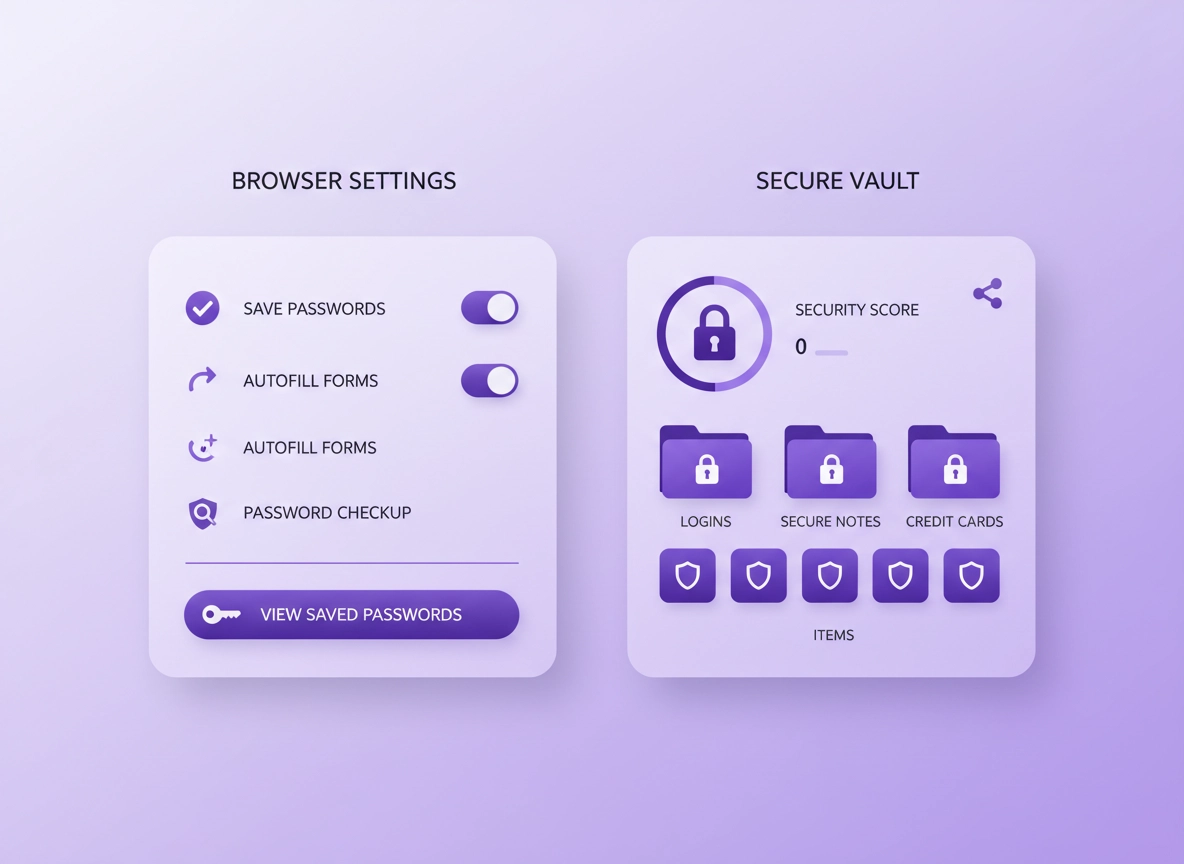
What we’re comparing (so it’s fair) .
“Chrome Password Manager” is really Google Password Manager inside Chrome. In 2026, most users experience it as a built-in “Save password → Autofill → Security checkup” workflow that syncs through their Google account and works across Chrome on desktop plus Android/iOS sign-in flows.
Bitwarden is a dedicated vault password manager. It’s designed around a master-password vault (and increasingly passkey-based vault access), browser extensions, apps, and optional business features (sharing, policies, admin controls). Bitwarden emphasizes zero-knowledge encryption (meaning the provider can’t read your vault contents) and supports broad platform coverage. It also positions itself as open source and security-focused.
The “best” choice depends on what you’re optimizing for:
- Convenience: fewer prompts, fewer apps, fewer moving parts
- Control: who can access what, how sharing works, how recovery works, and how you leave a platform later
- Risk reduction: preventing the most common failures (reused passwords, weak passwords, phishing autofill, exposed exports)
- Portability: switching browsers, switching devices, switching jobs, switching ecosystems
Related: If you want the bigger ecosystem view first, start here: Chrome password manager vs third-party. If you want a Chrome-only breakdown, read: Chrome built-in password manager review.
Key terms (quick definitions) .
- Google Password Manager: Google’s password storage and autofill system surfaced in Chrome settings and at passwords.google.com.
- Vault: An encrypted container for passwords, notes, cards, and identities accessed via a master secret (and/or passkeys).
- Zero-knowledge encryption: A design where only you hold the keys needed to decrypt your data; the provider can’t read your vault content.
- Passkeys: A modern sign-in method built on industry standards; you sign in using device-based cryptographic keys instead of typing a password.
- Autofill phishing resistance: Whether the manager refuses to fill credentials on lookalike or mismatched domains.
- Recovery: How you regain access if you lose your device or forget the master password (this is a security tradeoff area).
Decision guide: choose in 60 seconds .
If you read nothing else, use this quick chooser. Then continue to the comparison and migration steps.
- You live inside Chrome and want the simplest “it just works” experience.
- You don’t need secure password sharing with teams or families (beyond basic account sharing habits).
- You’re fine with your password life being tied closely to your Google account ecosystem.
- You want a built-in Password Checkup flow that’s always there with minimal setup.
- You want a dedicated vault that works consistently across browsers and operating systems.
- You want clean sharing (items, folders, collections) and better separation between personal and work.
- You care about zero-knowledge vault design and minimizing how much any single ecosystem “knows.”
- You might move away from Chrome (or Google) later and want an easier exit.
Most common “real life” answer: Chrome Password Manager is fine for casual personal use, but Bitwarden tends to win for power users, multi-device workflows, and anyone who needs sharing, admin controls, or long-term portability.
If you’re shopping broader than Bitwarden, you’ll probably also want: best password manager for Chrome and Chrome password manager comparison.
Before you switch (fast checks) .
Most migrations fail for boring reasons: you exported from the wrong Chrome profile, you left the CSV file behind, or you imported duplicates and didn’t notice until autofill got messy. Do these checks first.
Related: If you’re doing this because you suspect exposure or unsafe extensions, read Chrome extension security check and Chrome password leak detection.
- Check 1: Are you in the correct Chrome profile? If you use multiple profiles (work/personal), export from the one that actually contains your saved logins.
- Check 2: Is Chrome syncing passwords to the Google account you expect? Open Password Manager and confirm which account is active.
- Check 3: Do you have a safe place to do the export/import? Avoid shared computers. Avoid public Wi-Fi. Prefer a trusted device with disk encryption.
- Check 4: Do you have a plan for duplicates? If you already used Bitwarden before, decide whether you’re merging or starting clean.
- Check 5: Set a “CSV hygiene” rule now: you will delete the export file immediately after import (and empty the recycle bin).
Step-by-step: migrate from Chrome to Bitwarden .
This is the cleanest practical migration path for most people. It keeps your risk low and avoids the most common “autofill conflict” problems. For deeper context on exports and safe handling, also see: export passwords from Chrome securely and migrate from Chrome to third-party.
- 1
Export passwords from Chrome / Google Password Manager.
In Chrome, open Password Manager and look for Export passwords. Chrome will usually require device authentication to proceed. You’ll end up with a .csv file (often saved to Downloads).Safety: Keep Chrome open only on a trusted device. Do not email the CSV to yourself. Do not upload it to cloud storage “just to be safe.” - 2
Create your Bitwarden vault (or sign in) and enable strong protection.
Use a strong master password (long, unique) and enable 2FA. If your account supports it, prefer hardware keys or modern authenticator options. (More on 2FA and vault hardening: password manager with 2FA.) - 3
Import the Chrome CSV into Bitwarden.
In Bitwarden’s web vault, go to Tools / Import (wording varies by UI), choose the Chrome/Chromium format, and import your file. After import, check a few key logins (bank/email/primary accounts) to confirm the URLs and usernames came through correctly.Quality check: Validate 10 random entries: 5 everyday sites, 3 important sites (email/banking/work), and 2 “weird” sites (old forums, subdomains, apps). If those look right, your import is probably good. - 4
Install the Bitwarden extension in Chrome and test autofill.
Log in to the extension, then test on 2–3 sites. Verify it fills only on the correct domain. If you previously relied on Chrome’s autofill, you may want to turn off Chrome’s “Offer to save passwords” to avoid double prompts. (Related: password autofill Chrome extension.) - 5
Delete the CSV export immediately.
Delete the file, then empty the recycle bin/trash. If you’re on Windows, also consider clearing “Recent files” entries that can expose the filename. This is the single most important safety step for migrations. - 6
Clean up Chrome so it doesn’t fight your new setup.
Decide what you want Chrome to do going forward:- Option A (recommended): Keep Chrome’s Password Checkup features but turn off saving/autofill prompts so Bitwarden is the “active” manager.
- Option B: Keep Chrome saving on (not recommended) and risk conflicting prompts/autofill confusion.
- Option C: Fully disable Chrome password manager flows. See: disable Chrome password manager.
What “success” looks like: Bitwarden autofills on the correct sites, you’re not seeing double “save password” prompts, and you can sign in on at least two devices without any manual copying.
Common variations .
- Windows / ChromeOS: Exports typically land in Downloads. Make sure you delete it from Downloads (and clear the bin).
- macOS: Safari Keychain is a different migration; for Chrome → Bitwarden, the flow is similar but file locations differ.
- Android / iPhone: Install Bitwarden and set it as your autofill provider. Your browser extension is not enough on mobile.
Deep comparison: security, sync, sharing, passkeys .
Here’s the comparison that matters for high-intent decision-making: what happens on your worst day (phishing attempt, lost phone, new laptop, account recovery) and what happens on your boring day (log in to 20 sites quickly without autofill weirdness).
| Category | Chrome / Google Password Manager | Bitwarden | What to care about |
|---|---|---|---|
| Setup friction | Very low: built into Chrome and Google account flows. | Low-medium: install extension/apps, set autofill, learn vault basics. | Low friction reduces “fallback to bad habits.” |
| Cross-browser portability | Best inside Chrome/Google ecosystem; usable elsewhere but not the same UX. | Strong: designed to follow you across browsers and devices. | If you might switch browsers, vault-based wins. |
| Autofill control | Simple defaults; fewer knobs. | More control; extension-based fill behavior is usually more configurable. | More control helps power users, but also means more “settings you can mess up.” |
| Phishing resistance | Generally fills based on saved site matching; still requires user awareness. | Emphasizes vault domain matching and warnings; adds a layer of “fill discipline.” | The best phishing defense is “it won’t fill on the wrong domain.” |
| Sharing | Not built as a first-class sharing vault workflow. | Designed for sharing items and organizing collections (especially for families/teams). | Sharing is where people accidentally copy passwords into chat apps. |
| Business/IT controls | Limited as a password-manager platform; Chrome Enterprise controls are separate. | Stronger business story: admin, policies, separation, and audit options (plan-dependent). | If you offboard staff, you need control and visibility. |
| Security model emphasis | Google account security + encrypted storage; ties closely to your Google identity. | Zero-knowledge vault model emphasis; provider cannot read vault contents by design. | Threat model matters: “account takeover” vs “provider visibility” vs “device access.” |
| Exit strategy | Export possible, but you’re still living in a Google ecosystem flow. | Export/import is central to the vault world; portability is a core expectation. | Choose based on who you want future-you to depend on. |
High-CPC factor The big “security value” line-item for many people is account recovery and authentication. If your Google account is your single point of failure, that’s not automatically “bad,” but it means you should take Google account security very seriously (2FA, recovery options, device protection). For a vault manager, your master password + 2FA posture becomes the critical point.
Passkeys: where each option fits .
Passkeys are moving the industry away from typed passwords. Google supports passkeys in Chrome and provides guidance on managing them. Bitwarden positions itself as a password manager “for passwords and passkeys,” and also promotes “passwordless login” for accessing the vault. Practically, you want two things:
- Passkeys for websites/apps: your logins become harder to phish and easier to use.
- Strong vault access: your password manager itself must be protected by strong authentication and secure recovery.
Related: If you’re trying to reduce password usage altogether, you may also want: password manager vs passkeys.
Sharing and teams: the hidden reason people switch .
Even if you’re “just a solo user,” sharing creeps into life: Netflix, a router admin login, a family banking helper, a freelancer account, or a temporary project credential. When sharing isn’t first-class, people paste passwords into email or chat. That’s how “secure storage” turns into “permanent exposure.”
If you’re running any kind of team workflow, jump to: team collaboration and password sharing securely.
Advanced settings (power users & IT) .
This section is where “high value” decisions live: reducing account takeover risk, stopping silent autofill mistakes, and designing a setup you can maintain for years.
Related: If this is for a workplace setup, you’ll also want: Chrome Enterprise guide and IT admin security settings.
When you should change this .
- You have multiple Chrome profiles: Use Bitwarden to avoid “which profile has the password?” chaos.
- You manage work and personal logins: A vault model helps separate identities and reduce accidental cross-use.
- You need policies and offboarding: Teams need revocation and audit, not just “everyone knows the password.”
- You care about encryption design details: See: encryption explained and zero-knowledge architecture.
When you should not .
- You won’t commit to vault hygiene: If you reuse a master password or skip 2FA, you can make a vault manager less safe than it should be.
- You hate maintenance: If you won’t update extensions/apps, you’re leaving security fixes behind.
- You need “just works” on one device: If you only use Chrome on one personal device, built-in may be good enough.
Power-user hardening checklist (applies to both) .
- Turn on 2FA everywhere: Start with your email and your Google account. Your password manager is only as safe as your recovery channels.
- Use unique passwords: Your #1 ROI is eliminating reuse. Then rotate your “top 5 critical” (email, banking, Apple/Google, main work account, password manager).
- Watch for weak autofill signals: If the page looks wrong, don’t fill. This single habit beats a lot of security theatre.
- Audit extensions: Untrusted extensions can read page content and intercept form data. Use: permissions guide.
- Secure your device: A password manager can’t protect you if your unlocked laptop is the attacker’s laptop.
Common alternatives users compare .
Privacy & security notes (what actually increases safety) .
A lot of “password manager security” content is vague. Let’s get concrete: most real-world credential losses come from phishing, reused passwords, compromised devices, weak recovery channels, and exposed exports—not from exotic cryptography failures. Your goal is to reduce the probability of the boring failures.
Impact: Affects account takeover risk, phishing resistance, recovery safety, and how your credentials spread across devices.
Related: If you suspect malware or browser hijacking, do this before migrating: Remove Malware from Chrome.
Recommended baseline settings .
- Option A (balanced): Use Bitwarden as the active autofill manager + keep Chrome Password Checkup enabled for visibility.
- Option B (maximum privacy): Bitwarden vault + strict autofill discipline + minimal extensions + strong device security.
- Option C (compatibility): Chrome Password Manager for a single-user, single-browser environment (but still use strong Google account protection).
Recommended settings by goal .
| Goal | Recommended setup | Tradeoff | Best for |
|---|---|---|---|
| Balanced | Bitwarden for autofill + strong 2FA; keep Chrome Password Checkup visible | More setup than built-in | Most multi-device users |
| Maximum privacy | Bitwarden vault + hardened browser profile + minimal extensions | More maintenance, stricter habits | Security-minded users |
| Compatibility | Chrome Password Manager + Google account hardening | Tighter Google ecosystem coupling | Single-device, Chrome-only |
Troubleshooting .
Related: For Chrome permission and privacy issues, see privacy & security settings overview.
If Bitwarden imports “but nothing autofills” .
This is usually one of three things: the extension isn’t logged in, autofill isn’t enabled on the device (especially mobile), or Chrome’s built-in manager is still intercepting prompts. Fix it by:
- Confirm you’re logged into the Bitwarden extension and can search your vault.
- Test on a simple login page you know well (not a complex SSO portal).
- Disable Chrome “offer to save passwords” prompts if you’re seeing conflicts.
If you imported duplicates .
Duplicates commonly happen when you imported twice or you already had old vault data. The clean fix is to decide whether you’re merging or starting fresh: export your Bitwarden data (backup), then remove duplicates carefully, or reset the vault and import once cleanly. If you’re unsure, pause and take a backup first.
If a site won’t accept autofill (banks, SSO, enterprise) .
Some login flows block autofill or use embedded frames that behave inconsistently across browsers. Try manual copy/paste from the vault for that one site, or create a custom URI match rule (if your manager supports it). Also consider whether the site is actually redirecting you to a different domain during login.
If you need to reset safely .
If your browser is acting strange (random redirects, strange extensions, unexpected prompts), don’t migrate yet. Clean the browser first (extensions audit, malware scan) and then migrate. Use: Chrome security checkup and remove unwanted extensions.
FAQ .
-
helpIs Chrome Password Manager safe enough?For many people, yes—if your Google account is strongly protected (2FA, secure recovery options, protected devices). The biggest risks are reused passwords, phishing, weak recovery channels, and exposed exports—not the idea of built-in storage itself. If you want more portability and vault control, Bitwarden is often a stronger long-term choice.
-
helpWill switching to Bitwarden break autofill?It shouldn’t, but you must avoid “two managers fighting.” After installing Bitwarden, test autofill on a few sites, then reduce Chrome’s save/autofill prompts if they conflict. On mobile, you also need to set Bitwarden as the autofill provider.
-
helpWhat’s the biggest migration risk?The exported CSV file. Treat it as sensitive plaintext: export → import → delete immediately. Don’t email it to yourself, don’t keep it in Downloads, and don’t upload it to random storage for “later.”
-
helpShould I delete passwords from Chrome after migrating?If Bitwarden is your new primary manager, you can keep Chrome’s Password Checkup visibility but disable saving prompts. Whether you delete stored passwords from Chrome depends on your comfort and threat model—just don’t leave exported CSV files behind. If you’re in a shared-computer environment, removing saved passwords is usually wise.
Sources & further reading .
- Google Password Manager: Password Checkup
- Google Chrome Help: import/export passwords (desktop)
- Google Chrome Help: manage passkeys
- Bitwarden Help: import from Chrome (and Chromium browsers)
- Bitwarden: open source & security model overview
- Bitwarden: zero-knowledge encryption white paper
- Bitwarden: tools & features (2FA, reports, passwordless login)
Disclosure: Some pages may mention tools or services. Recommendations are editorial and based on practical testing and risk tradeoffs.