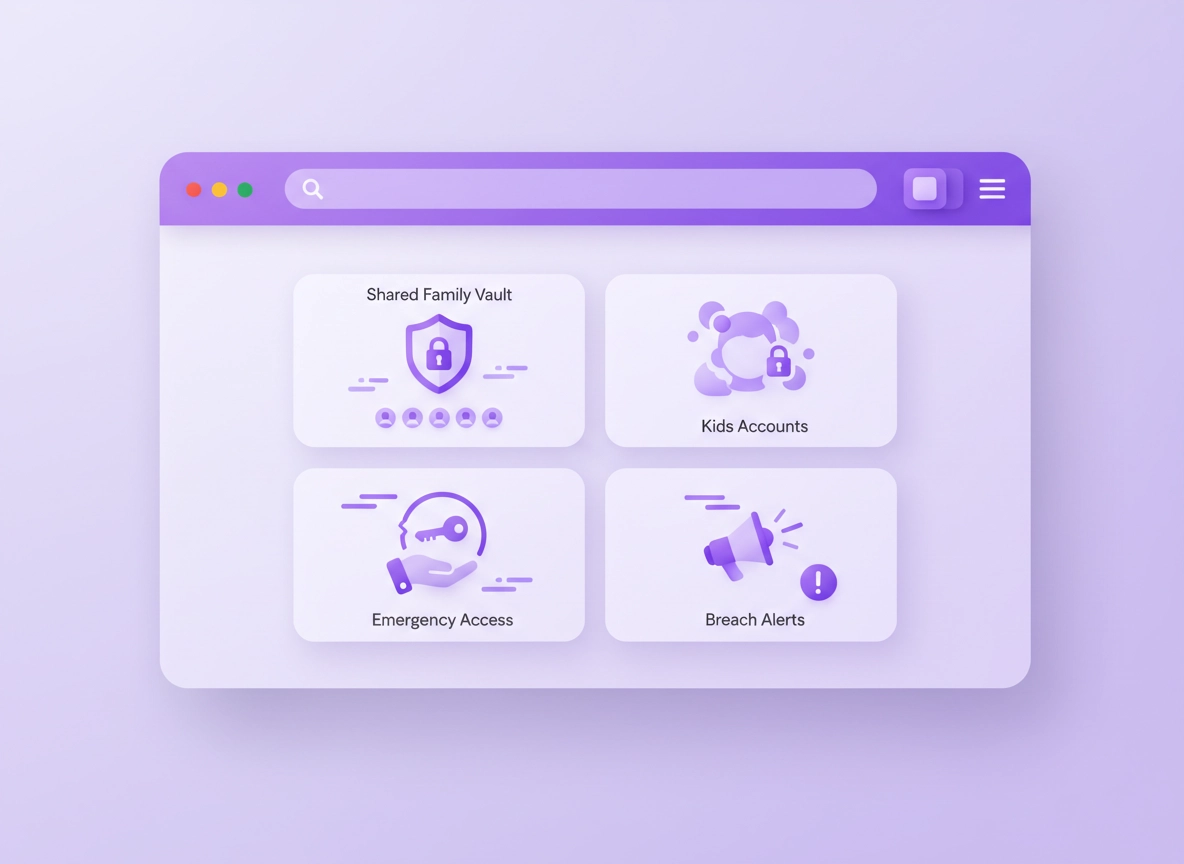
What “family password manager” means (and why it matters) .
This guide targets modern Chrome usage: synced browsing, multiple devices, passkeys, and real sharing needs—not the old “write it on a sticky note” era.
A family password manager is a password manager setup that keeps everyone’s personal logins private, while letting you share the accounts that are truly shared—streaming services, Wi-Fi, shopping accounts, school portals, home security apps, utilities, and sometimes business/admin logins for side projects. The difference between “a password manager” and “a family password manager” is the sharing model: families need separate vaults, shared vaults, and permission controls that make sense in real life.
In Chrome specifically, your biggest day-to-day risks aren’t Hollywood hacking scenes. It’s the boring stuff: password reuse, kids clicking “save password” on a shared device, autofill into the wrong site, phishing pages, and the “we all used the same password for years and now it’s in a breach” moment. A good family plan reduces all of that by making the secure choice the easiest choice.
This page is part of the Password Manager for Chrome cluster. If you want the broader “best overall for Chrome” answer first, start here: Best Password Manager for Chrome.
Related: If you’re deciding between Chrome’s built-in manager and a dedicated tool, read Chrome password manager vs third-party.
Key terms (quick definitions) .
- Vault: A container for passwords, passkeys, notes, cards, and documents. Good family setups use multiple vaults by purpose.
- Shared vault: A vault multiple people can access (e.g., “Household”, “Streaming”, “School”). Permissions can vary per person.
- Emergency access: A recovery feature that lets a trusted person access your vault if you’re unavailable (often with a waiting period).
- 2FA (two-factor authentication): A second verification step (app code, security key, biometrics) to protect your password manager account.
- Passkeys: A modern login method that can replace passwords on supported sites; your manager helps store and use them across devices.
- Chrome extension: The browser add-on that enables autofill, password capture, vault search, and secure sharing flows.
What makes a password manager “best for families” in Chrome? .
Family use has different requirements than solo use. You need to think like an admin (even if you hate admin work). Here are the features that matter most for families using Chrome:
If you want to go deeper on feature-level security, see security features comparison and encryption explained.
Shortlist: the family plans most people end up happy with .
Most families want the same result: secure autofill in Chrome, simple sharing, and easy recovery when life happens. The “best” choice depends on your household size and how much control you want.
| Best for | What to look for | Why it matters in a family | Good fit if… |
|---|---|---|---|
| Most households | Family plan + shared vaults + easy invites | Separate accounts with one “Household” vault is the cleanest setup | You want “set it up once and forget it” |
| Budget-focused families | Family plan with premium features for all seats | Everyone gets strong security without buying individual licenses | You want value without losing essential security features |
| Power users / admins | Granular permissions, vault architecture, recovery flows | You can separate “Banking” from “Streaming” and control access cleanly | You’re comfortable managing a few settings |
| Families who travel / use public Wi-Fi a lot | Extra protections + strong account security | Phishing and credential theft happens more on “untrusted networks” + shared devices | You’re frequently on café/airport Wi-Fi |
Important: This page is about choosing the best family password manager for Chrome. If you specifically want the newest yearly update, also see best password manager for Chrome 2026.
Before you start: 6 fast checks .
These quick checks prevent the most common family setup failures: the wrong Google account in Chrome, sync confusion across devices, and “why doesn’t autofill show up for my kid?” problems.
Related: If you’re still using Chrome’s built-in manager today, read Chrome built-in password manager review and Chrome password manager limitations.
- Check 1: Who is signed into Chrome? Click your profile icon (top-right). Make sure each person uses their own Chrome profile (especially on shared computers).
- Check 2: Are you using Google Password Manager? If yes, decide whether you’re migrating away. See migration guide.
- Check 3: Do you need “family sharing” or “secure sharing”? Families need both. Start with secure password sharing.
- Check 4: Do you need recovery? If you have parents/kids who forget passwords, emergency access is non-negotiable. See emergency access.
- Check 5: Do you have mixed devices? Most families do (Windows + Android + iPhone + iPad). Your pick must sync across all of them. See multi-device sync.
- Check 6: Are you ready to enable 2FA? You should. Start here: 2FA guide.
If your household has 3+ people and you share any accounts at all, choose a password manager with an actual family plan. If it’s just you and your partner, you can still use a family plan—but you might also be happy with two individual plans + secure sharing, depending on cost and features.
Step-by-step: the family setup that actually works .
This is the rollout checklist I recommend for families on Chrome. The idea is simple: separate accounts for each person + a small number of shared vaults based on real life. If you follow these steps, you avoid the two common disasters: (1) everyone sharing one login, or (2) a messy vault where nobody can find anything.
- 1 Pick your vault model first. Start with three vaults: Household (Wi-Fi, utilities), Streaming (Netflix/Disney/etc), and Finance/Admin (banking, taxes) with stricter access.
- 2 Create separate accounts for each person. Parents get full accounts; kids/teens get their own accounts too (never “borrow a parent vault”).
- 3 Install the Chrome extension on every desktop/laptop. Then sign in and verify autofill prompts work (test on one easy site first).
- 4 Invite family members to shared vaults. Give “view + autofill” to kids where needed, and reserve “edit” permissions for parents on critical accounts.
- 5 Turn on 2FA + device lock. Require a second factor on the password manager account, and ensure phones have PIN/biometric lock enabled.
- 6 Set up emergency access. Choose a trusted adult (partner/co-parent) and set a waiting period so it can’t be abused.
- 7 Migrate your “shared” accounts first. Streaming, shopping, and Wi-Fi go into shared vaults. Personal logins stay personal.
- 8 Run a password health check. Replace reused and weak passwords with a generator, starting with email and banking.
What “success” looks like: In Chrome, each person can click the extension, find the right login instantly, and autofill it— and when someone needs access, you share the entry (or vault) without copying a password into WhatsApp.
Related: Use a proper generator for strong unique credentials: password generator guide.
Common variations (Windows, macOS, Android, iPhone) .
- Windows / ChromeOS: Chrome extensions are usually the smoothest. The main gotcha is shared PCs—use separate Chrome profiles per person.
- macOS: Browser extension + desktop app works best. Make sure autofill permissions are allowed in system settings if the app requests it.
- Android: Enable the password manager’s autofill service so it can fill inside apps as well as Chrome. Turn off “conflicting autofill” if you have multiple managers enabled.
- iPhone/iPad: Enable it under Password AutoFill providers (iOS settings). Then test in Safari and Chrome—most managers support both.
Related: If you want to understand what Chrome is doing behind the scenes (and where it falls short), read Chrome password manager security risks.
Advanced settings: emergency access, vault design, kid accounts .
This is where family setups become “effortless” instead of “fragile.” The goal is to reduce daily friction while keeping sensitive accounts protected. You don’t need a complicated system—just a good structure and a few guardrails.
Related: Want to compare different plan structures and costs? See pricing comparison and business vs personal plans (useful if you’re mixing “home + side project” logins).
Vault design that stays clean for years .
Here’s the simplest long-term vault model that scales from 2 people to 6+ without becoming a junk drawer:
- Household (shared): Wi-Fi, utilities, delivery services, home security system codes, ISP login, router admin.
- Streaming (shared): Netflix/Disney/Spotify/YouTube, gaming accounts that are shared.
- School & Services (shared as needed): Parent portals, school accounts, library services—only if sharing is appropriate.
- Finance/Admin (restricted): Banking, investments, taxes, identity docs. Usually parents only.
- Personal vaults (private): Everything else stays per person. This reduces accidental oversharing and “why did you change my password?” fights.
Give kids access to the entry they need (or the “Streaming” vault), not your entire “Household” or “Finance” vault. For teens, consider “view-only” access to shared items so you control changes.
Emergency access: the family feature that saves you .
Families don’t just need security—they need recovery. Phones break. People forget master passwords. Someone gets locked out of email while traveling. Emergency access solves those moments without you storing a master password in a drawer.
- Set it up between adults: Partner/co-parent should have emergency access to your vault (and you to theirs).
- Use a waiting period: A delay (e.g., 24–72 hours) prevents misuse and gives you time to deny the request if something is wrong.
- Don’t rely on “security questions”: Many are guessable or discoverable. Use emergency access + 2FA instead.
Related: Deep dive: emergency access guide.
Kid accounts (and how to keep autofill safe) .
Kids and teens make password managers more important—not less. They’re targeted by phishing and scams, they reuse passwords, and they’re often on shared devices. The trick is to keep it simple while reducing the “autofill into the wrong site” risk.
- Use separate accounts for kids: Their logins should not sit inside an adult vault.
- Teach the “check the domain” habit: Autofill should only happen on the correct site. If the URL looks off, stop.
- Limit what is shared: If a kid needs access to Netflix, share Netflix—don’t share the entire streaming vault if it includes purchases or payment details.
- Enable breach alerts: If their school or gaming account is breached, you want to know quickly.
Related: If you want a dedicated piece on monitoring and breach response, see password breach monitoring and password health check.
Family security checklist (Chrome-specific) .
- Use separate Chrome profiles on shared computers (one per person).
- Disable saving passwords in Chrome if you’re moving to a third-party manager (prevents duplicates/confusion). See disable Chrome password manager.
- Enable 2FA on the password manager account (and on email accounts).
- Turn on leak/breach alerts where available.
- Use a password generator for every shared account reset.
- Review extension permissions and remove unused extensions. Start here: privacy extensions guide.
Common alternatives families compare .
Privacy & security notes (real-world family risks) .
Families have a unique security problem: sharing is necessary. That makes “perfect privacy” unrealistic—but it doesn’t make security impossible. The goal is controlled sharing, not accidental sharing. Here are the risks that matter most in a family + Chrome environment.
Impact: Affects account takeover risk, phishing exposure, identity theft risk, and recovery ability if a device is lost.
Related: If you suspect infection, hijacking, or a malicious extension, see Remove Malware from Chrome and extension security check.
Recommended baseline settings .
- Option A (balanced): Separate accounts + “Household” and “Streaming” shared vaults; 2FA on adults; kids get shared access only where needed.
- Option B (maximum security): Add “Finance/Admin” restricted vault; require biometric/PIN unlock on all devices; enable breach alerts; set emergency access with a waiting period.
- Option C (compatibility): If some devices are older, prioritize a manager with stable autofill + offline access; keep vaults minimal to reduce confusion.
Recommended settings by goal .
| Goal | Recommended setup | Tradeoff | Best for |
|---|---|---|---|
| Balanced | 2–3 shared vaults + private vaults; 2FA for parents; generator for all shared accounts | Small setup effort | Most families |
| Maximum security | Restricted “Finance/Admin” vault; emergency access; security key support if possible | More admin decisions | High-value accounts (banking, business, identity docs) |
| Maximum convenience | One shared “Household” vault + one shared “Streaming” vault; minimal permissions | Higher risk of accidental edits | Small households who can coordinate changes |
Most account takeovers come from reused passwords + phishing. The best family strategy is: unique passwords everywhere + 2FA on critical accounts + safe sharing through vault permissions.
Related: If you want a clear answer to “are password managers safe,” read are password managers safe for Chrome?
Troubleshooting .
Related: If the issue is Chrome autofill (not the manager itself), also check Chrome autofill security settings and Chrome login security best practices.
If autofill doesn’t show up in Chrome .
First, confirm the extension is installed and signed in. Then check you’re on the correct site (exact domain). If you have multiple password managers enabled (or Chrome’s own autofill competing), disable the extras and test again. On shared computers, verify you’re in the correct Chrome profile—family setups break constantly when people share a single Chrome profile.
If the wrong account fills (or a kid fills a parent login) .
This is almost always a vault-permission problem. Remove access to the sensitive entry, move it into a restricted vault, and share only what’s appropriate. Also review item names—families often save “Netflix” multiple times. Add clear labels like “Netflix (Parents)” vs “Netflix (Kids)” if you truly need different profiles.
If you’re stuck with duplicates (Chrome saved passwords + your manager) .
Duplicates happen when Chrome continues offering to save passwords while you’re also saving into your password manager. Decide which one is the source of truth. If you’re migrating to a dedicated tool, disable Chrome’s password saving and clean up old entries. See: disable Chrome password manager.
If you need to reset safely .
If things have become messy, don’t nuke everything. Start by fixing the structure: create the shared vaults, move shared accounts into them, and confirm everyone can access what they need. Then run a password health check and rotate passwords gradually (start with email, banking, and shopping). For a secure migration path, follow this migration guide.
FAQ .
-
helpShould our family share one password manager account?No—use separate accounts for each person and share only what’s needed via shared vaults. One shared account breaks recovery, makes it hard to remove access, and increases the chance of accidental edits or oversharing.
-
helpIs Chrome’s built-in password manager good enough for families?For basic saving and autofill, it can be “okay,” but dedicated family plans usually provide cleaner shared vaults, stronger recovery workflows (emergency access), better admin controls, and clearer separation between personal vs shared credentials.
-
helpWhat is the safest way to share Netflix, Wi-Fi, or school logins?Put shared logins into a shared vault (e.g., “Streaming” or “Household”) and give each person access through their own account. Avoid sending passwords via SMS/WhatsApp/email—those messages live forever and are easy to forward.
-
helpWhat if someone loses their phone and gets locked out?Set up emergency access between trusted adults and keep account recovery options up to date (backup codes, recovery emails, and device lock). This is why family setups should be designed around recovery—not just convenience.
Sources & further reading .
- Google Chrome Help: Manage passwords in Chrome
- Google Account Help: Google Password Manager (passwords & passkeys)
- Google: Passkeys overview
- Bitwarden: Pricing & plans (Families)
- Dashlane Support: Friends & Family plan
- NordPass: Plans (Family plan)
- Keeper: Family plan
- 1Password: Pricing (Families)
Disclosure: Some pages may mention tools or services. Recommendations are editorial and based on practical testing and family-oriented setup logic.