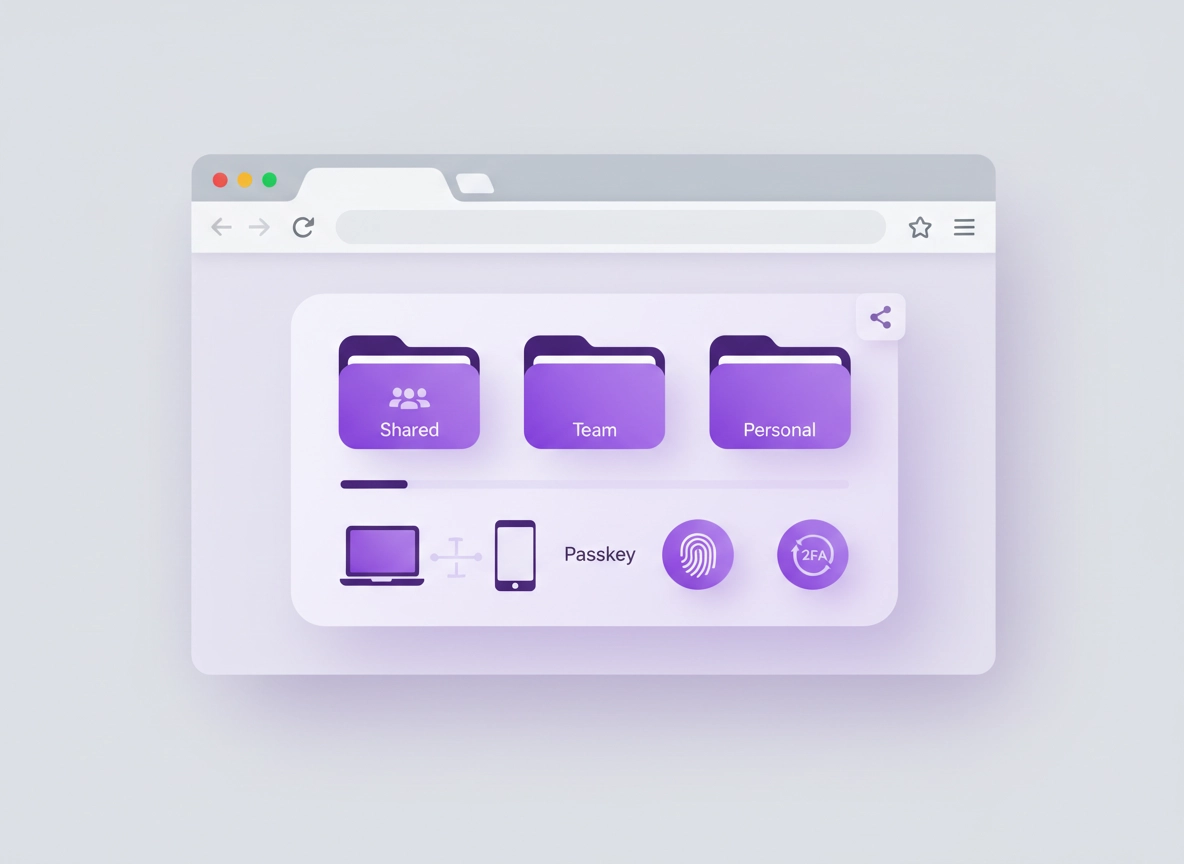
What “best for remote work” actually means .
Remote work changes the password problem. It’s not just “remember my login” — it’s “share access safely, rotate quickly, and recover without panic.”
When everyone works in the same office, bad password habits are still risky — but they’re easier to spot and fix. In remote work, the same habits scale into a real security gap: passwords end up in chat, “temporary” spreadsheets become permanent, contractors keep access longer than they should, and a lost phone can become a business incident. A password manager built for remote work should reduce risk without slowing people down.
That’s why the remote-work “best” is rarely the tool with the flashiest marketing. It’s the tool that handles four boring, high-impact realities: (1) shared accounts that shouldn’t be shared, (2) device sprawl (laptop + phone + spare laptop), (3) onboarding/offboarding, and (4) account recovery and audit trails. If you can solve those, everything else (autofill speed, UX polish, extra features) becomes a bonus.
Chrome matters here because it becomes the remote worker’s “operating system”: email, docs, dashboards, admin panels, cloud consoles — all inside a browser tab. The password manager needs a strong Chrome extension that is fast, reliable, and strict about where it fills. If you’re comparing Chrome’s built-in manager vs a dedicated tool, start here: Chrome Password Manager vs Third-Party.
Start with the hub: If you want a general “best overall” shortlist first, see Best Password Manager for Chrome.
Key terms (quick definitions) .
- Zero-knowledge encryption: The provider can’t read your vault contents; encryption/decryption happens on your devices using keys derived from your master password (and/or device keys).
- Secure sharing: Sharing credentials through the vault so the recipient can use them without copying into chat, and access can be revoked centrally.
- Passkeys: A modern sign-in method using cryptographic keys stored on devices (often synced). Passkeys reduce phishing risk compared to passwords.
- MFA / 2FA: Multi-factor authentication. Often app-based codes, push approvals, or hardware keys. MFA protects accounts even if a password leaks.
- SCIM provisioning: Automates user creation/removal using identity providers so offboarding doesn’t rely on manual steps.
- Vault audit trail: Logs of events like “shared,” “accessed,” “exported,” “changed,” or “admin policy updated.” Useful for incident response and compliance.
If you’re new to the security side of this topic, it also helps to understand Chrome’s own built-in checks (and what they do and don’t cover): Chrome Password Checkup and Chrome password leak detection.
Before you start (fast checks) .
Before you compare tools or migrate anything, do these quick checks. They prevent wasted time, lockouts, and broken autofill that makes teams hate the rollout. You’re aiming for two outcomes: (1) a clear list of what you actually need, and (2) a clean Chrome environment to test extensions properly.
- Check 1: Identify your “shared account hotspots”. List the logins that multiple people use today (support inbox, domain registrar, hosting, social media, billing portals). These drive your sharing requirements and plan choice.
- Check 2: Confirm device coverage. Remote work means the same person signs in on at least two devices. If your tool doesn’t support your mix (Windows/macOS/Android/iOS), it will fail in practice. See platform guides if needed: Windows, Mac, Android, iOS.
- Check 3: Decide if Chrome’s built-in manager is “enough”. If you only need personal autofill, Chrome may be fine. If you need team sharing, auditing, offboarding, and admin policies, you likely need a dedicated tool. Start here: Chrome Built-In Password Manager Review.
- Check 4: Verify extension safety expectations. A password manager extension needs deep access to web pages to fill logins. You must evaluate permissions and trust. If you’re building an allowlist, this hub helps: Chrome Extension Security Check.
- Check 5: Do you need compliance controls? If you’re in healthcare, finance, or deal with sensitive customer data, you may need policies, logs, and stronger admin features. Useful reads: SOC 2, GDPR, HIPAA.
Related: If Chrome feels slow while testing extensions or migrating, see Performance Optimization. A laggy browser makes autofill and vault unlock feel “broken” even when it’s not.
A 2-minute remote-work “needs snapshot” .
Answer these fast. Your “best” tool becomes obvious when you know which box matters most.
- Do you share logins today? If yes, you need team vaults + permission-based sharing (not just “send password to teammate”).
- Do you hire contractors? If yes, you need expiring access, role-based permissions, and clean offboarding.
- Do you use SSO? If yes, you want SSO integration plus SCIM provisioning for user lifecycle.
- Do you handle sensitive customer data? If yes, you want audit logs, policy enforcement, and secure recovery controls.
- Do you want maximum phishing resistance? Prioritize passkeys, device-bound unlock, and hardware-key support.
Step-by-step: choose + roll out on Chrome .
This is the practical method I use to prevent “comparison paralysis.” You’ll score tools against the remote-work requirements that actually cause incidents. You don’t need 40 features. You need the right 10 that prevent team-level failure modes.
- 1 Start with your remote-work use case: personal, freelancer + clients, small team, or IT-managed environment.
- 2 Pick your must-have feature set: secure sharing, MFA/passkeys, recovery, device coverage, and auditing.
- 3 Test the Chrome extension properly: unlock speed, domain matching, fill behavior, and “never fill” rules.
- 4 Run a small pilot migration: import 10–25 work accounts, validate sharing, then expand.
- 5 Lock in remote-work policies: require MFA, prevent unsafe exports, set sharing roles, and define offboarding steps.
What “success” looks like: Team members stop requesting passwords in chat, shared logins live inside shared vault folders, access can be revoked in minutes, and your highest-risk accounts (email, domain, finance) have MFA/passkeys plus recovery plans.
Related: If your focus is team operations, this support page pairs well with Password Manager for Chrome Remote Teams and Password Manager Team Collaboration.
Step 1: Pick the right category for your remote setup .
Solo / personal Freelancer (multi-client) Small team (shared accounts) Business / IT-managed
The category decides what you pay for — and what you should refuse to compromise on:
- Solo / personal: You mainly need strong vault security, passkeys/MFA, good autofill, and safe recovery. You can skip admin dashboards.
- Freelancer (multi-client): You need “separation” (vaults/folders per client), clean sharing, and the ability to revoke access when a contract ends.
- Small team: You need shared vaults, roles, and “share without revealing.” If your tool forces you to reveal passwords to share, you will leak them.
- Business / IT-managed: You need SSO/SCIM options, policy enforcement, audit logs, and device controls — plus the ability to remove access fast.
Step 2: Use a remote-work feature checklist (what matters most) .
Here’s the remote-work checklist that separates “pretty autofill” from “real risk reduction.” Use it like a scorecard. If a tool fails any non-negotiable, it’s not “best” for your team.
| Requirement | What to look for | Why it matters (remote work) | How to verify (fast) |
|---|---|---|---|
| Secure sharing Non-negotiable |
Shared vaults, roles, share links, “use without revealing”, revocation | Stops passwords from living in chat, docs, screenshots, or “temporary” spreadsheets | Create a shared folder, share one login, verify recipient can use it without copying the secret |
| MFA + passkeys Non-negotiable |
App codes, push, hardware keys, passkey support, phishing-resistant options | Remote workers get phished more often (email links, fake SSO pages) | Enable MFA on the vault, then add passkeys/MFA to email + admin accounts |
| Recovery you can trust Non-negotiable |
Emergency access, recovery codes, admin-assisted recovery (business), clear device replacement flow | Lost phone + travel + deadline = lockout risk. Recovery must be planned, not improvised | Read the recovery flow, test it on a spare device, store recovery codes securely |
| Chrome extension quality High |
Fast unlock, accurate domain matching, “never fill”, manual fill hotkeys | If the extension is unreliable, people bypass it and reuse weak passwords | Test on 5 sites: email, project tool, finance portal, admin panel, social login |
| Audit + visibility High (teams) |
Logs for sharing, access, edits, exports, policy changes | When something breaks or leaks, you need answers fast (who had access?) | Check the admin console/reporting: can you trace shared-item events? |
| Offboarding controls High (teams) |
Remove user access, rotate shared credentials, revoke sessions, role removal | Contractors keeping access is a common remote-work failure mode | Simulate offboarding: remove a user and confirm access is revoked immediately |
| Breach monitoring Medium |
Password health, weak/reused alerts, breach alerts, dark web monitoring (optional) | Remote teams often reuse passwords across tools; monitoring catches it early | Run a “health check” scan and verify remediation steps are clear |
| Directory / SSO options Medium–High |
SSO login, SCIM provisioning, groups/roles mapped to vault permissions | At scale, manual user management fails. SSO/SCIM prevents orphaned access | Confirm SSO/SCIM is supported on your plan and test group-based access |
Secure sharing deep dive: If you’re currently sharing credentials in chat, start here and fix it properly: Password Sharing Securely.
Step 3: Test the Chrome extension like a power user .
A password manager can look perfect on a marketing page and still fail where you live: inside Chrome. This is the test that reveals the truth. Use a clean Chrome profile or Incognito (with caution) so other extensions don’t interfere.
- Unlock speed: Does it unlock quickly without constant re-auth prompts? (Too strict = people disable it; too loose = risk.)
- Domain matching: Does it fill only on the correct domain/subdomain? This matters for admin panels and staging environments.
- “Never fill” rules: Can you block autofill on risky contexts (shared computers, untrusted sites, embedded iframes)?
- Manual fill hotkeys: Can you fill without clicking tiny UI elements during meetings or screenshares?
- Passkey flow: Does it support passkeys smoothly on Chrome across devices?
- New login capture: Does it capture new logins reliably without saving junk entries?
If you’re comparing against Chrome’s built-in manager, also read: Chrome Password Manager Limitations. The built-in tool is improving, but remote-work teams often outgrow it because of sharing and auditing needs.
Step 4: Migrate safely (without breaking work) .
Migration is where good rollouts die. People get locked out, “something changed,” and suddenly the tool is blamed. The safest method is a pilot migration with your most important accounts first — not a full import on day one.
Pilot migration checklist:
- Pick 10–25 logins: email, project management, docs, hosting/admin, support tools.
- Turn on MFA for the vault: do this before importing anything serious.
- Import carefully: avoid “dump everything” imports if your source has outdated or duplicate entries.
- Fix duplicates + weak passwords: run a health report early.
- Create shared folders: “Support”, “Marketing”, “Ops”, “Finance”, “IT/Admin”.
- Share by role: don’t share “to a person” when you can share “to a group.”
- Confirm “revoke works”: remove access and verify it’s gone.
If your source is Chrome, use a secure export/import process and keep the exported file exposure window as short as possible: Export → Import (safe process).
Step 5: Set a remote-work policy baseline (even for small teams) .
“Policies” sound enterprise, but remote work makes them necessary even for a 3-person team. Policies are simply defaults that prevent risky shortcuts.
- Require vault MFA: non-negotiable for remote work.
- Disable unsafe sharing: prefer “share item” over “send password”.
- Set minimum password rules: length, generator defaults, and “no reuse.”
- Define offboarding steps: remove user access, rotate shared credentials, review shared folders.
- Define device rules: screen lock required, OS updates, and remote wipe capability if possible.
Business-focused follow-up: If you’re rolling this out across a company, this page goes deeper into organizational requirements: Password Manager for Chrome Business.
Common variations .
- Windows / ChromeOS: You’ll typically unlock via master password + MFA, and optionally biometrics on supported hardware. Confirm your organization’s screen-lock policy is enforced.
- macOS: Biometrics can make unlock seamless, but ensure recovery is configured so a new laptop doesn’t cause lockouts.
- Android / iPhone: Mobile is where remote work breaks: people approve MFA prompts while distracted. Prefer stronger MFA options and clear “new device” alerts.
Advanced: policies, SSO, passkeys, and audits .
This section is where remote teams level up: you’re not just storing secrets — you’re controlling access, proving who had it, and preventing phishing and shadow IT. These are the features that justify paid plans because they reduce high-cost incidents.
Related: In managed environments, see Enterprise & Business and Best Enterprise Password Manager for Chrome.
When you should change this (and pay for it) .
- You have shared accounts that matter: domain registrar, cloud hosting, finance tools, customer support, analytics. Sharing must be controlled and reversible.
- You onboard/offboard often: contractors, seasonal staff, agencies. You need predictable access lifecycle.
- You want phishing resistance: passkeys + strong MFA reduce credential theft dramatically compared to passwords alone.
- You need compliance proof: audit trails, admin actions, and policy enforcement are often required by customers or partners.
When you should not .
- You only need personal autofill: Chrome’s built-in manager may be enough for basic needs (with good MFA on your Google account).
- You won’t enforce MFA: Buying tools without enforcing the basics can create false confidence.
- You rely on password sharing “by message”: If your team refuses to change habits, the rollout will fail. Fix process first.
SSO and directory integration: why remote teams love it .
In remote teams, the hard part isn’t creating a user — it’s remembering to remove them later. Directory integration (and especially automated provisioning) makes offboarding consistent. If your password manager supports SSO plus provisioning, you can cut off access centrally when someone leaves.
If you’re exploring these features, also read: Directory integration and Password manager SSO.
Passkeys: the “remote-work friendly” anti-phishing upgrade .
Passwords leak. Phishing works. Passkeys reduce the most common remote-work credential theft because the credential is tied to your device and the real site. This doesn’t mean you’ll stop using passwords overnight — but it does mean your highest-risk accounts should move first: email, identity provider, admin consoles, finance tools.
Practical approach: keep your password manager as the vault for legacy passwords and shared items, while adopting passkeys where your critical providers support them. Your tool should handle both without making users fight with the browser.
Audits: the “who had access?” question you must answer .
The most common remote-work incident is not a Hollywood hack — it’s lingering access. Audits let you answer: who accessed a shared item, when it was changed, whether it was exported, and whether a policy changed. This matters for security and for trust: customers increasingly ask teams to prove access controls.
Remote-work credential rotation: the missing habit .
Shared credentials should be rotated more often than personal ones, because the blast radius is bigger. A good password manager helps you rotate safely by making updates visible to the right group immediately. If rotation is painful, teams avoid it — which is why “ease of rotation in shared vaults” is a real selection criteria.
- Immediately: after offboarding or suspected exposure.
- Quarterly: shared admin accounts, finance tools, domain/hosting access.
- Every 6–12 months: lower-risk shared logins (depending on your risk profile).
Common alternatives users compare .
Privacy & security notes (remote work threat model) .
Remote work adds risk in a predictable way: people sign in on more devices, on more networks, with more distractions, and with less in-person verification. Your goal is to reduce the chance of credential theft and reduce the impact when something goes wrong.
Impact: Affects credential confidentiality, account takeover risk, incident response time, and offboarding reliability.
Related: If you suspect infection, hijacking, or extensions behaving strangely, start here: Remove Malware and Chrome Extension Malware Removal.
Recommended baseline settings .
- Option A (balanced): Vault MFA required, strong generator defaults (long passwords), autofill only on matching domains, device screen lock required.
- Option B (maximum security): Vault MFA + hardware key option, strict “never fill” list, approvals for new device sign-in, audit logs enabled, disable exports (or restrict).
- Option C (compatibility): Keep strict MFA, but loosen autofill friction (manual fill encouraged) if certain enterprise sites break with strict settings.
Recommended settings by goal .
| Goal | Recommended setting | Tradeoff | Best for |
|---|---|---|---|
| Balanced | MFA required + shared vaults + basic auditing + password health scans | Small learning curve for secure sharing | Most remote teams |
| Maximum security | MFA + hardware key option + strict domain matching + restricted exports + device approvals | More friction; requires training | High-risk roles (admins, finance, IT) |
| Compatibility | MFA required + manual-fill preference on tricky sites + documented exceptions | More user steps on some sign-ins | Legacy portals / enterprise apps |
If you want to connect password management to a broader “remote-work secure browser” approach, this is a helpful spine: Chrome secure remote access settings and Chrome privacy for remote work.
Troubleshooting .
Most password manager problems on remote setups are not “the tool is broken.” They’re usually: extension conflicts, incorrect domain matching, cookies/session weirdness, or a device unlock issue. Use these fixes in order.
Related: For extension-permission and safety context, see Chrome Extension Security.
If autofill doesn’t trigger on a site .
Common causes: the login form is inside an iframe, the site uses non-standard fields, or the vault entry URL doesn’t match the domain you’re on. Fix order:
- Verify the URL saved in the vault: add the correct domain/subdomain for that login entry.
- Try manual fill: use the extension popover or a hotkey (preferred for tricky enterprise portals).
- Disable conflicting extensions temporarily: ad blockers, script blockers, privacy tools can break form detection.
- Clear site cookies (last resort): if session state is corrupted, it can block the expected login page. Use: Clear browsing data.
If team members keep requesting passwords in chat .
This is a process issue, not a feature issue. Most teams do not define a single rule: “shared credentials live in shared vaults.” Fix:
- Create one shared vault folder per function: Support, Ops, Marketing, Finance, IT/Admin.
- Move shared accounts first: the ones that trigger daily requests.
- Define a rule: if it’s shared, it goes in the vault — not in chat.
- Use the right guide: Password sharing securely.
If the vault keeps logging out or locking too often .
This happens when unlock policies are too strict for your workflow or when the device/browser is unstable (sleep/wake issues, memory pressure). Balance convenience and risk:
- Set a reasonable auto-lock timer: short enough to be safe, long enough to prevent constant re-auth during work blocks.
- Prefer device unlock where supported: OS biometrics can reduce friction without lowering security.
- Reduce Chrome performance issues: heavy tab loads can break extension reliability. See: Speed up Google Chrome.
If you need to reset safely (without losing everything) .
Do not panic-reset accounts during work hours. A safe approach:
- Confirm recovery options: recovery codes, emergency access, admin recovery (business).
- Verify your email security first: email is the real recovery key for most services.
- Change the highest-risk passwords first: email admin, domain, finance, cloud hosting.
- Run a password health check: Password health check.
FAQ .
-
helpIs Chrome’s built-in password manager good enough for remote work?For personal use, it can be fine when your Google account is protected with strong MFA and you follow good device hygiene. For remote teams, most people outgrow it because they need secure sharing, role-based access, auditing, and fast offboarding. If your team shares accounts, a dedicated manager is usually the safer choice.
-
helpWhat’s the single most important feature for remote teams?Secure sharing with revocation. If you can share access through a shared vault and revoke it instantly, you stop the biggest remote-work failure mode: passwords spreading across chat, docs, and personal notes where you can’t control or rotate them properly.
-
helpAre password manager browser extensions safe?They can be safe, but they require powerful permissions to fill logins on websites. Choose reputable vendors, review permissions, keep Chrome updated, and avoid running a dozen overlapping security extensions that conflict. A good tool should also support “never fill” rules and strict domain matching.
-
helpHow do we stop sharing passwords in Slack or email?Make it easier to share the right way. Create shared vault folders by team role, move the shared accounts first, and set a simple rule: if it’s shared, it lives in the vault. Then teach people “share item” instead of “send password.” Rotate any credentials that were previously shared in chat.
Sources & further reading .
- Google Chrome Help Center
- Google Account Security & Sign-in Help
- WebAuthn / Passkeys explainer (independent reference)
Disclosure: Some pages may mention tools or services. Recommendations are editorial and based on real-world workflow requirements.