What this is (and why startups get burned) .
Startups don’t get breached because they “forgot a firewall.” They get breached because credentials leak.
A startup password manager security program is the simplest way to reduce your most common breach paths: reused passwords, shared accounts, weak MFA, contractor access that never gets removed, and “secret sprawl” across browsers, docs, tickets, and chat. In early-stage teams, the browser becomes the operating system—especially on Chrome—so your password manager and Chrome configuration effectively become your identity perimeter.
The goal isn’t to build enterprise bureaucracy. The goal is to implement a small set of controls that give you predictable, repeatable outcomes: every account has a strong unique password (or passkey), access is granted intentionally (not by forwarding a login), offboarding is complete within minutes, and you can prove what happened using logs if something goes wrong.
If you’re comparing options, start with the hub page Best Password Manager for Chrome. If your startup already has team workflows, you’ll also want team collaboration features and secure sharing designed for real organizations—not personal vaults.
Related: If you’re deciding between Chrome’s built-in password storage and a dedicated product, read Chrome’s built-in password manager review and Chrome vs third-party password managers.
Key terms (quick definitions) .
- Vault: The encrypted container where passwords, passkeys, and secure notes are stored (private or shared).
- Shared vault / shared collection: A team-access area where access is granted by role, not by copying the secret.
- RBAC: Role-based access control—permissions assigned to roles (e.g., Finance, Support) instead of individuals.
- SSO: Single sign-on—central login via an identity provider (IdP) so access can be controlled and revoked.
- SCIM: Automated user provisioning—adds/removes users based on your directory (critical for offboarding).
- Audit logs: Administrative event records—who accessed, shared, exported, changed policies, and when.
- Passkeys: Phishing-resistant authentication tied to device/biometrics rather than a typed password.
Before you start (fast checks) .
Before you pick a plan or migrate credentials, do these fast checks. They prevent the two most common startup mistakes: choosing a “personal” product that can’t enforce controls later, and migrating chaos into a nicer UI.
- Check 1: Your identity source. Do you have Google Workspace / Microsoft 365 / Okta / JumpCloud, etc.? If yes, prioritize SSO + SCIM now. If not, plan to add it when you hit customer compliance pressure.
- Check 2: Shared accounts inventory. List where your team shares access today: “admin@…”, Stripe, AWS root, social media, DNS, support tools, analytics, hosting, ad platforms.
- Check 3: Contractor reality. If contractors touch production, you need time-bound access and fast revocation. Vault sharing beats forwarding passwords every time.
- Check 4: Browser sprawl. If multiple people share machines or profiles, you must separate Chrome profiles and lock down sync. See Chrome profile security settings.
- Check 5: Recovery posture. Decide who can recover access if a founder loses a device. That’s where recovery options and emergency access matter.
Related: If you’re planning a startup-wide rollout, you’ll also want a deployment guide and an understanding of Chrome password manager limitations.
Step-by-step startup setup (Chrome) .
This is the “startup-secure” baseline. You can do it in a day, and it immediately reduces credential risk without slowing the team down. If you want a broader overview of password managers in Chrome, start at how to use a password manager in Chrome.
- 1 Pick a team-capable plan (not just personal). Confirm it supports MFA enforcement, shared vaults, admin policies, and audit logs. If your startup is scaling, prioritize enterprise-grade options even if you start on a smaller tier.
- 2 Create an “identity-first” admin setup. Add the password manager to your existing identity provider (Google Workspace / Microsoft / Okta) if possible. If you can’t do SSO yet, at minimum require MFA for every user on day one.
- 3 Install the Chrome extension from the official store. Avoid side-loaded builds. Treat the password manager extension like a privileged security tool. If you manage extension risk, see Chrome extension security checks.
- 4 Enforce MFA (prefer security keys for admins). For founders/admins, use hardware keys where available. If your password manager supports hardware keys, review hardware key support.
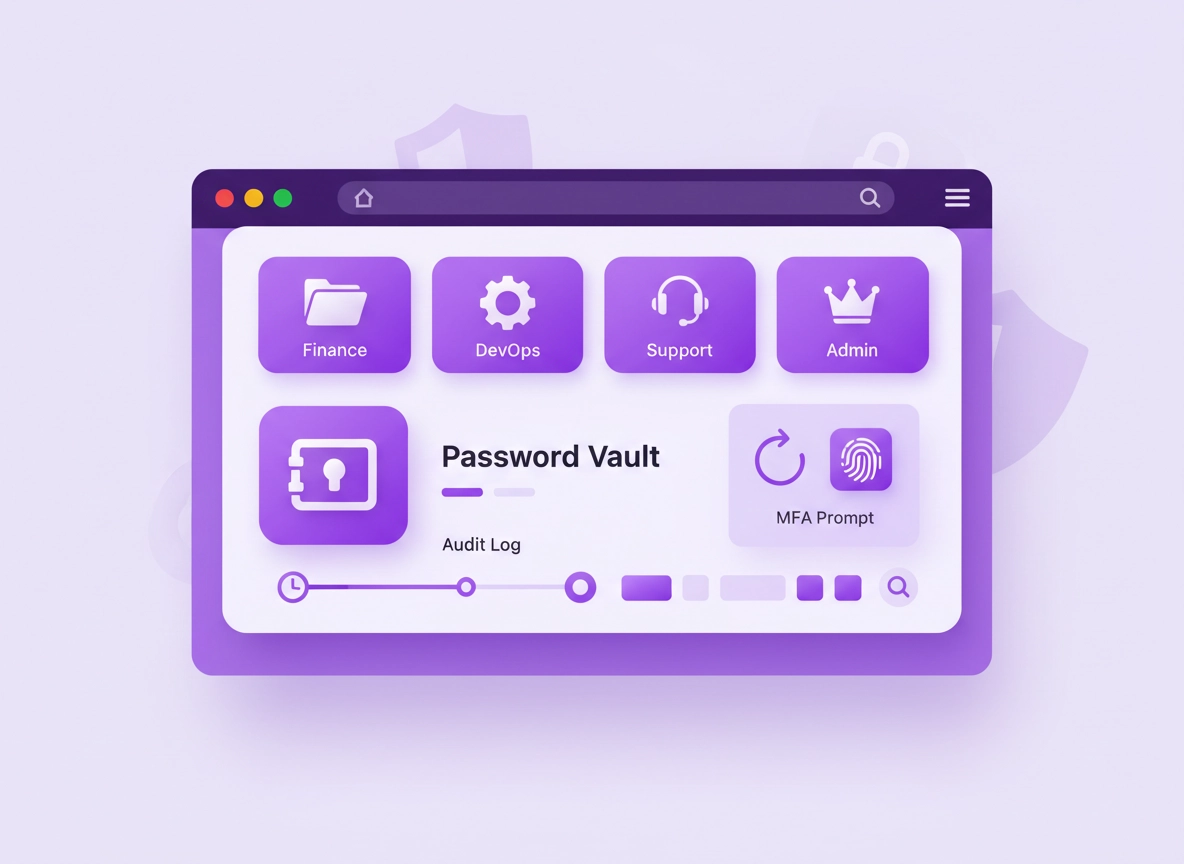
- 5 Build a vault structure that matches your org. Create shared vaults/collections by function (Finance, DevOps, Support, Marketing) and by environment (Production vs Sandbox). Give people the minimum access required.
- 6 Migrate credentials safely. Import from your current tool in a controlled way, then immediately rotate high-risk accounts: email admin, DNS, cloud root/admin, payment processors, social, customer support admin.
- 7 Replace “shared passwords” with vault sharing. Stop pasting credentials into Slack/Docs. Use controlled sharing. If you need the model, read password sharing securely.
- 8 Turn on monitoring features that matter. Enable breach monitoring / compromised password alerts if available. For deeper coverage, see dark web monitoring and password health checks.
- 9 Define recovery + emergency access. Decide who can recover access, under what conditions, and with what delay. Use emergency access to avoid “founder bus factor” risks.
- 10 Lock in your offboarding process. Offboarding must revoke access and rotate shared credentials. If you can implement SCIM, do it—otherwise use a checklist + rapid rotation plan.
What “success” looks like: You can add a new employee in minutes, give them access only to the vaults they need, and remove them with confidence (no lingering access, no untracked shared passwords).
Related: If your startup runs remote/hybrid, see password managers for remote teams and the broader Chrome privacy for remote work posture.
Common variations .
- Windows / ChromeOS: Use separate Chrome profiles for work vs personal. Keep OS accounts separate. Avoid sharing browser profiles across people.
- macOS: Treat Keychain and password manager overlap carefully. If users store passwords in multiple places, pick one source of truth for the org.
- Android / iPhone: Enable biometrics + device lock. Ensure the password manager app is protected. Train users on autofill prompts and phishing awareness.
Advanced controls (SOC 2-ready) .
This section is where startups usually “level up.” These controls help you pass customer security reviews and reduce operational risk as hiring accelerates. You don’t need all of them on day one, but you should understand what matters and why—so you don’t choose a tool that blocks you later.
Related: If you’re building a broader company security posture in Chrome, see Chrome Enterprise and enterprise security settings.
1) SSO + SCIM (the offboarding superpower) .
For startups, SSO isn’t about convenience—it’s about revocation certainty. If your password manager supports SSO and SCIM, you can tie access to your directory: when a user is disabled, they lose access quickly and consistently. Without SCIM, offboarding becomes “someone remembers to remove them,” which fails under stress, time zones, and turnover.
- Minimum viable: Enforce MFA for all users; remove accounts manually on offboarding; rotate shared secrets.
- Strong: SSO for login + SCIM provisioning + group-based vault access.
- Best: Conditional access + device posture checks (where available) + security keys for admin roles.
2) RBAC and least privilege (no more “everyone is admin”) .
RBAC matters because most startup damage is caused by excessive access—not malicious insiders. The control you want is simple: people should only see what they need, and sensitive vaults should have smaller membership. Use separate shared vaults for: Finance (banking, payroll, tax), DevOps (cloud consoles, CI/CD tokens), Support (ticketing/admin), and “Company Admin” (DNS, email admin, core security tools).
If your password manager supports role-based access features, read role-based access control and password managers for IT admins.
3) Audit logs and alerting (prove what happened) .
Audit logs are how you answer real questions: “Was this password exported?”, “Who shared this credential?”, “Did someone disable MFA?”, “Which admin changed a policy?” Without logs, you guess. With logs, you respond. If you need to align to compliance requirements, see SOC 2 compliance and GDPR compliance.
4) Secure sharing and collaboration (without credential copying) .
Most startups “share passwords” by copying secrets into chat or a doc. This breaks security in three ways: (1) you can’t revoke it, (2) you can’t see who has it, (3) you can’t prove when it was used. Vault-based sharing solves this. If your team collaborates across functions, use team collaboration features and define which roles can share externally (if anyone).
5) Secrets hygiene: API keys, tokens, and “secure notes” .
Startups often store API keys and sensitive values in the wrong places: Notion, Google Docs, tickets, email drafts, or a random “secrets” channel. A password manager can help if it supports encrypted secure notes and structured storage, but only if you set clear rules. Use secure notes for: admin recovery codes, break-glass procedures, vendor support PINs, and “operational secrets” that must be shared. For deeper coverage, see secure notes features and API integration where applicable.
6) Passkeys, phishing resistance, and high-risk roles .
Many credential theft incidents are phishing-based: someone types a password into a fake login page. A password manager helps by generating strong passwords and reducing typing—but the “endgame” is phishing-resistant auth: passkeys and hardware-backed MFA for admins and financial roles. If your org is moving toward modern authentication, also review two-factor authentication guidance and password managers with built-in 2FA.
Common alternatives startups compare .
- Chrome’s built-in password manager vs a dedicated team password manager
- Free / personal plans vs business plans with policy enforcement
- Password managers vs “just use SSO everywhere” (you usually need both)
- Passkeys + security keys vs SMS-based MFA for admin roles
Security notes: threat model, risks, and safe defaults .
Security for startups gets simpler when you stop chasing every hypothetical and focus on the real threat model: credential theft, shared account chaos, device compromise, extension risk, and mistakes during onboarding/offboarding. A password manager doesn’t “solve security,” but it dramatically reduces the probability of the most common failure modes.
Impact: Affects how credentials are stored, shared, autofilled, recovered, and audited across your company.
Related: If you suspect a compromised browser or extension, start with Remove Malware from Chrome and extension malware risks.
Recommended baseline settings (startup-secure) .
- Option A (balanced): MFA required for everyone + shared vaults + restricted admin roles + breach monitoring + periodic access review.
- Option B (maximum security): Security keys for admins + SSO/SCIM + strict sharing controls + audit logs + device posture policies (where available).
- Option C (compatibility): MFA + shared vaults + manual offboarding + basic logging; upgrade to SSO/SCIM as soon as customers ask for it.
Recommended settings by goal .
| Goal | Recommended setup | Tradeoff | Best for |
|---|---|---|---|
| Balanced | MFA enforced + shared vaults by team + password health checks + access review every 30–60 days | Some manual admin work | Most early-stage startups |
| Maximum security | Security keys for admins + SSO/SCIM + strict sharing + audit logs + break-glass procedures | Higher cost and setup effort | SaaS, fintech, healthcare, regulated customers |
| Compatibility | MFA + shared vaults + conservative autofill + manual offboarding + limited exports | Less automation (offboarding risk) | Very small teams without an IdP |
Troubleshooting .
Related: If your issue is “Chrome keeps saving passwords even though we use a tool,” see disable Chrome password manager and Chrome password storage security.
If the team keeps sharing passwords in Slack anyway .
This is usually a workflow problem, not a “people problem.” Fix it by creating a shared vault that matches the way the team works, then make sharing the easiest path. Add a “Shared Access” vault for common tools and a “Restricted” vault for high-risk accounts. Teach: “Don’t paste secrets; share access.” Link the rule in your onboarding doc and enforce it in reviews.
If offboarding still feels risky .
If you don’t have SSO/SCIM, your checklist must include rotation. Immediately rotate: email admin, DNS, cloud admin/root, payment processor admin, social accounts, and customer support admin. Use a password generator to create strong unique credentials, then store them only in the right shared vault.
If autofill is filling the wrong account or wrong environment .
This happens when startups reuse the same domain across environments or have multiple accounts on the same login page. Fix it by using separate entries for production vs sandbox, and set clear naming conventions (e.g., “Stripe (Prod) — Finance”). If your password manager supports it, use URL rules or linked domains carefully. When in doubt, require a manual confirm step before fill.
If someone lost their device (and it contains the vault) .
The response should be calm and procedural: revoke sessions, force re-authentication, rotate high-risk shared secrets, and verify MFA on the user account. This is exactly why you define recovery and emergency access early. Review emergency access and recovery options.
If you need to reset safely (without losing everything) .
Avoid wiping blindly. First confirm you have vault access, MFA access, and recovery paths. Then remove risky extensions, separate Chrome profiles, and review device security. If you suspect malware or browser hijacking, use Chrome malware cleanup steps.
FAQ .
-
helpDo startups really need a business password manager, or is a free/personal plan fine?If you ever share credentials, hire contractors, or need consistent offboarding, you want business features: shared vaults, enforced MFA, admin policies, and (ideally) audit logs. Personal plans typically don’t enforce controls—and “we’ll upgrade later” often becomes a painful migration when customers demand proof. Compare options at free vs paid and business vs personal.
-
helpIs Chrome’s built-in password manager secure enough for a startup?It can be fine for an individual, but startups usually need controls Chrome doesn’t provide as a “team system”: structured sharing, role-based access, centralized admin policies, and audit trails. Read the review and Chrome vs third-party for the practical differences.
-
helpWhat’s the most important control for startups: MFA, SSO, or audit logs?Start with MFA for everyone (immediately), then prioritize SSO/SCIM as soon as hiring accelerates because offboarding is where startups fail. Audit logs become essential when customers ask “prove it” or you need to investigate incidents. Ideally you want all three.
-
helpHow do we handle shared accounts like “admin@company.com” safely?Put the credential in a restricted shared vault, limit membership, enforce MFA on the account itself, and avoid sending the password directly to people. Use vault-based sharing, and rotate the password when roles change or people leave. For high-stakes accounts, consider hardware keys and documented break-glass procedures.
Sources & further reading .
- Google Chrome Help Center
- Google Account security & sign-in help
- ChromeThemer: Best Password Manager for Chrome
- ChromeThemer: Chrome Extension Security
- ChromeThemer: Password Manager SOC 2 Compliance
Disclosure: Some pages may mention tools or services. Recommendations are editorial and based on practical security outcomes and common real-world implementation patterns.