What “password manager for ecommerce” really means .
Ecommerce security isn’t just “strong passwords.” It’s about controlling access to money, customer data, and reputation — across a whole supply chain of tools — with minimal friction for the team.
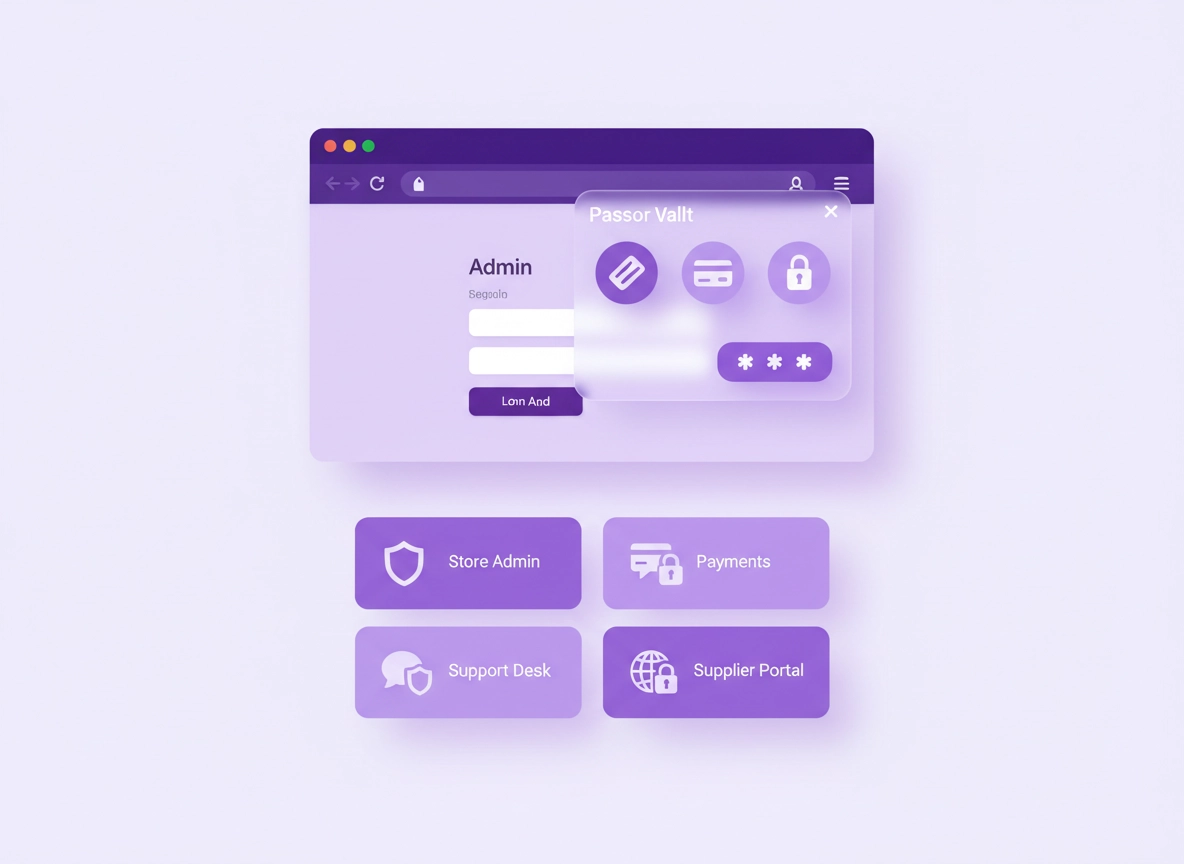
In a typical online store, you don’t have one login. You have an admin login for the storefront platform, a payment processor dashboard, a support desk, analytics, ads accounts, email/CRM, shipping, marketplace portals, affiliate tools, and supplier systems. Each one is a doorway into your business. A password manager becomes the “central nervous system” that controls how people enter those doorways — and what happens when keys get lost, copied, or stolen.
If you’ve ever seen these, you’re in the danger zone: shared admin accounts, passwords in Slack, “temporary” Google Docs with credentials, a single founder holding all access, ex-employees still able to log in, or an agency that wants full admin rights “just to set up tracking.” Ecommerce teams move fast — attackers move faster. Most store takeovers start with a single credential compromise (phishing, password reuse, or a breached vendor).
A modern password manager for ecommerce in Chrome is not just a vault. It’s a set of features working together: secure storage, autofill, safe sharing, audit logs, role-based access control, fast offboarding, breach monitoring, and increasingly passkeys + phishing-resistant MFA. When you implement it correctly, you reduce risk and also remove operational pain (fewer lockouts, fewer “who has the password?”, fewer Friday-night emergencies).
Start here: If you’re building your overall stack, begin with Best Password Manager for Chrome and then come back to this ecommerce-specific playbook.
Key terms (quick definitions) .
- RBAC (Role-Based Access Control): Give team members access based on their role (support, marketing, finance) instead of sharing one master login.
- Vault: The encrypted container where credentials, notes, and sometimes passkeys are stored.
- Phishing-resistant MFA: MFA methods (like hardware keys/passkeys) that can’t be tricked by lookalike login pages.
- Credential rotation: Changing passwords quickly across critical systems after risk (employee exit, breach, vendor change).
- Chrome profile strategy: Using separate Chrome profiles for business vs personal, and for high-risk admin tasks.
Related: If you worry about malicious extensions or permissions creep, read Chrome Extension Security.
Before you start (fast checks for online stores) .
Ecommerce security improvements fail when you skip the “inventory” step. Do these fast checks first — they take 15–30 minutes and prevent weeks of confusion later.
- List your “Tier 0” logins (money + identity): domain registrar, primary email (Google Workspace/Microsoft), storefront admin, payment processor, bank portal, ad account, and support desk admin.
- Find shared accounts: any login used by more than one person (common in marketing tools, shipping systems, and marketplace dashboards).
- Check password reuse: if the same password appears anywhere else, assume it will be breached eventually.
- Confirm MFA status: is MFA on for store admin and payment dashboards? If not, treat that as urgent.
- Identify offboarding gaps: can you remove a person’s access in minutes without changing 20 passwords?
- Map browser reality: are people using Chrome autofill, a third-party extension, or both? Mixed workflows create mistakes.
Related: If you’re unsure whether Chrome’s built-in option is enough, compare it with third-party tools: Chrome password manager vs third-party.
Decide: built-in vs third-party (a practical rule) .
If you’re a solo store owner managing a handful of logins, Chrome’s built-in password manager can be a decent baseline — especially when combined with strong MFA on your Google account and good Chrome profile hygiene. But most ecommerce businesses quickly need things that built-in tools struggle with: team sharing with roles, audit logs, offboarding controls, and policy enforcement.
A simple decision trigger: the moment you share credentials with another human (employee, contractor, agency, bookkeeper), you should move to a password manager with proper sharing controls. The “we’ll just send it once” approach is how credentials get copied into notes apps, email threads, and spreadsheets — which then live forever.
Recommended baseline: Chrome profile + device hygiene .
- Create a dedicated “Store Admin” Chrome profile: keep it clean (no random extensions), and use it only for admin/payment tasks.
- Turn on screen lock: password managers depend on device security. No lock screen = vault exposure if a laptop is stolen.
- Update Chrome: security patches matter. Use stable channel and keep auto-update on.
- Don’t install “coupon / price tracker” extensions in admin profiles: ecommerce extensions often request broad permissions. Keep them out of your highest-risk profile.
Step-by-step setup in Chrome (recommended) .
This setup is designed for real ecommerce operations: multiple tools, multiple people, high turnover (contractors/agencies), and the need to move quickly without turning your team into a security department.
Step 1: Choose the right model (personal vault vs team vault) .
The most common ecommerce mistake is mixing personal and business credentials. Your goal is: personal vault for personal accounts and team vault(s) for store operations. If your password manager supports multiple vaults/spaces, use them.
- 1 Create a dedicated Chrome profile for “Store Admin” and sign in as the business identity (Workspace/M365 or your business Google account).
- 2 Install your password manager extension only in that profile (keep it clean).
- 3 Turn on MFA for the vault immediately (prefer passkeys or hardware keys where supported).
- 4 Create a “Store Ops” shared vault and add the first set of Tier 0 logins (store admin, payments, registrar, primary email, support desk admin).
What “success” looks like: Your team can access what they need without knowing the raw password, and you can remove access instantly without “changing everything.”
Related: For a broader rollout process, see deployment guide for Chrome.
Step 2: Build a vault structure that matches ecommerce workflows .
Ecommerce stacks grow fast. A good vault structure reduces mistakes and speeds up onboarding. A clean default structure looks like this:
- Store Admin: storefront platform admin, hosting, CMS, plugins/apps (admin-level)
- Payments & Finance: payment processor dashboards, bank portal, invoicing, accounting software
- Support & Customer: helpdesk admin, live chat admin, returns portal admin, shared inbox
- Marketing: ad accounts, analytics, email marketing, social media tools
- Vendors & Logistics: shipping providers, supplier portals, marketplaces, label systems
- Secrets & Keys: API keys, app tokens, webhooks (prefer “secret” item types if available)
If you manage multiple stores/brands, either create one vault per brand or tag everything with a clear prefix. The point is not perfection — it’s reducing the chance that someone autofills the wrong credential into the wrong system.
Step 3: Replace shared passwords with controlled sharing .
“Shared passwords” are the quiet killer of ecommerce security. The moment a password is copied into a message thread, it becomes untracked. Instead, share access via vault permissions:
- Support reps: should access helpdesk tools, not payment dashboards.
- Marketers: should access ads/analytics, not store admin superuser.
- Agencies: should use the minimum access needed (and ideally their own identities, not your master admin).
- Finance: should access accounting + payments but often not store admin or marketing.
Rule: If a vendor or agency insists on getting “the main admin password,” treat that as a red flag. In modern platforms you can almost always create a dedicated user with limited permissions.
Related: If your main pain point is “how do we share safely?”, use this: Password sharing securely in Chrome.
Step 4: Turn on breach monitoring + a rotation routine .
Ecommerce logins get exposed in real ways: vendor breaches, reused passwords, phishing, and compromised devices. Breach monitoring helps you detect exposure, but it only matters if you have a rotation routine:
- 1 Enable breach/compromised-password alerts in your password manager (and in Chrome if you still store any passwords there).
- 2 Create a “Rotation list” for Tier 0 accounts (admin, payments, registrar, email).
- 3 Rotate Tier 0 passwords on staff changes and after any suspicious event — and rotate API tokens where relevant.
- 4 Document recovery options (backup codes, recovery email/phone) in a secure note accessible only to owners/security leads.
Related: For breach-response hygiene in Chrome, see dark web monitoring and password health checks.
Step 5: Lock down autofill (so it helps, not harms) .
Autofill is powerful — and dangerous when misconfigured. In ecommerce, you often have multiple logins for the same domain (admin vs staff vs supplier). Do this to avoid mistakes:
- Require vault unlock for sensitive fills: biometrics/OS unlock before filling admin credentials.
- Disable “auto-submit” for high-risk logins: you want a moment to verify the domain and the account.
- Use separate entries per role: e.g., “Store Admin (Owner)”, “Store Admin (Support Manager)”, “Payments (Finance Lead)”.
- Keep admin profiles clean: fewer extensions = fewer opportunities for credential theft or manipulation.
Related: To understand browser-level tradeoffs, read password manager browser integration security and password autofill in Chrome.
Common variations .
- Windows / ChromeOS: Prefer Windows Hello / device PIN + secure boot. For shared machines, create separate OS user accounts for each staff member.
- macOS: Use Touch ID + FileVault. Avoid sharing a single Mac user account across staff.
- Android / iPhone: Use screen lock + biometrics; treat mobile devices as “credential endpoints” and enable remote wipe via MDM if you’re at scale.
Advanced ecommerce security (RBAC, SSO, vault structure) .
This is where ecommerce teams get real leverage: you reduce risk and reduce operational drag. The “advanced” path is mostly about three things: least privilege, auditability, and fast offboarding.
Related: If you’re managing teams in Chrome, also read team collaboration and role-based access.
When you should add SSO + directory integration .
If you have more than a handful of staff, SSO becomes a force multiplier. Instead of managing access in ten places, you manage identity in one place (Google Workspace / Microsoft Entra ID), then connect your password manager to it. That helps you enforce MFA, recover accounts properly, and disable users quickly.
- Use case: You hire seasonal support staff or contractors frequently.
- Use case: You work with agencies and want time-bound access without sharing passwords.
- Use case: You need an audit trail for “who accessed what, when” (finance + payments + admin).
Related: If you’re going enterprise-style, read password manager single sign-on and directory integration.
Vault permissions: a simple ecommerce RBAC model .
The goal is not to make everything “locked down.” The goal is to prevent a mistake or compromise in one area (e.g., marketing laptop phishing) from becoming a full store takeover.
| Role | Should access | Should NOT access | Notes |
|---|---|---|---|
| Owner / Admin | All vaults + recovery | — | Use strongest MFA + hardware keys. |
| Finance | Payments & Finance | Store superadmin | Separate high-risk approvals from daily access. |
| Support Lead | Support & Customer | Payments dashboards | Support tools are a common data-leak path; lock them down. |
| Marketing | Ads, analytics, email tools | Registrar, payments | Marketing accounts are frequent phishing targets. |
| Agency / Contractor | Specific tools only | Anything “owner-level” | Prefer separate vendor accounts; timebox access. |
Secrets: treat API keys like cash .
Ecommerce stacks are filled with API keys: shipping rates, email provider tokens, marketplace integrations, analytics connectors, and internal automations. These are often more powerful than passwords because they can enable silent access without a login screen.
- Store keys in a “Secrets & Keys” vault: restrict access to only those who truly need it.
- Prefer scoped tokens: choose “read-only” or “limited scope” tokens whenever possible.
- Rotate on staff/vendor changes: if a contractor had access, assume the token is copied and rotate it.
- Document ownership: in the note field, record what the key is for and where it’s used, so rotation doesn’t break production silently.
Related: If your setup includes automations, see password manager API integration.
Emergency access & recovery: the ecommerce founder safety net .
Ecommerce emergencies happen at the worst time: payment holds, chargeback spikes, store outages, compromised accounts, or a founder locked out while traveling. Plan for this before you need it.
- Enable emergency access: allow a trusted owner/partner to regain access if you’re unavailable.
- Store recovery codes securely: not in email, not in Slack — inside a restricted vault entry.
- Use two hardware keys for the primary vault: one daily-use, one stored securely as backup.
- Write down the “break glass” path: who can access registrar, email, payments, and store admin in a true incident.
Related: Password manager emergency access and recovery options.
Passkeys vs passwords (what ecommerce teams should do in 2026) .
Passkeys reduce phishing risk and remove many password problems, but ecommerce reality is mixed: some systems support passkeys well, others don’t. The practical approach: use passkeys where available for Tier 0 accounts (email, payments, storefront admin if supported), and keep a password manager as the control plane for everything else (including recovery, vendor portals, and API keys).
Even in a passkey world, teams still need: roles, sharing controls, device policies, audit logs, and offboarding. That’s why password managers remain relevant — the “password” part becomes only one of the things they manage.
Common alternatives ecommerce teams compare .
- Chrome built-in password manager vs a dedicated password manager for teams
- Shared admin accounts vs individual accounts + RBAC
- MFA via SMS vs phishing-resistant MFA (authenticator app, hardware keys, passkeys)
- Storing passwords in tools (browser/email) vs a separate encrypted vault with audit logs
Related: If you’re evaluating cost vs risk, see ROI for business and total cost of ownership.
Privacy & security notes (payments, customers, compliance) .
Ecommerce security is high-CPC for a reason: it’s high impact. You’re dealing with customer PII, payment workflows, refunds, chargebacks, and potential compliance requirements depending on your scale and region. A password manager doesn’t “make you compliant” by itself — but it can help you enforce controls that auditors and good security practice expect: unique credentials, access control, MFA, and auditability.
Impact: Affects store takeover risk, fraud exposure, customer data access, and recovery time after incidents.
Related: If you suspect a compromised device or hijacked browser, start with Remove Malware from Chrome.
Recommended baseline settings (the “ecommerce minimum”) .
- Vault MFA: Turn it on and prefer phishing-resistant methods (passkeys/hardware keys). Avoid SMS where possible.
- Unique passwords: Use a generator for every business login; stop reusing “the store password.”
- Separate identities: Individual user accounts for staff + contractors, not shared admin logins.
- Audit logs: If you have a team, choose a plan/tooling that can show access events and changes.
- Offboarding playbook: Document steps and test them: remove user, rotate Tier 0, invalidate tokens, verify recovery options.
Recommended settings by goal .
| Goal | Recommended setting | Tradeoff | Best for |
|---|---|---|---|
| Balanced | Team vaults + MFA + role-based access | Small onboarding effort | Most ecommerce teams |
| Maximum security | Phishing-resistant MFA + separate admin profile + least privilege + audit logs | More friction (but fewer disasters) | High-revenue stores / high fraud risk |
| Compatibility | Vault MFA + conservative autofill + fewer browser restrictions | Higher exposure than max-security mode | Teams juggling legacy vendor portals |
Compliance angle (keep it practical) .
Depending on your store, you may hear terms like PCI DSS, SOC 2, or GDPR. Don’t let this become a buzzword swamp. The practical “password manager relevant” controls are the same across many frameworks: unique credentials, MFA, least privilege, and evidence (auditability).
If you handle payment flows through a processor, many “hard parts” of PCI scope can be reduced — but your admin and business accounts still matter. Attackers don’t always steal card data. Sometimes they change payout settings, redirect refunds, create discount codes, or poison product pages. Your credential layer is still a high-value target.
Troubleshooting (what breaks in real life) .
Related: If Chrome permissions or privacy settings are interfering with workflows, see Chrome privacy & security settings overview.
If autofill fills the wrong account (common on admin pages) .
Ecommerce tools often host multiple login endpoints under the same domain (admin, staff, API, partner). Fix it by creating separate vault entries per role and matching URLs precisely (including the admin path), then disable auto-submit for those entries. In high-risk profiles, require vault unlock before filling.
If your team still shares passwords “because it’s faster” .
This is usually a process problem, not a security problem. Make the secure path the easy path: create vault groups that match roles, pin the extension, write a 1-page onboarding checklist, and remove “shared admin” accounts. If someone must have access temporarily, timebox it and remove access after the task.
If an agency needs access but you don’t trust them fully .
Create dedicated agency accounts with minimum permissions. Prefer systems that support separate users and audit logs. If you can’t avoid sharing access, share through the vault without revealing raw passwords, and rotate the credentials when the engagement ends.
If you suspect a phishing attempt (or a login “looks weird”) .
Treat domain mismatch as a stop sign. A good password manager will often refuse to autofill on lookalike domains — that’s a feature, not a bug. Close the page, navigate manually to the real site, and change the password if you entered it anywhere suspicious. Then check “recent access” in your most critical systems (email, payments, store admin).
If you need to reset safely after a scare .
Don’t nuke everything blindly. Start with Tier 0: email, registrar, storefront admin, payments. Rotate passwords, invalidate sessions, rotate API tokens, and review users/permissions. Then expand outward to support/marketing/logistics. If a device might be compromised, clean it first — changing passwords on an infected device can simply leak the new ones.
Related: If you’re planning a “clean migration,” use this migration guide.
FAQ .
-
helpIs Chrome’s built-in password manager enough for ecommerce?It can be a baseline for solo operators, but ecommerce teams usually need role-based sharing, offboarding controls, and auditability. If you share credentials with employees, agencies, or contractors, a team-capable password manager is the safer operational choice.
-
helpWhat’s the safest way to share store admin access without giving away the password?Use individual user accounts in your storefront/payment/support tools wherever possible. When password sharing is unavoidable, share through a vault with permissions so the recipient can use the credential without seeing/copying it, and remove access when the task ends.
-
helpDo passkeys replace password managers for ecommerce teams?Passkeys reduce phishing risk and are great for Tier 0 accounts when supported, but ecommerce stacks still include many systems that use passwords, API keys, and recovery codes. Teams also need sharing controls, policies, audit logs, and offboarding — which password managers handle well.
-
helpHow does a password manager help with PCI/security expectations?It supports practical controls that show up across many security requirements: unique credentials, MFA enforcement, least privilege access, and faster incident response through rotation and access removal. It’s not “instant compliance,” but it strengthens your identity layer.
Sources & further reading .
- Google Chrome Help: Manage passwords in Chrome
- NIST SP 800-63B: Digital Identity Guidelines (password/passphrase guidance)
- OWASP: Password Storage Cheat Sheet
- PCI SSC: PCI DSS v4.0.1 update notes (authentication/MFA clarifications)
Disclosure: Some pages may mention tools or services. Recommendations are editorial and based on testing and common security best practices.