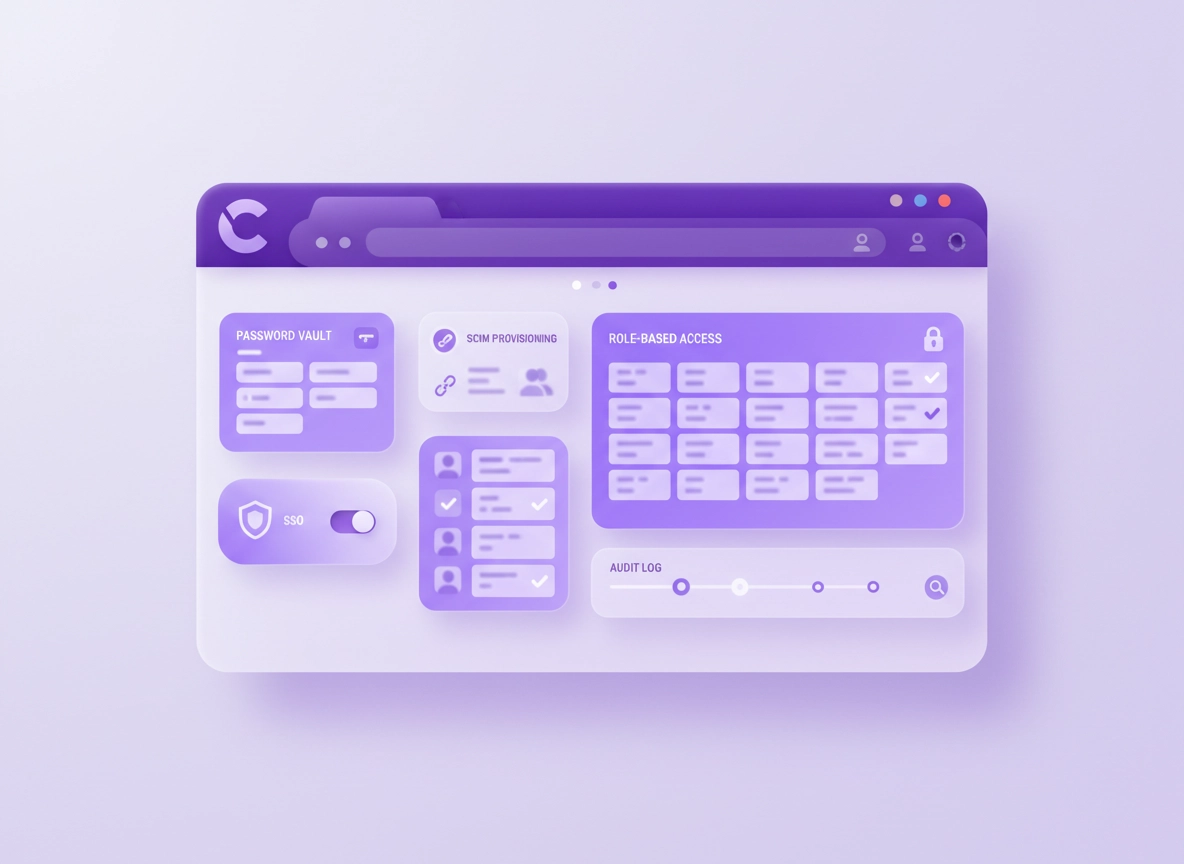
What “password manager for SaaS” really means .
In a SaaS company, your password manager isn’t “just a vault.” It becomes an identity control point.
A typical consumer password manager solves personal problems (saving logins, generating strong passwords, syncing devices). A password manager for a SaaS company has a different job: it must help your team control shared access, prove who had access to what (and when), and reduce the blast radius when someone leaves, loses a device, or an account is compromised.
In practice, that means your password manager needs to integrate with your company’s identity layer (SSO + directory), support roles and teams, provide audit logs, and enforce safe defaults in the browser (especially Chrome, where most SaaS work happens). If you’re preparing for bigger customers, due diligence, or audits, those features are “table stakes,” not extras.
Start here: If you want the broader landscape first, see Best Password Manager for Chrome and Chrome’s built-in manager vs a dedicated password manager.
Key terms (quick definitions) .
- SSO (SAML/OIDC): sign in to the password manager using your identity provider (IdP) so access is centralized.
- SCIM provisioning: automatic user creation/removal and group mapping from your directory to the password manager.
- RBAC: roles (Admin, Manager, Member) + granular permissions for vaults, sharing, and exports.
- Shared vault: a team-owned vault where credentials live (instead of “everyone copies the password”).
- Audit logs: records of access, sharing, exports, admin changes, and security events.
- Secrets sprawl: credentials scattered across docs, chat, browser notes, and personal vaults.
The SaaS threat model (why generic advice fails) .
SaaS companies don’t get breached because someone used “password123” once. They get breached because of shared access patterns and hidden credentials:
groupsShared admin accounts
“We all use the same admin login.” This happens in billing tools, email marketing, cloud consoles, vendor portals, analytics dashboards, and niche SaaS tools. It’s convenient—and it makes offboarding and incident response painful.
- Hard to rotate credentials safely
- No accountability for actions taken
- Access lingers after offboarding
keyAPI keys + CI/CD tokens
SaaS teams generate secrets constantly: API keys, deployment tokens, webhook secrets, database URLs, third-party integrations. These often end up in docs, issues, or chat—then live forever.
- Long-lived tokens become “forever access”
- Hard to find and rotate during an incident
- Accidental leaks via screenshots or copy/paste
laptopBrowser-first workflows
Most SaaS ops happen in Chrome: dashboards, admin panels, support tools, and cloud consoles. The extension is a privileged surface.
- Extension permissions matter
- Autofill must be safe and predictable
- Profiles and sync settings can leak data
verified_userAudit + customer trust
Enterprise customers want confidence: access control, MFA, offboarding, and proof (logs) that you can investigate.
- Need evidence for SOC 2 and vendor reviews
- Need reliable offboarding in hours, not weeks
- Need “break glass” that is controlled
Related: If your company manages Chrome at scale (policies, extensions, device control), see Chrome Enterprise & Business and Chrome Enterprise security settings.
Requirements checklist (SSO, SCIM, RBAC, logs) .
If you’re buying or standardizing a password manager for a SaaS company, ignore the marketing first and evaluate it as an access-control system. Use this checklist to avoid “we bought it, but nobody uses it” outcomes.
badgeIdentity & lifecycle
- SSO: SAML/OIDC support
- SCIM: auto-provision + deprovision
- Group mapping: teams from your directory
- Device trust: conditional access (if available)
Goal: offboarding is automatic, not a spreadsheet.
admin_panel_settingsAccess control
- RBAC: roles and scoped admins
- Vault permissions: view/edit/share controls
- Least privilege: no “everyone is admin”
- Sharing controls: prevent unsafe link sharing
Goal: teams get what they need, no more.
historyAuditability
- Audit logs: access, share, export, admin changes
- Alerting: suspicious sign-ins / exports
- Retention: logs kept long enough for investigations
- Exports: restricted + logged
Goal: you can answer “who accessed this?” quickly.
extensionChrome reality
- Strong extension: safe autofill, clear prompts
- Per-site controls: disable autofill on risky pages
- Profile support: work vs personal separation
- Mobile apps: secure + consistent across devices
Goal: it works where your team works.
lockSecurity primitives
- MFA: TOTP + hardware keys
- Encryption: strong end-to-end design
- Recovery: secure admin recovery options
- Session controls: timeouts + re-auth for sensitive actions
Goal: compromise is contained, not catastrophic.
syncOperations
- Emergency access: controlled “break glass”
- Shared credentials: rotation workflows
- Secure notes: store non-password secrets safely
- API integration: automate where it makes sense
Goal: security becomes routine, not hero work.
Deep dives: Password manager SSO in Chrome Directory integration (SCIM / groups) Role-based access control (RBAC) Team collaboration & shared vaults
Before you start (fast checks) .
These checks prevent the two most common rollout failures: poor adoption (people keep saving passwords in the browser) and poor control (IT can’t confidently offboard or investigate).
- Decide your “source of truth”: will the company use a dedicated password manager, or Chrome’s built-in storage? (Hint: if you need RBAC + logs, you already know.)
- Separate work vs personal browsing: use a dedicated Chrome profile for work so credentials don’t mix with personal sync.
- Inventory critical shared accounts: billing, cloud consoles, DNS, email, support tools, analytics, payment processors, domain registrar.
- Pick a pilot group: usually IT + engineering leads + ops (people who touch “all the keys”).
- Define “break glass”: who can access critical systems during incidents, and how that access is logged.
Related: If you’re deciding between Chrome’s manager and a dedicated vault, read Chrome built-in password manager review and Chrome password manager security risks.
Step-by-step rollout plan (Chrome-first) .
This rollout is designed for SaaS teams where Chrome is the primary workspace. The goal is to get to: SSO login, automatic offboarding, safe sharing, and investigable events—fast.
- 1 Choose your plan based on SaaS controls: require SSO + SCIM + RBAC + audit logs in the plan you purchase. If a feature is “Enterprise only,” treat it as a cost of doing business, not a nice-to-have.
- 2 Connect SSO first: users should authenticate through your IdP. Make SSO mandatory and disable local passwords if the product supports it.
- 3 Turn on SCIM provisioning: map directory groups to teams/vaults (Engineering, Support, Finance, Ops). Offboarding should automatically revoke access.
- 4 Define roles: create least-privilege roles (Owner, IT Admin, Vault Admin, Member). Remove “everyone is admin” defaults.
- 5 Create a sane vault structure: start with 3–6 vaults, not 60. Example: Shared Services, Engineering Tools, Support Tools, Finance/Billing, Vendor Portals, Break Glass.
- 6 Standardize how secrets are stored: passwords for logins, secure notes for API keys + recovery codes, and tags for ownership/rotation cadence.
- 7 Deploy the Chrome extension: install from the official store, pin it, and teach the autofill workflow in 5 minutes. Set the rule: “If it’s a work credential, it goes in the vault.”
- 8 Enforce MFA (prefer hardware keys): require MFA for all users. For admins and break-glass access, prefer hardware keys over SMS.
- 9 Lock down risky actions: restrict exports, require re-auth for sensitive actions, and disable unaudited sharing links if possible.
- 10 Validate with an “offboarding drill”: disable a test user in the directory and confirm access is revoked everywhere. If it’s manual, fix it now—before you need it.
What “success” looks like: users sign in with SSO, new hires get access via group mapping, shared accounts live in shared vaults (not in chat), and you can answer “who had access to X?” using audit logs.
A vault structure that works for most SaaS teams .
Keep it boring and obvious. Confusing vault structure is one of the fastest ways to kill adoption.
folder_sharedRecommended starting vaults
- Shared Services: DNS, registrar, status page, incident tooling, core vendor portals
- Engineering Tools: CI/CD, code hosting admin, error monitoring, feature flags
- Support Tools: help desk, CRM admin, customer comms platforms
- Finance/Billing: payment processors, accounting, tax, billing admin
- Break Glass: tightly controlled emergency access for critical systems
labelMetadata that saves you later
- Owner: who is responsible for this credential
- System: which app/tool it belongs to
- Rotation: monthly / quarterly / annual, or “after incident”
- Access tier: admin, read-only, billing-only
- Offboarding notes: what else must be checked if access changes
Team workflows: These pages go deeper on the day-to-day: Sharing passwords securely, Secure notes for API keys & recovery codes, and Emergency access / break glass.
Chrome-specific setup (small tweaks, big impact) .
- Pin the extension: reduce friction (people won’t “hunt” for it).
- Use a dedicated work profile: prevents personal sync and mixed credential storage.
- Minimize competing autofill systems: pick one “main” manager for work credentials to avoid wrong autofill prompts.
- Control extensions in companies: allowlist trusted extensions where possible. See Chrome Extension Security.
Advanced controls (audit-ready hardening) .
Once your rollout is stable, these controls are how you become “enterprise-ready” without turning your team into zombies. The theme is: reduce risky actions, tighten high-impact access, and increase visibility.
Related: If you manage policies in a business environment, see Chrome Enterprise management and Chrome enterprise audit logging.
1) Make offboarding deterministic (SSO + SCIM + vault ownership) .
Offboarding is where SaaS teams fail in due diligence. A strong setup means: disable the user in the directory → access is removed from the password manager → shared vault access is revoked automatically. Your “human process” is now focused on rotation and ownership cleanup, not hunting for access.
- SCIM deprovisioning: required (not “we’ll remove them manually”).
- Vault ownership: shared vaults owned by teams, not individuals.
- Admin scope: admins can administer; they don’t need access to every secret.
2) Harden high-risk actions (exports, sharing links, admin changes) .
In incidents, attackers love export and mass exfiltration. Most SaaS teams need exports rarely, so treat them like production database access: restrict, require re-auth, log, and alert.
- Restrict exports: allow only a small admin group, with re-auth required.
- Sharing link controls: disable public links or enforce expiration and recipient restrictions.
- Admin change alerts: watch for role escalations, policy changes, and new MFA devices.
3) Use hardware keys for the “keys to the kingdom” .
If you do one “serious” security upgrade, do this: require hardware-key MFA for admins and break-glass access. It’s one of the highest ROI risk reductions for SaaS companies because it defends against phishing and session theft better than SMS.
Related: If you’re standardizing stronger MFA in Chrome workflows, see Password manager hardware-key support and Password manager with 2FA.
4) Fix “secrets sprawl” with secure notes + rotation rules .
Passwords are only half the battle. SaaS companies drown in API keys, webhook secrets, recovery codes, and vendor credentials. A strong password manager setup makes it obvious where those live—and how they get rotated.
- Secure notes for API keys: keep keys next to the system they belong to, with owner and rotation cadence.
- Recovery codes: store in a restricted vault (not in screenshots or personal notes).
- Rotation playbook: monthly for critical shared admin passwords; quarterly for lower-risk vendors; immediate after incidents.
5) Treat the Chrome extension like privileged software .
Password managers in Chrome are powerful by design: they need to detect login forms and help you fill them. That power is normal—but it means you should manage it with the same seriousness as any security tool.
- Use a work-only Chrome profile: don’t mix with personal browsing or untrusted extensions.
- Audit extension permissions: keep your extension set small and purposeful.
- Don’t disable “security friction” globally: re-auth prompts are annoying until they save you.
Related: If you want a structured way to evaluate extension risk, see Chrome extension permissions guide and Extension security checklist for business.
Common comparisons SaaS teams make (and what actually matters) .
- Chrome built-in vs dedicated password manager: dedicated wins if you need RBAC, sharing controls, SSO/SCIM, and audit logs.
- Free vs paid: free works for individuals; SaaS companies typically need paid tiers for directory integration and governance.
- Password manager vs passkeys: passkeys reduce password risk, but you still need a vault for long-tail systems and shared accounts.
- Password manager vs “just use SSO everywhere”: you should use SSO—but there will always be tools that don’t support it.
Helpful reads: Free vs paid password managers, Password manager pricing comparison, and Password manager security for startups.
Security notes (zero-knowledge, encryption, recovery) .
“Is it safe?” is the right question—especially when a SaaS team centralizes high-value credentials. The goal isn’t perfection. The goal is to reduce risk compared to your current reality (chat shares, docs, browser sync, personal notes), while improving accountability and offboarding.
Impact: Affects account access, sharing workflows, incident response speed, and audit evidence quality.
What to look for in the security model .
- Strong encryption design: encrypted vault data, modern crypto, and secure handling of keys.
- Zero-knowledge claims (when applicable): understand what the provider can and can’t see. (This varies by product.)
- Session controls: short sessions for admins, re-auth for exports and vault permission changes.
- MFA depth: hardware keys supported for high-risk roles.
- Recovery and break glass: secure methods that don’t create a hidden backdoor.
Recommended baseline policies for SaaS teams .
- Require MFA for everyone (hardware keys for admins and break-glass).
- SSO mandatory and SCIM enabled so access follows employment status.
- Shared vaults only for shared credentials (no “copy to personal vault”).
- Exports restricted and logged; require re-auth.
- Vault ownership defined (a real person/team accountable for rotation).
Recommended settings by goal .
| Goal | Recommended setup | Tradeoff | Best for |
|---|---|---|---|
| Balanced (recommended) | SSO + SCIM, shared vaults, MFA for all, exports restricted, clean Chrome profile | Some friction for sensitive actions | Most SaaS teams |
| Maximum security | Hardware keys for admins, strict sharing controls, short sessions, re-auth for key actions, strong allowlist | More prompts; needs good training | Regulated / enterprise-heavy SaaS |
| Compatibility-first | Looser autofill rules, fewer prompts, broader sharing options (still logged) | Higher risk if people misuse sharing | Early-stage teams (short-term) |
More security guides: Zero-knowledge architecture explained, Password manager encryption explained, and Recovery options (without creating new risks).
Troubleshooting .
Related: If the issue feels like extension conflicts or risky permissions, start with Chrome Extension Security. If you suspect compromise, see Remove Malware from Chrome.
If SSO works for some users but not others .
This is usually a directory/group mapping problem, not “Chrome being weird.” Confirm SCIM provisioning is enabled, the affected user is in the correct directory group, and the password manager team/vault mapping matches those groups. If you’re using multiple Chrome profiles, verify they’re signing into the correct work profile.
- Check group membership → SCIM sync status → team mapping
- Verify the correct IdP app is used (no duplicate SSO configs)
- Confirm time and date on the device (token validation can fail)
If autofill feels unsafe or “fills the wrong thing” .
Autofill problems are usually caused by multiple autofill systems competing (Chrome saved passwords, another extension), or by complex login pages (embedded iframes, multi-step forms). Disable competing autofill where possible, and use “fill on click” instead of automatic filling for high-risk admin portals.
- Disable or reduce Chrome’s built-in password prompts for work accounts
- Use per-site autofill rules for admin consoles and billing tools
- When in doubt, copy/paste from the vault (still safer than storing in docs)
Related: If you’re evaluating browser vs third-party handling, read Chrome password manager limitations.
If shared vault access is messy (people can’t find things) .
This is almost always a structure issue: too many vaults, unclear naming, or “everything dumped into Shared.” Fix it by reducing vault count, adopting a naming pattern (System + Environment + Role), and tagging owners. Then train one behavior: “request access, don’t share passwords in chat.”
- Rename items: Tool – Role – Environment (e.g., “Stripe – Admin – Prod”)
- Add an Owner field and a Rotation tag
- Create a small “Intake” process for new credentials (who adds, where it goes)
Related: See Team collaboration and Password sharing securely.
If you need to reset safely .
Avoid “nuke from orbit” resets unless you suspect compromise. First, sign out of the password manager extension, sign back in using SSO, and verify you’re on the correct Chrome profile. If syncing is broken across devices, check multi-device settings in the password manager and confirm your device is enrolled properly.
- Sign out/in (SSO) → refresh vault access → re-pin extension
- Verify multi-device sync is enabled and the device is trusted
- Only after that: reset the extension or reinstall it
Related: See Multi-device sync and Password health check.
FAQ .
-
helpDo SaaS companies really need an “enterprise” password manager?If you need SSO/SCIM, RBAC, and audit logs, you’re already in “business/enterprise” territory—even if your team is small. Those controls are what make offboarding reliable and help you pass customer security reviews. A cheaper plan can work early on, but plan to upgrade before enterprise deals or audits.
-
helpIs Chrome’s built-in password manager enough for a SaaS team?For individuals, it can be fine. For SaaS teams, it usually falls short on governance: team sharing controls, RBAC, directory integration, and audit logging. If your company needs controlled sharing and provable offboarding, a dedicated password manager is the practical path.
-
helpWhere should we store API keys and recovery codes?Store them in secure notes (or equivalent encrypted fields) inside a restricted vault with clear ownership and rotation expectations. Avoid placing secrets in docs, tickets, or chat. If you must share temporarily, use audited sharing features and expire access quickly.
-
helpHow do we handle “break glass” access without creating a backdoor?Put break-glass credentials in a dedicated vault with very few members, require strong MFA (prefer hardware keys), and ensure all access is logged. Treat break glass like production access: used rarely, reviewed regularly, and rotated after use.
Sources & further reading .
- Google Chrome Help Center
- NIST Cybersecurity Framework (CSF)
- NIST SP 800-63: Digital Identity Guidelines
- OWASP Top 10
Disclosure: Some pages may mention tools or services. Recommendations are editorial and based on practical evaluation and common security requirements for SaaS teams.