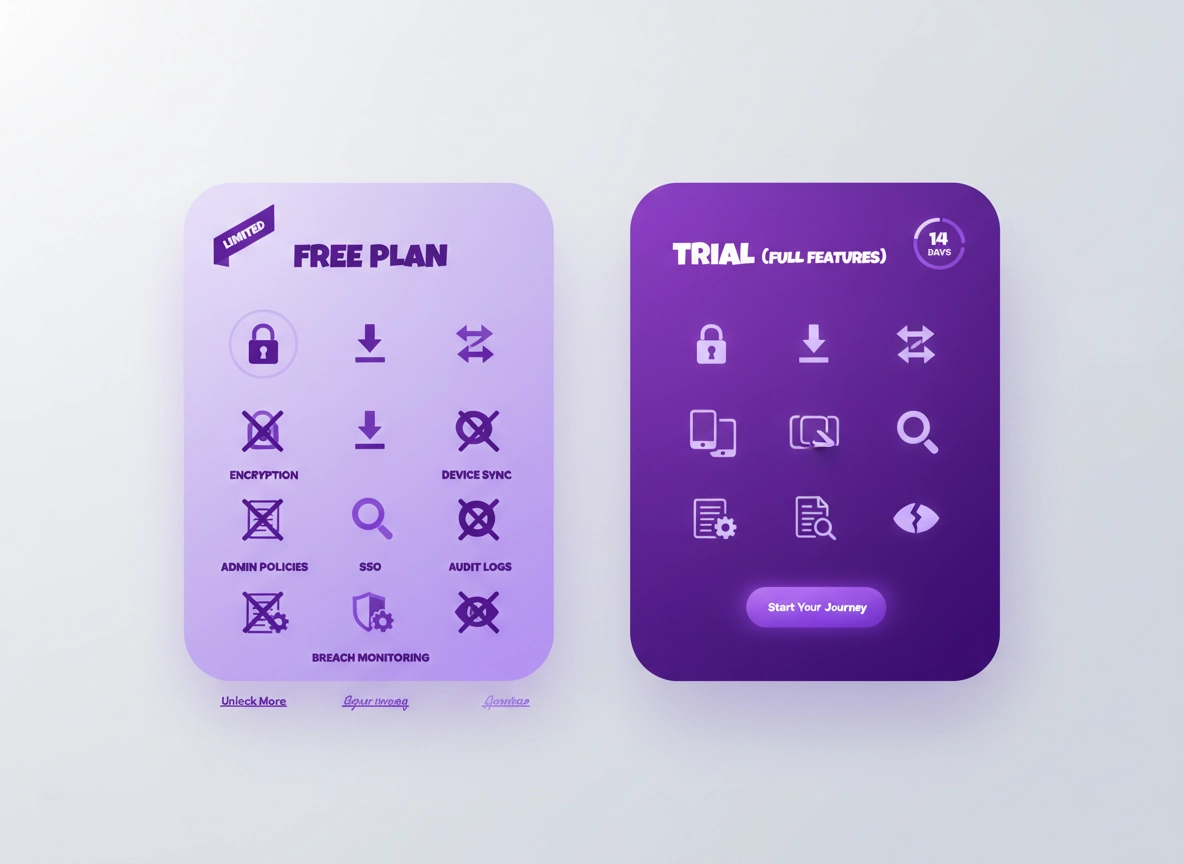
What “trial” vs “free plan” really means .
Most people pick the wrong plan type because they compare “features” and ignore the “constraints.” This guide fixes that.
A password manager isn’t just an app—it becomes part of your identity surface. Once it stores your logins, secure notes, recovery codes, and shared access, switching later is no longer “just uninstalling an extension.” That’s why vendors structure trials and free plans very differently: a free plan is a long-term funnel, while a trial is an evaluation environment.
A free plan is typically designed to be usable enough to build habit (save passwords, autofill, maybe basic sync), but restricted enough that you feel friction when you need the serious stuff: cross-device syncing, secure sharing, emergency access, advanced MFA, file attachments, multiple vaults, admin policies, audit logs, or business SSO. The goal is not to “trick you”—it’s to place a paywall right where complexity (and support cost) begins.
A trial is different. It’s usually a time-limited unlock of premium capabilities so you can answer one question: Will this password manager fit how we work and how we secure accounts? For individuals, that means testing daily workflow on Chrome across your devices. For teams, it means proving security controls (MFA enforcement, access provisioning, logging) and rollout readiness (policy management, user adoption).
Important: “Free” and “Trial” do not automatically map to “Less secure” vs “More secure.” Many free tiers still use strong encryption—but they may restrict how you back up, how you recover, how you share, and how you manage access. Those are the real risk points in day-to-day life.
Key terms (quick definitions) .
- Free plan: An ongoing tier with permanent limitations (feature caps, device limits, export limits, sharing caps).
- Trial: Temporary access to premium features to evaluate fit and security posture before paying.
- Vault portability: How easily you can export (and later re-import elsewhere) without losing structure or history.
- Account recovery: What happens if you forget your master password or lose your second factor.
- Zero-knowledge: A design where the provider can’t decrypt your vault content (but metadata may still exist).
- Enforcement controls: Team features like MFA requirements, password policies, SSO, device trust, and approvals.
Related: If you want a broader shortlist first, start here: Best Password Manager for Chrome. If you’re comparing value across tiers, see Free vs Paid Comparison.
Before you start: the 8 checks that prevent regret .
Before you click “Start free” or “Start trial,” take two minutes to answer these questions. If you skip them, you’ll still get a password manager working—but you may end up paying later for problems you could have avoided now (especially lock-in and recovery).
- 1) How many devices do you actually need? A “free plan” that only supports one device can be fine—until you add a phone.
- 2) Do you need to share access? Sharing is where security matters: vaults vs items, permission levels, revocation speed.
- 3) What’s your recovery plan? If you forget your master password, what is the real path back in (and is it acceptable)?
- 4) Can you export cleanly? Verify export formats and whether important fields survive (URLs, usernames, OTP, notes, folders, attachments).
- 5) Do you need breach monitoring or alerts? Some tiers hide this behind paywalls, even if the core vault is encrypted.
- 6) Are you using passkeys? Passkey support is becoming a baseline expectation; check how it works on Chrome across platforms.
- 7) For teams: do you need admin controls? Provisioning, policies, logs, and offboarding are rarely included in free tiers.
- 8) For regulated work: what evidence do you need? If you’re in a compliance environment, you may need SOC 2 / policy evidence and audit trails.
Related: If you’re moving away from Chrome’s built-in manager, read Chrome Password Manager vs Third-Party and Migration Guide.
Fast checks: what to look for on the pricing page .
Pricing pages often use soft language (“best for individuals,” “ideal for teams,” “advanced security”). Translate that into hard checks. Here are the phrases that usually hide the real limitations:
- “Basic syncing” → may mean “one device type only” or “limited platforms.”
- “Sharing” → might be one-to-one sharing only, no role-based access, no revocation history.
- “Advanced 2FA” → could mean enforced MFA, hardware keys, step-up auth, or just “supports authenticator apps.”
- “Admin controls” → check for policy enforcement, group management, directory integration, and reporting.
- “Security monitoring” → check whether alerts are real-time and whether remediation guidance exists.
- “Unlimited” → ask “unlimited what?” Items, devices, shared vaults, collections, attachments?
Step-by-step decision framework (personal + business) .
This framework is designed to produce a decision you can defend later (to yourself, to your team, or to procurement). It’s intentionally practical: you’ll validate the parts that cost time and risk, not just the parts that look nice.
- 1 Define your “non-negotiables” in 3 minutes. Pick 5 must-haves and 5 nice-to-haves (use the checklist below).
- 2 Choose the plan type that can actually test your must-haves. If must-haves include sharing, exports, audit logs, or policy enforcement—use a trial.
- 3 Run a controlled setup. Import a small test vault first (20–50 items), not your whole life.
- 4 Prove the hard flows: recovery, device add/remove, export, share/revoke, and offboarding.
- 5 Only then migrate fully (or decide to stay free) once you’ve passed the tests.
What “success” looks like: You can sign in and autofill on Chrome reliably, recover your account without panic, export your vault in a usable format, and (if relevant) share access with clear permission boundaries and fast revocation.
Checklist: must-haves that usually require a trial .
Use these as “gates.” If you need any of the items below, a free plan often won’t let you truly evaluate it. Even when a feature exists, it may be limited (caps, no enforcement, no logs).
- Multi-device sync across desktop + mobile
- Passkeys in Chrome across platforms
- Secure sharing with revocation (family, partner, freelancer)
- Emergency access / trusted recovery
- Advanced breach monitoring and actionable alerts
- Multiple vaults or profiles (work/personal separation)
- File attachments and secure notes at scale
- Admin console, policy enforcement, reporting
- SSO / SAML / SCIM provisioning
- Role-based access control (RBAC) + groups
- Audit logs (who accessed what, when)
- Shared vaults/collections with least privilege
- Offboarding controls (revoke access instantly)
- Compliance evidence (SOC 2, GDPR/HIPAA posture)
Checklist: must-haves that a free plan can be fine for .
- Single user, low sharing needs
- Basic password storage + autofill on Chrome
- Basic password generator
- Basic vault organization (folders/tags)
- Basic two-factor support for the password manager account
- Limited number of items (if you’re truly small-scale)
Mini decision table: trial vs free plan .
| Question | Free plan is usually enough when… | Trial is the better starting point when… |
|---|---|---|
| You’re choosing for | One person, light daily use | Family sharing, freelancers, or a team rollout |
| Devices | You truly only need one device/workflow | You need phone + laptop + work machine reliably |
| Sharing | Rare sharing, low risk accounts | Shared vaults, permission levels, rapid revocation |
| Security controls | Basic MFA and alerts are enough | Hardware keys, enforced MFA, policy controls |
| Administration | No admin needs | RBAC, audit logs, SSO/SCIM, offboarding |
| Risk tolerance | You can tolerate limits and upgrade later | You want to prove fit before any commitment |
Personal setup: the safe way to test without risking your whole vault .
If you’re coming from Chrome’s built-in password manager or another tool, don’t import everything on day one. A rushed “full import” creates messy duplicates and makes it harder to evaluate autofill reliability.
- Start with 20–50 accounts: include banking, email, work login, and a few everyday sites.
- Verify autofill on Chrome: does it detect login forms correctly? Does it handle multi-step logins?
- Test new device add: sign in on a second device, confirm sync speed and conflicts.
- Test recovery: simulate a “lost phone” or “lost 2FA” scenario (without locking yourself out).
- Test export early: export the small set; check format and readability.
Related: Want the security baseline first? Read Encryption Explained and Zero-Knowledge Architecture.
Business evaluation: a 7-day trial plan your security team will respect .
Trials are short. That’s a feature, not a bug—use it to force a structured evaluation. Even if the trial is 14 or 30 days, a 7-day plan keeps momentum and gives you a clean go/no-go decision.
- Day 1: Architecture + trust review — confirm encryption model, key derivation, and what metadata exists. Document assumptions.
- Day 2: Identity & access — test MFA options, hardware keys, and (if relevant) SSO. Validate least privilege capabilities.
- Day 3: Provisioning — test user onboarding/offboarding, groups, and access inheritance (if SCIM is relevant).
- Day 4: Sharing model — shared vaults/collections, item ownership, external sharing, and emergency access for admins.
- Day 5: Logging & evidence — audit logs, exportable reports, admin events, user access events, and retention.
- Day 6: Incident scenario — simulate a phishing event: revoke sessions, rotate passwords, notify users, verify breach workflows.
- Day 7: Rollout readiness — Chrome extension deployment, policy options, user training, and support pathways.
Related: If you’re buying for teams, these pages pair well with this guide: For IT Admins, For Security Teams, Role-Based Access, Single Sign-On.
Common variations (platform notes) .
- Windows / ChromeOS: Enterprise-managed machines may restrict extension installs or storage—test with policies early.
- macOS: Browser integration may require accessibility permissions or native helper apps—validate your organization’s policy.
- Android / iPhone: Autofill and passkey support depends on OS-level settings; verify end-to-end, not just the Chrome extension.
Advanced: feature traps, lock-in, and a buyer-grade matrix .
This section is where trial vs free plan becomes a risk decision. Two plans can both “store passwords,” yet lead to completely different outcomes when you scale, share, or recover.
Related: If you’re doing procurement-style evaluation, also see Cost Comparison, Subscription Models, and Total Cost of Ownership.
The 6 “trial vs free” traps people miss .
-
Trap 1: “Export exists” but export quality is poor.
A free plan may allow export, but not include attachments, custom fields, passkeys, or OTP secrets. Even in paid tiers, export formats vary. If you care about leaving later, test export now. -
Trap 2: “Sharing exists” but permissions are shallow.
Secure sharing needs permission levels (view vs edit vs manage), ownership clarity, and revocation that actually works. A free plan might allow a simple share link, but not support team-safe workflows. -
Trap 3: “MFA supported” vs “MFA enforced.”
Personal plans often support MFA; business plans enforce it. Trials are where you verify enforcement, recovery, and device trust. -
Trap 4: Device limits create “shadow vaults.”
If a free tier limits devices, users work around it (notes apps, spreadsheets, duplicate vaults). That creates real risk. -
Trap 5: Logging is missing where you need it.
Without audit logs, you can’t answer “who accessed what?” Trials help you verify if logs exist, are searchable, and exportable. -
Trap 6: Recovery is “easy” but changes the trust model.
Some recovery methods are convenient but introduce new risk (for example, account reset flows that can break the promise of zero-knowledge if not implemented carefully). Don’t assume—verify the design and what you’re comfortable with.
Buyer-grade matrix: score what matters .
If you’re comparing options, don’t try to “pick the best password manager.” Pick the best match for your risk profile and workflow. Use a simple scoring approach:
| Category | What to verify | Why it matters | Trial usually needed? |
|---|---|---|---|
| Portability | Export format quality, attachments, custom fields, folders/tags, import cleanup | Leaving later shouldn’t be a nightmare | Often |
| Recovery | Lost device flows, trusted contacts, admin recovery, what’s possible if you forget master password | Worst-day usability vs trust model | Often |
| Sharing | Permissions, revocation, external sharing controls, item vs vault sharing | Sharing is where breaches happen | Yes |
| Security controls | MFA types, hardware keys, enforcement, session management, device approvals | Stops account takeover | Yes |
| Admin & compliance | RBAC, logs, SSO/SCIM, policy enforcement, reporting, retention | Operational security at scale | Yes |
| Daily workflow | Autofill reliability in Chrome, passkeys, form detection, speed, UX | Adoption determines security | Depends |
How to avoid lock-in (without being paranoid) .
Lock-in isn’t always malicious. It usually happens because the product stores rich data (folders, shared vaults, attachments, custom fields, passkeys) and there’s no universal standard for migrating it perfectly. You can’t eliminate lock-in completely—but you can reduce it to a manageable level.
- Keep a clean export cadence: export quarterly (or monthly for teams) and store it securely offline.
- Prefer clear ownership: shared vaults should have defined owners/admins, not “everyone owns everything.”
- Document recovery assumptions: write down exactly how recovery works and who can trigger it.
- Test “leaving” during the trial: export and import into a neutral format to see what breaks.
- Plan for offboarding: how do you revoke access and rotate credentials when someone leaves?
Common alternatives users compare .
- Chrome built-in manager vs dedicated password managers
- Free password manager vs paid tiers for multi-device + sharing
- Business vs personal plans for teams who started “small”
- ROI and cost justification vs doing nothing
Privacy & security notes: what to verify, not what to assume .
High-level claims like “military-grade encryption” are not what you should base your decision on. Almost every serious password manager uses strong cryptography for vault contents. The differences that matter are about key management, recovery, authentication, sharing, metadata, and operational controls.
Impact: A plan decision can change how easily you can recover, export, and control shared access—these are real-world risk levers, not just “features.”
Related: If you want a deeper threat-focused lens, see Vulnerability Risks, Hacking Risks, and Browser Integration Security.
The security checklist (use this during a trial) .
When you evaluate a password manager, verify these in order:
- Master password + key derivation: Is the master password the root of trust? Is the derivation strong and configurable?
- Zero-knowledge posture: Can the provider decrypt your vault contents? What about metadata (item titles, URLs, timestamps)?
- MFA options: TOTP, push approval, hardware keys—what’s supported and what’s enforceable?
- Session management: Can you view and revoke active sessions/devices?
- Sharing model: How is shared data encrypted? Can you revoke access instantly? Are permissions granular?
- Recovery model: What happens if you lose your second factor? If you forget your master password? Who can help?
- Export and backup: Can you export in standard formats, and can you store backups offline safely?
- Admin controls (teams): Policies, RBAC, audit logs, SSO/SCIM, and offboarding workflows.
Recommended baseline settings by goal .
| Goal | Recommended approach | Tradeoff | Best for |
|---|---|---|---|
| Balanced | Use a trial to validate export + recovery, then choose the lowest tier that covers your “gates.” | Short-term effort to test properly | Most users |
| Maximum security | Prioritize strong MFA + hardware key support, strict session control, and verified recovery posture. | More setup friction | High-risk users, admins |
| Maximum compatibility | Choose a plan that supports your devices and autofill reliably on Chrome; keep export backups. | May sacrifice some advanced controls | Mixed devices, non-technical users |
Troubleshooting: common surprises and fixes .
Related: If something feels off in Chrome after installing an extension, read Extension Security Check and Permissions Guide.
If your “free plan” suddenly feels unusable .
This usually happens when you hit a limit you didn’t notice: device cap, sharing cap, storage cap, or “premium-only” security alerts. The fix is not always “upgrade immediately.” First, identify the limit and decide if it’s truly required.
- Device cap: If you need both phone and desktop, a free plan with a one-device limit will force bad habits. Consider a trial to evaluate the paid tier before migrating fully.
- Sharing cap: If you share even a few logins (Netflix isn’t the only use case), you need permission boundaries and revocation. If those are paywalled, you’ve found your answer.
- Export restriction: If export is blocked, treat that as a decision point: you’re being asked to commit without an exit path.
If the trial ends and you’re not ready .
Trials end quickly. If you didn’t complete the “hard flow” tests (export, recovery, share/revoke), don’t decide based on UI comfort alone. Export what you can, document what you didn’t test, and either extend evaluation (if possible) or restart with a smaller test plan.
If autofill is inconsistent in Chrome .
Autofill issues are common across password managers because websites implement login forms in wildly different ways. Fixes usually include: enabling the extension on the site, using the password manager’s “fill suggestions,” or saving the login again with the correct URL. If you’re evaluating a free plan and autofill is inconsistent, a trial can help confirm whether “advanced autofill / form detection” features exist.
- Check site permissions: ensure the extension is allowed on that domain.
- Check multiple URLs: some sites authenticate on different subdomains (login.example.com vs app.example.com).
- Test with 5–10 real sites: bank, email, work SSO, and a few everyday logins. If it fails repeatedly, that’s a usability risk.
If you’re worried about malware or a compromised Chrome profile .
If your Chrome profile shows unexpected behavior (new tabs, redirects, unknown extensions), pause any password-manager migration. First, clean the browser and secure your accounts. Then resume the trial with a known-clean environment.
Related: Start here: Remove Malware from Chrome. If you suspect password exposure, see Data Breach Protection.
If you need to reset safely .
Don’t “nuke everything” unless you have to. For password managers, the safest reset path is: (1) confirm you still have access on at least one device, (2) export a backup, (3) rotate high-value credentials, (4) then reinstall/re-enroll devices. The goal is to avoid locking yourself out while you’re trying to improve security.
FAQ .
-
helpIs a free password manager “safe” or is it risky by default?A free tier can be safe if it uses strong encryption and you use MFA—but “safe” also depends on workflow. The biggest risks are usually recovery, export/backup, and sharing controls. If the free plan forces workarounds (notes apps, spreadsheets, sharing over chat), your real-world risk can increase even if encryption is strong.
-
helpWhat should I test during a trial to make it worth it?Test the “hard flows”: add/remove devices, export quality, recovery options, sharing + revocation, and session management. If you’re evaluating for business, also test policy enforcement, RBAC, audit logs, and offboarding. UI comfort matters—but these flows decide long-term safety.
-
helpCan I start on a free plan and upgrade later without problems?Usually yes, but upgrading doesn’t fix everything retroactively. If you start free and build habits around its limitations, you may accumulate messy data (duplicates) or unsafe workarounds (shared passwords outside the vault). If you already know you’ll need sharing or admin controls, it’s often better to trial the right tier first.
-
helpWhat’s the biggest hidden cost in “free forever” plans?Time and risk. If a free plan restricts devices, exports, or sharing, people work around it. Those workarounds create security debt. For teams, the biggest hidden cost is often offboarding: if you can’t revoke access cleanly and rotate shared credentials quickly, incidents get expensive fast.
Sources & further reading .
- NIST Digital Identity Guidelines (SP 800-63)
- OWASP Top 10 (web app risk concepts that affect login security)
- Chrome Web Store Help (extension safety and review basics)
- Google Chrome Help: manage passwords in Chrome (baseline reference)
Disclosure: ChromeThemer content may mention tools or services. Recommendations are editorial and based on practical evaluation criteria (not vendor claims).