What a business password manager is (and why Chrome changes the game) .
This guide is written for modern teams using Google Chrome daily—where the browser extension is often the “front door” to your company’s credentials.
A business password manager is a shared credential system with admin controls, designed to reduce risk without slowing people down. The “personal” version of a password manager is mostly about convenience: store logins, autofill, sync across devices. Business use is different. You need ownership, access control, and proof—who can access what, what changed, and what happened during onboarding/offboarding.
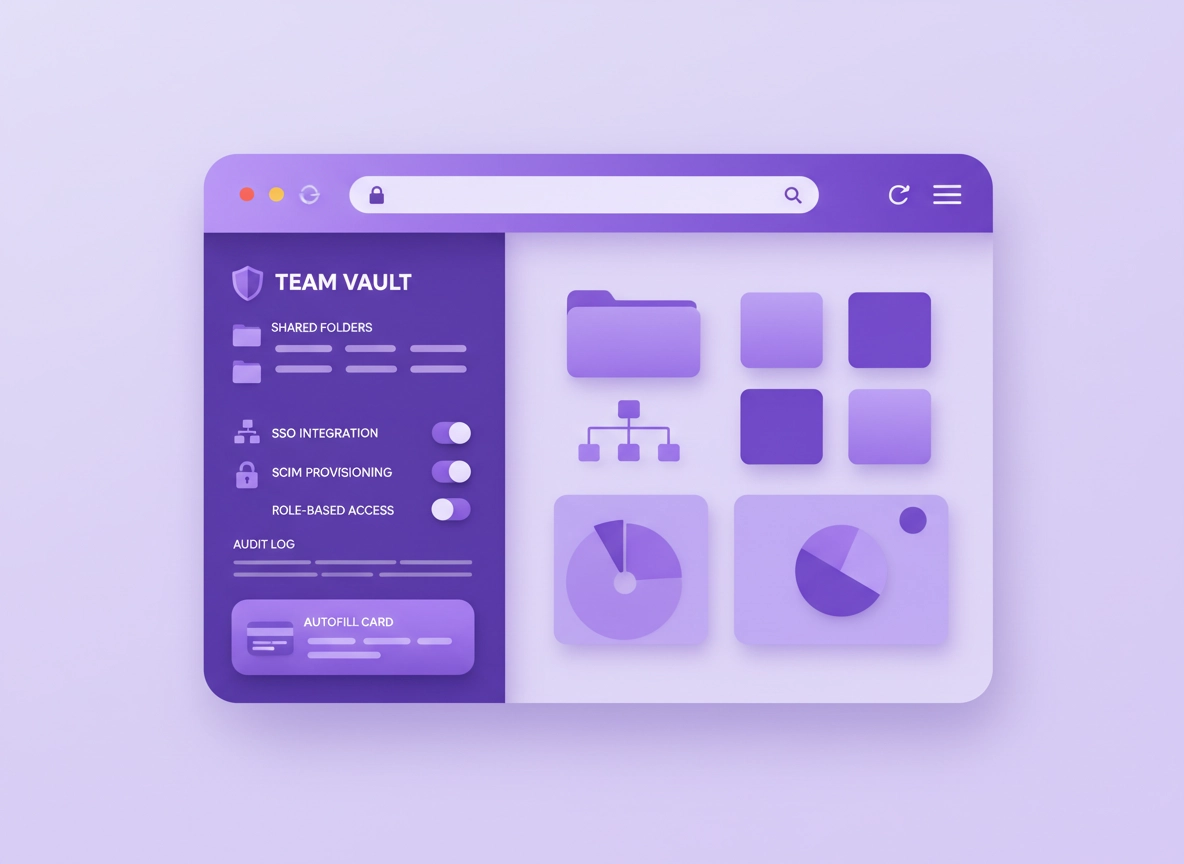
Chrome matters because it’s where most credential mistakes happen: copying passwords into Slack, saving passwords in the browser when you shouldn’t, approving risky extensions, or logging into SaaS tools from unmanaged devices. A good business password manager makes Chrome safer by putting the right controls between “user convenience” and “company risk”. Think: team vaults, role-based access, SSO, SCIM provisioning, audit logs, and predictable recovery rules.
Another reason this topic is high-intent: in business, password managers sit next to identity providers (Okta/Azure AD/Google Workspace), endpoint management (MDM), and compliance requirements (SOC 2, HIPAA, GDPR). Picking “the best” isn’t about one magic feature. It’s about: reducing account takeover risk, making offboarding instant, and preventing credential sprawl across Chrome, devices, and people.
Related: If you want the broader “all users” view first, start here: Best Password Manager for Chrome. If you’re comparing Chrome’s built-in option vs dedicated tools, see Chrome Password Manager vs Third-Party.
Key terms (quick definitions) .
- Team vault / shared vault: A shared space where credentials belong to the business (not an individual) and access is controlled by roles/groups.
- RBAC (Role-Based Access Control): Permissions based on job role (e.g., Marketing, Sales Ops, Finance) instead of ad-hoc sharing.
- SSO (Single Sign-On): Login to the password manager using your identity provider (Google Workspace, Microsoft, Okta, etc.).
- SCIM provisioning: Automated user lifecycle management—create, disable, and group users automatically based on your directory.
- Audit logs: Records of actions (logins, vault access, sharing changes, exports, policy changes) for compliance and incident response.
- Zero-knowledge encryption (common design): Vendor can’t read your vault contents because encryption happens client-side; access is controlled by keys.
- Secrets management (adjacent): Storing API keys, tokens, and credentials for apps/CI—not just human logins.
Before you start (fast checks & requirements) .
Before you compare brands, align on the business outcome. Most teams buy a password manager because “security”, then fail because of workflow friction. The fix is to define requirements that match how your team actually works in Chrome.
Fast checks: what you should decide in 10 minutes .
- Who owns the vault? (The company should. Avoid models where “the admin” personally owns everything.)
- How do users sign in? (SSO or email + master password; SSO is usually better for business control.)
- How will you share credentials? (Shared vaults/folders, not messages or “send password” links.)
- How will you offboard someone? (Disable in IdP, remove from groups, verify shared vault access is revoked.)
- What devices are allowed? (Managed endpoints only? BYOD? Contractors?)
- What is your risk tolerance? (Do you need strict policies like clipboard limits, export controls, device trust, IP allowlists?)
Related: Business security often starts in the browser. If you’re managing Chrome at scale, see Chrome Enterprise Guide and the Chrome Corporate Security Guide.
Your “must-have” business feature shortlist .
If you’re short on time, use this as your minimum bar. These are the features that prevent the most common “business password manager failures”.
- Shared vaults/folders with granular permissions (view/edit/share/manage) and group-based access.
- Admin console with policy enforcement (MFA required, recovery rules, session timeouts, device approvals).
- SSO + SCIM or at least directory integration (so you can automate onboarding/offboarding).
- Audit logs and exportable reports (access events, admin changes, security events).
- Secure sharing that does not reveal the password in plaintext to end users.
- Emergency access / break glass designed for businesses (controlled, logged, time-bound).
- Browser extension that is stable in Chrome and supports autofill in complex enterprise login flows.
Nice-to-have features that are often worth paying for .
- Device trust / managed device requirement (block sign-in from unknown endpoints).
- Secrets storage for teams (API keys, SSH keys, secure notes) with permissions and audit trails.
- Passkeys support (where supported) to reduce reliance on passwords for key apps.
- Integration ecosystem (SIEM, ticketing, identity governance, DLP tools).
- Link sharing with controls (expire after X time, require sign-in, disable forwarding).
Business risk reality check (why “Chrome saved it” is not enough) .
Chrome’s built-in password manager is convenient for individuals, but businesses usually need more: centralized ownership, forced MFA policies, stronger recovery controls, and access tied to roles—plus logs. If your team is already using Chrome’s built-in manager, it’s a good moment to read: Chrome Built-in Password Manager Review and Chrome Password Manager Limitations.
Step-by-step: how to choose + deploy in Chrome .
This section is written like a rollout plan. Even if you’re not “IT”, follow it and you’ll avoid 90% of business password manager mistakes. The goal is simple: stop risky sharing, reduce support load, and make access predictable.
- 1 Write your access model first. List your teams (Marketing, Sales, Support, Finance, Dev) and the shared systems they use. Decide which logins belong in a shared vault.
- 2 Pick authentication strategy. Prefer SSO + MFA for businesses; decide how you’ll handle contractors, break-glass admins, and recovery.
- 3 Shortlist 2–3 vendors. Filter by must-haves: shared vaults, admin policies, audit logs, directory integration, Chrome extension quality.
- 4 Run a pilot with real workflows. Test the Chrome extension on your real SaaS logins (Google Workspace, banking portals, CRMs, support tools). Measure friction and support tickets.
- 5 Deploy via policy (recommended). If you have managed Chrome devices, push the extension and enforce settings with enterprise policies. Don’t rely on “everyone install it”.
- 6 Move from “sharing passwords” to “sharing access”. Create shared folders/vaults per team and assign groups/roles. Block ad-hoc vault sharing where possible.
- 7 Turn on reporting + alerts. Export audit logs to your security workflow (or review weekly). Alert on risky events (exports, policy changes, new devices).
- 8 Lock in offboarding. Use SCIM or a documented process so disabling a user removes access across vaults immediately—then rotate shared passwords where needed.
What “success” looks like: Users stop sending credentials in chat/email; shared access happens via vault folders; offboarding takes minutes; admins can prove what happened with logs.
Related: If your team is just starting out, compare business plans here: Business vs Personal Password Manager Plans and get a cost lens here: Password Manager ROI for Business.
How to evaluate “best for business” in a way that doesn’t waste weeks .
Business buyers often compare “features lists” and miss the real killers: sharing model, recovery model, and auditability. Use these evaluation buckets. They’re designed to be vendor-agnostic but brutally practical.
Bucket A: Access control & sharing (this is the core) .
- Can you share without revealing the password? “Access sharing” beats “password sharing”.
- Can you control sharing rights? A common risk: everyone can re-share everything.
- Do shared vaults support roles? You want “read-only”, “edit”, “manage”, and “can share” as separate controls.
- Can you segment by team/project? Agencies and startups need client/project vault boundaries.
Bucket B: Identity integration (SSO/SCIM is the multiplier) .
- SSO: Login through your identity provider; reduces password sprawl and centralizes MFA.
- SCIM: Automatic provisioning/deprovisioning and group mapping—critical for offboarding.
- Conditional access: Can you require managed devices or trusted networks for admin actions?
Bucket C: Admin policy controls (the difference between “installed” and “controlled”) .
- MFA enforcement (not “optional”)
- Session timeout + re-auth for sensitive actions
- Export restrictions + vault export logging
- Recovery rules that don’t let one person “reset everything” quietly
- Device approvals / new-device alerts
Bucket D: Reporting, audit logs & incident response .
If something goes wrong (phishing, malware, stolen laptop), you need answers. At minimum: who signed in, from where, which vaults were accessed, and what was exported/changed. This is why many teams also run a browser security baseline: Chrome Security & Privacy Checklist.
Business-friendly “best fit” profiles .
Different businesses need different “best” answers. Here are practical profiles you can map to real options:
- Small business (10–50 users): Prioritize ease of deployment, shared vaults, SSO, and simple admin. Read: Password Manager for Small Business on Chrome.
- Remote teams: Prioritize secure sharing, device trust, strong recovery rules, and friendly onboarding. Read: Password Manager for Remote Teams on Chrome and Best Password Manager for Remote Work on Chrome.
- Compliance-driven orgs: Prioritize audit logs, policy enforcement, and lifecycle automation. Read: SOC 2 Compliance, HIPAA Compliance, GDPR Compliance.
- Developer-heavy teams: Prioritize secure notes/secrets, CLI/API access (where applicable), and SSO/SCIM. Read: Password Manager for Developers on Chrome and Password Manager API Integration.
Common variations .
- Windows / ChromeOS: Best for policy-driven extension deployment; great for consistent rollout and locked-down settings.
- macOS: Works well, but ensure the desktop app + browser extension pairing is smooth for your users (especially with keychain prompts).
- Android / iPhone: Chrome autofill competes with OS-level autofill; test mobile workflows early if your team logs in from phones.
Advanced admin controls that separate “good” from “business-grade” .
This is the section most “best of” lists skip—and it’s where business buyers should spend their attention. The Chrome extension is just the interface. The real product is the policy engine that controls access, sharing, recovery, and evidence.
Related: If you’re operating in a managed environment, you’ll also want: Chrome Enterprise Management, Chrome Enterprise Policy Templates, and Chrome Enterprise Extension Management.
1) SSO + MFA: what “secure defaults” actually look like .
In business, SSO is not only convenience—it’s control. It lets you enforce MFA, apply conditional access, and disable accounts centrally. But be careful: “SSO available” isn’t the same as “SSO required”. The best setup is:
- SSO required for users (no standalone password login unless explicitly needed)
- MFA enforced by the identity provider (ideally phishing-resistant for admins)
- Separate break-glass admins with strict rules and monitoring
- Step-up authentication for sensitive actions (export, admin policy changes, recovery approvals)
2) SCIM provisioning & lifecycle automation (the offboarding machine) .
SCIM is one of the most valuable “boring” features in business security. It automates: onboarding, group assignment, role changes, and offboarding. If you can wire your directory groups to vault access, you reduce both risk and admin time.
- Onboarding: New hire joins “Sales Ops” group → automatically gets access to Sales Ops vaults.
- Role change: Move group membership → access updates without manual vault hunting.
- Offboarding: Disable user in directory → password manager access is revoked fast and consistently.
3) RBAC design: build it like an org chart, not a wishlist .
RBAC becomes messy when teams do “one vault per app” with random owners. A better approach is: one vault per team/function + folders for systems + roles for actions. Keep it boring: fewer vaults, clear ownership, predictable naming, and limited “can share” rights.
- Owners: 1–2 trusted people per vault (not everyone).
- Editors: People who maintain credentials (rotate, update).
- Users: People who use credentials but shouldn’t change or share them.
- Auditors: People who need read-only access to logs/reports.
4) Secure sharing rules (stop “copy/paste culture”) .
The real enemy is not “weak passwords”—it’s uncontrolled sharing. You want sharing that is: authenticated, scoped, revocable, and logged. Prefer systems where users share access to a record in a shared vault, rather than sending passwords in plaintext (even temporarily).
5) Browser extension security (permissions matter) .
In Chrome, password managers live inside an extension. Extensions can be safe and well-designed, but they also have real power. As a business, you should treat a password manager extension like a privileged app: review permissions, manage updates, and deploy via policy when possible.
Related: Learn how extension permissions work here: Chrome Extension Permissions Guide and run a quick safety baseline: Chrome Extension Security Check.
Chrome rollout checklist (copy/paste for IT) .
Use this checklist to move from “we bought a tool” to “we reduced risk”.
- Policy deploy: Push the password manager extension to all managed Chrome profiles/devices.
- Disable conflicting autofill: Decide whether to disable Chrome’s built-in password saving and autofill on business profiles. (Read: Disable Chrome Password Manager.)
- Require MFA: Enforce MFA for all users, with stricter controls for admins.
- Define recovery: Document recovery paths (lost phone, new device, employee exit) and test them.
- Vault model: Create vaults per team and map directory groups to access.
- Sharing policy: Disable “anyone can share” if possible; allow sharing only via vault membership.
- Offboarding: Test a user disable flow: does access revoke immediately? Are shared credentials still safe?
- Logging: Turn on audit logs and decide who reviews them weekly.
- Training: Teach two behaviors: “use vault sharing” and “never paste passwords into chat”.
Common alternatives users compare .
- Chrome’s built-in password manager vs a dedicated business password manager
- Free plans vs business plans with admin controls
- Password managers vs SSO-only approaches (and why you often need both)
- Password managers vs secrets managers (for developer/API credential use)
Related: Pricing and plan comparisons: Password Manager Pricing Comparison, Password Manager Cost Comparison, and Password Manager Total Cost of Ownership.
“Top picks” without hype: how to shortlist vendors responsibly .
You’ll see the same names in most business shortlists (examples include 1Password, Bitwarden, Dashlane, Keeper, NordPass, and others). Rather than telling you “Brand X is the best for everyone”, here’s a smarter approach: pick the vendor that fits your identity stack and access model.
| Business need | What to prioritize | What to test in Chrome | Red flag |
|---|---|---|---|
| Fast rollout | Simple admin UI, reliable extension, easy sharing | Autofill across your top 10 SaaS apps | Users keep saving into Chrome instead |
| Strict control | SSO/SCIM, RBAC depth, export controls, device trust | New-device flow, step-up auth for exports | Weak recovery model |
| Compliance | Audit logs, reporting, admin transparency | Log evidence for vault access + admin changes | Logs are limited or unclear |
| Remote + contractors | Scoped sharing, revocation speed, least privilege | Contractor access to 1 project vault only | Sharing requires exposing passwords |
Privacy & security notes (risk, permissions, and policy defaults) .
A business password manager reduces risk by centralizing control, but it also becomes a high-value target. Your security posture depends on policy more than marketing claims. Focus on the controls you can enforce.
Impact: Affects identity security, access to SaaS systems, incident response readiness, and compliance evidence.
Related: If you suspect malware or account takeover behavior, start here: Remove Malware from Chrome and Chrome Password Leak Detection.
Recommended baseline policies (most businesses) .
- MFA required: Enforce MFA for all users; require stronger MFA for admins.
- SSO where possible: Centralize authentication and disable “shadow accounts”.
- Group-based access: Tie vault access to directory groups, not manual invites.
- Limit sharing rights: Not everyone should be able to re-share vault items.
- Export controls: Log exports; restrict exports to admins if your business risk is high.
- Device approval: Alert on new devices and require re-auth for sensitive actions.
Recommended settings by goal .
| Goal | Recommended setting | Tradeoff | Best for |
|---|---|---|---|
| Balanced | SSO + MFA, shared vault RBAC, weekly log review | Some setup work up front | Most small businesses |
| Maximum security | SSO + SCIM, device trust, export restrictions, step-up auth | More friction for edge cases | Regulated or high-risk teams |
| Compatibility | Keep policies lighter; focus on sharing controls and training | Higher reliance on user behavior | Teams with many legacy portals |
Chrome note: If you keep Chrome’s built-in password saving enabled on business profiles, users will drift back to it. If you’re serious about central control, consider disabling it (with a clear migration plan). See: Migrate from Chrome Password Manager to Third-Party.
Troubleshooting common business rollouts .
Related: If your issue is extension-related, start with Chrome Extension Risk Analysis and How to Check if a Chrome Extension is Safe.
If users keep saving passwords into Chrome .
This usually happens when Chrome’s built-in password manager still prompts to save, or when the team isn’t confident the shared vault will “just work”. Fix it in two steps: (1) set a clear rule (“company logins go in the business vault”), and (2) align browser behavior by disabling Chrome password saving on managed profiles. Guide: Disable Chrome Password Manager.
If autofill fails on specific enterprise logins .
Some enterprise portals use unusual fields, multi-step flows, or embedded frames. Your pilot should test these early. Workarounds often include: using the extension’s “fill suggestions” UI, saving multiple login variants, or creating a dedicated entry per subdomain. If the problem is widespread, compare extension options: Chrome Password Manager Comparison.
If sharing turns into a permission mess .
This is a vault design issue. Reset to a simple model: vaults by team/function, folders by system, groups by role. Remove “can share” rights from most users and require sharing via group membership. Then audit existing shares and clean them up. (If you need a dedicated page on sharing practices, see: Password Sharing Securely in Chrome.)
If offboarding is slow or unclear .
Offboarding must be deterministic: disable the user in your identity provider, confirm SCIM deprovisioning (or manual removal), then rotate passwords for any shared credentials the user had access to. If you don’t rotate shared credentials, you’re relying on “hope” that nothing was copied. For a business security angle, read: Chrome Business Security Configuration.
If you suspect compromise (phishing, malware, or stolen device) .
Do the basics fast: force sign-out, reset identity sessions, review audit logs for unusual access, revoke devices, and rotate the highest-risk credentials first (email admin, finance, HR, password manager admins). On the Chrome side, run a cleanup flow: Chrome Security Checkup and Remove Malware from Chrome.
FAQ .
-
helpIs Chrome’s built-in password manager good enough for business?For many businesses, it’s not about “good” or “bad”—it’s about control. Chrome’s built-in manager can be convenient, but businesses typically need shared vaults, granular permissions, centralized policy enforcement, audit logs, and clean offboarding. If you want business-grade controls, a dedicated manager is usually the better fit.
-
helpWhat features matter most for business teams using Chrome?Prioritize shared vaults with RBAC, SSO + MFA, SCIM provisioning (or strong directory integration), audit logs, and safe recovery. Then test the Chrome extension on your real login flows—autofill reliability and sharing workflows make or break adoption.
-
helpHow do we share passwords without exposing them?Don’t “send passwords.” Share access via a shared vault or folder where membership controls access. Limit who can re-share, log access, and revoke membership during offboarding. This is more secure and much easier to manage long-term.
-
helpWhat’s the safest way to roll out a password manager to a company?Pilot first, then deploy by policy. Use SSO + MFA, turn on lifecycle management (SCIM), and design vaults around teams and roles. Train users on one rule: business credentials live in the shared vault—not in Chrome, spreadsheets, or chat messages.
Sources & further reading .
- Google Chrome Help Center
- Google Password Manager / Passwords in Chrome (Help)
- Chrome Web Store Help (extensions)
Disclosure: Some pages may mention tools or services. Recommendations are editorial and based on practical deployment needs and security considerations.