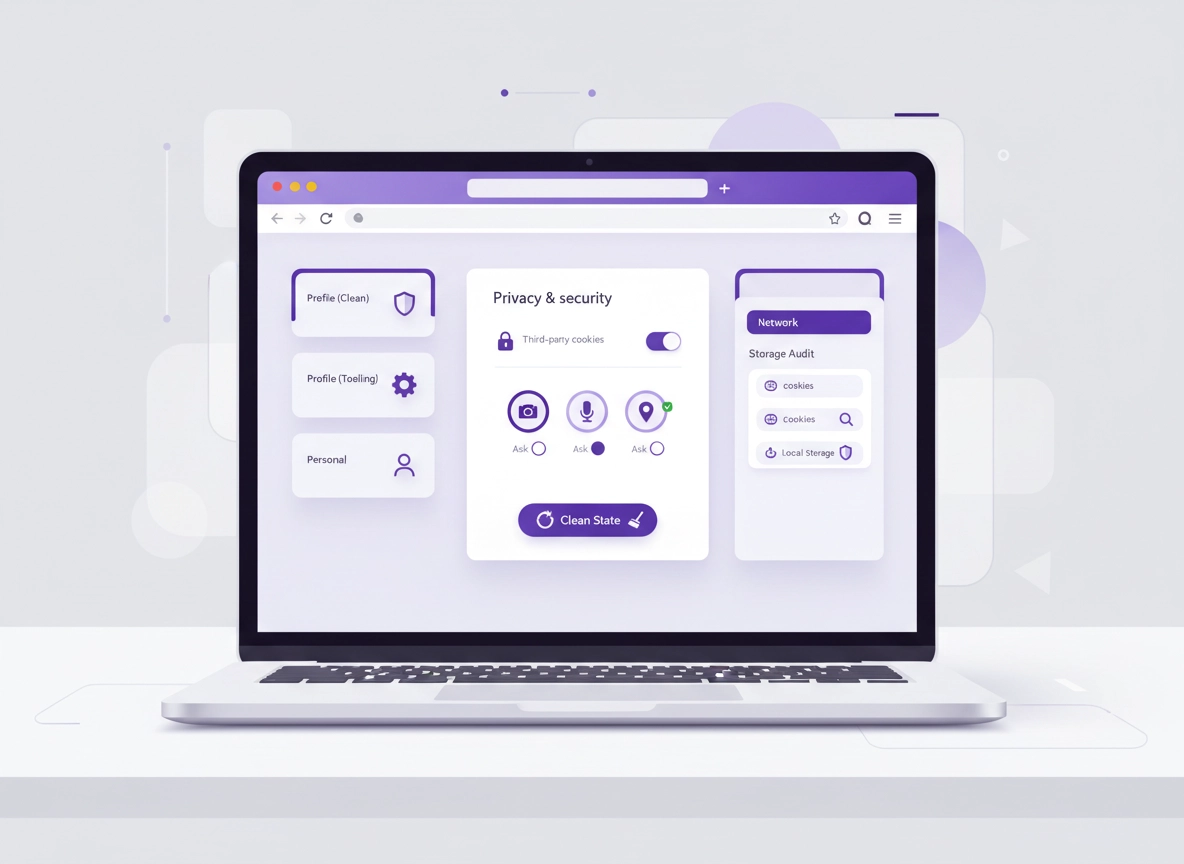
What “Chrome privacy for developers” means .
This guide focuses on modern Chrome behavior: cookie restrictions, storage partitioning patterns, permissions UX, and DevTools workflows—not legacy “just clear cookies” advice.
“Chrome privacy for developers” is less about hiding and more about controlling what your browser shares while you build, test, and debug. Developers tend to run noisy environments: dozens of tabs, multiple test accounts, local servers, staging domains, third-party analytics, embedded widgets, password managers, extension toolchains, and DevTools constantly open. That environment is convenient—and it’s also where accidental leakage happens: cross-site cookies that behave differently in production, permissions that stay allowed forever, extensions that read more than you expect, or dev machines that quietly become an analytics goldmine.
A privacy-first developer setup has three goals: (1) isolate identities (work vs personal vs test accounts), (2) make cross-site behavior explicit (especially cookies + storage), and (3) prevent your tooling from becoming your weakest link (extensions, permissions, downloads, DNS). The outcome isn’t “maximum lockdown.” The outcome is predictable testing and fewer surprises—especially when your users run stricter settings than you do.
Start here: If you want the baseline Chrome menu map first, read Chrome Privacy Settings and then come back to this developer-specific workflow.
Key terms (quick definitions) .
- First-party vs third-party: First-party is the site you’re on; third-party is embedded content/scripts from other domains (analytics, widgets, CDNs, auth providers).
- Third-party cookies: Cookies set/read by domains other than the one in the address bar—often used for cross-site tracking and certain embedded flows.
- Storage: Cookies + localStorage + sessionStorage + IndexedDB + Cache Storage + service worker data—viewable in DevTools → Application.
- Site permissions: Browser-level grants like camera/mic/location/notifications/background sync. “Allowed once” is rare; “Allowed forever” is common.
- Profiles: Separate Chrome “containers” with distinct cookies, extensions, and history. Profiles are your #1 isolation tool.
Before you start (fast checks) .
These checks prevent the two most common failures: testing in a contaminated profile and debugging with hidden helpers (extensions, cached storage, or auto-filled identities).
- Check 1: Identify your “test identities”. List the accounts you use (work SSO, staging admin, user test accounts, payment sandbox accounts). Decide which must never mix.
- Check 2: Decide your “strict mode”. Choose a strict test mode you can reproduce (restricted third-party cookies + minimal extensions + clean storage).
- Check 3: Inventory extensions. If you can’t explain what an extension does and why it needs its permissions, disable it in your Dev profile.
- Check 4: Confirm DNS and network context. Public Wi-Fi + dev credentials is a bad combo. If you travel or work remote, prioritize secure DNS and HTTPS-only behavior.
- Check 5: Snapshot what “working” looks like. Before changing anything, record a baseline: screenshots of settings, a HAR export, and the list of cookies/storage keys.
Related: If you’re actively hardening, keep this open: Chrome Hardening Guide and Chrome Security & Privacy Checklist.
Step-by-step privacy setup (recommended) .
This is a “developer baseline” that keeps your testing predictable. It’s not extreme. It’s the closest thing to “safe defaults” you can apply quickly while still supporting normal dev workflows.
- 1 Create a dedicated Chrome Dev profile. Chrome menu → your profile icon → Add. Name it “Dev (Clean)” and avoid signing it into your personal Google account.
- 2 Disable non-essential extensions in the Dev profile. Keep only what you truly need for development. Prefer fewer, audited tools over “nice-to-haves.”
- 3 Set cookie behavior for strict testing. Settings → Privacy and security → Third-party cookies / Cookies → restrict or block (then add temporary site exceptions only when required).
- 4 Review site permissions. Settings → Privacy and security → Site settings → confirm camera/mic/location/notifications are “Ask” unless you’re actively testing those flows.
- 5 Enable safer network defaults. Turn on secure DNS (DoH) if available and use HTTPS-only behavior when appropriate for your workflow.
- 6 Run a “clean start” test. Clear storage for your staging domain(s), then re-run login, embedded flows, and API calls while watching Network and Application panels.
- 7 Create a repeatable reset routine. Decide what you clear between runs (cookies + site data for staging domains, cache, service workers). Automate with a checklist.
What “success” looks like: Your app works in a clean Dev profile with restricted third-party cookies, minimal extensions, and default “Ask” permissions. If something breaks, you can pinpoint the dependency (cookie, storage, permission, or extension) instead of guessing.
Related: For the exact cookie pages and “what to change,” keep these open: Third-Party Cookies Settings, Block Third-Party Cookies, and Clear Browsing Data.
Common variations (OS + mobile) .
- Windows / ChromeOS: Profiles and policies are common in business environments. You may see settings locked by admin policies—note the “Managed by your organization” message.
- macOS: Developer workflows often include keychain prompts, certificate stores, and proxies. Keep certificates and proxies intentional—don’t leave “temporary” tools installed permanently.
- Android / iPhone: Mobile Chrome has different privacy surfaces and fewer DevTools options. Use remote debugging when needed, but do your strict storage/cookie testing on desktop first.
DevTools privacy workflow (Application + Network) .
If you only remember one rule: DevTools is a privacy tool, not just a debugging tool. You can verify what your app stores, what it sends, and what it loads—without guessing.
1) Audit storage like a security reviewer .
Open DevTools → Application. Expand the left sidebar and review each storage type. For privacy and compliance, you want to answer: What data is stored? Who can read it? How long does it live? Is it scoped correctly?
- Cookies: Look for auth/session cookies, analytics cookies, and any identifiers. Confirm
Secure,HttpOnly, and appropriateSameSitewhere relevant. - Local Storage / Session Storage: High-risk when used for tokens. Treat it as “readable by JavaScript” (including injected scripts).
- IndexedDB: Often used by frameworks and offline features. Check for cached PII, offline sync queues, and logs.
- Cache Storage: Service worker caches can hold entire API responses. Verify you’re not caching sensitive endpoints accidentally.
- Service Workers: Confirm scope and update behavior. A stale service worker can “ghost” old code and cause privacy bugs that are hard to reproduce.
2) Use Network panel to spot privacy leaks fast .
DevTools → Network shows every request. For privacy testing, focus on: unexpected third-party requests, identifier headers, cookie traffic, and referrer leakage.
- Filter by domain: if your app calls 15 third-party endpoints, you want to know why each exists.
- Check request headers: look for auth tokens, session IDs, user IDs, and device IDs (especially in query strings).
- Inspect Set-Cookie: confirm correct flags and expected lifetimes.
- Export a HAR: keep a “known good” HAR for regression testing when you change tracking or cookie behavior.
Tip: When you’re testing “does this break under stricter privacy?”, reload with cache disabled (DevTools open) and compare two HAR files: baseline vs strict mode.
3) Make “clean state” a one-click habit .
In DevTools → Application, use Clear site data (or clear storage) before sensitive tests: auth flows, payments, embedded widgets, and cross-site login. This is far more reliable than random “hard refresh” habits.
Related: If you’re optimizing dev performance while doing this, see DevTools Performance Audit and Chrome Lighthouse Performance Guide.
Extensions, permissions & supply-chain risk .
Developers install more extensions than most people: React/Angular/Vue helpers, SEO toolbars, password managers, proxy switchers, screenshot tools, AI assistants, cookie editors, automation tools, session managers, and more. The problem is simple: extensions can become your biggest privacy leak because many can read and modify data on sites you visit.
Start here: Chrome Extension Security Check and Extension Permissions Guide.
Developer-safe extension rules .
- Prefer “when clicked” permissions over “all sites, all the time.” If an extension needs wide access, treat it like a high-risk dependency.
- Separate profiles by purpose: keep a Dev (Clean) profile and a Dev (Tooling) profile if you truly need heavy extensions.
- Review host permissions: anything that can run on your staging/admin domains must be trusted like a teammate with admin access.
- Watch for permission changes after updates: re-check permissions when extensions update (especially if they suddenly ask for broader access).
- Don’t keep “temporary debugging” extensions installed once the task is done (cookie editors, header injectors, request blockers).
Related: For deep audits and risk scoring, see Extension Risk Analysis, Extension Audit Checklist, and How to Check if an Extension is Safe.
Advanced settings (power users + enterprise) .
This section is where developers and teams get the most value: settings that reduce tracking and strengthen security, while keeping your dev loop fast. The key is understanding tradeoffs. In many organizations, these settings are also shaped by enterprise policy.
Related: If you manage Chrome at work, start with Chrome Enterprise Guide and Enterprise Security Settings.
1) Secure DNS and network privacy .
DNS is a common blind spot in developer privacy. Even with HTTPS, DNS can reveal what domains you connect to. For a practical baseline, enable secure DNS where possible and keep your proxy settings intentional.
- Secure DNS (DoH): Use a trusted provider and avoid “random” DNS tools in the Dev profile unless you need them.
- Proxy hygiene: Developer proxies and intercept tools are powerful; they should be “on for a reason” and “off by default.”
Related: DNS over HTTPS Settings, Secure DNS Setup, and Network Privacy Settings.
2) Safe Browsing and download protection .
Developers download dependencies, CLIs, and binaries more than most users. Keep Safe Browsing enabled in your daily driver profile, and if you must disable protections for a specific test, do it briefly and document why.
Related: Safe Browsing Settings and Enhanced Safe Browsing.
3) Privacy Sandbox, ad privacy, and developer testing .
Even if you don’t “do ads,” your app may include third-party SDKs, analytics, or embedded content that interacts with browser privacy features. Developers should know where Chrome exposes controls and how those controls might affect measurement and embedded experiences.
- Ad privacy controls: review your browser’s ad privacy settings in your Dev profile so you know what users might toggle.
- Privacy Sandbox concepts: understand the difference between disabling tracking and disabling functionality. Test both.
- Document user-facing impacts: when strict settings break features, give clear, respectful explanations and alternatives.
Related: Ad Privacy Settings and Privacy Sandbox Explained.
4) Enterprise reality: policies can override your settings .
In managed environments, you may see settings locked by your organization (cookie rules, DNS, extensions, logging, updates). Instead of fighting it, build a developer testing plan that works within policy. This matters if you ship software into enterprises: your users may have restricted cookies, allowlisted extensions only, and strict site permissions.
Related: Start with Enterprise Chrome Privacy Settings and Enterprise Policy Templates.
Common alternatives developers compare .
- Chrome built-in privacy settings vs privacy extensions (control vs complexity)
- Chrome vs Firefox for developer privacy testing (different tracking protection models)
- Chrome vs Edge in managed organizations (policies + defaults differ)
- VPN vs Secure DNS vs Proxy tooling for network privacy
Related comparisons: Chrome vs Firefox (Privacy) · Chrome vs Edge (Privacy) · VPN vs Proxy for Chrome
Privacy & security notes (what you’re actually changing) .
Developer privacy changes usually touch four surfaces: cookies, permissions, network metadata, and extensions. Each one has real-world side effects: sign-in flows may behave differently, embedded dashboards may fail, notifications stop, or analytics looks “wrong.” The goal isn’t to avoid side effects—it’s to know exactly which dependency caused them.
Impact: Affects cookies, storage behavior, extension permissions, site permissions, and compatibility with embedded third-party components.
Related: If you suspect malicious extensions, hijacking, or weird redirects while developing, see Remove Malware from Chrome and Extension Malware Removal.
Recommended baseline settings .
- Option A (balanced): Restrict third-party cookies, keep Safe Browsing on, allow permissions “Ask,” use secure DNS.
- Option B (maximum privacy testing): Block third-party cookies, disable almost all extensions, clear site data often, use separate profiles per app.
- Option C (compatibility): Restrict cookies but add temporary exceptions for known providers during dev; remove exceptions after testing.
Recommended settings by goal .
| Goal | Recommended setting | Tradeoff | Best for |
|---|---|---|---|
| Balanced | Restrict third-party cookies + Ask permissions + minimal extensions | Some embedded flows may need exceptions | Most developers |
| Maximum privacy | Block third-party cookies + no “all sites” extensions + frequent storage clears | Higher chance of breaking legacy widgets | Privacy-sensitive testing, compliance-focused teams |
| Compatibility | Restrict cookies, add temporary site exceptions only when required | Exceptions can mask real user issues | Teams supporting enterprise/legacy integrations |
Pro move: Keep a written “privacy test matrix” for your app: strict cookies on/off, extensions minimal/tooling, clean storage vs warm cache. This turns privacy issues into reproducible bugs instead of random QA pain.
Troubleshooting .
Related: If this is a general privacy config issue (not dev-specific), see Chrome Privacy Configuration Tips.
If login breaks after restricting third-party cookies .
This usually means your auth flow relies on cross-site cookies (embedded login, third-party IdP in an iframe, or state stored on another domain). In DevTools → Network, look for failed redirects or missing cookies in response headers. Then check DevTools → Application → Cookies for which domain is expected to set the session. Fix the flow (preferred) or add a temporary dev exception while you redesign.
If an embedded widget/dashboard shows blank .
Common causes: blocked third-party cookies, blocked storage access, or a third-party script blocked by extensions. Test in your clean Dev profile with no blocker extensions first. If it works there but not elsewhere, you’ve found the dependency. If it fails in clean mode, the integration likely needs a different approach (or user-visible guidance).
If DevTools shows “it works” but users report privacy issues .
You might be testing in a “warm” profile (existing cookies/storage) or with hidden exceptions enabled. Re-test in a brand-new Dev profile, with storage cleared, and strict cookie rules enabled. Compare two HAR exports. If you can’t reproduce in a clean environment, you probably won’t reliably fix it.
If you need to reset safely (without destroying your whole browser) .
Avoid the nuclear option unless necessary. First, clear site data for the affected domain(s) only (DevTools → Application). If you suspect a settings conflict, review your privacy baseline and check for extensions with broad permissions. For deeper issues, use your dedicated “Dev (Clean)” profile as the reset—profiles are the safest isolation boundary.
Related: For a structured cleanup or suspected infection, see Chrome Security Checkup, Chrome Security Reset, and Reset Chrome After Malware.
FAQ .
-
helpShould developers block third-party cookies all the time?Not necessarily. The best approach is to maintain a strict testing mode (restricted or blocked third-party cookies) and a separate profile for compatibility testing. You want to reproduce what privacy-conscious users experience, but you also need a practical workflow.
-
helpIs Incognito good enough for “clean testing”?Incognito helps, but it’s not a complete testing strategy. Many dev issues depend on permissions, extensions, and repeated flows over time. A dedicated Dev (Clean) profile gives you consistent settings and a repeatable reset routine while still isolating identities.
-
helpWhat’s the biggest privacy risk in a typical dev browser?Usually extensions with broad permissions (“read and change data on all sites”), followed by mixed identities in one profile (personal + work + admin accounts). Fix those first and most privacy issues get dramatically easier to reason about.
-
helpHow do I prove my app works under stricter privacy settings?Use a clean Dev profile, restrict third-party cookies, clear site data, and run your core flows while recording Network requests and storage. Save a “known good” HAR + storage snapshot so regressions are obvious when you change auth, analytics, or embedded integrations.
Sources & further reading .
- Google Chrome Help: clear browsing data
- Chrome Enterprise Help: allow or restrict third-party cookies
- Privacy Sandbox: cookie blocking basics
- Chrome Enterprise Policy: BlockThirdPartyCookies
- Smashing Magazine: detecting third-party cookie blocking
Disclosure: Some pages may mention tools or services. Recommendations are editorial and based on practical testing and common security principles.