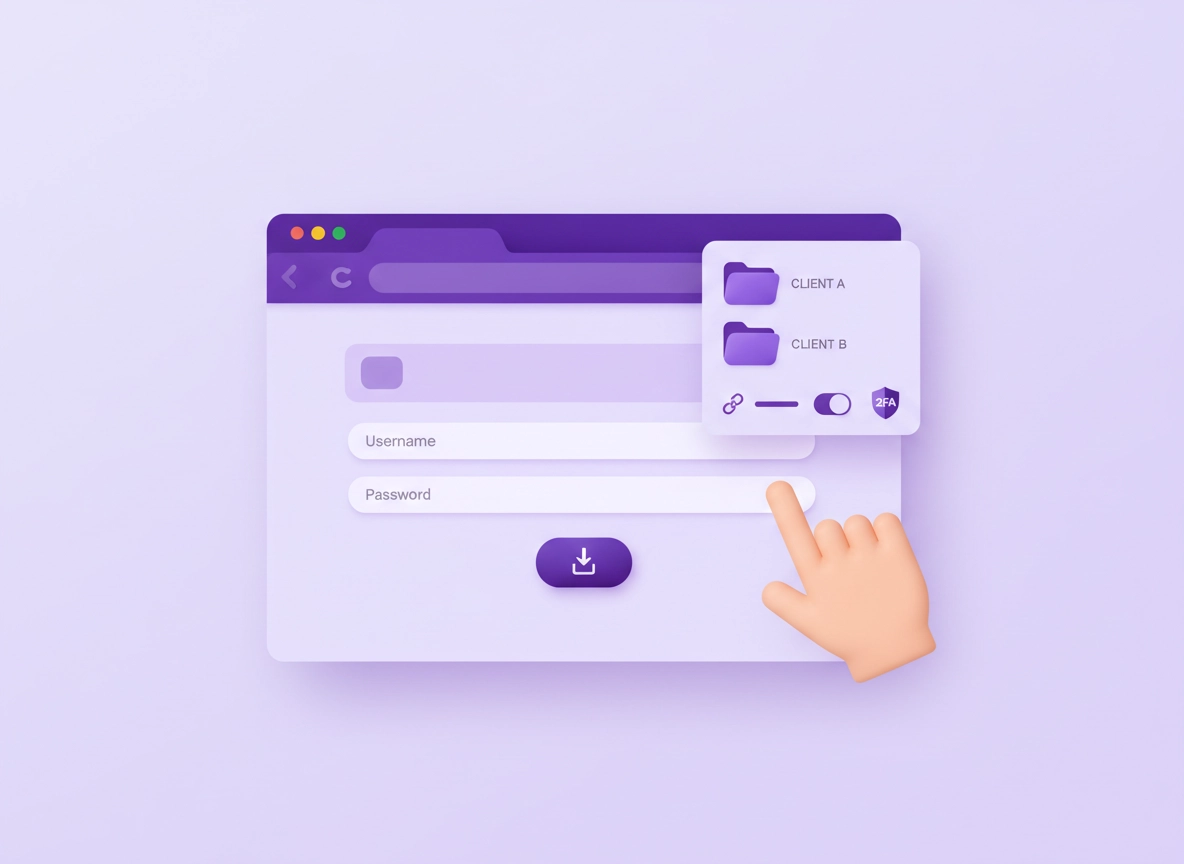
What a “freelancer-ready” password manager setup is.
If you freelance, your risk profile is different from a typical “personal user” and different from a big company—so your setup should be different too.
A freelancer-ready password manager setup in Chrome is a repeatable way to store, autofill, share, rotate, and recover access to client accounts without creating the two classic freelancer failures: (1) login sprawl (passwords scattered across browsers, sticky notes, spreadsheets, chats, and emails), and (2) accidental over-sharing (someone gets more access than they need, for longer than they need).
You’re not only securing your own accounts. You’re also holding credentials that can impact your clients’ websites, ad accounts, analytics dashboards, code repositories, CRMs, payment tools, email marketing platforms, and hosting providers. One reused password or one “quick” share can turn into weeks of cleanup, reputation damage, and a very uncomfortable client call.
The goal isn’t to make your workflow complicated. The goal is to make “secure” the default—so your normal daily routine (log in, do the work, log out) quietly reduces risk in the background. A good password manager in Chrome accomplishes that by combining: a strong vault, safe autofill, controlled sharing, breach alerts, and clean recovery.
Start here: If you’re still deciding what to use, the hub page Best Password Manager for Chrome walks through what matters for Chrome users.
Key terms (quick definitions).
- Vault: Your encrypted container for logins, notes, and sensitive items (passwords are only one item type).
- Zero-knowledge encryption: A design goal where the provider can’t read your vault contents because encryption happens client-side.
- Master password: The one password that unlocks your vault. This should be long, unique, and never reused anywhere else.
- 2FA / MFA: A second factor to confirm it’s you (authenticator app, hardware key, passkey, etc.).
- Passkeys: A modern sign-in method that can reduce phishing risk compared to passwords when supported.
- Secure sharing: Sharing access to a login without sending the password in plaintext (email/chat/DM).
- Emergency access / recovery: A controlled way to regain access if you lose your device(s) or forget the master password.
Why freelancers get hit harder than they expect.
Freelancers often work in “micro-bursts”: quick logins between meetings, switching clients multiple times per day, juggling devices, and doing urgent tasks under deadline pressure. That environment is perfect for security drift: one day you paste a password into chat “just this once,” and six months later it’s still there.
Clients want access now. If you send passwords in email or WhatsApp, you’ve created permanent plaintext history.
Some clients share one “admin” login across multiple people. That kills accountability and makes offboarding messy.
One breach can unlock multiple services if the same password shows up in more than one place.
Chrome’s built-in manager is convenient, but it’s not designed for client-grade sharing and access control.
If you want a deeper comparison of built-in vs dedicated vaults, see: Chrome password manager vs third-party and Chrome built-in password manager review.
Before you start (fast checks that prevent lockouts).
The biggest “password manager fail” isn’t choosing the wrong app. It’s creating a vault and then losing access because you didn’t set up recovery, or importing a pile of messy browser passwords and then fighting duplicates for months. Spend 10 minutes on these checks and you’ll save hours later.
Related: If you’re moving away from Chrome’s built-in manager, read: Migrate from Chrome Password Manager to third-party.
- Check your current storage: Are your credentials in Chrome, in a spreadsheet, in email threads, or in multiple browsers? Write down where the mess is.
- List your “must not lose” logins: email account, domain registrar, hosting, payment processor, main client admin portals. These are your recovery lifelines.
- Decide your sharing model: do you share with clients, with a VA/assistant, or with a small team? Your tool needs secure sharing features if “yes.”
- Pick your second factor now: authenticator app is a minimum. Hardware key or passkey support is a strong upgrade.
- Plan for device reality: if you use laptop + phone, you want multi-device sync that’s fast and reliable.
Related: If your workflow is multi-device, read: Password manager multi-device sync in Chrome.
Minimum “freelancer-safe” feature checklist.
You don’t need enterprise complexity. You do need a few features that freelancers repeatedly run into. Use this checklist before you commit.
- Chrome extension quality: fast unlock, reliable autofill, and clear controls to not fill on risky pages.
- Password generator: supports long passwords (at least 20+ chars), and ideally passphrase mode for human memorability.
- 2FA for the vault: required, not optional. If a product treats 2FA like an “add-on,” that’s a smell.
- Client organization: folders, tags, collections, or vaults—something that scales beyond “100 logins in one list.”
- Secure sharing: share an item without exposing the raw password in chat/email.
- Recovery plan: recovery codes, emergency access, or device-based recovery that doesn’t depend on “hope.”
- Breach monitoring / health checks: alerts when a stored login appears in known breaches or is weak/reused.
If you want a feature-by-feature breakdown, see: Password manager security features comparison and Password health checks in Chrome.
Step-by-step: the recommended freelancer setup in Chrome.
The steps below are vendor-neutral on purpose. Most reputable password managers follow the same “shape”: create account → install extension → lock down the vault → import existing logins → organize by client → enable safe sharing → test recovery. The key is doing it in an order that avoids lockouts and avoids importing chaos.
- 1 Choose your vault model: one vault with client folders or multiple vaults/collections.
- 2 Create a master password: use a long passphrase you can type correctly under pressure.
- 3 Turn on 2FA for the vault account and save recovery codes safely.
- 4 Install the Chrome extension (and mobile app if you use your phone for client logins).
- 5 Import your existing Chrome passwords and immediately clean duplicates and weak entries.
- 6 Create a per-client structure (folders/tags), then move logins into the right buckets.
- 7 Configure autofill safely: disable auto-fill on page load, require a click for sensitive accounts.
- 8 Use secure sharing for handovers; never send passwords in email/chat again.
- 9 Run a password health check + breach monitoring scan; rotate high-risk logins first.
- 10 Test recovery end-to-end: new device login, extension re-auth, and emergency access.
What “success” looks like: You can open Chrome on a fresh device, unlock your vault with 2FA, autofill reliably, and find any client login in under 5 seconds. If a project ends, you can revoke shared access instantly without hunting through old messages.
Related: If you need help with the extension side specifically, see: Password manager extension for Chrome and Password autofill Chrome extension guide.
Step 1: Pick a vault model that matches your client reality.
Freelancers typically pick one of these patterns. There is no perfect model—only the one that makes mistakes less likely.
- Model A: One vault + client folders/tags (simplest). Best if you work solo and rarely share credentials.
- Model B: Collections/vaults per client (cleanest separation). Best if you share access, or if you juggle many clients long-term.
- Model C: “Personal” + “Work” split (baseline). Best if you want a clear boundary between your life and client assets.
Step 2: Create a master password you can actually use.
Your master password should be long, unique, and typed correctly even when you’re tired. A good approach is a passphrase: multiple unrelated words with punctuation or spacing rules that you can reproduce.
Practical approach: Use 4–6 random words + a pattern you remember.
Example pattern idea (don’t copy): Word-Word-Word-Word!Year.
The important part is uniqueness and length—never reuse a password you’ve used anywhere else.
If typing is a pain, that’s not a reason to weaken it. It’s a reason to make a passphrase you can type reliably. You can also reduce typing frequency by using device unlock (biometrics) where supported, while keeping the real master password strong.
Step 3: Enable 2FA and store recovery correctly.
For freelancers, 2FA is non-negotiable. Your vault is a single point of failure, and attackers know it. Choose a second factor you can maintain long-term:
- Good: authenticator app (TOTP) on your phone.
- Better: hardware security key (best for phishing resistance) or passkeys where supported.
- Avoid: SMS-only if possible (it’s better than nothing, but it’s not ideal for high-value accounts).
If you want to go deeper on stronger factors, also see: Password manager hardware key support.
Step 4: Install the Chrome extension and do a safe baseline configuration.
Install your password manager’s official Chrome extension, then open its settings and apply these freelancer-friendly defaults:
- Require user action to fill: turn off “autofill automatically” for sensitive accounts (email, banking, domain registrar).
- Lock the vault when idle: set a reasonable auto-lock timer (shorter on shared or travel laptops).
- Disable “save passwords” prompts in Chrome: avoid having two systems fighting each other.
- Require re-auth for risky actions: viewing a password, exporting, or changing security settings.
Related: Want to understand Chrome’s side of the equation? See Chrome password storage security and Chrome autofill security settings.
Step 5: Import from Chrome… then immediately clean.
Importing is where most people accidentally create long-term mess. You want a clean migration, not a bigger pile. The safest path is:
- Export from Chrome securely (only as long as it takes to import).
- Import into your password manager.
- Delete the exported file (and empty your recycle bin/trash).
- Deduplicate + fix weak entries immediately, while everything is fresh.
Important: Export files are usually plaintext. Treat them like cash on the sidewalk. Don’t leave them on your desktop “for later.”
Step-by-step migration guides: Export passwords from Chrome securely and Import passwords into Chrome securely (useful in reverse too when you’re validating).
Step 6: Create your per-client structure (the part that saves you later).
A freelancer password manager is basically a client access map. Build structure once, then reuse it for every new project. Here’s a simple structure that scales well:
| Client folder | Suggested sub-tags / sections | What goes there | Why it matters |
|---|---|---|---|
| Client A | Admin, Marketing, Finance, Dev | Hosting, CMS, analytics, ad accounts, repos | Reduces accidental cross-client edits |
| Client A → Handover | Temporary, Time-limited | Items you will transfer to the client | Makes offboarding clean and auditable |
| Client A → Shared | Shared-with-client | Items shared via secure sharing | Centralizes what you’ve granted access to |
| Your Business | Billing, Tax, Tools | Invoicing, domain, email, SaaS subscriptions | Protects your own business lifelines |
Freelancer UX hack: Prefix client folders consistently:
C - Acme Co, C - Bluebird Studio.
This keeps everything grouped alphabetically and makes search predictable.
Step 7: Make autofill safe (fast without being reckless).
Autofill is where speed and risk collide. The goal is “one click and done,” not “fill anything everywhere.” Here’s how to keep it safe:
- Match URLs strictly for admin logins: save the exact domain for hosting, registrar, payment tools, and email.
- Watch for lookalikes: if a page feels off, don’t fill. Phishing relies on urgency and similarity.
- Use manual fill shortcuts: most extensions let you trigger fill from the toolbar—faster than copy/paste.
- Don’t store secrets in “notes apps” as a workaround: use secure notes inside the vault instead.
Related: Password manager secure notes feature.
Step 8: Replace “send the password” with secure sharing.
Freelancers often share credentials during onboarding, approvals, and handovers. The secure alternative is to share access through the password manager so the password itself isn’t exposed in plaintext. When possible, go one level better: create a dedicated user account for the client in the service (least privilege).
- Create individual accounts (best accountability).
- Use role-based access (admin vs editor vs billing).
- Share via password manager (when you must share a login).
- Last resort: temporary password sent out-of-band, rotated immediately after use.
Deep dive: Password sharing securely in Chrome and Password manager team collaboration.
Step 9: Run a health check and rotate the worst passwords first.
Don’t try to “fix everything” in one sitting. Rotate in priority order: email, domain registrar, hosting, payment processor, main client admin accounts, then everything else. Use your password manager’s health check to identify weak/reused passwords.
Related: Password manager password health check, Dark web monitoring, and Password breach monitoring.
Step 10: Test recovery (a freelancer’s “insurance policy”).
You don’t want to discover recovery problems during a deadline or travel day. Do a simple controlled test:
- New device test: sign in on a second browser profile or another device and confirm 2FA works.
- Extension re-auth: lock the vault, then unlock again—ensure it’s stable and not glitchy.
- Recovery code test: verify that your recovery codes are readable and accessible (don’t actually burn them unless your tool requires it).
- Emergency access: if supported, configure a trusted person/device and validate the waiting period rules.
If you want a recovery-focused guide, see: Password manager recovery options and Password manager emergency access.
Common variations (Windows, macOS, Android/iPhone).
- Windows / ChromeOS: Use OS-level device encryption (BitLocker / ChromeOS encryption) and a strong device login. Auto-lock your vault when you step away.
- macOS: Confirm your password manager integrates cleanly with system keychain prompts (don’t double-save). Use Touch ID if supported for quick unlock.
- Android / iPhone: Enable biometric unlock, but keep the master password strong. Confirm autofill settings are enabled at OS level so you’re not copy/pasting.
Advanced: client sharing, emergency access, and clean handovers.
This section is where freelancers get “enterprise-grade outcomes” without enterprise overhead: you’ll reduce the cost of mistakes, speed up onboarding, and make offboarding predictable. The core mindset shift is simple: Stop thinking in passwords. Start thinking in access.
Related: If you’re working with small teams or subcontractors, also read: Password manager for small business and Password manager for remote teams.
Client onboarding: the “clean start” workflow.
When you start a new client, you typically receive: (1) existing logins, (2) access invites, and (3) “temporary” passwords that become permanent. Here’s a clean approach that keeps you sane:
- Create the client folder/collection first before saving any items.
- Prefer invite-based access (Google Workspace, analytics, ads accounts, Git repos) so you don’t share a password at all.
- If you must store a shared admin login, label it clearly:
Shared Admin (Client). - Document ownership in secure notes: who created it, who should own it after handover, and where billing lives.
- Rotate to unique passwords once you’re stable—especially for hosting/registrar and WordPress admin accounts.
Client offboarding: remove access without drama.
When a project ends, the risk often increases (old logins remain active; shared passwords never change). Your offboarding checklist should be predictable:
- Revoke sharing: remove shared access to items in your password manager.
- Transfer ownership: ensure the client owns the account and billing (especially domains and hosting).
- Rotate shared credentials: if a password was shared, it should change after offboarding.
- Export an access handover list: not passwords—just what accounts exist and who owns them.
- Archive the client folder: keep minimal records if needed for legal/tax, but don’t keep unnecessary access.
Helpful context: Business vs personal plans (some plans make sharing/offboarding far easier).
Emergency access: protect yourself from “single-device failure”.
Freelancers travel, work from cafés, switch laptops, and occasionally have hardware problems. If your vault is only accessible from one device, you’ve created a fragility. Use the recovery tools your provider offers, but apply freelancer common sense:
- Keep two recovery paths: for example, authenticator + backup codes, or two hardware keys.
- Separate storage locations: don’t store the keys to the kingdom next to the kingdom.
- Test once per quarter: a 3-minute check prevents 3-day disasters.
Related guides: Emergency access and Master password security.
Common alternatives freelancers compare.
- Chrome built-in password manager vs a dedicated password manager vault
- Free plans vs paid plans (sharing and recovery are usually the deal-breakers)
- Passwords vs passkeys for client platforms that support them
- Manual sharing (email/chat) vs secure sharing inside the vault
See also: Free vs paid password manager comparison, Password manager pricing comparison, and Trial vs free plan.
Privacy & security notes (what actually reduces risk).
Security advice gets noisy fast. Here’s the freelancer-relevant truth: the biggest risk reducers are unique passwords, strong vault protection (2FA), and controlled sharing/offboarding. Everything else is a bonus.
Impact: Improves breach resistance, reduces password reuse, and creates a single place to manage client access. Misconfiguration can cause lockouts—so recovery matters.
Related: If you suspect malware, account takeover, or browser hijacking, start here: Remove Malware from Chrome.
Recommended baseline settings (freelancer edition).
- Vault security: strong master passphrase + 2FA + device lock + recovery codes stored safely.
- Autofill safety: require a click to fill for critical accounts; strict URL matching for admin portals.
- Sharing rules: share items, not entire vaults; prefer invite-based access in the client platform whenever possible.
- Monitoring: enable health checks and breach alerts; rotate high-risk logins first.
Recommended settings by goal.
| Goal | Recommended setting | Tradeoff | Best for |
|---|---|---|---|
| Balanced | 2FA on vault + click-to-fill for admin accounts + per-client folders | One extra click for sensitive logins | Most freelancers |
| Maximum security | Hardware key or passkeys + short auto-lock + strict URL matching everywhere | More “friction” if you context-switch constantly | High-value accounts, finance-heavy work |
| Maximum speed | Long auto-lock + autofill enabled for low-risk sites + strong monitoring | Higher risk if you use shared devices or travel often | Solo work on a trusted laptop |
Freelancer “do not do this” list.
- Don’t keep client passwords in email, chat, or project management comments “just for convenience.”
- Don’t reuse the same password across multiple client tools (even “temporary” ones).
- Don’t keep a plaintext export file on your computer after migration.
- Don’t share your own vault login with a client—use proper sharing features or separate accounts.
- Don’t ignore breach alerts for “unimportant” accounts; attackers pivot from small accounts into bigger ones.
Useful reads: Are password managers safe for Chrome?, Password manager hacking risks, Chrome password manager security risks.
Troubleshooting (autofill, duplicates, imports, and “who changed this?”).
Related: If extensions are acting weird or you’re unsure what’s safe, read: Chrome extension security check.
If autofill stops working on a client site.
This usually happens because the site changed its login form (new fields, embedded iframes, single sign-on redirects), or your vault has multiple entries for the same domain and the extension is unsure which one is correct. Fix in this order:
- Search your vault for duplicates for that domain; archive old ones.
- Verify the saved URL matches the real login domain (admin portals often use subdomains).
- Try “fill from extension” instead of relying on inline prompts.
- Check extension permissions (site access might be blocked on that domain).
If importing from Chrome creates duplicates or messy names.
Chrome often stores credentials with inconsistent naming (sometimes “accounts.google.com,” sometimes “Google,” sometimes a random page title). The fix is to clean systematically:
- Sort by domain and merge duplicates into one “canonical” login item per site.
- Rename consistently (e.g., “Client A – Hosting,” “Client A – WordPress Admin”).
- Use tags/folders to prevent future confusion.
- Rotate weak passwords as you clean; don’t just re-store old risk.
If Chrome keeps offering to save passwords (and you don’t want it to).
This is a common “two managers at once” problem. The clean approach is to disable Chrome’s save prompts so the dedicated manager stays the source of truth. You can also review Chrome’s saved passwords and remove what you’ve migrated.
Helpful guides: Disable Chrome password manager and How to use a password manager in Chrome.
If you’re worried a device is compromised.
If you suspect malware, don’t “just change passwords” first—because an active attacker can capture them again. Prioritize: clean the device, update Chrome, review extensions, then rotate critical passwords.
Start here: Chrome infected with malware: what to do, How to scan Chrome for malware, Remove unwanted extensions.
If you got locked out (master password, 2FA, or recovery confusion).
Lockouts are usually caused by one of three things: wrong master password, lost second factor, or missing recovery options. Work through it calmly:
- Try from a logged-in device first (desktop app or mobile) if you still have one session active.
- Use recovery codes if 2FA is the barrier.
- Check emergency access rules (waiting periods are common).
- After recovery: add a second backup factor so it doesn’t happen again.
Related: Recovery options.
FAQ.
-
helpIs Chrome’s built-in password manager good enough for freelancers?It can be “good enough” for personal use, but freelancers usually need secure sharing, per-client organization, and cleaner offboarding. A dedicated password manager is built for those workflows and helps you avoid plaintext sharing in messages and email.
-
helpHow should I share passwords with clients without sending them in email?Prefer invite-based access inside the client platform (separate user accounts and roles). If a shared login is unavoidable, use your password manager’s secure sharing feature so you share access without exposing the password in plaintext history.
-
helpWhat’s the best way to organize a vault when I have many clients?Use a consistent per-client structure: a folder/collection per client with sub-sections for Admin, Marketing, Finance, and Dev. Keep a “Handover” area for items you’ll transfer, and a “Shared” area for items currently shared.
-
helpWhat if I lose my phone and my vault uses 2FA?This is exactly why recovery planning matters. Save recovery codes safely, keep a backup factor (like a second authenticator or hardware key), and test recovery once so you know the process before an emergency.
-
helpCan a password manager slow down my Chrome workflow?A good extension should speed you up overall by removing copy/paste and reducing login friction. If it feels slow, it’s often due to duplicates, messy imports, or aggressive autofill settings—cleaning and strict URL matching usually fixes it.
Sources & further reading.
- Official Chrome Help (passwords, sync, security)
- Google Account Help (2-Step Verification & account security)
- OWASP (application security best practices)
- NIST (security guidance and risk management references)
Disclosure: This guide is educational and vendor-neutral. Some related pages may mention tools or services; recommendations are editorial and based on practical use cases.