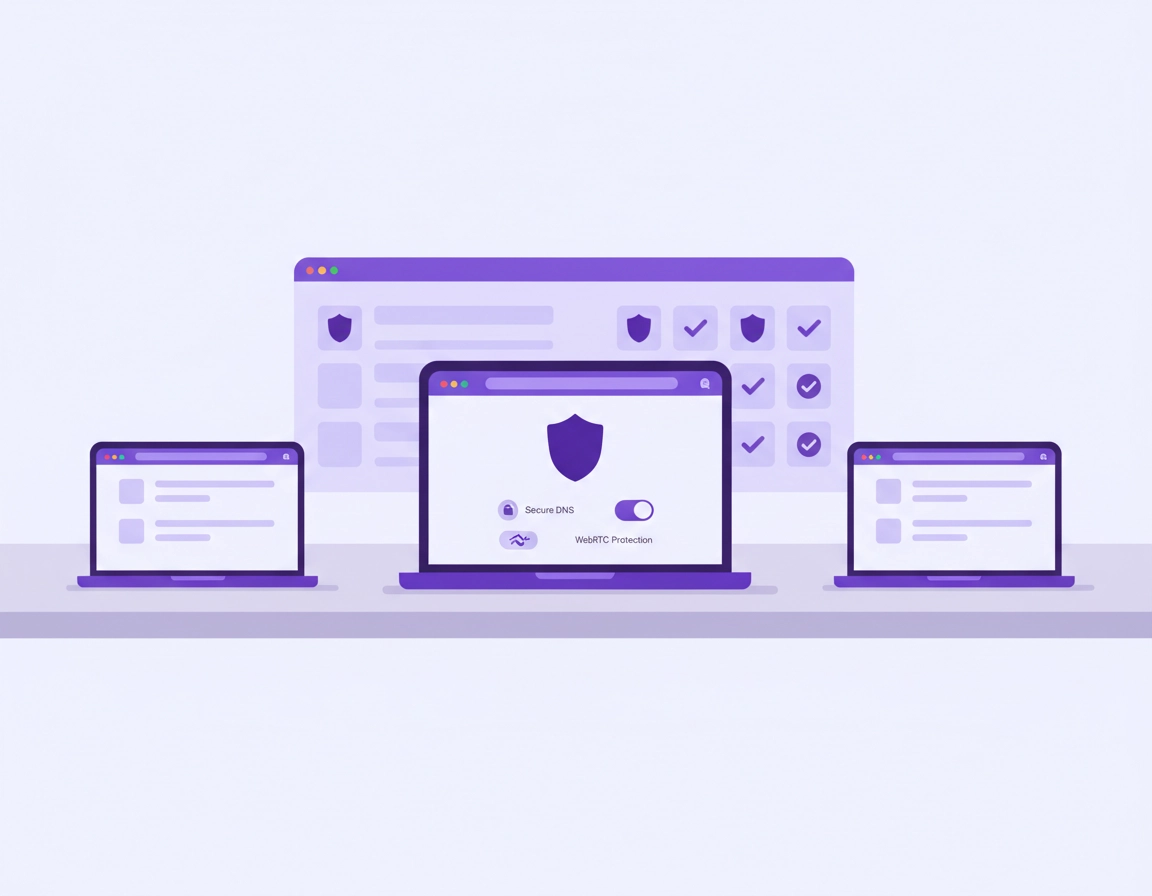
What a “startup VPN for Chrome” really means .
A VPN is not a magic “security switch.” For startups, the value comes from using it in the places where risk is real: logins, admin consoles, new devices, public Wi-Fi, and sensitive browsing sessions (banking, payroll, CRM, cloud dashboards).
When people say “VPN for Chrome,” they usually mean one of three setups: a VPN browser extension, a VPN desktop app that protects all traffic (including Chrome), or a business/enterprise VPN with central management and policy controls. Startups often mix these without a plan: someone installs an extension, someone uses a desktop app, someone uses neither, and nobody checks whether DNS and WebRTC are leaking. The result is inconsistent protection, hard-to-debug issues, and “security theater.”
A startup-grade approach is simpler: pick one consistent baseline that covers most real-world risk, then add a small set of rules that make it repeatable for new hires. In practice, that baseline is usually a reputable paid VPN with: strong encryption, modern protocols, DNS leak protection, WebRTC controls, and (if possible) SSO or team management so access can be revoked when someone leaves.
Start here (hub): If you want a broader shortlist and selection criteria, see Best VPN for Chrome. For a pure extension breakdown, use Chrome VPN Extension Comparison.
Key terms (quick definitions) .
- VPN extension: A Chrome add-on that routes browser traffic through a VPN (often easier to deploy, but narrower protection).
- VPN app: A system-level VPN client that can protect all network traffic on the device (Chrome + everything else).
- Kill switch: A safety feature that blocks traffic if the VPN drops, preventing accidental exposure.
- Dedicated IP: A fixed VPN IP address you can assign to a team (useful for allowlisting admin tools).
- DNS leak: When DNS lookups go outside the VPN tunnel, revealing browsing metadata even if content is encrypted.
- WebRTC leak: When real IP information can be exposed through WebRTC connection features unless handled correctly.
- Split tunneling: Sending some traffic through the VPN while excluding specific apps/sites for speed or compatibility.
Why startups are a special case .
Startups move quickly and change tools frequently. Your “browser perimeter” is basically your company: dashboards for cloud, billing, code, analytics, customer support, and internal docs. That makes Chrome security high impact—but also easy to overcomplicate.
Related: If your biggest risk is extension sprawl, build a policy baseline with Chrome Extension Security Check and the practical guide to permissions at Chrome Extension Permissions Guide.
Before you start (fast checks) .
These checks prevent 80% of “VPN is broken” support threads—especially in startups where devices and networks vary. Do them once, document your baseline, and onboarding becomes boring (boring is good).
- Confirm you’re not confusing VPN vs proxy: A proxy is not a VPN and usually doesn’t encrypt all traffic. If you’re trying to solve IP/location issues only, read VPN vs Proxy for Chrome.
- Decide your rollout model: “Extension only” is fast. “App + extension” is safer and more consistent. If you’re not sure, this guide will default to app + extension.
- Pick your minimum features: Kill switch, DNS leak protection, modern protocols, clear privacy policy/no-logs posture, and business-friendly account management. If you’re cost-sensitive, compare free vs paid VPN.
- Set expectations about performance: VPNs can add latency. For Chrome-heavy teams, measure the impact with VPN Chrome Performance Test and optimize with speed optimization tips.
- Know your “must-work” sites: Banking, payroll, CRM, cloud dashboards, dev tools, and video calls. These are the first places split tunneling (or location selection) matters.
Related: If Chrome feels slow while troubleshooting, see Speed Up Google Chrome or the step-by-step fix slow Chrome guide.
A fast “is this worth it?” checklist .
If you answer “yes” to any of these, a VPN baseline is usually worth implementing:
- Your team logs into cloud/admin dashboards from public Wi-Fi or shared networks.
- You have contractors or BYOD devices accessing internal tools.
- You need predictable access controls for admin tools (IP allowlists, dedicated IP, or consistent geography).
- You’re preparing for SOC 2 / HIPAA / GDPR conversations and want a cleaner security story.
- You’ve had at least one “we think an account was compromised” incident.
Step-by-step: recommended startup baseline .
This is the baseline I recommend for most early-stage teams because it balances security with practicality: VPN app on devices (always-on capability) + VPN extension in Chrome (browser control, testing locations, and per-site behavior). If you want “extension only,” you can still follow the same logic—just expect narrower coverage.
- 1 Pick the VPN type you’re deploying: decide between extension, app, or both. For startups, “both” is the best default if the VPN supports it.
- 2 Install the VPN app first on each device (Windows/macOS). Enable “launch on startup” and “auto-connect” (wording varies by provider).
- 3 Turn on kill switch (or “network lock”). If your VPN offers app-level kill switch modes, choose the strict option for work devices.
- 4 Enable DNS leak protection inside the VPN app settings. (Many providers expose this as “use VPN DNS,” “prevent DNS leaks,” or “secure DNS.”)
- 5 Install the VPN extension in Chrome only from the official Chrome Web Store listing provided by your VPN vendor.
- 6 Limit extension permissions where possible: avoid unnecessary “Read and change all your data” permissions unless required. If your team uses many extensions, create an allowlist policy early.
- 7 Fix WebRTC exposure if needed: confirm whether your VPN handles WebRTC properly. If not, apply a WebRTC mitigation or policy (details below).
- 8 Verify you’re protected by running: IP check (location), DNS leak test, and WebRTC test. Document what “healthy” looks like for your team.
- 9 Create a 1-page onboarding checklist for new hires: install app, sign in, auto-connect, kill switch, and approved extensions only.
What “success” looks like: When the VPN is connected, your browser shows the VPN IP/location you selected, DNS checks don’t show ISP resolvers, and WebRTC tests don’t reveal your real network interface details. If the VPN disconnects, traffic is blocked (kill switch), not silently “falling back” to your ISP.
Related: If you want a deeper checklist, use VPN Chrome Security Audit and the practical leak tests: DNS leak test · WebRTC leak fix · IP leak protection.
Extension vs app vs “both” (what startups should choose) .
extension Extension only
Best for: quick browser-only protection, travel, marketing tests, lightweight teams.
Watchouts: doesn’t protect non-browser apps; can be affected by extension permissions and Chrome profile issues.
Next: compare options at VPN extension comparison.
laptop App only
Best for: consistent full-device protection; fewer “Chrome-only” edge cases.
Watchouts: users want per-site control; some teams need split tunneling or multiple locations.
Next: if you’re deciding, read Chrome vs desktop VPN.
shield App + extension
Best for: startups (recommended). App provides baseline; extension provides browser control.
Watchouts: keep settings consistent; document which one to use for what.
Next: set policies & hardening below (this page).
Common variations (OS + device) .
- Windows / ChromeOS: Many VPN apps integrate well. If you use ChromeOS devices, prefer providers with strong ChromeOS support and clear DNS behavior.
- macOS: If you use iCloud Private Relay or other network privacy features, confirm how it interacts with your VPN (in some cases you’ll choose one).
- Android / iPhone: VPN apps are usually better than extensions. Focus on “always-on VPN” (when available) and stable reconnect behavior.
Related: If your team is mostly remote, this connects directly to your security posture: VPN for Chrome Remote Workers and VPN for Chrome Remote Work Security.
Advanced: policies, access control, and hardening .
This is the part most startup guides skip: the “boring controls” that make your VPN setup scalable. You don’t need a full enterprise program to get value. You just need a few clear rules: who can install what, what happens when someone leaves, and how you prevent the common leaks and misconfigurations.
Related: If your environment is already managed (or heading that way), map this to VPN Chrome Enterprise and VPN Chrome Corporate Compliance.
1) Access control: treat VPN like an identity system .
Startups often treat VPN accounts like “shared utilities.” That’s fine until it isn’t. The moment you have contractors, interns, or anyone leaving the company, you want clean offboarding: access revoked, sessions terminated, and shared credentials avoided.
- Prefer SSO if your VPN supports it: Google Workspace / Microsoft Entra ID sign-in is ideal because offboarding is centralized.
- Avoid shared VPN logins: shared accounts break auditing and make incident response harder.
- Use groups: create a “Default Team” baseline and a “Privileged Admin” group with stricter requirements (always-on, dedicated IP, no split tunneling for admin consoles).
- Document who needs special routing: finance tools, bank portals, and payroll can be sensitive to geolocation changes.
2) Dedicated IP (and when it’s worth paying for) .
A dedicated IP can be a huge quality-of-life improvement for startups using admin panels or allowlists. Instead of chasing shifting VPN IP ranges (and getting locked out), you can allowlist one stable IP for a small admin group.
- Best for: finance/admin dashboards, cloud consoles, password manager admin portals, and internal tools with IP allowlisting.
- Not always needed: if your apps don’t support allowlisting and you mostly need encryption on public Wi-Fi, skip it early.
- Security posture: dedicated IP is not “more private.” It’s a control feature (and sometimes a compliance feature).
Related: If you’re considering it, read VPN for Chrome with Dedicated IP and price it using VPN pricing comparison.
3) Split tunneling: speed vs security (use it deliberately) .
Split tunneling is one of the most misunderstood features. Done well, it reduces latency and fixes compatibility issues. Done badly, it creates gaps you forget about—exactly where attackers and data leaks live.
- Use split tunneling when: video calls break, large downloads are slow, or specific SaaS tools block VPN endpoints.
- Don’t use split tunneling when: a user is logging into privileged accounts, handling customer data, or doing finance tasks.
- Document exceptions: if you choose to exclude a site/app, write it down and revisit monthly.
Related: If your provider supports it, see VPN for Chrome with Split Tunneling and performance implications at VPN performance impact.
4) Chrome extension policy: control what can run in your browser .
In many startups, the biggest practical risk inside Chrome isn’t “the network”—it’s the browser itself: extensions with broad permissions, suspicious updates, and data access that nobody audits. Even a strong VPN can’t help if a risky extension can read everything in your tabs.
You don’t need to “ban all extensions.” You need an allowlist mindset: approve what’s required for work, block obvious high-risk categories, and stop random installs on day one.
- Create a simple allowlist: password manager extension, VPN extension, and a small number of productivity tools.
- Block known risk patterns: “All sites” access without reason, duplicate coupon/toolbar extensions, and tools with unclear ownership.
- Use separate profiles: one Chrome profile for work, one for personal. (It reduces cross-contamination.)
Related: Start with Chrome Extension Security Check, then implement controls with Chrome Enterprise Extension Management when you’re ready.
5) A minimal “startup security bundle” that actually works .
If you want a pragmatic security stack inside Chrome without overbuying tools, this combination is a strong baseline:
- VPN (this guide): encrypt risky networks, stabilize access control, reduce metadata leakage.
- Password manager: eliminate password reuse, enable SSO and 2FA properly, reduce phishing success.
- Browser hardening defaults: secure DNS, safe browsing, limited extension permissions, separate profiles.
Next: Pair this with Best Password Manager for Chrome and the startup-focused choice at Best Password Manager for Startups.
Common alternatives users compare .
- VPN extension vs desktop VPN (coverage vs convenience)
- VPN vs proxy (encryption vs routing)
- VPN vs private DNS (what each protects)
- VPN vs Chrome built-in security (why you often need both)
- VPN vs zero-trust browser security (when VPN isn’t the full answer)
Privacy & security notes (leaks, logs, permissions) .
This section is where the real “security value” lives. Most teams install a VPN and stop. But the difference between “we use a VPN” and “we’re actually protected” is what happens around the VPN: DNS behavior, WebRTC behavior, extension permissions, and account hygiene.
Impact: Affects IP exposure, DNS metadata leakage, remote work security, and how predictable your access is to admin tools.
Related: If you suspect infection, hijacking, or malicious extensions, use the cleanup cluster: Remove Malware from Chrome.
Recommended baseline settings (startup default) .
- VPN protocol: Use the provider’s modern default (often WireGuard or equivalent). Avoid legacy protocols unless required for compatibility.
- Kill switch: On for work devices.
- DNS leak protection: On inside the VPN settings. Then confirm via a DNS leak test.
- WebRTC handling: Confirm with a WebRTC leak test; apply mitigation if needed.
- Chrome secure DNS: Keep secure DNS on (unless managed policies disable it). This reduces downgrade risks in many networks.
- Extensions: Keep an allowlist mindset. Don’t let “random helpful tools” become a permanent attack surface.
Deep dives: No-logs policy explained · VPN encryption explained · VPN protocols compared.
Recommended settings by goal .
| Goal | Recommended setting | Tradeoff | Best for |
|---|---|---|---|
| Balanced | VPN app always-on + DNS leak protection + WebRTC verified + minimal split tunneling | Small latency increase | Most startups |
| Maximum security | Strict kill switch + no split tunneling for admin tools + dedicated IP (admins) + extension allowlist | More setup effort; some sites may challenge logins | Handling sensitive customer data |
| Compatibility | VPN on-demand + split tunnel video/streaming + region selection per app/site needs | More “gaps” if users forget to reconnect | Teams with frequent VPN-blocked services |
Chrome-specific leak traps (what to check) .
Related: For a structured baseline you can reuse, see Chrome Hardening Guide and the security & privacy checklist.
Troubleshooting .
VPN issues in startups are usually caused by a small set of patterns: blocked endpoints on certain networks, conflicting extensions, DNS behavior, or split tunneling misconfiguration. Use these fixes in order.
Related: For a full diagnostic flow, use VPN for Chrome troubleshooting guide and connection-specific fixes at connection issues fix.
If websites block you or show constant CAPTCHAs .
Some sites rate-limit or challenge popular VPN exit nodes. This is common with banking, payroll, and some SaaS providers. Fix it by switching to a different server location, trying a different protocol (if your VPN exposes the option), or using a dedicated IP for admin logins.
- Try a location closer to your actual region (lower risk scoring, better latency).
- Disable “aggressive” ad/tracker blocking features temporarily if a site breaks.
- If the site is critical, create a rule: admins use dedicated IP; everyone else uses standard VPN.
If Chrome is slow only when VPN is on .
Measure first, then optimize. VPN latency can stack with heavy extensions, high DNS latency, and poor Wi-Fi. Start by removing/pausing extensions, switching VPN server closer, and checking whether the VPN is routing DNS efficiently.
- Test with a clean Chrome profile (no extensions) to isolate extension overhead.
- Switch to the fastest nearby VPN server and re-test.
- Use the guide: speed optimization tips.
- If the device is generally slow, apply: Chrome memory usage fix.
If WebRTC/IP leaks still show your real network .
First confirm whether your VPN app claims WebRTC protection. Then verify with a WebRTC test. If you still see local/private IP information that you don’t want exposed, apply WebRTC mitigation steps.
Fix guide: VPN Chrome WebRTC leak fix and IP safety checks at IP leak protection.
If secure DNS is disabled or you can’t change it .
In managed environments (or on some devices), Chrome settings can be locked by policy. That can be good (standardization) or confusing (users think Chrome is “broken”). If you see “managed by your organization,” check whether your Chrome/Workspace policies intentionally set DNS behavior.
Related: If you’re moving into managed Chrome, see Chrome Enterprise Guide and policy setup at policy templates.
If you need to reset safely (without losing everything) .
Don’t nuke your whole environment unless you have to. A safe reset path is: create a fresh Chrome profile for work, reinstall only your approved extensions, and re-authenticate to the VPN. If you suspect malware or hijacking behavior, follow the dedicated cleanup steps.
- Start with a new profile: keep work browsing isolated.
- Reinstall only: VPN + password manager + required work tools.
- If the browser shows suspicious behavior, use: extension malware removal and the hub at remove malware from Chrome.
FAQ .
-
helpDo startups need a VPN if everything is “in the cloud”?Often, yes. Cloud tools still rely on browsers and networks, and startups commonly work from public or shared Wi-Fi. A VPN reduces risk on hostile networks and helps standardize access for remote teams. It’s most valuable for admin logins, payroll/banking, and sensitive dashboards—not for every single browsing activity.
-
helpIs a VPN extension enough, or should we use the desktop app too?For most startups, the best default is app + extension. The app gives consistent, device-wide protection and can enforce kill switch behavior. The extension is useful for browser-level control (quick toggles, location testing, and per-site behavior). If you must pick one, choose the app for broader coverage.
-
helpWhat’s the biggest mistake startups make with VPNs in Chrome?Assuming “VPN connected” means “no leaks.” DNS and WebRTC behavior still matters, and risky extensions can see data before encryption helps. The fix is simple: enable DNS leak protection, verify WebRTC behavior, and adopt an extension allowlist mindset early.
-
helpWill a VPN slow Chrome down for the team?It can, but you can usually keep performance acceptable by choosing a nearby server, using modern protocols, keeping extensions lean, and avoiding unnecessary “security add-ons” that break sites. Measure the impact and tune it— don’t guess. If the VPN is too slow, it won’t be used consistently.
Sources & further reading .
- Chrome Enterprise Policy List (official)
- Chrome policy: WebRTC IP handling (official)
- Configure ExtensionSettings policy (official)
- Manage Chrome safety & security (official)
Disclosure: Some pages may mention tools or services. Recommendations are editorial and based on testing and practical deployment considerations.