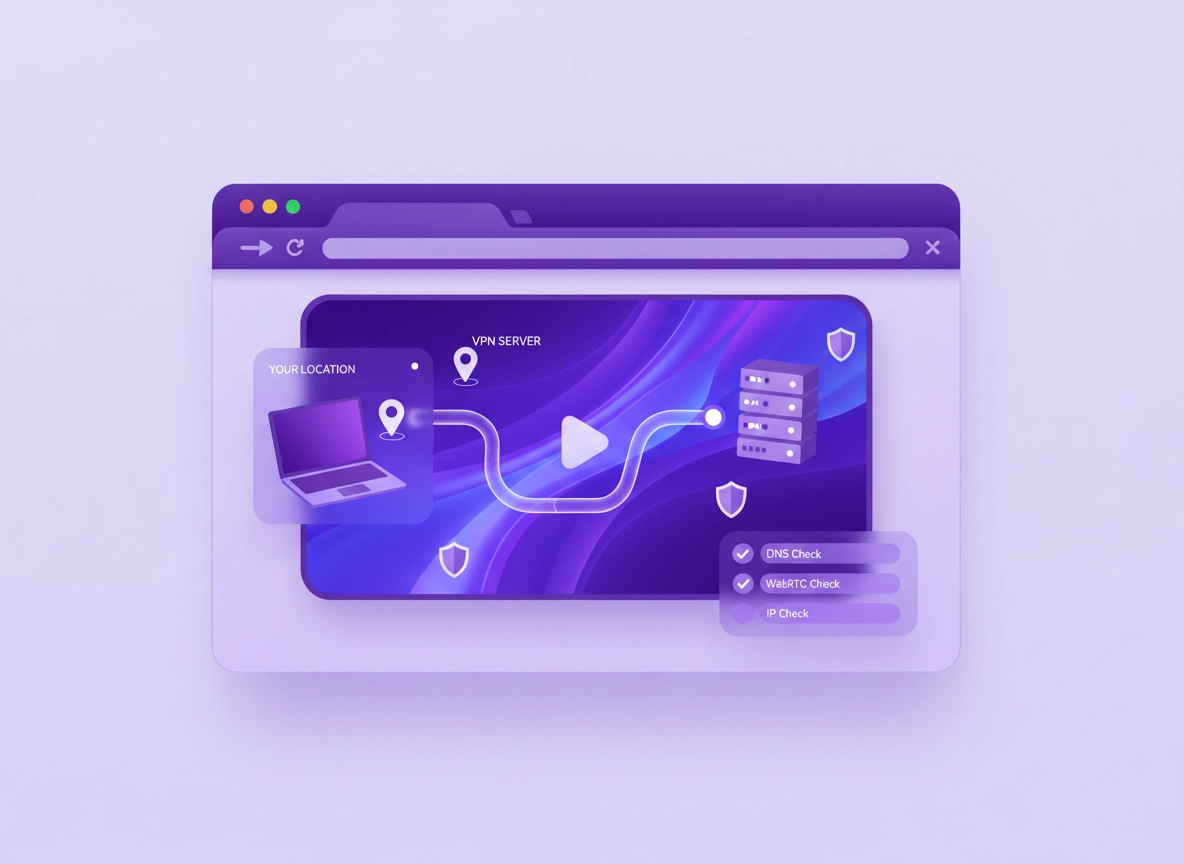
What “VPN for Chrome streaming” really means .
This guide focuses on how streaming actually behaves over networks—not just “turn VPN on and hope.”
When people say “use a VPN in Chrome for streaming,” they usually mean one (or more) of these goals: reduce buffering, avoid ISP throttling, keep streaming private on shared Wi-Fi, or access services while traveling. The problem is that streaming services don’t only look at your browser traffic—they also look for consistency in your IP address, DNS resolver, device/network signals, and sometimes WebRTC behavior. If any of those are “out of sync,” you’ll get errors like region blocks, repeated logins, endless loading circles, or low-quality playback that never ramps up.
The biggest confusion is the difference between a Chrome VPN extension and a VPN desktop app: an extension typically acts like a browser-level proxy (it may only route Chrome’s traffic), while the desktop app usually creates a system-wide tunnel (routing your entire device through the VPN). For streaming, that difference matters because DNS requests, DRM licensing checks, and background media components can behave differently depending on what is (and isn’t) inside the tunnel.
A second confusion is “VPN equals speed.” A VPN can improve streaming sometimes—mainly when your ISP is shaping video traffic, or when the VPN route is simply cleaner than your ISP’s default path. But a VPN can also slow streaming if the server is overloaded, too far away, or using a protocol that isn’t optimized for your device. The goal isn’t “maximum encryption,” it’s stable throughput + low latency + correct location signals + no leaks.
Start here (hub): If you want a broader buying guide before you pick a setup, see Best VPN for Chrome. For raw speed testing, also read VPN Chrome speed comparison.
Key terms (quick definitions) .
- VPN app vs extension: The app creates a device-wide tunnel; the extension often routes only browser traffic (and may behave like a proxy).
- DNS resolver: The service that translates “netflix.com” into IP addresses. DNS leaks can reveal your real region even if your IP changes.
- WebRTC: A browser technology for real-time connections; if not controlled, it can expose local/public IP details via ICE candidates.
- ISP throttling (traffic shaping): When an ISP deprioritizes or slows certain traffic types (like video) during congestion.
- Smart DNS: A DNS-based method that changes content routing for streaming without encrypting all traffic (often faster, less private).
- DRM: Digital rights management. Some streams require secure playback components, which can fail when extensions conflict or when devices look “inconsistent.”
Extension vs app: what actually changes for streaming .
Here’s the practical difference you’ll feel:
| Setup | What it routes | Streaming reliability | Typical failure mode |
|---|---|---|---|
| Chrome VPN extension | Usually browser traffic only (varies by provider) | Medium | DNS mismatch, WebRTC leak, video errors on some sites, inconsistent location signals |
| VPN desktop app | Entire device (Chrome, DNS, other apps) | High | Speed drops if server is far/overloaded; conflicts with split tunneling or custom DNS |
| Router VPN | Entire home network | High (for TVs/consoles) | Router CPU limits throughput; more complex to manage |
| Smart DNS | DNS-based redirection, not full encryption | High (for pure streaming) | No privacy benefit; can fail if DNS is overridden or if services detect mismatch signals |
If you’re unsure which you’re using, read: VPN in Chrome vs desktop VPN and VPN vs proxy for Chrome.
Before you start (fast checks that prevent wasted time) .
These checks take 2–5 minutes and save you the classic “I changed 10 things and nothing improved” trap. Streaming is sensitive to account state, browser cache, device networking, and VPN routing. Start with the basics so your later test results mean something.
- Check your baseline: With the VPN OFF, open a stream and watch for 60 seconds. Note: startup time, quality ramp-up (does it reach HD/4K?), and any buffering.
- Update Chrome: Streaming problems often correlate with outdated DRM components. Use Get or update Chrome.
- One profile, no chaos: Test streaming in a clean Chrome profile or Incognito so extensions/cookies don’t contaminate results. See Incognito mode guide.
- Disable “helper” extensions temporarily: Ad blockers, privacy blockers, and script blockers can break streaming players. If you’re unsure, review Chrome privacy extensions guide.
- Know your network constraints: On public Wi-Fi, captive portals and “filtered DNS” can fight VPN DNS. If you’re on public Wi-Fi, see Secure Wi-Fi browsing and VPN for secure public Wi-Fi.
- Decide your goal: Are you fixing buffering, fighting throttling, or trying to watch from a specific region while traveling? Your “best” setup will differ.
Performance related: If Chrome is slow even without streaming, fix that first—streaming hides CPU/RAM problems. Start at Speed Up Google Chrome or the practical fix guide Fix slow Chrome step-by-step.
Fast “is it a leak?” pre-check (30 seconds) .
If you already have a VPN running and streaming is failing, do these two checks before anything else:
- DNS leak test: Confirm your DNS servers match your VPN route. Use: VPN Chrome DNS leak test guide.
- WebRTC leak check: Confirm Chrome isn’t exposing local/public IP signals outside the tunnel. Use: VPN Chrome WebRTC leak fix.
Step-by-step setup (recommended) .
This is the setup path I recommend for most people because it’s repeatable and easy to validate. We’ll start with the VPN app (most reliable), then show the extension method if you specifically need browser-only routing. If you’re brand new to VPNs in Chrome, also read: How VPN works in Chrome.
Recommended method: VPN desktop app (full-device tunnel) .
- 1 Install your VPN app and sign in. If you only have an extension installed, keep it disabled for now.
- 2 In the VPN app settings, turn on private DNS (or “use VPN DNS”) if available. This reduces DNS mismatch problems.
- 3 Choose a server based on your goal:
- Fix buffering / improve stability: pick the closest geographically (lowest latency).
- Travel access: pick a server in your “home subscription region” (but keep DNS consistent).
- Throttling suspected: try 2–3 nearby servers at different times; throttling is often time-of-day congestion.
- 4 Connect, then open Chrome and check your location/DNS consistency using: IP leak protection and DNS leak test guide.
- 5 Open your streaming site in a private window (Incognito) and test playback for 2–3 minutes. Don’t judge quality in the first 5 seconds—adaptive streaming ramps up.
- 6 If playback starts but buffers later, switch servers to a less congested one in the same region, or try the VPN protocol “auto/modern” option if your VPN supports it.
- 7 Optional: enable a kill switch if your VPN provides it, especially on public Wi-Fi. This prevents the stream from silently falling back to your real IP if the VPN drops.
What “success” looks like: Your streaming site loads normally, the stream starts without repeated errors, and quality ramps to your expected tier (HD/4K) without periodic “every 30 seconds” buffering. Your DNS and WebRTC checks show a consistent VPN region with no obvious leaks.
Alternate method: Chrome VPN extension (browser-only routing) .
Use this only if you need browser-only VPN (for example, you want work apps outside the tunnel), or you’re on a managed device where you can’t install software. Otherwise, the app is usually more stable. If you’re installing for the first time, follow: How to install a VPN extension in Chrome.
- 1 Disable other proxy/VPN extensions. Multiple “network helpers” cause inconsistent routing.
- 2 In Chrome, open Settings → Privacy and security and confirm you’re not forcing unusual DNS behavior (unless you know why). For background, see DNS over HTTPS settings.
- 3 Connect the VPN extension and pick a server. Prefer nearby servers first for stability testing.
- 4 Run a WebRTC leak check and fix issues if needed: WebRTC leak fix.
- 5 Clear only site data for your streaming site (not your whole life). Use: Auto-delete cookies or Clear browsing data (site-specific where possible).
- 6 Test playback in Incognito (or a clean profile). If it works, re-enable extensions one-by-one to find conflicts.
Common variations .
- Windows / ChromeOS: On ChromeOS you may have fewer system-level VPN options; a provider app or Android VPN app may be required. Test DNS leaks carefully.
- macOS: If you use iCloud Private Relay or other network privacy tools, avoid stacking them with VPN unless you understand the routing order.
- Android / iPhone: Streaming in Chrome mobile usually rides the OS VPN, not just the browser. If your VPN has split tunneling, ensure the streaming app/browser is included.
More detail: If you want the tradeoffs clearly, read VPN Chrome vs desktop VPN and the browser-level explanation VPN vs built-in Chrome security.
Advanced streaming tuning (protocols, DNS, split tunneling, Smart DNS) .
If you’ve done the recommended setup and you still see buffering, errors, or low-quality streams that never improve, this section is where you fix the “invisible” causes: routing quality, server congestion, protocol choice, DNS behavior, and browser leak surfaces. This is also where you avoid over-tuning—streaming needs consistency more than cleverness.
Enterprise/managed devices: If you’re on a work laptop with policies, your VPN or DNS may be enforced. Start at VPN policy enforcement and VPN for Chrome IT admin guide.
1) Server choice: think latency + congestion, not “furthest country” .
Streaming needs steady throughput. The fastest server isn’t always the closest, but distance is a strong predictor. Your stream is broken into segments (chunks). If latency is high and jittery, the player can’t fetch segments smoothly, so you see micro-buffering even with “good” bandwidth.
- Start with nearby servers (same country or nearest major region). Confirm stable playback first.
- Then test the target region (if you’re traveling). If it fails, the issue is often DNS mismatch or endpoint detection.
- Avoid peak-time overload: evenings and weekends are harder. A server that’s perfect at 10am can be overloaded at 8pm.
- Prefer “streaming optimized” servers if your provider offers them; they’re usually tuned for congestion and IP reputation management.
2) Protocol choice: use “modern/auto” unless you have a reason .
Protocol details matter less than people think until they matter a lot. If your VPN lets you choose, the safest practical rule is: use the provider’s recommended / automatic protocol first. Then only change if you’re diagnosing a real issue.
- Symptoms of protocol mismatch: stream starts but drops quality, or buffering spikes appear every minute, or you see random disconnects.
- What to try: switch between the provider’s “auto/modern” option and their “compatibility” option (often better on restrictive networks).
- Why it helps: different protocols handle packet loss and NAT/firewall traversal differently, which affects real-world stability.
Want the deeper explanation? See VPN protocols for Chrome compared and the encryption basics at VPN encryption explained for Chrome.
3) DNS behavior: the #1 reason “VPN is on but streaming still fails” .
DNS leaks are common because DNS can be handled by the OS, by Chrome (Secure DNS / DoH), by your router, or by the VPN app. Streaming services often cross-check your IP region with your DNS resolver region. If they don’t match, you can get: “not available,” repeated login prompts, or “something went wrong” playback failures.
- Run a DNS leak test: DNS leak test guide.
- Understand Chrome Secure DNS: Secure DNS setup.
- If you’re comparing approaches: VPN vs private DNS.
4) WebRTC leaks: why your “real IP” can still peek through .
WebRTC is designed to establish direct connections (often for voice/video). In some configurations, it can expose IP information via connection candidates. Many VPN apps mitigate this, but browser-only VPNs are more likely to miss it. If a streaming service uses aggressive fingerprinting or checks connection paths, a WebRTC leak can contribute to instability or region mismatch flags.
Fix it here: VPN Chrome WebRTC leak fix. If you’re diving deeper into browser privacy surfaces, see Chrome fingerprint protection.
5) Split tunneling: helpful, but easy to misconfigure .
Split tunneling lets you choose which apps/sites go through the VPN. It’s brilliant for work + streaming setups, but it also creates the most “mystery bugs” because you can accidentally route: the streaming tab through VPN while DNS stays outside, or route the browser outside while the VPN is “connected.”
- Use split tunneling only after baseline success: first confirm the stream works with everything routed through VPN.
- Then isolate: add split tunneling rules one at a time and re-test.
- Watch DNS: split tunneling often changes which resolver answers your requests.
If you need it, read: VPN for Chrome with split tunneling.
6) Smart DNS: the “fast streaming” alternative (with tradeoffs) .
Smart DNS is often faster for pure streaming because it doesn’t encrypt all traffic; it mainly changes how services resolve and route media endpoints. It can be a great fit for TVs/consoles and for users who want speed + access without the overhead of a tunnel. The tradeoff is privacy: Smart DNS doesn’t hide your traffic from your ISP the way a VPN tunnel does.
- Best for: stable streaming on devices that don’t support VPN apps (or where VPN is too slow).
- Not best for: privacy on public Wi-Fi, reducing tracking, or protecting sensitive browsing.
Learn more: Smart DNS for Chrome explained and the direct comparison VPN vs Smart DNS.
Common alternatives users compare .
Privacy & security notes (permissions, leaks, logging) .
Streaming is a high-intent use case, but it’s also where people take risks—especially with “free VPN extensions.” In Chrome, extensions can request powerful permissions like read and change data on all websites. If your VPN extension has broad access, you’re trusting it with everything you do in the browser—not just streaming. That’s why this section matters even if your only goal is “make Netflix work.”
Impact: Affects your IP exposure, DNS routing, WebRTC behavior, and which party can observe your browsing metadata.
Extension safety: If you’re unsure about extension permissions or reputation, start here: Chrome Extension Security Check and Extension permissions guide.
Recommended baseline settings for streaming + privacy .
- Option A (balanced): VPN app on, auto/modern protocol, VPN DNS enabled, WebRTC leak mitigated, no extra DNS tools layered on top.
- Option B (maximum privacy): VPN app + kill switch + VPN DNS + stricter Chrome privacy settings (but test compatibility with streaming logins).
- Option C (compatibility): VPN app with a nearby server and minimal extra privacy blockers; use Incognito testing to avoid cookie loops.
Recommended setup by goal .
| Goal | Recommended setup | Tradeoff | Best for |
|---|---|---|---|
| Stop buffering | VPN app + closest server + auto protocol + avoid heavy blockers | May not change region access | Most users |
| Reduce throttling | VPN app + test 2–3 nearby servers + consistent DNS | Depends on ISP shaping and time-of-day congestion | Busy networks |
| Travel access | VPN app + home region server + strict DNS leak control | Some services aggressively detect VPN endpoints | Frequent travelers |
| Fastest streaming | Smart DNS (where supported) + stable ISP connection | No encryption/privacy benefit | TVs / consoles |
| Browser-only routing | Reputable VPN extension + WebRTC mitigation + DNS validation | More mismatch risk, more extension permission risk | Managed devices |
No-logs clarity: If your decision depends on “no logs,” understand what that actually means and what can still be recorded. Read VPN Chrome no-logs policy and VPN Chrome privacy review.
Troubleshooting (errors, buffering, black screens) .
Good companion guide: If you want a full diagnostic flowchart, use VPN for Chrome troubleshooting guide and the connection issues page VPN connection issues fix.
If the streaming site loads, but the video won’t play .
This is usually one of three things: a location mismatch (DNS/WebRTC), a cookie/account loop, or an extension conflict with the player.
- Fix DNS mismatch: run DNS leak test, then enable VPN DNS/private DNS in your VPN app if available.
- Fix WebRTC leak: run WebRTC leak fix.
- Fix cookie loops: clear site data for the streaming site, then retry in Incognito: Clear browsing data.
- Fix extension conflicts: disable ad/script blockers temporarily. If it works, re-enable one-by-one to find the conflict.
If you get “Not available in your region” with VPN on .
That message is typically triggered by inconsistent signals (IP vs DNS), or by detection of known VPN/proxy endpoints. Start with the part you can control: consistency.
- Ensure IP + DNS match: If your VPN server is in Country A, your DNS should not be your home ISP in Country B.
- Switch from extension to app: The app reduces partial routing and mismatch problems.
- Try a different server in the same region: Some endpoints are flagged more often than others.
- Consider Smart DNS: For pure streaming speed/access (with less privacy), see VPN vs Smart DNS.
If the stream starts but buffers every 30–120 seconds .
That pattern usually points to congestion, packet loss, or a VPN server that’s overloaded. It can also happen when a protocol struggles on your network (especially on restrictive Wi-Fi).
- Try a closer server: Reduce latency and jitter.
- Try a less crowded server: Many VPN apps show server load—lower load usually means better streaming.
- Switch protocol: Use the provider’s “auto/modern,” then try “compatibility” if needed: VPN protocols compared.
- Check Chrome performance: High CPU/RAM can mimic network buffering. Use: Chrome Task Manager and memory usage fix.
If video quality is stuck low (never reaches HD/4K) .
Adaptive players lower quality when throughput is unstable. With VPN on, quality can get “stuck” if the connection has frequent micro-loss, if the VPN server is overloaded, or if the route adds too much latency.
- Test without VPN: confirm your baseline can reach HD/4K.
- Then test nearby VPN servers: If nearby works but far doesn’t, your limiting factor is distance + route quality.
- Reduce Chrome overhead: close heavy tabs, disable GPU conflicts, and keep Chrome updated. If needed, see GPU acceleration settings.
If your VPN disconnects and the stream “leaks” your real IP .
This is exactly what a kill switch is for: it blocks traffic when the VPN tunnel drops so apps don’t silently fall back to your ISP route. If you rely on VPN for privacy or consistent region behavior, enable kill switch in the VPN app if available. Learn more: VPN for Chrome with kill switch.
If you need to reset safely (without nuking everything) .
The safest reset is targeted:
- Clear site data for the streaming site only (cookies + cache), then log in again.
- Disable VPN extension and test with VPN app only.
- Create a clean Chrome profile for streaming if your main profile is packed with extensions.
If you suspect broader issues (malware, hijackers, suspicious extensions), start at Remove malware from Chrome and extension malware removal.
FAQ .
-
helpIs a Chrome VPN extension enough for streaming?Sometimes, but the most reliable setup is usually a VPN desktop app. Extensions often route only browser traffic and can leave DNS or WebRTC signals inconsistent, which is a common reason streaming fails even though the VPN looks “connected.” If you must use an extension, run DNS and WebRTC leak checks and keep the extension list minimal.
-
helpWhy does streaming fail when the VPN is on, but browsing works?Streaming services tend to cross-check multiple signals: IP location, DNS resolver location, and sometimes browser leak surfaces like WebRTC. A mismatch (for example, VPN IP in one country but DNS from your home ISP) can trigger region errors or playback failures even though normal browsing seems fine. Start with DNS leak testing and WebRTC leak fixes, then switch to the VPN app if you’re using an extension.
-
helpWill a VPN always make streaming faster?No. A VPN can help if your ISP is throttling or if your default route is congested, but it can also slow you down if the VPN server is overloaded or far away. For most users, the best approach is to pick the closest server first for stability and only change regions if you specifically need travel access.
-
helpWhat’s better for streaming: VPN or Smart DNS?Smart DNS can be faster for pure streaming because it doesn’t encrypt all traffic, but it doesn’t provide the same privacy protections as a VPN tunnel. If your priority is streaming performance on TVs and consoles, Smart DNS can be a strong option. If your priority is privacy (especially on public Wi-Fi), the VPN app is usually the better choice.
Sources & further reading .
- Google Chrome Help Center
- W3C WebRTC specification (technical reference)
- How VPN works in Chrome (ChromeThemer)
- VPN Chrome DNS leak test guide (ChromeThemer)
- VPN Chrome WebRTC leak fix (ChromeThemer)
Disclosure: Some pages may mention tools or services. Recommendations are editorial and based on practical testing and repeatable checks.