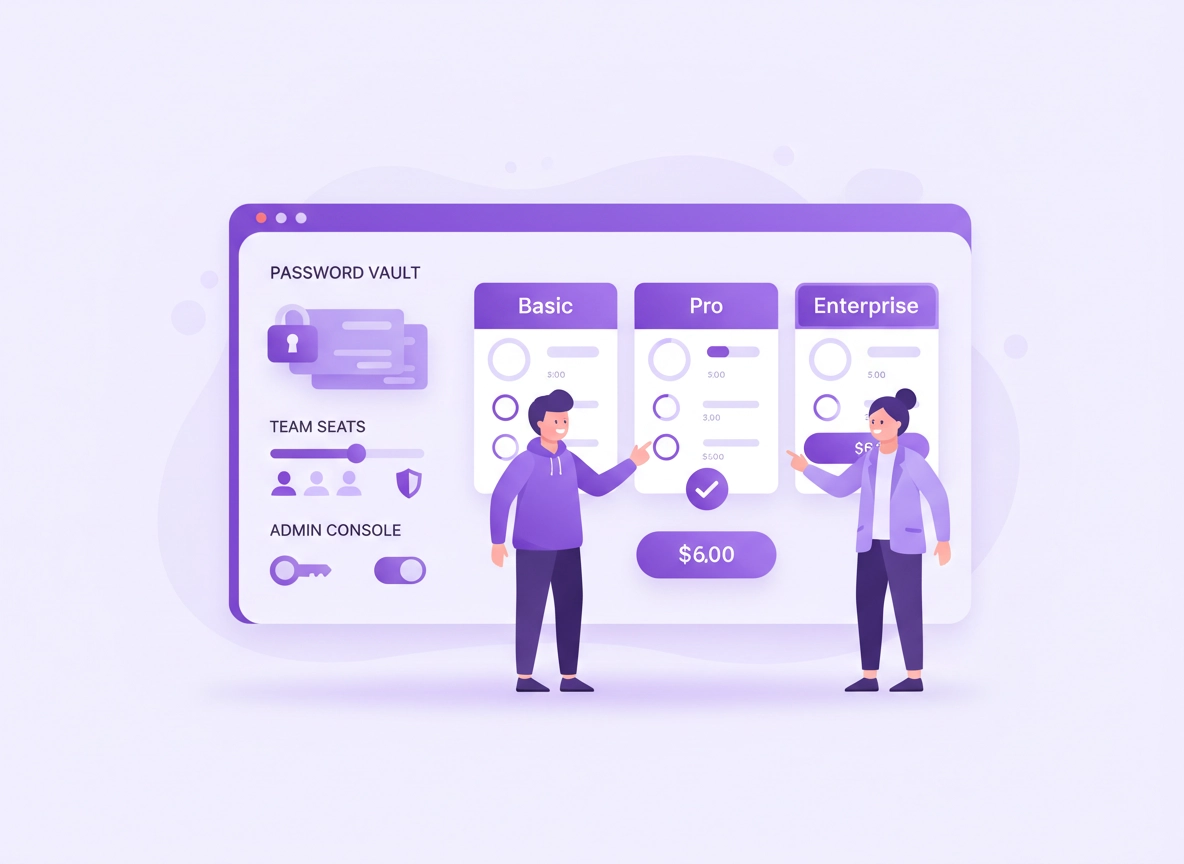
What this is (and why startup pricing is different) .
Pricing pages are designed to look simple. Your job is to make the real cost predictable.
A “password manager for startups” is usually the same product sold to consumers and enterprises, packaged into plans that look like they’re separated by features. In practice, plans are separated by risk ownership: who controls access, how quickly you can remove access, and what evidence you can produce when a customer (or auditor) asks, “Prove that ex-employees can’t access our systems.”
Startups often buy password managers under time pressure: a customer wants SSO, a security questionnaire asks about MFA and password policy enforcement, or a teammate leaves and everyone realizes shared credentials live in “a doc somewhere.” That’s why startup pricing can feel unpredictable. The sticker price is easy; the “surprise” comes from: (1) seat growth, (2) adding admins or groups, (3) needing SSO or directory integration later, and (4) time spent migrating logins and training the team to share safely.
This guide is a pricing playbook you can use even if you haven’t chosen a vendor yet. It explains the common pricing models, what features map to real operational outcomes, and how to estimate total cost of ownership (TCO) so you don’t end up paying enterprise prices for consumer-grade rollout.
Start here: If you still need help choosing a product, begin with Best Password Manager for Chrome and then come back to pricing.
Key terms (quick definitions) .
- Seat / user: A licensed identity (employee, contractor, sometimes a service user). Some vendors count “admins” separately; many don’t.
- Shared vault / collection: A team space where credentials can be shared without copying passwords into chat or docs.
- RBAC (role-based access control): Permission levels (member, manager, admin) + group access boundaries.
- SSO / IdP integration: Connecting the password manager to an identity provider for sign-in control and automated provisioning.
- SCIM provisioning: Automated user lifecycle management (create, disable, remove) from your identity provider.
- Zero-knowledge: A design where the provider cannot read your vault contents (even if they can still control accounts, billing, and metadata).
- Audit logs: Records of events like sign-ins, sharing actions, policy changes, exports, and admin actions.
- Emergency access / recovery: A controlled way to regain access if an admin is unavailable or a founder disappears into a hiking trip.
The pricing “shape” most startups will see .
Password manager pricing tends to follow a predictable ladder. Knowing the ladder helps you avoid buying the wrong rung:
- Free / personal plans: Great for individuals. Usually weak on admin control, team sharing, and offboarding guarantees.
- Starter / Teams plans: Basic sharing + basic policies. Often missing deeper reporting, SSO, SCIM, and granular admin roles.
- Business plans: The “startup sweet spot” when you need enforceable security and clean offboarding.
- Enterprise plans: SSO/SCIM, advanced logs, SIEM integration, device trust signals, and compliance-friendly controls.
Related: For a broader comparison of pricing patterns across vendors, see Password Manager Pricing Comparison and Password Manager Cost Comparison.
Before you start (fast checks that prevent bad buys) .
Pricing mistakes happen when a startup buys for today’s team size and today’s security needs — then upgrades under pressure. These fast checks take 10–15 minutes and usually save real money.
Fast check #1: count your real seats (not just employees) .
Make a quick list of who needs access in the next 90 days. Include: employees, contractors, founders using multiple devices, finance/admin, and any shared “ops” accounts that currently live in a shared inbox. Seat counts grow faster than headcount in startups because contractors and temporary roles are common. If a vendor charges by seat, this forecast prevents budget surprises.
- Today: current users + founders + admins
- Next 90 days: hiring plan + contractor plan
- Next 12 months: a “stretch” number (fundraising growth or customer-driven hiring)
Fast check #2: define your sharing model .
Most startups adopt password managers because of sharing. But there are two very different sharing patterns: (A) “Share passwords” (dangerous, because it’s usually copying a secret) and (B) “Share access” (safer, because it can be revoked). The more your startup relies on shared vendor accounts (email marketing tools, ad platforms, cloud consoles, registrars), the more you should pay for a product that supports shared vaults, groups, and clean revocation.
Fast check #3: decide if you need business controls now or later .
If you already work with enterprise customers (or plan to within 12 months), you’ll likely need: enforceable MFA, admin policy controls, logs, and some form of SSO readiness. If you buy a consumer plan now, you often pay twice: once for the “cheap” plan and again for the migration + upgrade later.
Related: If you’re evaluating startup readiness (beyond pricing), see Best Password Manager for Startups and Password Manager for Startups Security.
Fast check #4: identify your “point of no return” risks .
This is a simple question: What failure would hurt the company the most? Pricing should map to risk reduction. Common startup “point of no return” risks include:
- Founder lockout: Losing access to registrar, cloud, payments, or email because one person held the keys.
- Offboarding failure: A contractor leaves but still has access to customer systems.
- Shared secrets leakage: Credentials shared in chat or docs get copied, forwarded, or logged.
- Audit pressure: You can’t prove who had access to what, or when a secret changed.
Pricing models you’ll see (and what they really mean) .
Vendor pricing descriptions often sound similar, but the operational meaning differs. Here are the patterns to recognize:
- Seat-based monthly: You pay per user per month. Watch for minimum seat counts and annual-contract pressure.
- Seat-based annual: Lower monthly equivalent, but you’re committing to a headcount forecast (and sometimes paying for “unused” seats).
- Flat-rate team plan: A single price for a team up to a seat cap. Great at early stage if it includes real admin controls.
- Business + add-ons: Base plan is affordable, but logs/SSO/advanced reports are add-ons.
- Enterprise quote: Pricing depends on seats, SSO, support tier, and compliance demands. Great when you truly need it, expensive when you don’t.
Related: If you’re weighing free vs paid models, read Password Manager Free vs Paid Comparison and Password Manager Trial vs Free Plan.
Step-by-step: choose a plan in under 60 minutes .
This is the fast, founder-friendly process. You’re not trying to pick “the best password manager on earth.” You’re trying to pick the plan that gives you control and predictable cost as your team scales.
- 1 Write your seat forecast: current seats + 90-day + 12-month stretch.
- 2 Pick your target plan tier: for most startups, start at “Business” unless you are truly solo.
- 3 Run a 30-minute pilot: create a shared vault/collection, share access to 3 high-value accounts, then revoke access for a test user.
- 4 Test offboarding: disable a user and confirm shared vault access is revoked without breaking the team’s workflow.
- 5 Enforce MFA: ensure the plan supports MFA enforcement (not just “MFA available”).
- 6 Check recovery: confirm what happens if an admin loses their device or leaves. Validate emergency access / recovery options.
- 7 Calculate true monthly cost: license + onboarding time + expected support time.
- 8 Decide contract length: monthly while validating; annual once usage is stable and seat growth is predictable.
What “success” looks like: One person can onboard/offboard users, enforce MFA, manage shared access by group, and prove (via logs or admin view) that access changes happened. Your team can share credentials without pasting secrets into chat.
Related: If your main environment is Chrome, review rollout basics in Chrome Password Manager Deployment Guide (and for product fundamentals: How to use a password manager in Chrome).
Common variations (what changes by platform) .
- Windows / ChromeOS: Chrome extensions are usually the primary workflow. Verify that the plan supports policy enforcement for extensions and device sign-in patterns your team uses.
- macOS: Many teams use both browser extension and desktop app. Check how biometrics and OS-level unlock integrate with your chosen plan.
- Android / iPhone: Test autofill reliability and recovery flows. Mobile lockouts are common during rollout if MFA and recovery aren’t configured early.
Advanced: what features increase cost (and when they’re worth it) .
This is where pricing gets “enterprise-shaped.” The goal is not to avoid paying for security. The goal is to pay for the security that reduces your specific risk. Below are the biggest cost drivers and the practical startup decision rules.
Related: For deeper security architecture context, see Password Manager Encryption Explained and Password Manager Zero-Knowledge Architecture.
1) Admin controls & policy enforcement .
Admin controls are the difference between “a tool people install” and “a system the company can rely on.” Pricing usually increases when you need: MFA enforcement, password requirements, restricted exports, device trust controls, and advanced admin roles.
- Worth paying for if: you have contractors, frequent offboarding, or customer data access.
- Maybe skip early: extremely granular policy options that require a dedicated security admin to maintain.
2) RBAC and group-based access .
Role-based access control (RBAC) tends to show up as a “business/enterprise” feature, because it prevents the most common startup mistake: “Everyone has access to everything.” Groups let you share by role (Marketing, Sales, Finance, DevOps) rather than by person, which makes onboarding/offboarding faster and less error-prone.
Related: See Password Manager Role-Based Access (RBAC) for Chrome.
3) SSO, directory integration, and SCIM .
This is the biggest “pricing cliff.” Many startups don’t need SSO on day one. But many startups do need predictable offboarding. SCIM provisioning is often the cleanest way to do that at scale, because it ties user lifecycle to your identity provider. If you plan to adopt an IdP later, choosing a plan that supports SSO/SCIM can prevent a painful migration.
- Worth paying for if: you sell to enterprise customers, you need centralized identity, or you can’t tolerate access lingering after offboarding.
- Maybe wait: if you are under ~10 people with stable membership and no enterprise customers in sight.
Related: Password Manager Single Sign-On (SSO) for Chrome and Password Manager Directory Integration.
4) Audit logs, reporting, and SIEM integration .
Audit logs feel boring until the day you need to answer: “Who had access?” or “Was this credential exported?” Many startups only upgrade when customers ask for logs, SOC 2 evidence, or incident response detail. If you can afford it, buying a plan with usable logs early can save weeks later.
- Worth paying for if: you face customer security reviews, handle regulated data, or need to detect risky behavior (exports, password reuse, unusual sign-ins).
- Watch for: logs that exist but are not searchable, not exportable, or too limited to support real investigations.
5) Recovery features and “single point of failure” protection .
The most underrated pricing driver is recovery. If you lose access to your vault, the business can stop. Startups should evaluate: emergency access, admin recovery flows, and what happens when the primary admin leaves.
Related: Password Manager Recovery Options and Master Password Security.
Hidden costs: the stuff that doesn’t show on the pricing page .
If you want pricing clarity, separate your costs into two buckets: license cost and operational cost. Licenses are predictable. Operational cost is where startups lose money.
Operational cost #1: migration and cleanup .
The day you adopt a password manager is also the day you discover how messy your credential situation is. Most startups have duplicates, reused passwords, shared inbox logins, and old vendor accounts no one owns. Migration time scales with how much cleanup you do (which is good!) but you need to budget for it.
- Low-friction rollout: new credentials go into the vault, old ones are rotated gradually.
- High-control rollout: rotate high-value credentials first (email, registrar, cloud, payments), then migrate the rest.
Operational cost #2: onboarding and training .
Training sounds soft, but it’s real cost. A password manager only reduces risk if people use it correctly. In startups, the most common training needs are: how to share via vaults (not copy/paste), how to use generator/passphrases, and how to handle MFA and recovery.
Operational cost #3: access design .
If you adopt groups and RBAC, someone must design the access model. That can be lightweight: a handful of groups aligned to your org chart. Or it can be heavy: per-project access with strict separation. Heavy designs can be correct for regulated startups — but they have ongoing admin cost.
Operational cost #4: support tier and incident response .
Some enterprise plans bundle priority support or a dedicated success manager. That sounds like fluff until your team is locked out at 2am, or a customer asks for an urgent security attestation. If your startup’s risk is high (finance, healthcare, B2B with large customers), paid support can be worth it.
Related: For full “true cost” breakdown, see Password Manager Total Cost of Ownership and Password Manager ROI for Business.
Common alternatives startups compare (and why it impacts pricing) .
- Chrome’s built-in password manager vs dedicated tools: built-in is “free,” but startups often need sharing, admin control, and offboarding guarantees. Compare: Chrome password manager vs third-party and Password manager vs built-in browser passwords.
- Free plans vs paid plans: free can work for individuals; startups typically pay when they need policies, sharing, and recovery. See Free password managers and Free vs paid comparison.
- Business plans vs enterprise plans: enterprise pricing often reflects SSO/SCIM + compliance + support. See Business vs personal plans and Password manager for enterprise pricing.
Security notes: pricing traps, risk reduction, and ROI math .
Password manager pricing is ultimately a security decision. The biggest pricing traps happen when teams optimize for “cheap now” while accepting “expensive later” risk. Here’s how to keep the decision grounded.
Impact: Controls credential sharing, offboarding, MFA enforcement, and the blast radius of account compromise.
Related: If you’re building a security baseline for Chrome workflows, see Chrome privacy & security settings overview and Chrome Security Checkup.
Pricing trap #1: “We’ll upgrade later when we need it” .
This is the most common trap. Upgrading later is normal — but doing it under pressure is expensive. Typical triggers: enterprise customer demands SSO, you start SOC 2 prep, or a contractor leaves and you realize secrets were shared poorly. The cost isn’t just the upgrade. The cost is the migration while running the business.
Pricing trap #2: paying for security features nobody maintains .
Some enterprise features require dedicated ownership (e.g., complex policy sets, deep SIEM tuning, strict device posture). If you don’t have someone to maintain it, you’re paying for “checkbox security.” In startups, it’s often better to buy fewer features and actually enforce them.
Pricing trap #3: confusing “zero-knowledge” with “zero metadata” .
Zero-knowledge generally means the provider cannot decrypt vault contents. It does not necessarily mean there is zero metadata. Pricing can change because of advanced analytics and logs. If your startup handles sensitive client work, ask what data is visible to admins, what’s visible to the provider, and how logs are stored and accessed.
Related: If you’re optimizing for security features, read Password manager security features comparison and Password manager browser integration security.
Recommended “baseline” plan features (startup-friendly) .
If you want a safe default without overbuying, these are the baseline capabilities that justify paying for a business plan:
- MFA enforcement: Admins can require MFA for all team members.
- Secure sharing: Shared vaults/collections + group-based access (no copy/paste culture).
- Offboarding controls: Disable user quickly, revoke access, and optionally transfer ownership of shared items.
- Basic policy controls: Password generator standards, reuse detection, and basic health checks.
- Recovery plan: Emergency access or admin recovery that prevents founder lockout.
Recommended settings by goal .
| Goal | Recommended plan focus | Tradeoff | Best for |
|---|---|---|---|
| Balanced | Business plan with MFA enforcement + shared vaults + basic logs | May lack SSO/SCIM | Most startups |
| Maximum control | Enterprise plan with SSO/SCIM + advanced audit logs + RBAC | Higher cost + more admin work | B2B startups selling to enterprise |
| Budget-first | Teams plan with secure sharing + basic admin | Risk of painful upgrade later | Early stage with low data sensitivity |
Simple ROI math (a startup-friendly way to justify the spend) .
You don’t need a perfect ROI model. You need a reasonable one. Here’s a simple approach:
- Time saved: estimate how many hours per month are lost to password resets, account lockouts, and “who has the login?” messages.
- Incident avoidance: estimate the cost of one offboarding failure or credential leak (downtime, customer trust, rework).
- Sales acceleration: if enterprise customers require security controls, the right plan can reduce sales friction.
If your plan costs “a few coffees per seat,” it only needs to prevent a small number of issues per quarter to pay for itself. The bigger value is risk reduction — especially around shared credentials and offboarding.
Related: If you need a more detailed cost framework, use Password Manager Total Cost of Ownership.
Troubleshooting: common pricing & rollout problems .
Related: If the pain point is Chrome behavior (autofill, extension permissions, profiles), start with Password manager extension for Chrome and Chrome profile security settings.
If pricing jumps unexpectedly after rollout .
This usually happens because seats grew (contractors added), plan tier changed for SSO/logs, or add-ons were enabled. Fix it by auditing: seat list, admin roles, add-ons, and contract terms. Then decide whether to: (1) reduce seat sprawl (remove inactive users), (2) switch to annual if stable, or (3) downgrade a tier if advanced features aren’t used. Also check whether “guest” users are billable.
If your team refuses to use the tool (and keeps sharing in chat) .
This is a workflow problem, not a “people are bad” problem. The common reasons are: autofill feels unreliable, vault UI is slow, mobile setup is painful, or sharing is confusing. Fix it by reducing friction: install the Chrome extension, set a default vault folder structure, and create a “Shared / Company” space that covers the top 10 shared accounts. Then enforce policy: “No credentials in chat. Ever.”
If offboarding breaks access for the remaining team .
This happens when credentials are owned by a user rather than a shared vault, or when shared items are not transferred on removal. During rollout, make a rule: critical credentials must live in a shared vault with at least two admins. Before offboarding anyone, confirm ownership transfer behavior and test it once.
If you need to reset safely without losing everything .
Don’t rush. Most “reset” disasters come from changing admin roles or recovery settings without a backup admin. First, confirm you have two admin accounts and tested recovery options. Then rotate high-value credentials: email, registrar, cloud, payments. Only after that should you consider large migrations, exports, or major policy changes.
FAQ .
-
helpWhat’s the best pricing model for startups: per-user or flat-rate?Flat-rate plans can be great early because cost is predictable, but only if they include real admin controls and secure sharing. Per-user pricing scales more smoothly long-term and is usually better once hiring accelerates. The decision is less about dollars and more about whether the plan supports clean offboarding, MFA enforcement, and shared vaults.
-
helpDo startups actually need enterprise plans?Not always. Many startups do fine on a business plan. Enterprise plans are typically worth it when you need SSO/SCIM, advanced audit logs, strict RBAC, or customer-driven compliance requirements. If your sales pipeline includes large customers who ask for security evidence, enterprise features can reduce friction and speed up deals.
-
helpWhat are the most common hidden costs?The big ones are migration time (cleanup + rotation), onboarding/training, and access model design (groups/RBAC). Another hidden cost is upgrading under pressure when a customer asks for SSO or logs. Budget time for a pilot and test offboarding early to avoid expensive “redo” work.
-
helpCan we just use Chrome’s built-in password manager to save money?You can for small personal use, but startups usually hit limitations around secure sharing, admin controls, and offboarding guarantees. If you have shared vendor accounts, contractors, or customer data access, you typically want a dedicated password manager with shared vaults, MFA enforcement, and a clean admin model.
Sources & further reading .
- OWASP Top 10: common web risks that often start with credential compromise
- NIST Cybersecurity Framework (CSF): controls, governance, and risk management context
- NIST Digital Identity Guidelines (800-63): MFA and authentication guidance
Disclosure: Some pages may mention tools or services. Recommendations are editorial and based on practical rollout criteria.