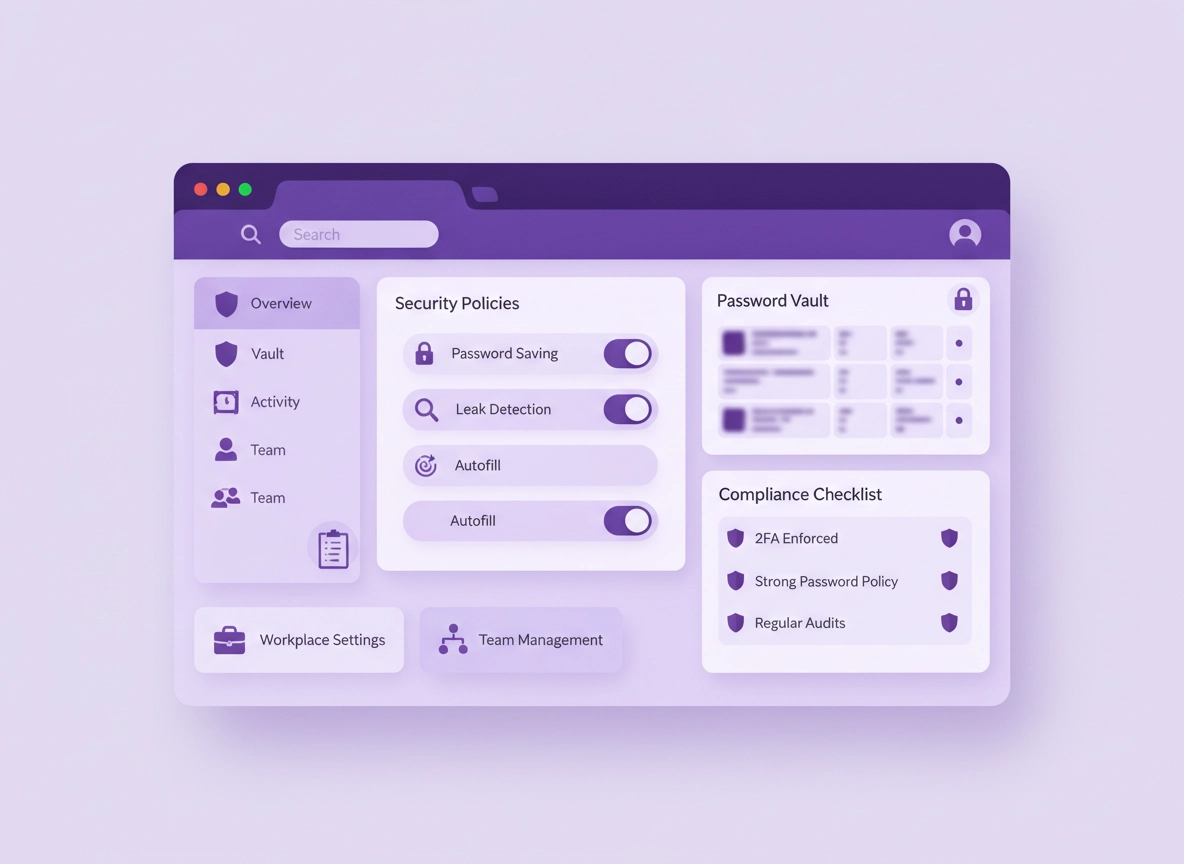
What Chrome Password Manager is (in a business context) .
Chrome’s “password manager” is no longer just a browser checkbox. For many users, it’s effectively Google Password Manager integrated into Chrome and Android.
In a business, the question isn’t “can Chrome save passwords?”—it’s whether Chrome’s password storage fits your risk profile, your offboarding requirements, your need for auditability, and your ability to enforce consistent security across devices.
Chrome Password Manager can work well when you have: (1) a managed identity layer (Google Workspace / SSO + MFA), (2) managed browser profiles or devices, and (3) a policy baseline that prevents risky behavior (like saving corporate credentials on unmanaged personal profiles).
Where it usually breaks down is shared access and operations: shared team vaults, role-based access, approvals, detailed audit logs for compliance, and clean offboarding that guarantees ex-employees can’t use saved credentials later. If those are requirements, Chrome becomes the wrong layer to “own” credential security.
Start here: If you’re choosing tools, see Best Password Manager for Chrome and the Chrome Password Manager comparison.
Key terms (quick definitions) .
- Work profile / managed profile: A Chrome profile signed into a managed identity (company Google Workspace or enterprise-managed profile).
- Credential leak detection: Chrome checks whether entered credentials match known leaked password data and warns the user.
- Passkeys: Phishing-resistant credentials that can replace passwords on supported sites (often backed up securely per platform).
- Browser policy: Admin-enforced settings via Chrome Enterprise / Google Admin console / MDM / GPO that users can’t override.
Threat model: where businesses actually get hurt .
Password manager decisions should be driven by your most realistic failure modes, not by marketing. Here are the business patterns that show up again and again when Chrome is “good enough”… until it isn’t:
1) Account takeover via phishing (not “weak encryption”) .
Most teams don’t lose credentials because the vault crypto failed—they lose them because an employee got tricked. Chrome can help with safer sign-ins, but the bigger control is MFA + passkeys + device security. If a user can be tricked into authenticating on a fake site (or approving an MFA prompt), the vault layer won’t save you.
2) Credentials saved to the wrong place .
The most common business mistake is saving work credentials in a personal Chrome profile (or syncing them to a personal Google account). This creates an offboarding nightmare: the credential outlives the job. Your policy goal: make it hard to save corporate credentials outside managed accounts.
3) Malware and extension abuse .
A password manager can’t protect you if the endpoint is compromised. Malicious extensions can read and change page content, capture form inputs, or redirect users to phishing pages. That’s why “password security” in Chrome is tightly connected to extension governance and browser hardening.
Related: Use Chrome Extension Security Check and follow the extension audit checklist.
4) Shared credentials and “shadow sharing” .
If teams share logins by chat, email, spreadsheets, or “everyone knows the password,” Chrome Password Manager can actually make it worse by creating multiple uncontrolled copies. Real security means: a shared vault, controlled access, and a plan for rotating and revoking access.
Related: If your team shares logins, read Password sharing securely and team collaboration features.
5) Offboarding failures (the silent breach) .
Offboarding is where browser-stored passwords can become a compliance risk. If a former employee still has a synced copy of credentials on their phone or home laptop, you have a long-term exposure. If you can’t reliably revoke access, rotate shared credentials, and remove stored secrets, it’s time to move up to an enterprise solution.
The “safe baseline” configuration (most teams) .
This section is the practical baseline I recommend for many small-to-mid teams where Chrome Password Manager is used today and you need to reduce risk quickly without a full tool migration.
Step 1: Lock the identity layer first (MFA + recovery) .
If your organization uses Google Workspace, your “real password manager” is often the Google account security posture: enforce MFA, prevent weak recovery methods, and reduce the chance of account takeover. If you use another IdP (Microsoft, Okta, etc.), apply the same principle: strong sign-in + safe recovery.
- Enforce MFA: Prefer phishing-resistant methods (security keys / passkeys) where possible.
- Review account recovery: Remove risky personal recovery emails/phones where policy allows.
- Require screen lock: Especially on mobile—saved passwords are only as safe as the device lock.
Tip: If you’re modernizing sign-ins, read Chrome 2FA guide and consider moving key apps to passkeys where supported.
Step 2: Separate work and personal browsing .
Your cleanest win is reducing “credential sprawl.” Create a dedicated work Chrome profile signed into the company account, and strongly discourage saving work passwords in personal profiles. In larger teams, enforce this via device management or browser policy.
- One work profile per user: No shared browsers, no shared profiles.
- Disable profile sync risks: Understand what sync does and where it stores data.
- Protect profiles: Use OS-level accounts and disk encryption on laptops.
Related: See Chrome profile security settings and Chrome sync settings.
Step 3: Turn on “signal” features (leak detection + safety checks) .
Businesses don’t just need storage—they need early warning. Chrome can alert users when entered credentials appear in known leaks, and it can surface weak/reused passwords. These are high-value controls because they reduce “unknown exposure.”
- Enable leak detection: Keep this on unless you have a specific regulatory or operational reason to disable it.
- Run regular password health checks: Make it part of onboarding and quarterly hygiene.
- Use Security Checkup: Keep Safe Browsing and updates aligned.
Related: Use Chrome password leak detection, Chrome Security Checkup, and password health checks.
Step 4: Reduce the browser attack surface (extensions + permissions) .
If you do nothing else: stop the extension free-for-all. Most “browser credential incidents” start with a malicious or over-permissioned extension. Build a short allowlist of approved extensions, remove anything that can read/modify all sites unless it’s truly required, and review permissions when extensions update.
- Allowlist only: approved extensions for your org and role.
- Block high-risk permissions: “Read and change data on all sites” unless absolutely needed.
- Review after updates: permission changes are a big warning sign.
Related: Extension permissions guide and allowlist policy.
Step 5: Decide what Chrome should and should not save .
Not all credentials are equal. Here’s a realistic rule set:
| Credential type | Chrome can store? | Better option | Why |
|---|---|---|---|
| Low-risk personal logins (news, forums) | Yes | N/A | Low impact if compromised |
| Work app accounts (email, CRM, docs) | Sometimes | Enterprise vault or SSO | Offboarding + auditing matter |
| Shared team accounts (social, billing) | No (avoid) | Shared vault + rotation | Need controlled sharing + logs |
| Privileged/admin (cloud console, root) | No (avoid) | PAM / enterprise vault + MFA | High blast radius |
| Secrets/API keys | No | Secrets manager | Not “password manager” data |
If you’re unsure where your organization sits, compare Chrome vs third-party managers and read the specific risk breakdown in Chrome password manager security risks.
Chrome Enterprise policies that matter .
If you want Chrome password security to be consistent, you need policy enforcement. The exact platform differs (Google Admin Console, GPO, MDM), but the idea is the same: remove “choice” for high-risk settings.
Policy 1: Password saving (on or off) .
The core policy is whether Chrome is allowed to save passwords at all. Some organizations disable this to force a dedicated enterprise vault. Others keep it enabled but restrict where it’s used (managed profiles only, plus training and controls).
- If you’re using an enterprise password manager: disable Chrome password saving to avoid shadow copies.
- If you’re staying with Chrome for now: keep saving enabled but enforce stronger guardrails (leak detection + extension governance + identity hardening).
Related reading: deployment guide and how to disable Chrome password manager.
Policy 2: Leak detection (should be enabled) .
Leak detection helps reduce the time between “password exposed” and “password changed.” In business terms, it’s a control that reduces mean time to remediate compromised credentials.
- Enable leak detection: treat warnings as actionable security events (at least for work accounts).
- Decide ownership: is the user responsible to change the password, or does IT open a ticket for high-risk systems?
Policy 3: Showing passwords (screen-sharing risk) .
“Show password” seems harmless until someone screen-shares in a meeting and reveals a credential—or until a coworker watches over a shoulder. If you have shared workstations, hot desks, or frequent screen sharing, consider restricting password reveal behavior.
Policy 4: Sync and account separation .
Password safety changes dramatically when credentials sync across devices. Sync is useful—but it also increases the need for strict identity controls and offboarding workflows. If you can’t confidently govern sync (and remove access later), don’t rely on browser storage for critical credentials.
Related: Chrome sync security risks and disable Chrome sync.
Policy stack checklist (copy/paste) .
- Password saving: decide “enabled with guardrails” vs “disabled to force enterprise vault.”
- Leak detection: enabled; define remediation ownership.
- Extension governance: allowlist; block high-risk permissions by default.
- Updates: enforce timely Chrome updates for security patches.
- Profile management: keep work credentials in managed profiles; restrict personal sign-in on managed devices.
If you’re building a full browser security baseline, see the Chrome hardening guide and enterprise configuration best practices.
Rollout & migration plan (without breaking logins) .
Business security fails when change is rushed. The goal is to reduce risk while avoiding a helpdesk meltdown. Below is a rollout plan that works whether you’re staying with Chrome for now or migrating to an enterprise vault.
Phase 0: Inventory reality (7–14 days) .
- Identify shared accounts: social, billing, vendor portals, marketing tools.
- List “privileged” credentials: admin consoles, DNS, hosting, finance, HR.
- Map devices: who uses personal devices for work? who uses shared computers?
- Map browsers: is Chrome the standard, or do you have mixed browsers?
Related: If you’re auditing passwords as a project, use Password security audit and login security best practices.
Phase 1: Ship the baseline (quick wins) .
- Enforce MFA: for all corporate identities.
- Enable leak detection: and define how users should respond.
- Extension allowlist: remove unknown extensions and block risky permissions.
- Update discipline: require Chrome updates (and OS updates).
- Training: teach users “work passwords live in the work profile only.”
Phase 2A: If staying with Chrome (managed use) .
If you’re not ready to migrate to a dedicated vault, you can still make Chrome safer by tightening operational rules:
- 1 Create a standard “Work Chrome Profile” policy pack (identity + extensions + updates).
- 2 Mandate a password hygiene day: run checks and change weak/reused passwords.
- 3 Stop shared passwords: move shared accounts into group-managed access (SSO where possible) or rotate credentials and control access.
- 4 Add emergency access planning: decide what happens if someone is unavailable.
What “success” looks like: work credentials live in managed profiles only, users stop sharing passwords via chat/email, and leak warnings lead to fast password changes (not ignored popups).
For business operational features Chrome doesn’t cover well, see emergency access and team collaboration.
Phase 2B: If migrating to an enterprise vault (recommended for most teams) .
If you need shared vaults, RBAC, auditing, approvals, or reliable offboarding controls, plan a clean migration. The safest approach is “parallel run”: keep Chrome working while you migrate in waves, then disable Chrome password saving by policy once adoption is stable.
- 1 Choose the enterprise password manager (features: shared vaults, SSO/SAML, SCIM provisioning, audit logs, device trust, recovery model).
- 2 Pilot with one team (IT + one business unit). Document friction points and fix training materials.
- 3 Import passwords carefully (avoid leaving exported CSV files on disk).
- 4 Turn on password health policies (generator defaults, vault rules, 2FA requirements).
- 5 After 80–90% adoption, disable Chrome saving via policy and communicate the “why.”
Related: See best enterprise password manager for Chrome, migration guide, and export securely.
When you should switch to an enterprise password manager .
Here’s a straightforward decision rule: if passwords are now part of your business operations (not just personal convenience), then you should use tools designed for business operations. Chrome is a browser; enterprise password managers are designed for governance.
Switch if you need any of these .
- Shared vaults for teams and departments (without copying passwords around)
- Role-based access control (who can view/copy/share/export)
- Audit logs that survive device loss, staff changes, and compliance review
- Offboarding guarantees (remove access immediately and verify it’s gone)
- SSO/SAML + SCIM provisioning and automated access lifecycle
- Admin recovery / emergency access with accountable controls
- Approval workflows for privileged credentials
Chrome can be acceptable if your environment looks like this .
- No shared accounts (or very few), and those are being phased out
- Strong identity controls (MFA, safe recovery, device lock)
- Managed browser profiles/devices and extension governance
- Clear offboarding process (including rotating credentials for critical apps)
If you’re comparing options by cost and procurement, see: enterprise pricing, TCO, and ROI for business.
Auditing, compliance, and offboarding .
If you’re reading this as an IT admin or security lead, you probably care about one thing: can we prove we controlled credentials? Here’s how to make your password program audit-friendly—even if you’re still using Chrome for some credentials.
Build a “credential ownership” map .
Every credential should have an owner, a purpose, and an access model. If it doesn’t, it becomes “tribal knowledge,” then “shadow sharing,” then “leak.”
- Owner: a role or team, not a person (e.g., “Finance Ops”).
- Access model: SSO where possible, vault-based sharing otherwise.
- Rotation: when and how passwords change (especially for shared accounts).
- Offboarding: who triggers access removal and who confirms completion.
Offboarding checklist (minimum viable) .
- Disable the user’s identity account (SSO / Workspace / IdP) and revoke sessions where possible.
- Remove device access (MDM/endpoint controls) and wipe managed profiles if policy requires.
- Rotate shared credentials that user had access to (especially finance, social, DNS, hosting).
- Remove user from shared groups/vaults (if using enterprise password manager).
- Verify: audit the most critical systems for recent logins and token activity.
Related: Chrome Enterprise audit logging, enterprise security checklist, and recovery options.
Password policy for work: what actually works .
Most teams fail password policy because it’s too abstract. Make it operational and tied to your tooling.
- Use a generator: default to long, random passwords for accounts that still use passwords.
- Stop reuse: enforce health checks; reused passwords create breach cascades.
- 2FA everywhere: for critical services, treat 2FA as non-negotiable.
- Passkeys: adopt where supported to reduce phishing risk.
See: password policy in Chrome Enterprise and password generator.
Incident response: what to do after a suspected compromise .
If you think a device, profile, or account is compromised, speed matters. The objective is to reduce attacker dwell time and revoke access before the compromise spreads.
Step-by-step (containment) .
- 1 Lock identity access: reset password (or disable account), revoke active sessions where possible, enforce MFA.
- 2 Rotate shared credentials: anything the user had access to that could impact billing, DNS, hosting, finance, CRM.
- 3 Check device integrity: scan for malware, remove suspicious extensions, and consider profile reset.
- 4 Review sign-in logs: look for suspicious IPs, devices, new OAuth tokens, or strange app authorizations.
- 5 Document: what happened, when it started, what was rotated, and what was verified.
Related: If you suspect an extension or malware involvement, follow extension malware removal and the Chrome malware cleanup guide.
After containment: fix the root cause .
- Was it phishing? improve training, add phishing-resistant MFA, harden browser settings.
- Was it reuse? enforce password health checks and vault-generated passwords.
- Was it a shared account? migrate to SSO or shared vault with access controls and rotation.
- Was it unmanaged devices? implement MDM or restrict access to sensitive apps from unmanaged devices.
Troubleshooting .
Related: If you’re diagnosing whether Chrome storage is the culprit, start with Chrome password manager limitations.
Passwords aren’t saving (or the save prompt never appears) .
Common causes include: password saving disabled in Chrome settings, disabled by enterprise policy, blocked cookies/session behavior, or a site using a sign-in flow Chrome doesn’t detect reliably.
- Check chrome://policy for password manager-related policies.
- In Chrome settings, ensure password saving is enabled (unless intentionally disabled).
- Confirm you’re in the correct profile (work vs personal).
- Try saving via the password manager UI rather than relying on the prompt.
Leak detection warnings keep appearing for test accounts .
In QA and automation environments, leak warnings can interrupt flows. The secure approach is to avoid real credentials in test runs and use dedicated test identities. If you must reduce interruptions, do it via policy in a controlled test environment—not by weakening production baselines.
Users are saving work passwords to personal Google accounts .
This is a policy and training failure, not a “user problem.” Fix it by: (1) enforcing managed profiles, (2) restricting personal sign-in on managed devices, and (3) migrating shared/high-risk credentials to a business vault.
Offboarding risk: “How do we remove their saved passwords?” .
If credentials were saved to a personal profile, you can’t reliably “pull them back.” Your remediation is to rotate the passwords (especially shared and privileged accounts), and tighten controls so it can’t happen again. This is the strongest argument for an enterprise manager with centralized access control and audit logging.
Chrome feels slower after adding security controls .
Security controls can add friction when extensions pile up or when devices are underpowered. Start by reducing extensions, keeping Chrome updated, and ensuring hardware acceleration and memory settings are sane.
Related: See Speed up Chrome and extension performance impact.
FAQ .
-
helpIs Chrome Password Manager safe enough for business use?It can be “safe enough” for some businesses when used inside a managed identity and device environment (MFA, managed profiles, extension governance, update discipline). It becomes a poor fit when you need shared vaults, RBAC, audit logs, and guaranteed offboarding controls—those are enterprise password manager requirements.
-
helpShould we disable Chrome’s password saving at work?Disable it if you’re deploying a dedicated enterprise password manager—otherwise you’ll end up with “shadow copies” of credentials in the browser. If you’re not ready to migrate yet, keep it enabled only with strong guardrails: managed profiles, leak detection enabled, and strict extension controls.
-
helpWhat’s the biggest risk with browser-saved passwords?In practice, it’s usually not encryption—it’s operational risk: credentials saved to personal profiles, weak offboarding, phishing, or malicious extensions. Fix identity security (MFA), control profiles and extensions, and move shared/privileged credentials to a business vault.
-
helpHow do passkeys change the password manager decision?Passkeys reduce phishing risk because they can’t be typed into a fake site the same way passwords can. As more business apps support passkeys, your strategy shifts from “better passwords” to “fewer passwords” for critical systems—while still needing governance for shared and privileged access.
Sources & further reading .
- Chrome Enterprise: official policy directory
- Chrome Enterprise policy: PasswordManagerEnabled
- Chrome Enterprise policy: PasswordLeakDetectionEnabled
- Google: How Chrome protects your passwords
- Google Security Blog: security of passkeys in Google Password Manager
- Google Help: Manage passkeys in Chrome (desktop & Android)
- Google Admin: Password manager and related security policies
Disclosure: Some pages may mention tools or services. Recommendations are editorial and based on practical risk reduction.