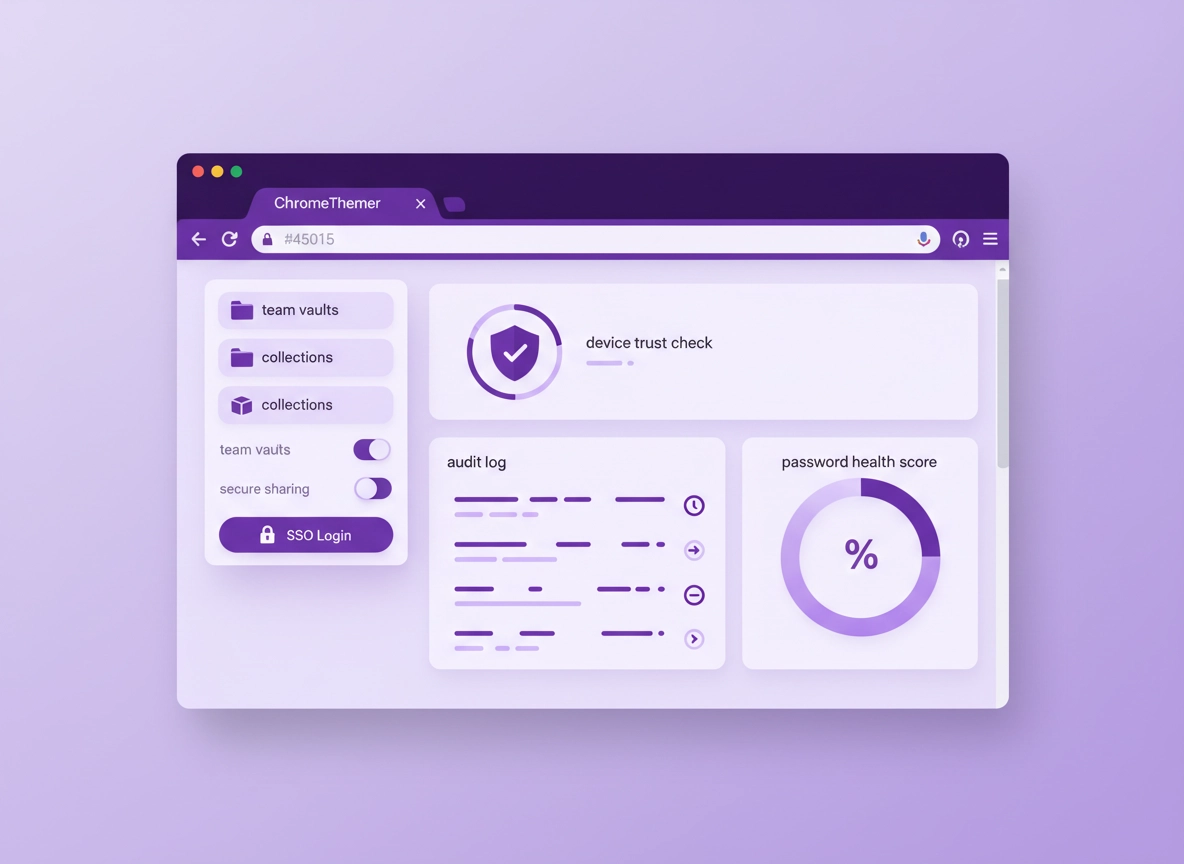
What this is (and why remote teams need it) .
Remote companies don’t fail security because they “don’t care.” They fail because access is everywhere and ownership is unclear.
A password manager for remote companies is more than a vault that saves logins. In a remote-first setup, it becomes an access layer: it controls who can use which accounts, how credentials are shared, what happens when someone leaves, and what audit evidence you can produce when a client asks, “Who had access to our data?”
Remote teams create three problems fast: credential sprawl (passwords in chats, docs, and personal browsers), shared SaaS accounts (one login for “marketing@” or a vendor portal), and device drift (unmanaged laptops, travel machines, personal phones, and contractors). A proper password manager solves those by combining strong authentication (MFA/passkeys), controlled sharing, and administrative visibility.
If you’re a Chrome-heavy team, a password manager usually lives as: (1) a Chrome extension for autofill and capture, (2) a desktop/mobile app for vault access and encryption operations, and (3) an admin console for policy, provisioning, and reporting. Remote-company success comes from making those three parts work together and keeping “shadow password storage” out of Slack/Notion/Google Docs.
Related: If your team is already using Chrome’s built-in password features, read Chrome’s built-in password manager review and then compare it to third-party options in Chrome password manager vs third-party.
Key terms (quick definitions) .
- Vault / collection: A container for credentials. Remote teams use vaults to separate departments, clients, and environments.
- RBAC (role-based access control): Access based on roles (e.g., “Support,” “Finance,” “Contractor”) rather than individuals.
- SSO (single sign-on): Employees sign into the password manager using your identity provider (Google Workspace, Microsoft Entra ID, Okta, etc.).
- SCIM / directory sync: Automated user provisioning (create, update, disable users) based on your directory—critical for fast offboarding.
- Device trust / device approval: A control that requires new devices to be verified/approved before vault access is granted.
- Audit log: A record of access and admin actions used for incident response and compliance evidence.
Remote teams: the “why now” checklist .
If you recognize any of these, you’re already paying the cost of not standardizing:
- Passwords are sent in chat “just this once,” then the message gets pinned forever.
- Someone leaves and you spend days rotating “unknown” logins across SaaS tools.
- Shared accounts don’t support MFA cleanly, so you disable MFA or reuse a phone number.
- Contractors need access quickly and you don’t want them in your whole directory.
- Clients ask for security posture (SOC 2-ish questions), and you can’t prove access controls.
- You’re adopting passkeys, but your team still has weak fallback passwords.
If your company fits that profile, this guide focuses on what actually works: a repeatable rollout process, a feature evaluation that maps to remote reality, and the policies that prevent “we bought it but nobody uses it.”
Before you start (fast checks) .
Before you evaluate vendors or start migrating passwords, do these quick checks. They prevent the two most common rollout failures: (1) choosing the wrong plan (no admin controls), and (2) migrating chaos into a new tool.
Related: If this is part of a broader remote security push, pair it with Chrome privacy for remote work and the baseline guidance in Chrome privacy & security settings overview.
- Fast check #1: list shared accounts. Write down every “team login” (finance, ads, social, vendor portals, hosting, email aliases). These are your first migration targets.
- Fast check #2: define your identity provider. If you use Google Workspace or Microsoft Entra ID, you should strongly prefer SSO-capable plans for admin control.
- Fast check #3: decide how you’ll handle MFA. Your password manager should support MFA for vault access, but you also need a plan for MFA on the underlying SaaS accounts.
- Fast check #4: decide what “offboarding” must do. At minimum: disable vault access immediately, transfer ownership, and rotate shared credentials.
- Fast check #5: Chrome extension policy stance. Remote companies often allow too many extensions. Your password manager is a high-trust extension; treat it like one (see the extension security note below).
What to decide before you buy .
“Password manager” can mean a lot of things. Remote companies should decide which model they need:
- Personal-first model (not ideal for remote companies): great UX, but weak admin controls. Offboarding becomes manual and error-prone.
- Team/business model (recommended for remote companies): vaults, sharing controls, admin console, and basic audit logs.
- Enterprise model (for compliance / regulated / client pressure): SSO, SCIM, advanced logs, device trust, and stronger policy enforcement.
If you’re unsure, compare business vs personal plans here: Password manager business vs personal plans, then look at pricing signals in enterprise password manager pricing. If leadership wants ROI language, you’ll also like: password manager ROI and TCO breakdown.
Extension safety note (quick) .
A password manager extension often needs broad capabilities (autofill, capture, page interaction). That’s normal. What matters is whether the vendor has strong security engineering, a clear track record, and admin controls. For a remote org, it’s reasonable to treat password manager extensions as “approved core extensions,” and restrict everything else.
Related: If you want a cleaner extension strategy for remote teams, use Chrome extension security check plus the practical guardrails in extension permissions guide.
Step-by-step rollout (remote-company playbook) .
This rollout plan is designed for distributed teams with a mix of employees, contractors, multiple time zones, and Chrome as the daily driver. The goal is to get adoption + control quickly without breaking workflows.
- 1 Pick the right tier first (don’t underbuy). Remote companies should prioritize SSO/MFA, team vaults, sharing controls, and audit logs. If you need automated offboarding, include SCIM/directory sync.
- 2 Define your vault structure. Create vaults/collections by function (Finance, Marketing, Engineering), by client, or by environment (Production vs Staging). Keep it simple; you can refine later.
- 3 Create sharing rules. Decide who can share, whether sharing requires approval, and whether “export” is allowed. Remote teams should default to “share via vault membership,” not copying passwords.
- 4 Integrate SSO + enforce MFA. Make vault access require strong auth. If your provider supports passkeys, adopt them for the vault sign-in where possible.
- 5 Pilot with a high-impact group. Choose 10–20 people who touch shared accounts daily (ops, finance, marketing). Migrate shared logins first and measure support friction.
- 6 Migrate shared accounts and lock down old storage. Move the “team passwords” out of docs/spreadsheets/chats into controlled vaults. Then remove access to the old sources.
- 7 Roll out Chrome extension + onboarding checklist. Provide a 10-minute onboarding doc: install extension, sign in via SSO, enable autofill, import personal logins if allowed, and verify recovery setup.
- 8 Enable monitoring: health checks + breach alerts. Use password health dashboards and breach monitoring to identify risky reuse and weak passwords.
- 9 Plan offboarding as a “button press.” Confirm your process disables vault access immediately and triggers shared-password rotation for the vaults that person touched.
- 10 Set the baseline: “no credentials in chat.” Make vault sharing the default. If someone asks for a password, the answer is “I’ll add you to the vault.”
What “success” looks like: Shared accounts are fully inside team vaults, new hires get access via groups (not manual sharing), offboarding disables access instantly, and “passwords in chat” stops because there’s a faster alternative.
Related: For remote-team workflows, also see password manager for Chrome remote teams and the broader buyer context in best password manager for remote work (Chrome).
Common variations (remote-company friendly) .
- Windows / ChromeOS: Usually simplest. Standardize Chrome profiles and require OS screen locks. If devices are managed, push the extension via policy.
- macOS: Focus on device hygiene (updates, screen lock) and ensure the browser extension integrates cleanly with the desktop app if required.
- Android / iPhone: Make sure autofill is enabled at the OS level. Remote teams often do approvals on mobile—don’t ignore this in your pilot.
Remote-company vault design (simple templates) .
The biggest design mistake is over-structuring. You want a model that supports (a) least privilege, (b) easy onboarding, and (c) clean offboarding. Here are three templates that scale:
- Department vaults: Finance, Marketing, Sales, Support, Engineering. Easy for small/medium remote teams.
- Client vaults: One vault per client + a “Shared Ops” vault. Best for agencies and service teams.
- Environment vaults: Production, Staging, Internal Tools. Best for engineering-heavy orgs with strict separation.
If you are an agency-style remote org, you’ll also like: password manager for agencies. If you’re SaaS-heavy, this adjacent guide often maps well: password manager for SaaS companies.
Advanced controls (SSO, SCIM, RBAC, device trust) .
This is where remote companies earn the “adult” security benefits. A password manager can be a convenience tool, or it can become a predictable access system. The difference is policy + automation.
Related: If you manage Chrome at company level, see Chrome Enterprise guide and the deployment overview in Chrome Enterprise deployment guide.
1) SSO (single sign-on) done correctly .
SSO makes your password manager behave like an enterprise app: it inherits your identity rules (MFA requirements, conditional access, session limits, geo rules). Remote companies benefit because you avoid “extra master passwords” floating around and you can disable access centrally.
- Best practice: Require MFA at the identity provider and avoid exceptions.
- Remote-team bonus: Add a device trust requirement if your IdP supports it (approved device, compliance state, etc.).
- Anti-pattern: SSO for sign-in, but still allowing weak fallback recovery that bypasses policy.
If you’re comparing setups, see: password manager single sign-on and the directory angle in directory integration.
2) SCIM / directory sync (the offboarding superpower) .
Remote companies churn contractors, rotate roles, and operate asynchronously. Manual access changes don’t scale. SCIM/directory sync turns onboarding/offboarding into a near-automatic process: when someone joins, they get access based on group membership; when they leave, access is disabled immediately.
- Best practice: Use groups (e.g., “Finance,” “Support,” “Contractors”) and map groups to vault permissions.
- Remote-team bonus: Use time-boxed contractor groups. When the contract ends, disable the group membership and rotate shared credentials in that vault.
- Anti-pattern: One-off manual invites and “just share it with them.” That’s how access becomes untraceable.
3) RBAC: how to avoid oversharing .
RBAC sounds complex, but the remote-company rule is simple: most people don’t need admin powers. Use roles to separate responsibilities:
- Admins: policy, integrations, recovery, and global settings (very few people).
- Vault managers: manage membership and structure for a vault/collection (department leads).
- Members: can use items but can’t change membership (most employees).
- Contractors/guests: limited vault access, often without export permissions.
For a deeper dive, use: role-based access control and the practical sharing angle in password sharing securely.
4) Sharing controls that remote teams actually need .
Remote teams often confuse “sharing” with “copying the password.” A mature workflow is: grant access to the item without exposing the raw secret (when supported), or share via vault membership so you can revoke later.
- Prefer: vault-based sharing + role permissions + audit logs.
- Allow only when necessary: one-off item shares with expiry (great for contractors).
- Avoid: copy/paste to chat, screenshots, or spreadsheets.
If your team uses shared accounts a lot, build your workflow around team collaboration features and plan recovery for edge cases with emergency access.
5) Audit logs, reporting, and “show me evidence” moments .
Remote companies increasingly face security questionnaires—even if they aren’t “officially” pursuing compliance. A password manager with audit logs helps answer: Who accessed what? Who changed permissions? When was a password rotated? Who exported data?
- Minimum bar: admin actions + vault membership changes.
- Better: item access logs + sharing events + policy changes.
- Best (enterprise): log exports, SIEM integration, and alerting for risky actions.
6) Device trust + remote devices .
Remote companies often allow a “second laptop” or personal device for convenience. That’s not automatically wrong—but you need visibility and control. Device trust/approval can prevent silent account takeover by requiring new devices to be verified before vault access is granted.
- Recommended baseline: require device approval for new sign-ins.
- Remote-team bonus: require re-approval when the browser profile changes or the device is wiped.
- Pair with: Chrome profile hygiene (separate work profile, limited extensions).
Related: If you’re standardizing Chrome profiles, see Chrome profile security settings and the enterprise angle in managed browser security.
Feature checklist (remote-company “must-haves”) .
Use this checklist when comparing options:
- Chrome extension quality: reliable autofill, clear capture prompts, strong permission model.
- Team vaults / collections: share access without copying secrets around.
- SSO + MFA: central identity control + strong authentication.
- SCIM / directory integration: automated onboarding/offboarding.
- RBAC: roles for admins, managers, members, contractors.
- Audit logs: admin events and access logs for accountability.
- Security extras: password health checks, breach monitoring, secure notes, and (optionally) hardware key support.
- Recovery: safe recovery options and emergency access for continuity.
- Integrations: API support if your IT stack needs automation.
Deep dives you might want next: password health checks, dark web monitoring, secure notes feature, hardware key support, and API integration.
Common alternatives users compare .
- Chrome built-in password manager vs dedicated password managers: comparison guide
- Free vs paid plans: free vs paid comparison
- Business ROI and cost: cost comparison and subscription models
- Remote security stack decisions: best security tools for Chrome
Privacy & security notes (Chrome + extensions) .
Password managers are high-trust tools. Remote-company security comes down to two layers: (1) vault security (encryption, authentication, recovery) and (2) browser reality (extensions, profiles, session handling). You want both layers strong because attackers increasingly target the browser.
Impact: Changes how credentials are stored, shared, audited, and recovered across devices and team members.
Related: For browser-level security hardening, start with Chrome hardening guide and the practical “do this first” list in browser hardening checklist.
Recommended baseline settings (remote companies) .
- Vault sign-in: SSO + MFA (or passkeys where available). No exceptions for admins.
- Sharing: vault membership first; limit one-off sharing; disable “export” for most roles.
- Offboarding: disable access immediately and rotate shared passwords in affected vaults.
- Device access: require approval for new devices; encourage separate work Chrome profile.
- Monitoring: enable password health checks and breach monitoring; set a monthly rotation policy for shared accounts.
Recommended settings by goal .
| Goal | Recommended setting | Tradeoff | Best for |
|---|---|---|---|
| Balanced | SSO + MFA, team vaults, restricted sharing, basic audit logs | Some setup work, training required | Most remote companies |
| Maximum security | SSO + strong MFA/passkeys, SCIM, device approval, strict export controls, advanced logs | More admin effort, stricter workflows | Client-driven security / compliance pressure |
| Compatibility | Flexible sharing, fewer restrictions, lighter policies | Higher risk of sprawl and “who has access?” uncertainty | Very small teams (short-term only) |
Don’t forget the “Chrome layer” .
Even the best vault can be undermined by weak browser hygiene. Remote companies should standardize a few basics:
- Separate work profile: keep work logins in a dedicated Chrome profile to reduce cross-contamination from personal extensions and sites.
- Reduce extension surface area: approve only essential extensions (password manager, conferencing, productivity tools) and review permissions.
- Keep Chrome updated: security patches matter, especially for remote devices.
- Use Chrome security features: enable Safe Browsing and run periodic checkups: Chrome security checkup.
- Watch for breach signals: if Chrome warns about compromised passwords, treat it as a trigger to improve vault adoption: password leak detection.
Troubleshooting (sprawl, duplicates, access issues) .
Related: If you suspect an unsafe extension or browser compromise, start with extension security check and the malware track at remove malware from Chrome.
If adoption is low (“people keep using chat/docs”) .
This is almost never a “people don’t care” problem. It’s usually a workflow problem. Fix it by making vault sharing faster than asking.
- Make shared accounts the first migration: when the team feels immediate relief, adoption follows.
- Create a clear rule: “If you need access, we add you to the vault. We don’t paste passwords.”
- Give a short onboarding checklist: install extension, sign in, enable autofill, enable recovery, done.
- Remove the old source: lock the spreadsheet/doc where passwords used to live (read-only or restricted).
If you have duplicates after migration .
Duplicates happen when multiple people imported personal vaults or when shared accounts existed in multiple places. Fix duplicates with ownership + consolidation:
- Assign owners: every shared credential needs a named owner (department lead or service owner).
- Normalize naming: “Vendor – Account – Environment” and add notes/tags.
- Use health tools: run password health checks to find reused/weak passwords and prioritize fixes.
Pair this with: password health check and if you’re tracking breach exposure: dark web monitoring.
If contractors need access without “being everywhere” .
Contractors are common in remote companies and they’re a big access-control challenge. The safest pattern is: create a “Contractors” role/group, grant access only to the vaults they need, and use expiration/time-boxing when possible.
- Limit scope: one vault/collection per project/client.
- Avoid exports: restrict export permission unless it’s absolutely required.
- Rotate credentials: rotate shared passwords when the contract ends (or remove access and rotate on the next cycle).
If offboarding is still scary .
Offboarding should be predictable. If it isn’t, it means your setup is missing either automation (SCIM/directory sync) or a rotation workflow. Start here:
- Disable access immediately: SSO + directory disable should cut vault access fast.
- Transfer ownership: ensure shared vaults have owners who can rotate credentials.
- Rotate the right things: rotate shared accounts the person could access; don’t rotate everything blindly.
- Set up emergency access: so you’re not locked out if an admin disappears.
Helpful deep dives: recovery options, emergency access, and if you’re building the whole process: deployment guide.
If autofill isn’t working reliably in Chrome .
Autofill issues usually come from one of three causes: (1) multiple password tools fighting, (2) a site’s login flow changing, or (3) Chrome’s built-in password manager interfering.
- Rule out conflicts: disable other autofill/password extensions.
- Decide on one system: either commit to the third-party manager or clearly define when Chrome built-in is allowed.
- Check browser settings: autofill settings and profile configuration can impact behavior.
If you’re migrating away from Chrome’s built-in storage, follow: migration guide, and if you need to change Chrome’s behavior: disable Chrome password manager.
FAQ .
-
helpDo remote companies need an enterprise plan, or is a team plan enough?Many remote companies start with a team/business plan if it includes team vaults, controlled sharing, and an admin console. You typically “need” enterprise when you require SSO, SCIM/directory sync for automated offboarding, advanced audit logs, or device trust. If you face client security questionnaires or you manage contractors at scale, enterprise features quickly pay for themselves in saved time and lower risk.
-
helpIs Chrome’s built-in password manager good enough for remote teams?Chrome’s built-in manager can be convenient for individuals, but remote teams usually need stronger sharing workflows, role-based access, audit logs, and offboarding controls. If you must manage shared accounts and prove “who had access,” a dedicated team password manager is usually the better fit. Start by comparing the limitations and upgrade paths before standardizing across the company.
-
helpHow do we share passwords with contractors safely?Avoid sending passwords directly. Instead, grant contractors access via a limited vault/collection with the minimum permissions required, and remove access immediately when the contract ends. If your tool supports expiring shares or access approvals, use them for one-off needs. Rotate shared credentials on a schedule (or at offboarding) for any vault the contractor could access.
-
helpWhat features matter most for remote-company security?Prioritize SSO + MFA (or passkeys), team vaults with RBAC, secure sharing controls, audit logs, and automated onboarding/offboarding (SCIM/directory sync). For remote devices, device approval/trust is a major upgrade. Add password health checks and breach monitoring to continuously reduce weak or reused credentials.
Sources & further reading .
- Google Chrome Help Center
- Google: Manage passwords in Chrome (overview)
- NIST SP 800-63B: Digital Identity Guidelines (authentication best practices)
- CISA resources (security hygiene and guidance)
- OWASP (web security context and common risks)
Disclosure: Some pages may mention tools or services. Recommendations are editorial and based on testing and practical rollout reality.